What to Do If Roblox Keeps Crashing: Troubleshooting Guide
Urgent, practical troubleshooting from Blox Help to diagnose and fix Roblox crashes across all platforms. Learn quick checks, a step-by-step fix flow, and prevention tips to get back to gameplay fast.


Roblox crashes are most often caused by outdated software, a corrupted cache, or unstable network. Start by restarting your device, updating the Roblox app, and checking your internet. If the crash continues, try clearing the cache and temporarily disabling overlays. For a complete workflow, follow the full step-by-step troubleshooting guide below.
Why Roblox Keeps Crashing
If you’re wondering what to do if roblox keeps crashing, you’re not alone. The most common culprits are outdated software, a corrupted cache, or a spotty internet connection. The Blox Help team has analyzed thousands of crash reports and found these issues at the top across PC, Mac, iOS, Android, and Roblox on consoles. By understanding the root causes, you can fix most crashes in minutes and return to your game without losing progress. According to Blox Help, many crashes are solvable with a few targeted steps, not a full reinstall. This guide is designed for quick wins first, followed by deeper checks if needed.
In practice, you’ll want to verify that you have the latest Roblox build, a clean cache, and a stable network. These factors account for the vast majority of crashes reported by players. The goal is to get you from a crash to a playable session with minimal risk to your save data. The information here reflects Blox Help’s analysis of Roblox crash patterns and real-world fixes for beginners and seasoned players alike.
Common Causes at a Glance
Crashes happen for a mix of software, hardware, and network reasons. Here’s a quick map of the most frequent culprits you’ll encounter:
- Outdated Roblox app or system software can trigger incompatibilities.
- Corrupted cache or saved data may lead to startup failures or random freezes.
- Unstable network conditions, high latency, or packet loss disrupt online play.
- Background overlays, antivirus software, or other security tools can interfere with Roblox processes.
These causes span all platforms, so your troubleshooting path remains similar whether you play on PC, Mac, mobile, or console. The goal of this section is to arm you with a mental model of what to rule out first. As you test each item, you’ll narrow the likely culprit and move to more targeted fixes with confidence.
Quick Checks You Can Do Right Now
Use these fast checks to rule out obvious issues before diving deeper. Each item should be completed in about 5–10 minutes and can be mixed with other steps without risk to your data.
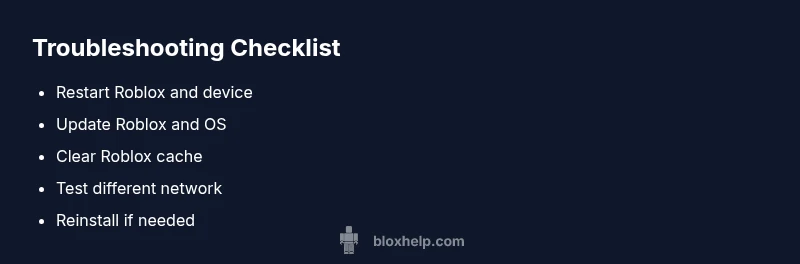
- Restart Roblox and your device to reset temporary states.
- Check for Roblox app updates and install any available patches.
- Test a different network (mobile hotspot, another Wi-Fi) to see if latency or ISP routing is the blocker.
- Clear Roblox cache on your device to remove corrupted data that can cause crashes.
- Temporarily disable overlays or nonessential background apps that may conflict with Roblox.
- If you have security software, ensure Roblox is whitelisted or temporarily disable only during testing (re-enable afterward).
If these checks don’t resolve the issue, move to the deeper checks on drivers, storage, and reinstall paths. The quick wins are designed to be low-risk and high-reward.
Deep Dive: Software Conflicts and Resource Limits
Software conflicts and limited system resources are common hidden culprits behind Roblox crashes. When drivers are out of date, or when background applications aggressively use CPU or memory, Roblox can crash or fail to render correctly. Check for driver updates for your GPU and network adapter, and close any nonessential programs before launching Roblox. Overlays from recording software, chat apps, or third-party utilities can interfere with Roblox’s rendering or input handling, causing a crash midgame. If you’ve recently installed new software, try temporarily disabling it to test stability.
Additionally, limited RAM or storage can degrade performance. On low-end devices, ensure there’s free memory available and that Roblox isn’t competing with large background processes. In some cases, resetting Roblox data or reinstalling the app cleanly resolves conflicts that a simple cache clear can’t address.
Network and Server Factors
Many crashes arise from network issues rather than the game itself. Start by testing your connection speed and stability: a fast download speed but high latency can still cause gameplay hiccups. If you’re on Wi-Fi, try a wired connection when possible, or move closer to the router to reduce interference. Check your router’s firmware and reboot it if it’s been running for a long time. Then verify Roblox server status on their official status page or community feeds to see if the problem is server-side. If you play across multiple devices, test the same account on a different device to differentiate device issues from network problems.
In some cases, VPNs or proxy servers can add hops and cause intermittent disconnects. Temporarily disabling VPNs for Roblox testing can reveal if routing is at fault. If you must use a VPN for privacy, choose a provider with low latency specifically for gaming.
Prevention and When to Seek Help
Prevention is better than fix, so adopt a routine to keep Roblox stable. Regularly check for app updates, maintain a clean cache, and keep drivers current. Clear a weekly cache cleanup schedule and monitor background processes during play. Create a backups-and-sync plan so you don’t lose progress if a crash happens.
If you’ve tried the structured steps above and Roblox still crashes consistently, it’s time to seek help. Collect crash logs, the exact error messages, device model, OS version, Roblox version, and a short description of what you were doing when the crash occurred. Share these details with Roblox Support or post to the Blox Help troubleshooting community for guided assistance. In most cases, professional diagnostics are only necessary for persistent, device-specific issues or hardware faults.
Steps
Estimated time: 30-60 minutes
- 1
Restart Roblox and Device
Close Roblox completely, exit to your home screen, and reboot your device. Reopen Roblox and test if the crash recurs. This resets temporary memory and can clear minor glitches that trigger early crashes.
Tip: Ensure you save progress before restarting to avoid data loss. - 2
Update Roblox and System Software
Check for Roblox updates and install any available patches. Do the same for your operating system or device firmware. A fresh update often includes crash fixes and performance improvements.
Tip: Restart after installation to ensure updates are applied. - 3
Clear Roblox Cache
Clear the Roblox cache or app data to remove corrupted files that may trigger a crash on startup or during gameplay. This is a safe, non-destructive step that often resolves stubborn crashes.
Tip: If you’re on mobile, ensure you’re clearing app cache within the OS settings rather than deleting the app data manually. - 4
Check Network Connection
Test your network by running a speed test and trying a different network if possible. A stable, low-latency connection is crucial for consistent Roblox gameplay.
Tip: Wired connections or 5 GHz Wi-Fi typically perform better for gaming. - 5
Disable Overlays and Background Apps
Turn off nonessential overlays (screen recording, chat overlays) and quit background apps that could interfere with Roblox. Some software can conflict with rendering or input handling.
Tip: Re-enable them one at a time to identify the culprit. - 6
Reinstall Roblox if Needed
If crashes persist after all checks, uninstall Roblox and perform a clean reinstall. This removes lingering files that may be causing recurring crashes.
Tip: Back up saved games or progress if applicable before reinstall.
Diagnosis: Roblox game or app crashes on launch or during play
Possible Causes
- highOutdated Roblox app or system software
- mediumCorrupted cache or saved data
- highIntermittent network or high latency
- mediumConflicts with background apps, overlays, or antivirus
Fixes
- easyUpdate Roblox to the latest version
- easyClear Roblox cache and reset app data
- easyTest network stability and switch networks
- mediumDisable overlays and temporarily disable antivirus/firewall or add exception
- mediumReinstall Roblox if issues persist
Questions & Answers
Why does Roblox crash on startup on my device?
Startup crashes are often caused by outdated software, corrupted cache, or network issues. Verify updates for Roblox and your OS, clear cache, and test a different network. If the problem persists, proceed with the full troubleshooting flow.
Startup crashes are usually due to software or network issues. Update, clear cache, test networks, then follow the full guide if needed.
How do I clear Roblox cache on PC or mobile?
On PC, clear temporary Roblox files from the AppData folder and restart. On mobile, go to the app settings and clear cache data. This removes corrupted files that can cause crashes.
Clear cache in your device's app settings or Roblox folder, then restart Roblox.
Can antivirus or overlays cause Roblox to crash?
Yes. Security software or overlays can interfere with Roblox processes. Temporarily disable overlays and consider adding Roblox to the antivirus whitelist during testing.
Security software or overlays can trigger crashes; disable or whitelist Roblox during testing.
Will reinstalling Roblox delete my games?
A reinstall removes only Roblox app files. Your saved games typically stay in your Roblox account, but local saves may be affected. Verify cloud saves if available.
Reinstalling won’t delete your Roblox games stored in your account, but local saves might be affected.
How can I test if the issue is network-related?
Run a speed test, try a wired connection, and switch networks if possible. If crashes stop on a different network, the issue is network-related.
Test with a different network to see if crashes stop, which points to your connection.
Where can I get help if nothing works?
If crashes persist after following this guide, contact Roblox Support and share crash logs, your device model, OS version, Roblox version, and a detailed repro case.
If the problem continues, contact Roblox Support with details and crash logs.
Watch Video
The Essentials
- Restart first to clear transient issues
- Update both Roblox and OS before deeper fixes
- Clear cache to remove corrupted data
- Test network and server status to rule out external causes
- Reinstall if necessary and collect crash data for support