Why is My Roblox Game Unavailable? Troubleshooting Guide
This urgent, step-by-step guide helps Roblox players diagnose why a game is unavailable. From outages to network fixes, follow practical steps to regain access and keep playing.


Most often, a Roblox game becomes unavailable due to a service outage, local network problems, or account restrictions. Start by checking Roblox’s status page for outages, verify your internet connection, and ensure you have the correct game permissions. If problems persist, try another device or network to confirm where the issue lies.
why is my roblox game unavailable
Roblox players often ask: why is my roblox game unavailable? The short answer is not always the same, but most cases boil down to outages, connectivity problems, or account-related restrictions. According to Blox Help, starting with the official status page is essential because a server-side outage can affect entire regions and game sessions. If the status looks green but you still can't load a game, move on to local checks. Verify you have a working internet connection, a compatible device, and the correct Roblox account login. If you rely on a VPN, try disconnecting it to see if latency or blocked routes are causing the issue. While investigating, keep in mind that Roblox sometimes rolls out updates that temporarily disrupt play; this is not a permanent ban or a personal fault. The more you narrow down the failure point, the faster you can recover access.
Quick checks you can perform first
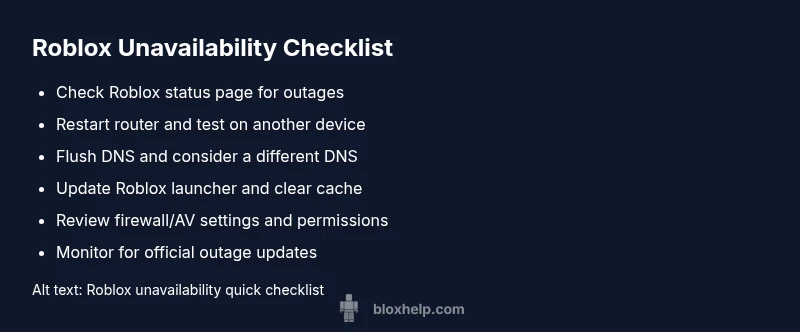
Before diving into deeper troubleshooting, perform these quick checks. First, visit the Roblox status page and real-time outage feeds to confirm whether the platform is experiencing service interruptions (this is the most common cause). Next, restart or reset your home network: reboot the modem and router, then reconnect to Wi-Fi or Ethernet. If possible, test on a different device on the same network to rule out device-specific issues. Disable any VPNs or proxy services that might block Roblox traffic, and ensure the device time and date are correct, as clock skew can cause login problems. Finally, sign out of Roblox and sign back in to refresh your session. These steps are fast, reversible, and often resolve temporary faults.
Common server and network issues
Server-side problems include outages, maintenance windows, and regional routing problems that can make a game appear unavailable. In many cases, only one specific game is affected, while others load normally. Network issues like high latency, packet loss, or strict firewall rules can prevent game data from reaching Roblox servers. On the device side, outdated apps, corrupted cache, or misconfigured DNS can also block access. If you notice error messages such as 'Failed to load' or 'Network error', capture screenshots and note the time. This information helps verify whether the problem is sustained or intermittent and whether it aligns with known outages. The core principle remains: identify where the failure starts—client device, network, or Roblox servers.
Platform-specific causes and permission checks
Different platforms (PC, Mac, iOS, Android, Xbox) have unique quirks. On consoles, ensure there are no parental controls or account age restrictions blocking game access. On PC/Mac, verify the Roblox launcher is up to date, and that required permissions (file access, firewall exceptions) are granted. If you recently changed regions, account status, or payment methods, those changes can trigger temporary access issues. In all cases, re-authenticating and re-launching the Roblox client after a clean restart often clears platform-specific glitches. If a game is widely unavailable on a platform during maintenance, there is little you can do beyond waiting for Roblox to complete the update.
How to test and isolate the problem
To isolate the cause, start by testing with a simple check: launch a different game or a test environment to see if the issue is universal or game-specific. If other games load fine, the problem is likely with the particular title, its permissions, or its creator’s server. If everything fails, your network or Roblox itself is likely at fault. Try connecting from a mobile hotspot or a different home network to compare results. Document the outcomes, times, and devices used. Advanced users can use network tracing tools to measure latency to Roblox endpoints, but avoid modifying system-level settings without guidance. The objective is to determine whether the fault lies with the user’s setup, the game, or Roblox servers.
Recovery steps and prevention tips
If you confirmed a Roblox outage, patiently wait for official updates and avoid making drastic changes to your devices. When an outage is not the cause, begin recovery: clear cache or reinstall the Roblox launcher, reset router, and re-login after a fresh start. Ensure your firewall or antivirus isn’t blocking Roblox traffic, whitelist the launcher, and keep your system time accurate. Future-proof your connection by using a stable DNS provider, enabling automatic updates, and checking for firmware updates on your router. Finally, keep a small incident log to track outages, fixes, and remedies so you can troubleshoot faster next time.
Steps
Estimated time: 15-30 minutes
- 1
Check Roblox status and announcements
Open the Roblox status page and official social channels to confirm if a platform outage or maintenance is ongoing.
Tip: Bookmark the status page for quick checks during future outages. - 2
Restart your network
Power cycle your modem and router, then reconnect devices to the network to refresh your connection.
Tip: Use a wired connection if possible for stability. - 3
Test on another device/network
Try loading Roblox on a different device or network to identify if the issue is device- or network-specific.
Tip: If it works on another network, your prior network settings are likely at fault. - 4
Check device time and DNS
Ensure the device time is correct and flush DNS or switch to a reliable DNS like 1.1.1.1.
Tip: Incorrect time can block authentication and session tokens. - 5
Update launcher and clear cache
Update the Roblox launcher if an update is pending and clear local cache to remove corrupted files.
Tip: Uninstalling and reinstalling can resolve stubborn cache issues. - 6
Review firewall/AV settings
Verify Roblox has firewall exceptions and isn’t blocked by antivirus software.
Tip: Temporary disable security tools only while testing. - 7
Rejoin and monitor
Launch Roblox again, sign in, and join a game to verify if the issue is resolved.
Tip: If it fails again, wait for confirmed updates from Roblox.
Diagnosis: User reports 'Why is my Roblox game unavailable' or cannot load a specific game.
Possible Causes
- highRoblox server outage or maintenance
- highLocal network connectivity issues
- mediumIncorrect device time or DNS issues
- lowAccount-level restrictions or regional blocks
Fixes
- easyCheck Roblox status page and wait for outage to resolve
- easyRestart router, switch networks, and reconnect
- easyFlush DNS and clear DNS cache on device, or use a different DNS (e.g., 1.1.1.1)
- easySign out/in and verify account permissions; check for age/restriction blocks
- mediumIf the game is developer-owned, try a different game or contact developer
Questions & Answers
Is Roblox down right now?
Outages happen from time to time. Always start by checking the Roblox status page and official channels. If the outage is confirmed, wait for Roblox to restore services before taking further steps.
Roblox outages happen. Check the status page and wait for updates before continuing.
Why can't I join a specific game when others load fine?
A game-specific issue can arise from the game's servers, developer permissions, or regional routing. Try loading a different game to confirm if the problem is title-specific, and check the game's official page for updates.
If other games load, the issue is likely with that game or its servers.
Could my VPN cause Roblox to be unavailable?
Yes. VPNs or proxies can interfere with Roblox traffic and cause disconnections or load failures. Disable VPNs temporarily to test access.
VPNs can block Roblox traffic; disable it to test.
Will clearing DNS caches help fix the issue?
flushing DNS caches helps resolve DNS resolution problems on many networks. If you’re seeing 'Network error' messages, clearing DNS or switching to a reliable DNS can fix the problem.
Flushing DNS can fix resolution errors in many cases.
What should I do if the outage lasts for hours?
If the outage persists, monitor official Roblox channels for updates. Avoid drastic changes to devices during an outage, and plan to try again later once Roblox confirms restoration.
If it lasts hours, wait for official updates and try again later.
Watch Video
The Essentials
- Check Roblox status first to rule out outages.
- Differentiate between game-specific and platform-wide issues.
- Test across devices and networks to isolate the cause.
- Document steps and monitor for official outage updates.