Why Roblox VC Not Working? Step-by-Step Troubleshooting
Facing Roblox VC issues? This urgent guide covers permissions, updates, devices, and network checks to fix why your Roblox voice chat isn't working today.


The most likely causes are permissions, an outdated Roblox client, or incorrect mic input settings. Start by ensuring your internet connection is stable, then verify microphone permissions for Roblox and the OS. Update Roblox, select the correct mic, and test in-game. If it persists, try a different headset and rejoin a server to rule out a temporary issue.
Understanding Roblox VC Basics
Voice chat (VC) in Roblox is a built-in feature that lets players communicate in real-time using a microphone. If you’re wondering why is my roblox vc not working, the first thing to understand is that VC relies on a combination of in-game settings, system permissions, and network health. The Blox Help team notes that most VC problems stem from permissions, outdated software, or input device misconfigurations. By ensuring your setup meets Roblox's requirements, you dramatically reduce the chances of persistent issues. This guide uses practical checks that apply to Windows, macOS, and common gaming setups, and aims to get you back in voice chat quickly.
Common Causes When VC Isn’t Working
When VC fails, it’s usually due to one or more overlapping issues. A modern PC setup requires correct OS microphone permissions, a Roblox client that’s up to date, and an active VRM/voice channel in-game. In some cases, browser or streaming software can intercept mic input. Based on Blox Help Analysis, 2026, the most frequent culprits are blocked permissions, outdated drivers, and selecting the wrong input device. Less common but possible causes include VPNs, firewalls, or server-side limitations that disable VC on certain games or regions.
Quick Checks You Can Do Right Now
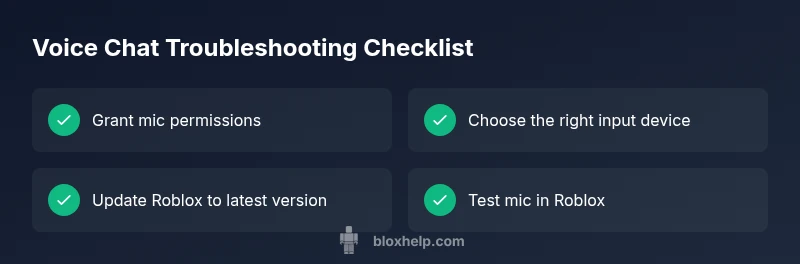
- Verify your microphone is enabled in the operating system and that Roblox has permission to access it. In Windows, go to Settings > Privacy > Microphone and confirm Roblox is allowed. On macOS, open System Preferences > Security & Privacy > Privacy > Microphone and tick Roblox.
- In Roblox, open Settings > Audio and ensure the correct Input Device is selected and the volume is audible. Also mute/unmute to verify activity.
- Update Roblox to the latest version and restart the app. An outdated client can fail to establish VC connections or fail to negotiate input devices.
- Test the mic in another app (Discord/Teams) to confirm the hardware works. If it fails elsewhere, the problem is hardware or driver-related.
- Temporarily disable VPNs or firewalls that might block microphone data, then recheck VC.
In-Depth Diagnostics: When To Suspect Each Cause
If permissions are granted and VC still doesn’t work, test each component in isolation. If the mic works in other apps but not in Roblox, the issue is likely Roblox settings or game server restrictions. If no audio is detected anywhere, focus on the hardware or OS permissions. If the problem only occurs in certain games or servers, it might be a server-side issue or a regional block. In some cases, resetting your network (router/modem) and reconnecting can clear temporary routing problems that affect voice channels. Remember to document your steps so you can reproduce issues for support if needed.
Step-by-Step Fixes You Can Implement (Overview)
This section provides a concise overview of fixes. For a detailed, step-by-step implementation, see the dedicated STEP-BY-STEP block below. The fixes flow from simple checks to more involved actions, ensuring you don’t skip basic steps. As you work through fixes, test VC after each one to identify which change resolves the problem. If multiple fixes are needed, perform them in the order listed below to minimize backtracking.
Safety, Warnings, and Common Mistakes
- Do not disable essential system protections; adjust permissions rather than removing safeguards wholesale.
- Avoid plugging and unplugging devices during active game sessions to prevent driver conflicts.
- Always back up settings before making sweeping changes, especially network or firewall configurations.
- If you’re unsure about firewall or VPN changes, consult your network administrator or contact Roblox support for guidance.
Steps
Estimated time: 20-30 minutes
- 1
Check OS microphone permissions
Open your operating system’s privacy settings and ensure Roblox (and any browsers used for Roblox) have microphone access enabled. Without permission, Roblox cannot capture your voice even if everything else is configured correctly.
Tip: If permissions were recently changed, restart Roblox to apply the new settings. - 2
Verify the correct input device in Roblox
Launch Roblox, go to Settings, and confirm the selected microphone is the one you intend to use. Test the mic using the built-in test feature if available, and adjust volume levels.
Tip: Switch between USB headsets or built-in mics to identify the working device. - 3
Update Roblox to the latest version
Check for updates within the Roblox app or reinstall Roblox to ensure you’re running a version with the current VC support. Older builds may have compatibility issues with newer OS updates.
Tip: Back up your saved data if you’re reinstalling. - 4
Test mic outside Roblox
Open another communication app (Discord/Teams) to confirm the mic hardware and drivers are functioning. If it fails there too, the issue is hardware or driver-related.
Tip: Update audio drivers if available from the manufacturer’s site. - 5
Check network and firewall/VPN settings
Ensure your network isn’t filtering voice data. Temporarily disable VPNs and adjust firewall rules to allow Roblox traffic if needed.
Tip: Test VC after each change to isolate the cause. - 6
Rejoin or reset VC in-game
Leave the current voice channel, rejoin the game, and re-enter VC settings. Some servers require reinitialization to re-establish audio streams.
Tip: If the issue persists, try a different server or game to check for server-side restrictions. - 7
Consider hardware solution checks
If you’re using an external mic, try a different headset, or switch to a built-in mic to see if the problem is headset-specific.
Tip: Check for physical damage or loose connections. - 8
When to contact support
If you cannot resolve VC after all steps, contact Roblox Support with a summary of what you tried and your system specifications. Some issues require backend investigation.
Tip: Include the exact game and server name for faster troubleshooting.
Diagnosis: Voice chat not working in Roblox
Possible Causes
- highMic permissions blocked in OS
- highRoblox client outdated or corrupted
- highIncorrect input device selected in Roblox or OS
- mediumFirewall/VPN blocking mic data
- lowServer-side VC restrictions or outages
Fixes
- easyGrant microphone permissions for Roblox in the OS and in any browsers or launchers you use
- easyUpdate Roblox to the latest version and restart the app
- easyIn Roblox and the OS, select the correct input device and ensure the mic is not muted
- mediumTemporarily disable VPNs/adjust firewall rules to allow mic data to pass
- easyCheck Roblox status pages or test on a different server/game to rule out server issues
Questions & Answers
What are the first signs that Roblox VC is blocked by permissions?
If Roblox cannot access your mic, you’ll typically see no audio input in the in-game VC settings and the OS privacy prompt may not appear. Check OS and Roblox permissions and ensure the mic is allowed.
If you’re not getting any voice input, verify mic permissions in your OS and Roblox settings, then re-test in-game.
How can I test if my microphone is working with Roblox VC?
Use a different app (Discord, Teams) to confirm microphone function. If it works there but not in Roblox, focus on Roblox settings or server-related issues.
Test the mic in another app to confirm hardware is fine; if Roblox still fails, adjust Roblox input and server settings.
Why does VC work in some games but not others?
Some games or servers may disable VC or use incompatible voice channels. Check the specific game settings and server status.
If one game fails but others work, try a different server or contact support for that game's VC settings.
Is there a known Roblox VC outage I should check?
Occasional outages or maintenance can affect VC. Check Roblox’s official status pages or community channels for updates.
Look at Roblox status pages to see if voice chat is affected by maintenance.
Should I reinstall Roblox to fix VC?
Reinstalling can fix corrupted files but should be a last resort after trying permissions, updates, and input device checks.
Reinstall if everything else fails to repair a corrupted install.
When is it necessary to contact Roblox Support?
If you’ve systematically tried standard fixes and VC still doesn’t work, contact Roblox Support with details of your device, OS, game, and steps taken.
If nothing helps, reach out to Roblox Support with your troubleshooting steps.
Watch Video
The Essentials
- Verify mic permissions first
- Update Roblox and drivers regularly
- Select the right input device in OS and Roblox
- Test hardware with other apps before deep fixes
- If issues persist, check Roblox status and contact support