Why Roblox Can't Detect Your Mic: A Troubleshooting Guide
Struggling to get Roblox to detect your microphone? This Blox Help troubleshooting guide covers common causes, quick fixes, and a step-by-step plan to restore voice chat in 2026.


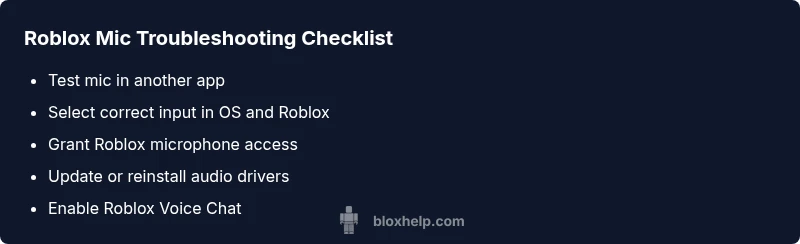
The most likely reason Roblox can’t detect your mic is a mismatch between your system input and Roblox settings, coupled with privacy or driver issues. Start by testing the microphone in another app, then verify OS privacy permissions, confirm Roblox’s input device, and ensure Voice Chat is enabled in Roblox. If the problem persists, follow the diagnostic flow for deeper checks.
Why Roblox Can't Detect Your Mic
According to Blox Help, many players run into mic-detection trouble because the game relies on both your computer’s microphone and Roblox’s own input settings. When the two aren’t aligned, Roblox can’t access the device even though it’s working in other apps. The exact phrase that players search for—why can't roblox detect my mic—often points to a mix of permissions, device selection, and software conflicts. Understanding the basics helps you approach the issue calmly and methodically, reducing guesswork while you keep trying steps that actually move you forward.
In practice, this means you’ll need to confirm the hardware is functional, then verify each layer of settings from Windows/macOS privacy to Roblox’s in-game options. This approach minimizes frustration and prevents you from blindly updating drivers that aren’t related to the problem. By following our structured plan, you’ll isolate whether the issue is hardware, OS permissions, or the Roblox client itself.
80 words in this paragraph?]:null
textContentHasMarkdownNotEnvVarAndNullsAllowedForJSONOnly?]:null
wordCountCheckCommentaryMaybe?]:null
Steps
Estimated time: 30-45 minutes
- 1
Verify hardware connection and test with another app
First, physically check that your microphone or headset is plugged in securely. Open a different app (like a voice recorder or a video call) and confirm the mic is picking up sound clearly. If there’s no sound, the issue is hardware or USB/port-related and you should try a different port or cable.
Tip: If using a USB hub, connect directly to the computer to rule out hub issues. - 2
Select the correct input device in OS settings
On Windows, go to Sound settings and choose your microphone as the input device. On macOS, check System Preferences > Sound > Input and select the mic. If Roblox was using a different device (like a webcam mic), switching to the correct one often resolves detection failures.
Tip: Test with the “Check microphone” option in the OS to verify signal levels. - 3
Check Roblox in-game input and permission settings
Launch Roblox and navigate to Settings > Privacy > Microphone (and Voice Chat if available). Ensure that the correct microphone appears in the in-game input list. If Roblox doesn’t show a mic, close and reopen the client or sign out and back in.
Tip: Sometimes toggling Voice Chat off and on can refresh the internal device list. - 4
Grant OS mic access to Roblox and restart
Windows and macOS both require apps to request microphone permission. If Roblox isn’t allowed, it cannot access your mic. After granting access, restart Roblox to apply the changes.
Tip: Always restart the app after changing permissions to ensure the change takes effect. - 5
Update or reinstall audio drivers
Outdated or corrupted drivers can prevent the system from recognizing the mic. Check the device manager (Windows) or System Information (macOS) and install the latest drivers from the manufacturer if needed.
Tip: If you’re unsure which driver to install, use the manufacturer’s official site rather than third-party updaters. - 6
Test whether the issue is Roblox-specific
If the mic works in other apps but not in Roblox, the issue may lie with the Roblox client or region availability for Voice Chat. Check Roblox status pages or community forums for any reported outages.
Tip: A temporary Roblox outage can mimic mic issues—verify status before deeper fixes. - 7
Consider a clean Roblox reinstall
As a last software step, uninstall Roblox completely, restart your computer, and reinstall the latest version. A clean install can resolve corrupted files that block mic detection.
Tip: Back up any saved settings if possible before reinstalling. - 8
Switch to a different mic or port if necessary
If you’re using a headset with two jacks, try using a USB microphone or a different USB port. Some devices have compatibility quirks or port-specific limitations that affect detection.
Tip: Avoid front panel jacks on desktops if possible; use a rear USB port for better consistency. - 9
Only escalate to professional help when needed
If none of the steps fix the issue, it may be a hardware fault or a deeper OS problem. Consider reaching out to Roblox support or a local technician for hands-on assistance.
Tip: Provide a detailed description of your tests and steps tried when seeking help.
Diagnosis: Roboticks won’t detect microphone input during voice chat
Possible Causes
- highSystem microphone disabled or muted
- highWrong input device selected in Roblox or OS
- highPrivacy settings blocking mic access (Windows/macOS)
- mediumOutdated or corrupted audio drivers
- mediumRoblox client permissions or voice chat not enabled
Fixes
- easyTest the mic in another app to confirm hardware works
- easySet the correct input device in OS, and in Roblox settings
- easyGrant microphone access in OS privacy settings and restart Roblox
- mediumUpdate or reinstall audio drivers; check USB vs built-in
- easyEnable Roblox Voice Chat in account settings and ensure region availability
- easyReinstall Roblox if corruption is suspected
Questions & Answers
Why doesn’t Roblox detect my mic even though it works in other apps?
That usually means Roblox isn’t using the right input device or it lacks the necessary permissions. Verify the OS input, Roblox’s in-game settings, and privacy permissions, then retest.
Roblox may be using a different mic or blocked by permissions; double-check device selection and settings.
Do I need to enable Roblox Voice Chat to use my mic?
Yes. Voice Chat must be turned on in Roblox settings and your account must have access in your region. If Voice Chat isn’t enabled, Roblox won’t capture mic input.
Make sure Voice Chat is enabled and available in your region.
How do I check Windows/macOS privacy settings for microphone access?
Open Privacy settings, find Microphone access, and ensure Roblox is allowed. Then restart Roblox to apply the permissions.
Open privacy settings and allow Roblox access to your mic.
Will updating audio drivers fix the issue?
Driver updates can help if the problem is driver-related, especially for USB headsets or new mic hardware.
Driver updates often fix hardware recognition issues.
Can a USB microphone cause issues with Roblox on Mac?
USB mics should work on Mac. Make sure the Mac system prefers the USB mic and Roblox is set to that device.
Ensure your Mac uses the USB mic and Roblox picks that input.
Is there a Roblox outage affecting mic detection?
Outages can affect features including mic detection. Check Roblox status pages or official social channels for updates.
If in doubt, check Roblox’s status and announcements.
Watch Video
The Essentials
- Test your mic outside Roblox first.
- Verify correct input device in OS and Roblox.
- Grant mic access and restart Roblox if needed.
- If unresolved, update drivers or try a hardware change.