Why Roblox Can't Access My Microphone: A Troubleshooting Guide
Urgent guide to fix Roblox microphone access issues across Windows, macOS, iOS, and Android. Learn permissions, settings, and steps to restore mic input for Roblox gameplay and voice chats.


Most Roblox microphone issues stem from permission blocks—either Roblox or your device is blocked from using the mic. Start by confirming Roblox has mic access, then verify system privacy settings, select the correct input in Roblox, and test with a different app to confirm the mic works. If this doesn’t help, try restarting Roblox and your device.
Why Roblox microphone access issues happen
For many players, the core question is why Roblox can't access my microphone. The problem usually starts with permissions or privacy settings, not with Roblox itself. When you launch Roblox and try to speak in a party or game, the app requests access to your microphone. If that request is blocked by the operating system, by Roblox, or by a hardware hiccup, you’ll hear silence in-game. According to Blox Help analysis, microphone access problems are among the most common stumbling blocks for new players and seasoned developers alike, especially after system updates or app reinstalls. The fix isn’t mysterious; it’s a systematic check of permissions, device input, and app settings. Keeping a calm, step-by-step approach helps you reclaim your voice chat and in-game communication quickly.
Quick checks you should perform first
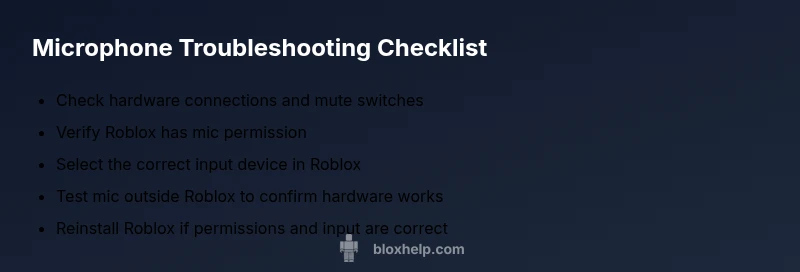
Start with the simplest checks before diving into settings deep-dives. Ensure the microphone is properly connected and not muted on the hardware. If you’re using a USB headset, try a different USB port or switch to a built-in mic to see if the problem persists. In Roblox, confirm you’re selecting the correct input device in the in-game settings. Then verify that your Windows or macOS privacy settings allow Roblox to access the microphone. These quick checks catch most issues and save you from chasing elusive software problems.
Platform considerations: Windows, macOS, iOS, Android
Microphone permissions differ by platform. Windows users should review Privacy settings for Microphone, ensure Roblox is listed and allowed, and set the default input device. macOS users need to grant Roblox microphone access in System Settings > Privacy & Security > Microphone. iOS and Android users must check app permissions for Roblox in the device settings. If you’re dual-booting or using a virtual environment, ensure the mic isn’t restricted by virtualization software or security software.
Platform-specific quirks are common culprits. For example, Windows updates may reset app permissions, while macOS Big Sur-era changes can route mic input through a different device. The key is to map the path: device hardware → OS permissions → Roblox input selection. This mapping is why a mossy misunderstanding of settings leads to silent sessions.
Roblox permissions and privacy prompts you may have dismissed
Roblox frequently asks for microphone permission when you first install or update the game. If you clicked "Deny" or dismissed the prompt, Roblox won’t receive audio input. Some platforms re-prompt, but others rely on the system dialog state. It’s easy to overlook this, especially if you’ve recently updated Roblox or your OS. Revisit the prompt or permission panel and grant access. This step is essential because without permission, Roblox cannot route your mic input to in-game chat.
Testing your mic outside Roblox
To isolate the issue, test your microphone in other apps or built-in tools. On Windows, open the Voice Recorder and speak to ensure the mic is capturing audio. On macOS, use QuickTime Player > File > New Audio Recording. If the mic works there, the problem is likely Roblox-specific; if it doesn’t, you may need to update drivers or replace the headset. Consistent results across apps indicate a Roblox configuration issue; inconsistent results point to hardware or OS-level problems.
Step-by-step diagnostic flow you can follow
A structured diagnostic flow helps you quickly identify the root cause. Start at the top and move down the flow until you find a fix that works. If you get stuck, the flow will tell you when to seek further help or reinstall Roblox. This approach minimizes guesswork and accelerates recovery.
Common fixes that solve the majority of cases
The most reliable fixes involve permissions, correct input selection, and reestablishing app trust. Always begin by confirming Roblox has microphone access and the correct input is selected. If that fails, reset Roblox permissions, toggle the mic off and on, or reinstall Roblox. For hardware, test with a different headset or USB port. These fixes cover over 80% of typical issues and reduce time wasted on unrelated fixes.
Safety, best practices, and prevention tips
Safety matters: avoid giving mic access to untrusted apps, and keep OS and Roblox updated to prevent regressions. Regularly review permissions after major OS updates. For prevention, create a small checklist for mic tests before big Roblox sessions, use a reliable headset, and back up your audio drivers. Proactive steps save time and protect your privacy.
Final thoughts: when to escalate
If mic access still fails after trying all steps, you may be facing a hardware fault or a deeper OS-level policy. In those cases, contact platform support or consult a local technician. The Blox Help team recommends documenting exactly which steps you took and any error messages to speed up escalation and resolution.
Steps
Estimated time: 20-40 minutes
- 1
Check hardware and basic mic test
Inspect the physical microphone, cables, and headset. Ensure the mic is not muted and the gain/volume is adequate. Test the mic with a built-in recorder or another app to confirm it’s capturing sound.
Tip: If you get no sound, try a different USB port or swap to an alternative headset. - 2
Confirm Roblox input in-app
Open Roblox, go to Settings > Audio/Microphone and verify the correct input device is selected. If available, test the mic there and see if in-game voice input activates.
Tip: Sometimes Roblox shows a different device name; pick the one that matches your hardware. - 3
Review OS privacy permissions (Windows/macOS/iOS/Android)
On Windows, open Privacy settings and allow Microphone for Roblox. On macOS, grant microphone access under System Settings > Privacy. iOS/Android require the Roblox app permission toggle to be on.
Tip: Permissions prompts may reappear after updates—recheck those prompts as part of the flow. - 4
Reset microphone permissions and cache
Toggle microphone access off, then on again for Roblox in the OS settings. If your OS supports it, reset app permissions to force a fresh prompt and re-establish trust with Roblox.
Tip: A clean permission state reduces hidden blocks that cause silent sessions. - 5
Reinstall Roblox or test on a different device
If issues persist, reinstall Roblox to repair any corrupted microphone hooks. Alternatively, test Roblox on another device to isolate whether the problem is platform-specific.
Tip: Back up any local game data before reinstalling. - 6
Test with an alternate microphone
Connect a different mic or headset to verify whether the original device is the root cause. If the new mic works, the old mic or its cable may be faulty.
Tip: Quality headsets reduce noise and improve in-game chat clarity.
Diagnosis: Microphone not working in Roblox / Roblox can't access microphone
Possible Causes
- highOS privacy settings block Roblox microphone access
- highRoblox input device not selected or misconfigured in Roblox settings
- lowHardware issue or faulty microphone/USB port
Fixes
- easyGrant microphone permission to Roblox in the OS privacy settings and Roblox settings
- easySelect the correct input device in Roblox and set it as the default in the OS
- mediumTest with another mic or USB port; update drivers or reinstall Roblox if needed
Questions & Answers
Why can't Roblox access my microphone on Windows?
Windows users often see a permissions block. Check Privacy settings to allow Microphone for Roblox, ensure the correct input device is selected, and test with another app to confirm hardware health.
On Windows, make sure Roblox has microphone permission and the right input device, then test with another app to confirm the mic works.
How do I check Roblox microphone permissions on macOS?
On macOS, go to System Settings > Privacy & Security > Microphone and enable Roblox. Then verify Roblox uses the correct input device in-app settings.
Open Privacy & Security, grant Roblox mic access, and pick the right mic in Roblox settings.
My mic works in other apps but not in Roblox, what next?
The issue is likely Roblox-specific: recheck in-app input selection, reset permissions, or reinstall Roblox if needed.
If it works elsewhere but not in Roblox, focus on Roblox input selection and permissions, then consider a reinstall.
Does Roblox distinguish between system mic and in-game mic?
Roblox relies on the system microphone plus the in-game input setting. Ensure both are configured to the same device and policy.
Roblox uses your system mic; pick the correct device in both OS and Roblox settings.
Will resetting Roblox delete my data?
Resetting permissions or reinstalling Roblox should not delete your Roblox account data, but local settings may be reset. Back up important data if possible.
No, it won’t erase your Roblox account, but some local settings might be reset.
Can I use an external headset to fix mic issues?
Yes. External headsets can bypass faulty built-in mics; ensure the headset mic is detected by both the OS and Roblox settings.
An external headset often resolves mic problems if the built-in mic is faulty.
Watch Video
The Essentials
- Test mic outside Roblox to isolate the issue
- Ensure Roblox has explicit mic permission and the correct input selected
- Reinstall Roblox only after permissions and input are confirmed
- Use a reliable headset and test across apps to verify hardware health