Why Roblox Isn’t Working on Your Computer: Practical Troubleshooting
A practical, beginner-friendly guide to diagnosing and fixing why Roblox isn’t working on your computer. Follow this urgent, step-by-step approach to identify causes, apply fixes, and get back to gaming with confidence from Blox Help.


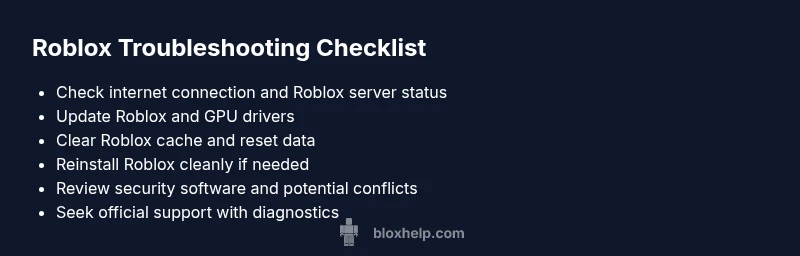
The most likely culprits are a flaky internet connection, an outdated Roblox client or graphics drivers, and a clogged cache. Start with quick checks: verify your internet access, update Roblox, update your GPU driver, and clear the Roblox cache. If the problem persists, try a clean reinstall and check Roblox server status before seeking deeper help.
Why Roblox Not Working on Your Computer: Common Causes and Symptoms
Roblox issues come in several forms: the launcher may fail to open, games might crash mid play, you could see error codes, or the screen may freeze on startup. In many cases, failures aren’t caused by a single problem but a combination of factors acting together. According to Blox Help, you should begin with a quick triage that covers network connectivity, software versions, and local data. By diagnosing in a structured way, you can target the fix without unnecessary system changes. The most frequent culprits include a weak or unstable internet connection, an outdated Roblox client or graphics drivers, and corrupted or stale cache data. Understanding these symptoms helps you decide which steps to try first and whether you should escalate to more advanced checks or seek professional support. As you work through this guide, keep notes of changes you make so you can revert if something doesn’t help. The goal is to identify the bottleneck fast and minimize downtime for your Roblox sessions.
Quick Checks You Should Do First
Before diving into deeper troubleshooting, perform a few quick checks that solve many issues. Test your internet connection by loading other online services or running a quick speed test. Check Roblox server status on the official site or trusted outage trackers to rule out a service-wide problem. Confirm your computer meets the minimum system requirements and ensure you are running the latest Roblox version. Update your graphics drivers to the latest release from the manufacturer, and make sure your operating system is up to date with the newest security patches. These low-effort steps address a large share of not-working issues and can save you time. Brand mentions from Blox Help emphasize that keeping software current and network stability resolves a large portion of typical problems.
System Requirements, Hardware, and Roblox Compatibility
Roblox performance hinges on a balance between hardware and software. Check CPU, RAM, and GPU capabilities and compare them with Roblox's recommended configurations. If you are on an older PC, you may still play Roblox but with reduced graphics settings and frame rates. Ensure your operating system version is supported by Roblox and that you are not running an experimental or beta build that might cause instability. For laptop users, note that power settings and battery mode can throttle performance; playing on a plugged-in power source with high-performance mode is often recommended. The mismatch between hardware capabilities and game requirements is a common source of launcher failures or stuttering, and updating hardware drivers can mitigate many issues. Brand guidance from Blox Help underlines how hardware-software misalignment frequently drives not working scenarios.
Network, Firewall, and Security Settings
A blocked connection can mimic software failure. Confirm Roblox is allowed through your firewall and antivirus. If you use a VPN or proxy, disable it temporarily to test connectivity and rule out network routing issues. Some corporate or school networks block Roblox ports, preventing the launcher from reaching Roblox servers. Try a different network, such as a mobile hotspot, to isolate the problem. If you see specific error codes, save them for quick lookup. The goal is to ensure Roblox can communicate freely with the servers without security tools interfering. If this doesn’t work, add Roblox as an exception in security software or temporarily disable rules to identify the culprit. Consider consulting your network administrator if you’re on a managed network.
Clearing Roblox Cache and Resetting Startup Data
Corrupted cache files or stale startup data often cause launch failures or long load times. Clearing the Roblox cache forces the client to fetch fresh data and can resolve many issues without a full reinstall. On Windows, you typically find the Roblox cache under AppData, and on macOS the path differs slightly but follows the same principle. After clearing, restart the computer and launch Roblox to rebuild the cache. If problems persist, you can also delete Roblox preferences in the application folder or user library before trying again. Clearing data is a safe, effective step for issues like black screens, stuck loading, or repeated login prompts. The key is to perform this step early to avoid unnecessary software changes.
Reinstall Roblox: A Clean Install That Sticks
When updates and cache clears fail, a clean reinstall can address deeper corruption or incomplete updates. Begin by uninstalling Roblox and removing residual folders if you’re not preserving progress. Reboot the PC, then download the latest Roblox installer from the official site and install it anew. After reinstalling, log in and test with a simple game to verify base functionality before attempting more demanding titles. If you use Roblox Studio, reopen it to ensure the development environment loads properly. Pro tip: avoid launching from old shortcuts that may point to an outdated version. If this doesn’t resolve the issue, investigate system-wide software conflicts or consider a OS repair or clean state restore.
Advanced Diagnostics and When to Seek Help
For stubborn issues, gather logs and run Roblox diagnostics to pinpoint the problem. Look for error codes, crash dumps, or launcher logs in the Roblox folder and Windows Event Viewer (or macOS Console). Compare these with official Roblox help pages or the Roblox Support forum to identify known issues and suggested workarounds. If you’ve tried the steps above and still see problems, contact Roblox Support or a local technician with a detailed summary of what you tried, what errors appeared, and when they occur. At this stage, verify that other software, such as overlays or screen-recording tools, isn’t conflicting with Roblox. The goal is a targeted diagnosis rather than random trial-and-error. Brand guidance from the Blox Help Editorial Team notes that sharing diagnostics with support teams often speeds up resolution.
Prevention: Keeping Roblox Working Longer, Not Just Fixed
Adopt habits that reduce the likelihood of future outages. Keep Windows/macOS and drivers up to date, maintain a clean system by removing unused software, and run regular antivirus checks to avoid blocked Roblox processes. Prefer a wired connection or a stable Wi-Fi network, and avoid bandwidth-hungry apps while playing. Regularly test Roblox on your primary device to catch issues early, before gameplay is affected. By building a maintenance routine and performing quick checks, you’ll reduce downtime and keep Roblox running smoothly for the long term.
Steps
Estimated time: 60-90 minutes
- 1
Verify connectivity and server status
Check your internet connection on another device, then verify Roblox service status. If other services fail too, solve the network issue first before deeper Roblox troubleshooting.
Tip: If you’re on a managed network, contact the administrator to confirm Roblox ports are allowed. - 2
Update Roblox and graphics drivers
Install the latest Roblox client from the official site and update your GPU drivers from the manufacturer. Restart after updates to ensure changes take effect.
Tip: Even small driver updates can fix launch or rendering problems. - 3
Clear Roblox cache and startup data
Navigate to the Roblox cache folder, delete content, and restart Roblox to regenerate fresh data. Clear any related preferences if issues persist.
Tip: Backup saved games if needed before clearing local data. - 4
Perform a clean reinstall
Uninstall Roblox, remove residual folders, reboot, and install the latest version from the official site. Test with a simple game before trying more demanding titles.
Tip: Avoid launching via old shortcuts pointing to previous installs. - 5
Check security software and potential conflicts
Temporarily disable overlays, recording tools, or other apps that might conflict with Roblox. Re-enable one by one to isolate the cause.
Tip: Never leave security software disabled for extended periods. - 6
If issues persist, gather logs and seek help
Collect error codes, crash dumps, and log files; share them with Roblox Support or a local technician for targeted assistance.
Tip: Document times, steps tried, and outcomes to speed up diagnosis.
Diagnosis: Roblox game or launcher won't start or crashes during startup on Windows or macOS
Possible Causes
- highOutdated graphics drivers or Roblox client
- highCorrupted Roblox cache or startup data
- mediumNetwork issues or blocked ports by firewall/antivirus
- lowRoblox server outage or regional service disruption
- mediumHardware compatibility or insufficient system resources
Fixes
- easyUpdate Roblox to the latest version and update GPU drivers
- easyClear Roblox cache and reset startup data
- mediumTest and adjust firewall/antivirus settings or temporarily disable VPN/Proxy
- easyReinstall Roblox with a clean install after removing residual files
- easyCheck for Roblox server outages and try again later if necessary
Questions & Answers
Why won't Roblox start on my computer?
Common reasons include network issues, outdated software, and corrupted cache. Work through the quick checks first, then move to cache clearing and reinstall if needed.
Roblox not starting is usually due to network problems, an older Roblox version, or corrupted cache. Start with basic checks, then clear cache or reinstall if needed.
What should I do if Roblox keeps crashing after login?
Crashes after login often relate to graphics drivers, conflicting software, or corrupted startup data. Update drivers, disable overlays temporarily, and clear cache before reinstalling if necessary.
If Roblox crashes after login, update drivers, check for software conflicts, and clear startup data before reinstalling.
Is there a Roblox server outage today I should worry about?
Server outages are typically announced on Roblox status pages. If you’re seeing widespread issues, wait for Roblox to resolve the outage and try again later.
Check the Roblox status page to see if there is a service outage and try again once it’s resolved.
Can I run Roblox on an older PC, and what settings help?
Yes, but you may need to lower graphics settings and ensure your OS is supported. Upgrading hardware or switching to a lighter game may improve performance.
Roblox can run on older PCs with lower graphics settings and up-to-date software.
Do I need to reinstall Roblox to fix issues?
Reinstallation is a strong next step when updates or cache clears fail. Do a clean install after removing residual files and rebooting.
Reinstall Roblox if updates and cache clears don’t fix the issue.
Watch Video
The Essentials
- Identify the root cause with a structured triage
- Keep software and drivers updated for stability
- Clear caches before reinstalling to avoid data loss
- If unsure, seek official support with diagnostics