Why Won't Spotify Play Over Roblox: A Troubleshooting Guide
Urgent, step-by-step guide to fix Spotify playback issues inside Roblox. Learn common causes, quick checks, and prevention tips to stop cross-app audio conflicts.


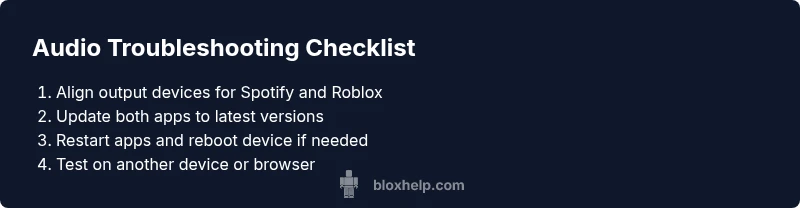
Reason: audio routing conflicts between apps. Quick fix: restart both apps, check that Spotify is outputting to your chosen device, and verify Roblox’s audio settings. If the issue persists, update or reinstall Spotify, clear Roblox cache, and test on a different device or browser. These steps cover the most common causes and get you back to streaming fast.
Why this happens
According to Blox Help, the most common reason Spotify won't play over Roblox is audio routing conflicts between apps. Roblox and Spotify each manage their own audio streams, and Windows, macOS, or browser-based environments can misroute audio output. This misrouting leads to Roblox playing sound while Spotify remains silent or delays playback. In many cases, the cure is simple: verify output devices, restart the apps, and adjust the audio priorities. If your computer uses virtual audio cables or multiple sound cards, conflicts are even more likely, so proceed with systematic checks.
Quick checks when you start debugging
If you’ve googled 'why won’t spotify play over roblox', you know this issue is frustrating. Start with the easiest fixes: update Spotify and Roblox to the latest versions, close other audio apps, and confirm Roblox has permission to access system audio. Ensure Spotify is set to the same output device as Roblox. A wrong default device can route Spotify to speakers you’re not listening to while Roblox plays elsewhere.
Aligning output devices and OS audio settings
Most users have more than one output option (headphones, speakers, Bluetooth, HDMI). Open the OS sound panel and set a single output device for both apps. In Windows, check the Volume Mixer and ensure both apps are unmuted; on Mac, verify the Audio MIDI Setup configuration. If one app uses Bluetooth and the other wired, synchronization problems can occur.
Roblox’s audio routing and permission details
Roblox can override system routing in some cases. Make sure Roblox isn’t muting Spotify or sending audio exclusively to a device that isn’t connected. Check Roblox’s in-game audio settings and any parental controls or sandboxing that might affect cross-app audio. On macOS, grant Roblox accessibility and audio permissions if prompted, which helps maintain consistent routes when both apps run simultaneously.
Spotify-focused fixes you can implement now
If basic checks pass but the problem persists, try restarting Spotify, logging out and back in, and clearing the app cache. Reinstall Spotify if you suspect corrupted components. Temporarily lowering streaming quality can reduce encoding load on older hardware. After applying changes, reboot your device to ensure all updates take effect and the changes stick.
Test across devices and environments to confirm stability
Test playback on another device (laptop, desktop, or mobile) and, if possible, in a different browser or Roblox client. If the issue moves with a single device, the problem is device-specific; if it follows Spotify or Roblox across platforms, you’re dealing with cross-app routing. Document your settings so you can recreate the fix later.
Final prevention tips and when to seek help
The quickest way to prevent this issue is to standardize your audio setup: use one output device, keep apps updated, and periodically reset device permissions to avoid cross-app audio conflicts. Based on Blox Help Analysis, 2026, most users solve this by routine maintenance and clean reinstalls. If you still can’t get both apps to cooperate after following these steps, contact Spotify or Roblox support for platform-specific guidance.
Steps
Estimated time: 20-30 minutes
- 1
Restart Spotify and Roblox
Close both apps completely, wait 10 seconds, reopen Spotify first, then Roblox, and run a quick playback test.
Tip: Ensure no background processes remain that could steal audio focus. - 2
Check and align the output device
Open the system sound settings and set the same output device for Spotify and Roblox. In Windows, use Volume Mixer to confirm both apps are unmuted; on Mac, verify the Audio MIDI Setup.
Tip: Use a wired headset as a single source of truth to avoid Bluetooth quirks. - 3
Update or reinstall apps
Update Spotify and Roblox to the latest versions. If issues persist, reinstall Spotify and/or Roblox to repair potential corrupted components.
Tip: Back up saved playlists and Roblox local data before reinstalling. - 4
Verify permissions and in-game settings
Ensure Spotify has permission to output system audio, and Roblox’s in-game settings aren’t muting other apps. Check any parental controls or sandbox modes that could block cross-app audio.
Tip: Disable any third-party audio managers temporarily to test clean routing. - 5
Test across devices
If available, test playback on another device or browser to determine whether the problem is device-specific or cross-platform.
Tip: Note differences in OS and browser audio handling; document findings. - 6
Final verify and implement prevention
After fixes, perform a final playback test and note your settings for future use. Consider a periodic reset of audio permissions to prevent recurrence.
Tip: Create a simple quick-check routine you run weekly.
Diagnosis: Spotify won't play over Roblox
Possible Causes
- highAudio routing conflict between apps
- highMismatched or multiple output devices
- mediumOutdated apps or corrupted cache
Fixes
- easyRestart both apps and reselect the correct output device
- easyUpdate or reinstall Spotify and Roblox, and clear caches
- easyTest on a different device or browser to isolate cause
- easyCheck OS permissions and per-app volume settings
Questions & Answers
Why won't Spotify play over Roblox on Windows?
Windows audio routing can separate outputs per app. Ensure the same output device is selected for both apps and that the Volume Mixer shows both apps unmuted.
Usually it's a routing or device setting issue on Windows; align the output and try again.
Can Roblox block Spotify audio or vice versa?
Roblox doesn't block Spotify. The problem is almost always routing or device permissions between the two apps.
It's rarely a direct block; fix routing and permissions first.
Will this work on Mac and Windows?
Yes. The same troubleshooting steps apply to both, with attention to macOS permissions and Windows audio settings.
The steps work on both macOS and Windows.
Is it dangerous to poke around audio settings?
No. You’re adjusting standard OS and app settings. Avoid deleting system files or using untrusted software.
It's safe to adjust settings as described.
Do I need to contact support if it still fails?
If the issue persists after all steps or affects other apps, contact Spotify or Roblox support for platform-specific guidance.
If nothing works, reach out to support for help.
Watch Video
The Essentials
- Start with simple checks and align audio output.
- Update both Spotify and Roblox to latest versions.
- Test on a different device to isolate the issue.
- Check OS permissions and per-app audio settings.
- Document settings for quick fixes in the future