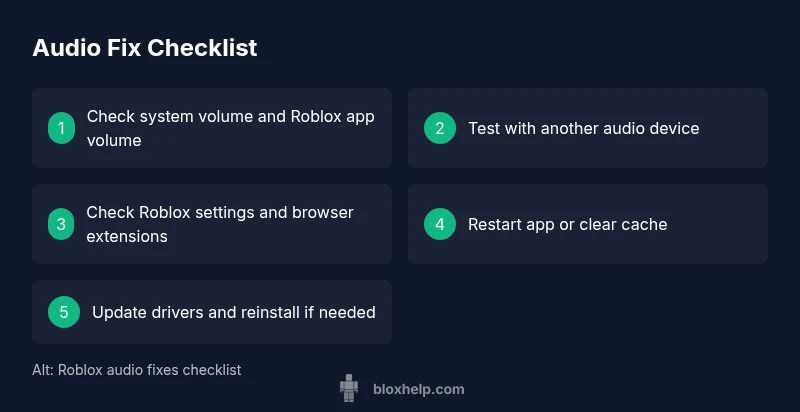
Why Roblox Has No Sound: Quick Troubleshooting
Roblox no sound? This urgent troubleshooting guide from Blox Help helps you diagnose audio issues, fix Roblox settings, sound drivers, and browser blocks quickly to resume play.


The most likely cause is a simple audio setting or driver issue. Start by checking your device volume, Roblox’s in-game audio sliders, and any mute options. If sound still won’t play, restart Roblox or your device, then test with a different browser or the standalone Roblox app to isolate browser-related blocks.
Common Causes of Roblox No Sound
If you're seeing no sound in Roblox, you're not alone. According to Blox Help, many issues boil down to simple settings or driver mismatches rather than a corrupted game. Start by checking your system volume, ensure the Roblox app is not muted, and verify that the in-game audio slider is turned up. On Windows, also check the app's volume mixer and make sure Roblox is not muted there. On macOS, ensure the output device is correct in System Preferences > Sound. In some cases, a browser or the Roblox app may fail to route audio due to extensions or hardware acceleration. If you recently updated Windows or your audio driver, a rollback or fresh install may resolve the problem. While hardware problems are possible, software settings are the most common culprits. Based on Blox Help research, driver updates and browser conflicts are frequent causes across platforms. If you're hearing sound in other apps but not Roblox, the issue is likely Roblox-specific rather than a hardware fault.
Quick Checks to Do First (No Tools Needed)
Before diving into deeper fixes, perform these quick checks. Make sure your computer's system volume is not muted and that the volume bar in Roblox is up. Open a simple sound test in another app (media player or browser video) to confirm your speakers or headphones work. In Roblox, go to Settings > Audio and ensure Sound is enabled and the Master volume is not set to zero. If you use the Roblox Desktop App, restart it; if you're on a browser, try clearing cache or opening Roblox in an incognito window to rule out caching or extension conflicts. If you still hear nothing, test with another output device such as wired headphones, Bluetooth headphones, or external speakers to rule out a faulty port or headset.
Isolating the Issue: App vs Browser vs System
Decide where the fault lies by isolating app, browser, and system factors. If Roblox works with a different device, the problem is device-specific. If the issue occurs in the browser but not the standalone app, the browser is likely the culprit—disable extensions, disable hardware acceleration, or switch to a different browser. If the problem happens across all apps, the issue is system-level, and you should update drivers, run Windows Audio Troubleshooter (or macOS Audio MIDI Setup), and possibly reset sound settings. This process helps you determine whether the fix should target Roblox itself, the browser, or a wider OS issue.
When to Seek Help and Prevent Future Issues
If basic steps don’t restore sound, it’s time to escalate. Contact Roblox Support through help.roblox.com for persistent issues and consider reinstalling Roblox. Preventive habits include keeping drivers and software up to date, avoiding conflicting third-party apps, and performing regular audio checks after major OS updates. A quick recurring check—confirming the playback device before gaming—can stop sound problems before they start.
Steps
Estimated time: 25-45 minutes
- 1
Verify basic audio output
Confirm device output is correct and not muted. Test with another app to ensure speakers/headphones work. Open Roblox and check the Master volume in Settings > Audio.
Tip: Use a known-good headset to rule out hardware fault. - 2
Inspect Roblox settings
In-game Audio should be Enabled and the Master volume set high. Check the Roblox Desktop App vs Browser differences.
Tip: If one mode works and the other doesn't, focus on that platform. - 3
Perform a quick restart
Restart Roblox and, if needed, reboot the device. After reboot, re-open Roblox and retest audio.
Tip: A clean restart clears transient audio issues. - 4
Try a different access path
If you’re on a browser, try the standalone Roblox app or vice versa. This helps identify browser-specific problems.
Tip: Incognito mode can help identify extension conflicts. - 5
Update drivers and OS audio
Check for driver updates for your sound card and ensure your operating system's audio subsystem is current.
Tip: Back up system settings before major updates. - 6
Clear cache and reset audio
Clear Roblox cache or reset audio configurations in OS settings if available. Reopen Roblox and test.
Tip: Corrupted cache often blocks fresh audio data. - 7
Reinstall Roblox if needed
Uninstall and reinstall Roblox to ensure clean installation and fresh audio hooks.
Tip: Keep backup of saved settings before reinstall.
Diagnosis: Roblox audio not playing on startup or in-game
Possible Causes
- highMuted system volume or Roblox mute
- highIn-game audio settings turned down or off
- mediumOutdated or missing audio drivers
- mediumBrowser extension or hardware acceleration blocking sound
- lowCorrupted Roblox cache or app data
Fixes
- easyCheck system and Roblox volume/mute states
- easyReview Roblox in-game audio sliders and enable sound
- mediumUpdate or reinstall audio drivers; restart the computer
- mediumDisable extensions or switch to the Roblox app; disable hardware acceleration
- hardClear Roblox cache or reinstall Roblox if issues persist
Questions & Answers
Why is there no sound in Roblox on startup?
Startup no-sound often results from a muted system or Roblox setting. Verify the Master volume, mute state, and the startup audio options in both the OS and Roblox. If the problem persists across apps, focus on drivers or hardware.
Startup sound issues? Check volume and Roblox settings, then try a restart or driver update.
How do I fix Roblox no sound on Windows 10/11?
On Windows, ensure the system volume is up, Roblox is not muted in the volume mixer, and the correct playback device is selected. Update or reinstall drivers if needed, and test Roblox with both browser and the desktop app.
Windows quick fix: check mixer, update drivers, and test both Roblox access paths.
Why does Roblox sometimes play sound in some games but not others?
Individual games can override global audio or have their own settings. Check per-game Audio options, and verify if the title uses custom audio assets that may be missing or corrupted.
Some games manage their own audio settings; check each game's options.
Can browser extensions block Roblox audio?
Yes, extensions or hardware acceleration can interfere with audio. Disable extensions or disable hardware acceleration, then re-test in a clean browser session or switch to the Roblox app.
Extensions can block audio; try incognito or a different browser.
Is reinstalling Roblox necessary to fix sound?
Reinstalling is a last-resort option when all other fixes fail. It ensures a clean install and fresh audio hooks, but back up settings first.
Only try reinstalling if other fixes don’t work.
Watch Video
The Essentials
- Check basic audio output first
- Isolate app vs browser vs system
- Update drivers and clear cache
- Reinstall Roblox if needed
- Seek official support if problems persist