Why Roblox Stops My Music: The Complete Troubleshooting Guide
Diagnose and fix Roblox music interruptions with a clear, step-by-step approach. Learn common causes, quick checks, and prevention tips to keep Roblox music playing smoothly in 2026.


Most often, Roblox stops your music due to muted in-game audio, a low system/device volume, or another program stealing audio. Quick steps: inside Roblox, ensure music and sounds are enabled; check your device’s volume mixer and set Roblox to a higher level; quit any apps that might grab audio. If issues persist, test across different games and devices to isolate the cause.
Why Roblox Stops Your Music
According to Blox Help, the most common reasons involve local device settings and Roblox's audio pipeline. When music abruptly stops, it's usually not a server-side fault but a clash between the game's audio channels and your system, headset, or background software. This isn't about a single game's fault; it's about how audio is routed on your device and within Roblox. The goal is to identify whether the interruption comes from Roblox's in-game settings, your operating system, or a background application. By focusing on the right culprit, you can apply a targeted fix rather than resorting to broad resets.
In 2026, the Blox Help team found that most music interruptions resolve once players verify basic audio controls and test across different games. This section lays the groundwork for a methodical approach, so you can reclaim your Roblox jams with confidence and speed.
Common Scenarios Where Music Stops
Music interruptions tend to happen in predictable contexts. For example, joining a new game may reset audio states, or switching scenes within Roblox can mute background music while a track restarts. Overlay apps (Discord, OBS, or voice chat programs) can grab audio focus, causing Roblox music to pause momentarily. Hardware changes, such as plugging in USB headsets or switching audio devices, can also trigger a momentary mute. In mobile or browser modes, permissions and autoplay policies may pause sound until you interact with the screen. Understanding these patterns helps you choose the right fix rather than guessing.
Quick Checks You Can Do Right Now
Start with these fast checks to rule out the most obvious causes. First, open Roblox and verify that the Music and Sound options are enabled and that the master volume is not muted. Next, use your device’s volume mixer to confirm Roblox isn’t silenced behind another app. If you’re on Windows, check the system tray and Volume Mixer; on macOS, inspect the volume in the menu bar and any output-switching prompts. Also consider whether you’ve installed overlays or apps that steal audio focus; closing those programs often resolves the issue quickly. Finally, test a different game or a different device to see whether the problem follows the game or your hardware.
How Roblox Audio Works: Local vs Cloud
Roblox handles sound by mixing in-game audio with local device output. Music playback in Roblox typically depends on a combination of in-game music tracks, the game's current scene, and the player's device settings. Unlike some online streams, Roblox doesn’t rely on a cloud music service for each game; instead, the local sound engine draws on the game's assets and the system audio stack. This means that even when Roblox servers are healthy, misconfigured client-side audio can cause music to pause or stop. By understanding this local-vs-cloud distinction, you can target fixes directly to your device and in-game settings.
Step-by-Step: Fixes for Most Common Cause
The most frequent culprit is muted or low in-game music combined with device volume issues. The fix pathway below guides you through quick wins and deliberate checks to confirm each step:
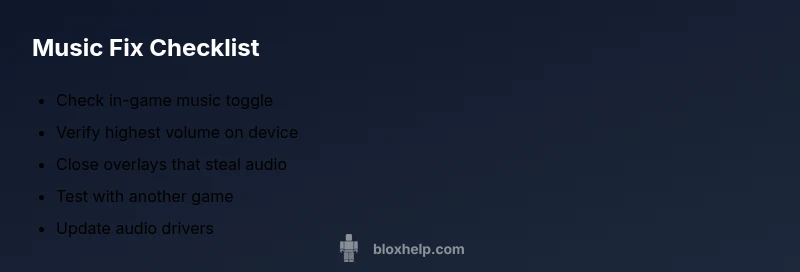
- Verify in-game audio: confirm Music is enabled and the volume slider is not set too low; ensure “Mute All” is not active.
- Check device volume: inspect the OS mixer and ensure Roblox is not muted and that its volume is balanced with other apps.
- Close background audio apps: quit overlays (Discord, OBS, screen capture software) and any programs that might steal audio focus.
- Update drivers or switch devices: ensure your audio driver is current or try another headset/speaker.
- Test with a different game or device: if the issue remains, the culprit may be external to Roblox.
Advanced Troubleshooting: When Nothing Works
If the issue persists after the basics, you’re likely dealing with a deeper compatibility or hardware problem. Check for conflicting audio output devices (USB vs 3.5mm jack) and disable exclusive mode in your sound settings. Reinstall Roblox to rule out corrupted game data. As a last resort, test Roblox on another computer or mobile device to see whether the problem is device-specific. If none of these steps solve it, consider reaching out to Roblox support with details about your device, OS version, and affected games.
Prevention and Best Practices
Prevention saves time. Keep your audio drivers updated and maintain clean startup apps to minimize audio conflicts. Regularly review game-specific audio settings, especially after Roblox updates. Use a dedicated headset to reduce cross-device audio routing issues, and consider creating a small test playlist to confirm audio remains stable across sessions. A quick post-play checklist helps you catch issues before they derail your session.
Common Mistakes to Avoid
Avoid turning off all sounds globally or muting Roblox from outside the game without testing in-game music first. Don’t rely on a single device or headset; audio routing changes can silently mute Roblox. Finally, resist the urge to reinstall everything at once—varying components (game, OS, driver) can help pinpoint the root cause more effectively.
Steps
Estimated time: 30-60 minutes
- 1
Open Roblox audio settings
Launch Roblox and navigate to the Settings menu. Confirm Music and overall Sound are turned on and adjust the master volume to a comfortable level. Play a short clip to test immediately after each change.
Tip: Use a test track or short game cue to verify changes in real time. - 2
Check device volume and mixer
Open your OS volume mixer and locate Roblox. Ensure Roblox isn’t muted and that its slider is within a healthy range compared to other apps. If you’re on Windows, check the Playback devices as well.
Tip: Leave Roblox as the active window while adjusting to avoid misreading the mixer. - 3
Close overlays and background audio apps
Quit any apps that might grab audio focus (Discord, OBS, Steam Overlay, etc.). Disable any “auto-mute” or exclusive mode features in those apps if available.
Tip: After closing, relaunch Roblox to see if the issue resolves. - 4
Test with a different game or device
Run Roblox with another game or on a different device or browser. If music stays playing on one but not the other, the issue is game-specific or device-specific.
Tip: Document the combination that works best for future reference. - 5
Restart or reinstall if needed
If none of the above fix the problem, restart Roblox or reboot the device. Consider reinstalling Roblox if you suspect corrupted files.
Tip: Back up settings or preferences before a reinstall.
Diagnosis: Music stops or pauses unexpectedly during Roblox gameplay.
Possible Causes
- highMuted or low Roblox in-game audio settings
- highSystem or app volume muted for Roblox in the OS mixer
- mediumBackground overlays or voice-chat apps grabbing audio focus
- lowSwitching audio devices or headset issues
Fixes
- easyAdjust in-game audio settings to ensure Music and SFX are enabled and volume is up
- easyVerify OS volume mixer and ensure Roblox is not muted or silenced
- easyClose overlays (Discord, OBS) or disable auto-mute features
- mediumUpdate or reinstall audio drivers or try a different headset
- easyRestart Roblox or your device if the issue persists
Questions & Answers
Why does Roblox stop my music?
Music stops usually because either in-game audio is muted, the OS volume mixer silences Roblox, or a background app interrupts audio focus. These are client-side issues, not server-side outages, and can typically be resolved with a few setting adjustments.
Music stopping is usually due to settings or other apps grabbing audio; checking those usually fixes it.
How can I fix Roblox music stopping on PC?
Start by confirming in-game music is enabled, then check the OS volume mixer. Close overlay apps and update audio drivers. If needed, test another game or device to confirm where the issue lies.
Check game settings, OS volume, overlays, and drivers; test with another game to narrow down the cause.
Does Roblox pause music in certain games?
Some games control their own music and can pause track playback when scenes change. The core audio system in Roblox may reset on load, so gameplay-specific music behavior can vary.
Games can pause music on load or scene change; it's game-specific.
Can I disable Roblox music completely?
You can turn down or mute music via Roblox's own audio settings, but you can’t universally disable all game music across every title. Set music volume to 0 if you want silence overall.
You can turn the music volume to zero in settings, but not across all games automatically.
Is my music stopping due to hardware or drivers?
It's possible. Try updating your audio drivers and, if needed, test a different headset or speaker to determine if the problem is hardware-related.
Updating drivers or trying another headset can help identify hardware issues.
Watch Video
The Essentials
- Check in-game audio first and adjust the master volume.
- Rule out OS mixer's mute state and conflicting apps.
- Close overlays and test across games/devices to isolate cause.
- Update drivers and consider alternate audio devices.
- Follow a checklist to prevent future music stoppages.