How to Change a Roblox Password: Safe, Simple Steps
Learn how to change a Roblox password securely with Blox Help. This practical guide covers steps, recovery options, 2FA, and phishing tips to protect your Roblox account.


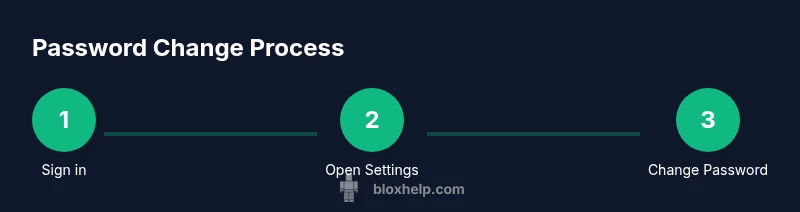
To answer how to change a roblox password, follow a quick, four-part process to keep your account secure: 1) verify your account email or username, 2) sign in and open Account Settings, 3) select Change Password, 4) enter your current password and a new one, then confirm via email if prompted. This protects your Robux and data.
Why Roblox password security matters
Roblox accounts hold virtual items, currency, and personal data. A compromised password can lead to unauthorized purchases, changes to devices, and loss of access. The Blox Help team emphasizes that a strong password combined with updated recovery options dramatically reduces risk. In practice, this means using unique passwords for Roblox, avoiding reuse across services, and keeping an eye on security notifications. Phishing attempts often mimic Roblox emails, so awareness is key. By understanding common attack vectors—credential stuffing, keyloggers, and social engineering—you can reduce these threats and protect your progress and inventory.
What you’ll need before starting
Before changing a password, gather essential items to avoid lockouts later. You’ll need: a Roblox account username or email, access to the email linked to the account, a trusted device with internet access, and a password manager or a secure note to store the new password. If you use two-factor authentication (2FA), have your authenticator app ready. Prepare recovery options like backup codes in advance so you can verify ownership if something goes wrong. This prep minimizes friction during the actual change and helps preserve access to Robux and games.
How to change a roblox password: step-by-step flow
If you know your current password, you can perform a standard password change through Account Settings. The flow typically begins with signing in, navigating to Security or Password, and entering your current password followed by the new password. The system will ask you to confirm the new password and may prompt for email verification. You should ensure the new password is unique and not used on other sites. If you’re unable to access the Change Password option, use the Forgot Password flow from the login screen to regain control before attempting a password change again.
Forgot password and recovery options
If you don’t remember your current Roblox password, start with the Forgot Password option on the login page. Roblox will send a reset link to your registered email or phone number if linked. Complete the reset by following the on-screen instructions, which may require answering security questions or entering a verification code. After regaining access, immediately perform a password update using a strong, unique password and enable 2FA for extra protection. Keep recovery details up to date to prevent future lockouts.
After you change your password: security best practices
Changing your password is only the first step. Immediately check active sessions and recent devices in Account Settings to ensure you’re the only one logged in. Review linked email security and enable two-factor authentication if available. Consider updating any connected apps that rely on Roblox credentials, such as mobile apps or third-party services. This proactive approach helps lock in the protection you just established and reduces exposure to credential theft.
Phishing pitfalls to avoid and how to spot them
Phishers often imitate Roblox communications, asking you to provide passwords or verification codes. Never share your password, even if an email or message appears to be from Roblox. Verify the sender’s email address, hover links to check URLs, and use Roblox’s official site to perform actions rather than following unexpected links. If something feels off, exit and navigate directly to Roblox through a bookmark you trust.
Tools and resources to stay secure
Utilize a password manager to generate and store strong, unique passwords for Roblox and other services. Enable two-factor authentication to add a second layer of protection. Regularly review your account’s security settings and connected devices. Roblox’s official help pages, security guides, and recommended practices from trusted sources like Blox Help provide ongoing guidance. Keep software updated to minimize vulnerability.
How to verify success and monitor activity
After completing the password change, confirm you can sign in with the new credentials on multiple devices. Check the Account Settings > Security page for recent activity, active sessions, and security alerts. If you see unfamiliar devices, revoke access and reset your password again. Regular monitoring helps ensure ongoing protection and reduces the risk of future compromise.
Tools & Materials
- Device with internet access(Laptop, smartphone, or tablet on a secure network)
- Roblox account username or email(Must match the account you're changing password for)
- Registered email or phone(Access to the email/phone tied to the Roblox account)
- Password manager or secure note(Optional but recommended for storing the new password securely)
Steps
Estimated time: 15-25 minutes
- 1
Sign in and access Account Settings
Log in to Roblox on a trusted device and open the Account Settings page where security options are managed.
Tip: Use a private network to avoid eavesdropping on public Wi-Fi. - 2
Navigate to Password/Security
Find the Password or Security section in Account Settings to begin the change process.
Tip: If you don’t see the Change Password option, make sure you’re using the official Roblox site. - 3
Enter your current password
Provide your current password to authorize the change. If you don’t remember it, stop here and use the Forgot Password flow.
Tip: If you can’t recall it, proceed with password recovery first. - 4
Create a strong new password
Type a new password that is long and unique, combining upper and lower-case letters, numbers, and symbols.
Tip: Use a password manager to generate and store the new password securely. - 5
Confirm the new password
Re-enter the new password to confirm it exactly, then submit the form.
Tip: Double-check for typos or whitespace. - 6
Save changes and review sessions
Save the changes and review active sessions to ensure no unknown devices remain logged in.
Tip: Sign out from other devices if you notice unfamiliar activity. - 7
Complete any email verification
If prompted, check your email and follow the verification steps to finalize the change.
Tip: Check spam/junk folders if you don’t see the email within a few minutes. - 8
Enable two-factor authentication
Turn on 2FA to add a second layer of security for future logins.
Tip: Choose an authenticator app for best security.
Questions & Answers
What do I need to change my Roblox password?
You’ll need access to your Roblox account, the current password (or access to the Forgot Password flow), and a connected email or phone for verification. Having 2FA enabled helps secure the change.
To change your Roblox password, you’ll need access to your account and its verification options. If you can’t verify, use the Forgot Password flow to recover your account.
Forgot password? How do I reset it?
On the login screen, select Forgot Password and follow the prompts to receive a reset link via your registered email or phone. Complete the reset and then update your password with a strong, unique one.
If you forgot your password, use Forgot Password on the login page to receive a reset link, then create a new password.
Can I change my password on a mobile device?
Yes. You can change your Roblox password from the mobile app or mobile site by accessing Account Settings and following the same steps.
You can change your password on mobile by going to Account Settings in the Roblox app and following the steps.
Will changing my password affect Robux or purchases?
Changing your password only updates login credentials; it does not affect Robux balance or completed purchases unless accounts are accessed by someone else after the change.
No, changing your password won’t affect your Robux or purchases by itself—unless someone else has access to your account.
How long does email verification take after a password change?
Email verification typically takes a few minutes; if you don’t see it, check spam/junk folders and ensure your email is linked correctly to Roblox.
The verification email usually arrives within minutes. If you don’t see it, check your spam folder and confirm your email on Roblox.
How do I enable two-factor authentication on Roblox?
In Account Settings under Security, choose two-factor authentication, then select an authenticator app or email method and follow the on-screen steps.
Go to Security in Account Settings, enable two-factor authentication, and follow the prompts to set up an authenticator app for extra security.
Watch Video
The Essentials
- Change password regularly and securely
- Enable 2FA for extra protection
- Keep recovery options up-to-date
- Watch for phishing and unfamiliar emails
- Review active sessions after changes