How to Remove Email from Roblox Account
Learn how to remove an email from Roblox, verify ownership, and secure your account. This step-by-step guide covers prerequisites, potential pitfalls, and post-removal security tips to keep your Roblox journey safe.


This guide explains how to remove email from Roblox account and why you might need to do it. You’ll need access to your Roblox login, plus the ability to verify ownership if Roblox asks. Prepare the current email or recovery options in advance. By following the steps in this article, you’ll unlink the email securely and protect your account afterward.
Why removing email from Roblox matters
Removing the email linked to your Roblox account can be a prudent step for people who no longer have access to the old address, who want to simplify login recovery, or who are tightening security after a breach. In practice, unlinking an outdated email reduces the risk that an attacker could reset your password or intercept notifications. According to Blox Help, taking control of your recovery options is a foundational part of Roblox account security. This section explains when you might want to remove an email, what it affects, and how to approach the change safely. You will still retain access to your Roblox username, purchases, and in-game progress; you’ll simply detach the email connection and rely on other verification methods for future sign-ins.
Before you begin: prerequisites and safety considerations
Before attempting to remove an email from Roblox, ensure you can access the Roblox account (username and password) and that you have either access to the current linked email or a valid recovery option. If you suspect the email is compromised, secure that account first and transfer recovery to a new address. This process can affect how you recover the account in the future, so plan carefully. Keep your device secure, avoid public networks, and use a trusted browser. The goal is to minimize risk while detaching the email that controls account access.
Understanding account ownership and recovery options
Roblox may require identity verification if you’re unlinking an email from an account with restricted access or inconsistent recovery data. It’s important to know which recovery options are active (phone, secondary emails, authenticator apps) and how you’ll complete any required verification. If you lose access to the primary email, you’ll usually need to prove ownership through recent purchases, connected devices, or other account details. This knowledge helps you plan the removal with fewer interruptions and a stronger security posture.
What unlinking the email actually changes for your account
Unlinking the email does not delete your Roblox account or purchases; it simply detaches the email as the primary contact for sign-in and recovery. You may still sign in with your username and password, and you can add a new email later. Post-removal, it’s crucial to update recovery settings, enable two-factor authentication (2FA) if available, and ensure you retain access via alternative verification methods. This protects you from future credential theft and keeps your account accessible.
Potential issues and how to handle them
If the unlink option isn’t visible in your account settings, Roblox Support or identity verification processes may be required. You could also encounter delays if you don’t have access to the old email or phone. In such cases, gather proof of ownership (recent purchases, account creation date, device logs) and prepare to contact Roblox Support. Always follow official channels to avoid scams and ensure your data remains secure.
Best practices after removing email
After you successfully remove the email, review your account for security gaps. Enable two-factor authentication if available, update recovery options with a current address, and regularly review connected devices and active sessions. Schedule periodic check-ins to confirm no unexpected changes occurred. By staying proactive, you’ll reduce the chance of future lockouts and improve long-term Roblox account security.
Authoritative sources
For best-practice guidance on identity verification and account security, see:
- https://www.ftc.gov/enforcement/privacy/identity-theft
- https://www.identitytheft.gov/
- https://www.nist.gov/publications/sp-800-63b-digital-identity-guidelines
How to approach the process (quick reference)
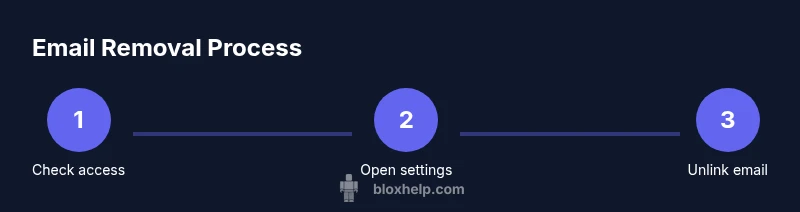
This is a concise overview of the flow: verify you can access the account, navigate to email settings, unlink the current address, confirm the change, and secure the account with updated recovery options. If the UI doesn’t allow unlinking, contact Roblox Support with proof of ownership. This approach minimizes risk and helps you maintain control of your Roblox experience.
Tools & Materials
- Roblox account login(Must be the account you want to modify)
- Current email access(Access to the email on file or a valid recovery option)
- Device with internet(Phone or computer to access Roblox and email securely)
- Proof of ownership(Recent purchases, creation date, or device logs (if required by support))
Steps
Estimated time: 60-120 minutes
- 1
Prepare your account
Log in to Roblox on a secure device. Confirm you have the current login credentials and access to the linked email or recovery options. If you cannot access the email, skim the identity-verification pathway you’ll be offered later.
Tip: Test login on a trusted device and ensure your password is up to date before making changes. - 2
Open account settings
Navigate to the Roblox account settings area. Look for sections labeled 'Account Info' or 'Security' where contact details are managed. The UI may vary slightly by device, so locate the area that handles email and recovery options.
Tip: Use a secure browser and avoid public Wi-Fi when making sensitive changes. - 3
Unlink or remove the current email
If an unlink or remove option is visible, select it and follow the prompts to detach the email. If you don’t see an option, proceed to the identity-verification path or consider adding a new email first, then unlink the old one.
Tip: If you must add a new email, ensure you can access it immediately after the change to avoid being locked out. - 4
Confirm the change
Roblox may send a verification code to the current email or phone. Enter the code to confirm unlinking. If prompted to verify identity, complete the required steps.
Tip: Have your authenticator app or SMS ready for quicker verification. - 5
If UI unlink is blocked, contact Roblox Support
If you cannot remove the email through the UI, submit a verification request through Roblox Support with proof of ownership. Follow the official process and avoid third-party services.
Tip: Prepare purchase history or device information to demonstrate ownership. - 6
Secure the account after removal
Update or add a new recovery email, enable 2FA if available, and review active sessions. Confirm you can sign in with the new recovery method and monitor for unusual activity.
Tip: Keep a record of the new recovery options and store them securely.
Questions & Answers
Why can't I unlink my email from Roblox?
Some accounts restrict changes to email without identity verification or require contacting Roblox Support. If you don’t see an unlink option, proceed with verification steps or reach out to support for assistance.
If you don’t see an unlink option, you may need to verify ownership or contact Roblox Support for help.
What happens to my purchases if I remove the email?
Removing the email does not delete your Roblox purchases or username. It only detaches the email used for sign-in and recovery. You’ll use other verification methods to sign in going forward.
Your purchases stay with your account; unlinking only affects sign-in and recovery methods.
Can I remove email if I no longer have access to the old email?
Yes, but you’ll likely need identity verification supported by Roblox. Prepare supporting documents such as purchase history or device details to prove ownership.
If you can’t access the old email, you’ll may need to verify ownership with Roblox Support.
Will removing the email affect two-factor authentication?
If you remove the email, you should set up alternative 2FA methods or a new recovery option. This keeps the account protected and accessible.
You should reconfigure 2FA or recovery options after removing the email.
What should I do after removing the email?
Immediately add a new recovery email or phone number, enable 2FA, and review active devices. Regularly review your account security settings.
Add a new recovery option and enable 2FA after removing the email.
How long does the removal process take when support is needed?
Processing can vary; follow Roblox’s guidance and provide requested documentation promptly to avoid delays.
Processing times can vary when support is involved; respond quickly to requests for information.
Watch Video
The Essentials
- Remove outdated emails to reduce risk
- Verify identity when prompted during removal
- Update recovery options immediately after unlinking
- Enable 2FA to strengthen security