The Complete Roblox Login Guide: Secure Access Across Devices
Learn how to log in to Roblox securely across PC, mobile, and consoles. This step-by-step guide covers passwords, two-factor authentication, troubleshooting, and safety best practices to protect your account.


This guide shows you how to log into Roblox securely across PC, mobile, and consoles. You’ll use your username or email and password, with optional two-factor authentication for extra protection. According to Blox Help, practicing safe login habits reduces risk from phishing and compromised accounts. Follow these steps for a smooth, secure login.
What you need to log into Roblox
To log into Roblox, you need a valid account (username or the email you registered with), your password, and a stable internet connection. You can sign in using the official Roblox app on mobile or the Roblox website on a computer. If you have two-factor authentication enabled, you’ll also need access to your authenticator app or backup codes. On shared devices, sign out when you’re finished and avoid saving passwords in the browser. According to Blox Help, verifying you’re on the official site or app helps protect against phishing attempts. Look for the secure padlock in the address bar and ensure the URL starts with https://www.roblox.com or the official app domain. If your device is older or the network slow, you may experience delays; consider updating the app or switching to a faster connection.
- Essentials: username or email, password
- Optional security: two-factor authentication (authenticator app, SMS, or backup codes)
- Environment: trusted device, private network
If you’re unsure whether your account is secure, perform a quick check: review recovery options, confirm recent login activity in your account settings, and make sure you’re using a unique password for Roblox only.
Step-by-step login (PC and Web)
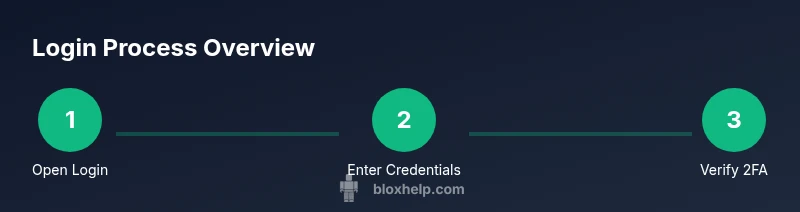
On PC or the Roblox website, start by opening your browser and navigating to the official login page. Enter your username or email, followed by your password, and submit. If 2FA is enabled, complete the verification prompt with the code from your authenticator or the SMS option. When you reach the Roblox home screen, you’re logged in. If you see the login page again, try:
- Clearing cookies or caches
- Verifying the site URL again
- Trying a different browser
Tip: Always verify the URL and look for the green padlock to confirm a secure connection. If you’re on a shared computer, consider using a private window and ensure you log out after your session.
Step-by-step login on mobile (iOS/Android)
Open the Roblox app or go to roblox.com in a mobile browser. Tap Sign In, then enter your username or email and password. If your account uses 2FA, enter the authenticator code or use the SMS option. After successful authentication, you should see your home page and avatar. If signs of trouble appear, ensure the app is updated and your internet connection is stable.
Troubleshooting common login issues
Common problems include incorrect password, account lockout after multiple failed attempts, blocked accounts due to suspicious activity, or connectivity problems. Steps to resolve:
- Use Forgot Password to reset
- Check that you’re connected to the internet
- Try a different device or network to isolate issues
If you still cannot login, contact Roblox support through the official Help Center and provide any error codes you see.
Security considerations during login
During login, avoid public Wi‑Fi for sensitive sessions, and never share your password. If you notice unusual prompts or requests for your verification code, stop the login and review account activity. Use a password manager to store unique, strong passwords and enable two-factor authentication whenever possible. Roblox accounts can be targeted by phishing sites; always verify the URL and avoid clicking suspicious links.
- Pro tip: Use a hardware key or authenticator app for stronger security on desktop.
Password recovery and two-factor authentication
If you forget your password, use Forgot Password on the login page. Enter your registered email or username to receive a reset link. If you’ve enabled two-factor authentication, you’ll also need your authenticator code or backup codes. Keep recovery codes in a safe place, and consider updating your security options if your device changes.
- Pro tip: Keep backup codes in a secure password manager that you can access from multiple devices.
Accessibility and parental controls affecting login
Some accounts may have parental controls or restricted access that affects login options. Parents can localize safety settings, limit friend requests, or enforce verification steps. For younger players, use the Roblox Family Guard settings and ensure the account recovery options are child-appropriate. If you encounter blocks, contact a trusted adult or the Roblox support team for assistance.
- Note: Parental controls can impact login prompts and two-factor options.
Best practices to keep your Roblox account safe during login
Always log out of Roblox on shared devices, and avoid saving passwords in browsers. Use unique, strong passwords and enable two-factor authentication. Regularly review active sessions and update security details if you notice unfamiliar login activity. By following these practices, you reduce the risk of unauthorized access during login and maintain better account hygiene.
- Pro tip: Schedule periodic password updates and review account security settings quarterly.
AUTHORITY SOURCES
For security best practices and login safety, consult trusted sources:
- https://www.cisa.gov/ (Cybersecurity & Infrastructure Security Agency)
- https://www.nist.gov/cybersecurity-framework (NIST Cybersecurity Framework)
- https://www.ftc.gov/ (Federal Trade Commission – online privacy guidance)
Tools & Materials
- Device with internet access(PC, mobile, or console; ensure device supports the Roblox app or browser.)
- Active Roblox account (username or registered email)(Have your username or email ready for login.)
- Password for the Roblox account(If you forgot it, use password reset later.)
- Two-factor authentication method (optional)(Authenticator app, SMS, or backup codes.)
- Official Roblox app or access to Roblox website(Always use official sources to login.)
- Reliable, private internet connection(Public Wi-Fi is riskier for account login.)
- Authenticator app or backup codes (optional)(If you enable 2FA, keep codes secure.)
Steps
Estimated time: 8-12 minutes
- 1
Open the official Roblox login page or app
Open the official Roblox login page at roblox.com or launch the Roblox app on your device. Ensure you are on the legitimate site or app to avoid phishing schemes. If your browser warns about the site, abandon login and navigate again from a trusted source.
Tip: Pro tip: Bookmark the official login page and verify the URL (https). - 2
Enter your username or registered email and password
Type your Roblox username or the email associated with your account, then enter your password. Use a strong, unique password and avoid reusing credentials from other services. If you forget your password, click the Forgot password link to initiate recovery.
Tip: Pro tip: If you share a device, use the private mode or clear saved passwords after logging out. - 3
Complete the two-factor authentication step if enabled
If you enabled 2FA, provide the authentication code from your authenticator app or select the SMS option to receive a code. Ensure your device clock is accurate for time-based codes. If you cannot receive codes, use backup codes saved securely.
Tip: Pro tip: Keep backup codes in a secure password manager that you can access from multiple devices. - 4
Verify you’re logged in by checking the home screen or avatar
After submission, you should be redirected to Roblox’s home page where your avatar appears. If you don’t see this, try refreshing, clearing caches, or trying another login method.
Tip: Pro tip: Look for your username in the top-right corner to confirm the session. - 5
If login fails, troubleshoot or reset your password
If login fails, use the Forgot Password flow to reset your password or attempt recovery through the account’s email. Check for possible security blocks or account restrictions and retry after a short wait.
Tip: Pro tip: Avoid suspect login prompts from third-party sites. - 6
Sign out securely after finishing (on shared devices)
If you’re on a shared device, sign out from the Roblox account and close the browser or app. Clearing cookies can help prevent others from accessing your session.
Tip: Pro tip: Consider enabling session timeouts on shared devices if available.
Questions & Answers
Do I need an email to log in to Roblox?
You can log in using your Roblox username or the email you registered with. If you forget either, use the Forgot Password option to recover or link your account to a new email in account settings.
You can log in with your username or the email on file. If you forget, use password recovery to regain access.
What should I do if I forgot my Roblox password?
Click Forgot Password on the login page, enter your username or registered email, and follow the reset instructions. Check your email for the reset link and complete any prompts to verify identity.
Use Forgot Password on the login page, then follow the steps to reset your password.
How do I enable two-factor authentication for Roblox?
In Roblox account settings, add a two-factor authentication method (authenticator app, SMS, or backup codes). Follow the prompts to verify the method and save backup codes in a secure place.
Turn on two-factor authentication in account settings and save your backup codes securely.
Why can’t I login from a different region?
Regional restrictions aren’t common for Roblox login, but connectivity issues or regional outages can affect access. Try again later or switch networks to test connectivity.
Sometimes region or network issues block login; try again later or switch networks.
Can I login on Roblox with a console (Xbox/PlayStation)?
Yes. Use the Roblox app on your console or sign in through the console’s browser if supported. Ensure the account credentials are up to date and that 2FA is configured if supported.
Yes, you can log in on consoles with the Roblox app; keep credentials secure.
What security practices help protect Roblox login?
Use a unique, strong password, enable two-factor authentication, avoid phishing links, and log out on shared devices. Regularly review account activity and recover options in your settings.
Strong password and 2FA, plus avoiding phishing, keeps your Roblox login safe.
What should I do if I suspect my account was compromised?
If you suspect compromise, change your password immediately, sign out all devices, review recent activity, and contact Roblox Support if needed.
If you notice suspicious activity, change your password and reach out to support.
Watch Video
The Essentials
- Login only on official Roblox pages or apps
- Use a strong password and 2FA
- Sign out on shared devices and manage sessions
- Reset password if you forget it promptly
- Monitor account activity for unusual login events