How to Private Message on Roblox: A Complete Step-by-Step Guide
Learn how to private message on Roblox safely. This beginner-friendly guide covers messaging rules, privacy settings, and troubleshooting tips—Blox Help.


You can private message on Roblox by using the built-in Messages feature after confirming you meet privacy settings. This guide covers where to find Messages, who can message you, and how to start a chat safely. Before you begin, ensure you're logged in, have a verified account, and that your privacy settings allow messages from friends.
What private messaging on Roblox is and who can use it
Private messaging on Roblox lets you send text-based conversations directly to another user through the platform's built-in Messages inbox. The ability to send messages is governed by your account's privacy settings, age eligibility, and whether the recipient has messaging enabled. If you’re wondering how to private message on roblox, start by confirming that Messages are enabled for your account and that you know the recipient’s Roblox username. According to Blox Help, the best practice is to verify the recipient’s identity and ensure your privacy settings allow messages from people you know. This helps reduce unwanted contact and protects younger players from contact with strangers. As you explore, keep in mind that a message can only be sent if both parties have messaging permissions in their privacy settings. In short: know who you’re contacting, and ensure your settings permit it.
Where to find Messages and how it appears on different devices
On desktop, the Messages inbox is typically accessed from the Roblox website's header, often represented by a chat bubble or envelope icon. On mobile, you’ll find Messages in the bottom navigation bar or within the account menu after tapping your profile avatar. When you open Messages, you’ll see conversations you’ve started or received, along with a compose button for new messages. If you cannot see the Messages option, your account may not have messaging enabled, or your privacy settings may restrict messages from non-friends. It’s always worth double-checking both accounts involved to confirm messaging is available for both sides.
Privacy settings and safety tips you should configure first
Before sending your first private message, review your privacy settings: choose who can contact you (friends vs. everyone), and decide whether you want to allow messages from people you don’t know. Roblox also provides safety controls for blocking or reporting inappropriate messages. Remember: never share personal information like your real name, address, or contact details in Roblox messages. For parents, enabling stricter privacy and parental controls can reduce exposure to unfamiliar users. Based on Blox Help analysis (2026), having clear privacy controls and a well-understood messaging policy significantly reduces risk while preserving a positive social experience.
A quick overview of the messaging flow (high level)
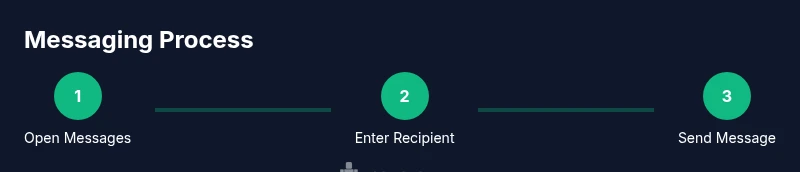
Once enabled, sending a private message follows a simple flow: open Messages, select or enter a recipient, compose your message, review content, and hit Send. If the recipient is not accepting messages, you’ll see a notification indicating messaging is blocked or restricted. You can also add attachments like Roblox usernames for quick reference in the chat. This overview helps you plan your conversations but always tailor content to third-party safety rules and community guidelines.
Common pitfalls and how to avoid them (safety-first mindset)
Common pitfalls include sharing personal information, inviting strangers into personal channels, or ignoring privacy prompts. Always verify you’re messaging a trusted user and avoid sending sensitive data. If a message feels unsafe, use the Block or Report feature and document the interaction. A good habit is to save important details outside Roblox if needed, rather than relying on in-chat notes. This section reinforces safe messaging practices and protects your account integrity.
Final notes and best practices (encapsulated guidance)
The process of private messaging on Roblox should balance social interaction with safety. The Blox Help team recommends using privacy settings to limit contact with unknown users, keeping conversations friendly and appropriate, and reporting any abusive behavior promptly. By following these guidelines, you can enjoy Roblox's social features while staying secure. The Blox Help team believes that informed players can cultivate a positive, safe chat environment while connecting with friends and trusted peers.
Tools & Materials
- Device with internet access(Smartphone, tablet, or computer; use Roblox app or web browser)
- Roblox account(Ensure you are logged in and have two-factor authentication enabled if possible)
- Recipient's Roblox username(Double-check spelling to avoid sending to the wrong person)
- Updated privacy settings(Configure who can message you (friends only, etc.) before contacting others)
- Optional reference screenshots(Capture steps if you need to reproduce or teach others)
Steps
Estimated time: 15-25 minutes
- 1
Log in to Roblox
Open the Roblox app or website and sign in with your username and password. If you use two-factor authentication, complete that step as prompted. Verifying your identity helps keep your messages secure.
Tip: Enable two-factor authentication for added security. - 2
Open the Messages inbox
Navigate to the Messages area from the main menu or header icons. If you don’t see Messages, your account may not have messaging enabled or your privacy settings may restrict it.
Tip: Look for a chat bubble or envelope icon to access Messages quickly. - 3
Enter or select the recipient
Type the recipient’s Roblox username or select from your recent chats. Confirm you’re contacting the right person before composing your message.
Tip: If you’re unsure about a username, verify it via the user profile. - 4
Compose and send your message
Write a respectful, concise message. Review for personal information and tone, then press Send.
Tip: Keep messages appropriate and avoid sharing personal details. - 5
Handle responses and privacy prompts
If the recipient replies, continue the conversation or gracefully end it if needed. If you can’t send messages, recheck privacy settings or blocked status.
Tip: If you experience repeated issues, review your privacy settings on both accounts. - 6
Report or block if necessary
If you receive harassment or threats, use Block or Report to protect yourself and prevent future messages.
Tip: Document the issue and report it to Roblox support if it escalates.
Questions & Answers
Who can message me on Roblox?
Messaging eligibility depends on your privacy settings and age-appropriate safeguards. By default, you may receive messages from friends or, if allowed, from others. Always verify the sender before replying.
Messaging depends on your privacy settings and age. Verify who’s contacting you before replying.
How do I block or report a message on Roblox?
Open the conversation, select the options menu, and choose Block or Report. Provide a brief reason if prompted. You can also manage blocked users in your privacy settings.
Open the chat, choose Block or Report, and follow the prompts.
Can I message someone who isn’t on my friends list?
Depending on your privacy settings, you may be able to message non-friends. If messaging from non-friends is disabled, you’ll need to adjust privacy controls or request the user to become a friend first.
You might be able to message non-friends if allowed by privacy settings.
Why can’t I send Roblox messages on mobile?
Some restrictions are device-specific or tied to your account settings. Check that your privacy settings permit messages and that you’re using the latest Roblox app.
Mobile issues usually come from privacy settings or app updates.
Is there a difference between in-game chat and private messages?
Yes. In-game chat is tied to games you’re playing and friends, while private messages live in your Roblox inbox and can be sent outside a game if permitted by settings.
Chat happens in-game; private messages live in your inbox with separate rules.
What safety tips should I follow when messaging?
Avoid sharing personal data, verify identities, use reporting tools if something feels unsafe, and keep conversations respectful and appropriate.
Don’t share personal data; verify people and report anything unsafe.
Watch Video
The Essentials
- Enable and review privacy settings before messaging.
- Verify recipient identity to avoid misdirected chats.
- Keep conversations safe and appropriate; report abuse immediately.
- Know how to access Messages on both mobile and desktop.
- Use Block/Report to handle unsafe interactions.