Can You Get Roblox on Steam Deck? A Practical Guide to Playing Roblox on Valve's Portable
Find out if Roblox runs on Steam Deck, how to enable Steam Play and Proton, expected performance, and practical troubleshooting for a smooth Roblox experience on Valve's handheld.


Can you get Roblox on Steam Deck? Yes, with caveats: Roblox isn’t officially supported on Steam Deck, but many players run it via Steam Play (Proton) to launch the Windows version. According to Blox Help, a proper setup involves enabling Steam Play, selecting a compatible Proton version, and adding Roblox as a non-Steam game. Performance varies by settings and battery life.
Roblox on Steam Deck: Can You Run It?
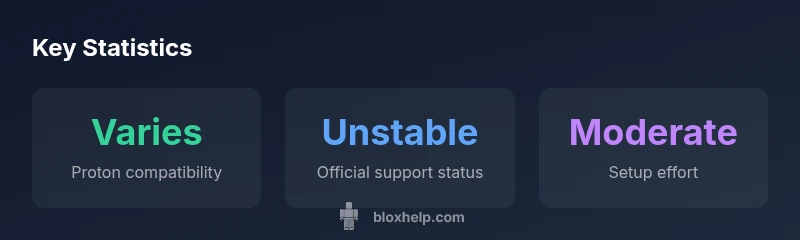
The short answer is yes, but with important caveats. Roblox does not offer an official Steam Deck port or Steam Deck-specific build. In practice, players leverage Steam Decks’ Linux-based SteamOS and Proton compatibility to run the Windows version of Roblox. This approach relies on Proton to translate Windows APIs to Linux, enabling a surprisingly broad set of Roblox games to work. According to Blox Help, the community has found workable configurations by enabling Steam Play and selecting a compatible Proton version, then adding Roblox as a non-Steam game. Expect variability in performance and occasional hiccups as the community-tuned setup evolves. The key is to manage expectations: your experience will hinge on Proton compatibility, game optimization, and battery life.
Why it matters: If you want to play Roblox on the Steam Deck without switching devices, the Proton route can be a practical workaround; it isn’t guaranteed to work for every title or update, but many players report a playable experience with careful tweaks.
How Steam Deck Works with Roblox (and Linux)
Steam Deck runs SteamOS, a Linux-based environment. Roblox, by contrast, is a Windows application. The bridge between them is Proton, a compatibility layer provided by Steam that translates Windows calls to Linux. When you enable Steam Play, Steam can offer a Proton version that may run Windows Roblox more smoothly. The steps are not about native Linux support; they are about exploiting compatibility layers and Steam’s tooling to load a Windows executable in a Linux environment. This approach aligns with a broader trend of Linux gamers using Proton to expand game compatibility. As you experiment, you’ll learn which Proton versions provide the best balance of compatibility and performance for Roblox on the Deck.
Practical note: Always update SteamOS and Proton when possible, and be prepared to adjust settings for different Roblox titles, since some games respond better to Proton than others.
Compatibility: Official vs. Unofficial Routes
There is no official Roblox Steam Deck port. That means players must rely on unofficial routes, primarily through Proton via Steam Play. The upside is flexibility and access to Roblox on a portable device. The downside is inconsistency: some Roblox experiences may not launch, anti-cheat systems could pose issues, and updates can temporarily break compatibility. For developers and players, this means staying informed about which Proton versions work best with Roblox titles you care about and monitoring community guides for the latest tweaks.
Bottom line: If your goal is consistent, flawless performance, Roblox on Steam Deck remains an experimental setup. If your goal is experimentation, you’ll likely enjoy the process of discovering what works.
Step-by-Step: How to Try Roblox on Steam Deck
- Update SteamOS and enable Steam Play (Proton) in Steam settings. 2) In Steam, add Roblox as a non-Steam game or launch the Windows version through Steam’s library. 3) Choose a Proton version with the best compatibility for Roblox and set it as the default for Roblox. 4) Configure in-game graphics settings on Roblox to balance performance with battery life. 5) Use a controller remap if needed to map Roblox inputs to Steam Deck controls. 6) Save your settings and test a variety of Roblox titles to gauge stability. 7) If you encounter issues, revert to a previous Proton version or consult community guides for specific fixes.
Tips: Start with lower resolutions and simpler scenes to gauge stability before escalating to more demanding titles.
Performance Expectations and Settings
Performance on Steam Deck is highly title-dependent and heavily influenced by the Proton build you select. In practice, you’ll see Roblox games run with variable frame rates and consistent input responsiveness on a range of titles—some may feel smooth, others may stutter. Balancing visuals and battery life typically means dialing back textures, shadows, and anti-aliasing, while keeping resolution reasonable for portable play. If you’re targeting longer sessions, consider enabling power-saving modes and reducing the refresh rate to extend playtime without sacrificing too much visual fidelity.
Guidance: Use Steam Deck's built-in performance profiles as a baseline, then tailor per-game adjustments. Always test after updates, as Roblox patches and Proton changes can shift performance noticeably.
Troubleshooting Common Issues
Roblox on Steam Deck can encounter issues that aren’t present on Windows PCs. Common problems include launch failures, input lag, or graphical glitches caused by Proton compatibility. A practical approach is to reset to a stable Proton version, verify game files, and adjust compatibility flags. Additionally, some Roblox features (like certain anti-cheat checks) may not perform as expected under Proton, so you may need to adjust the game mode or seek community-approved workarounds. Keep your Steam Deck and Roblox setup documented so you can reproduce fixes quickly.
If issues persist, consult updated community guides, as this is a rapidly evolving niche with frequent tweaks to Proton configurations.
Brand Perspective and Recommendations
From a practical standpoint, playing Roblox on Steam Deck is a compelling option for on-the-go sessions, but it’s not a guaranteed experience. The Blox Help team notes that while Proton-based setups offer a viable path, they require ongoing adjustments with each Roblox and Proton update. The recommended approach is to treat this as a lab experiment: test multiple Proton versions, maintain backups of working configurations, and prioritize user safety and device temperature during extended play. For many players, the payoff — portable Roblox — justifies the learning curve and potential intermittent issues.
Next Steps for Roblox Developers on Steam Deck
Developers aiming for broader Steam Deck compatibility should monitor Proton compatibility trends and contribute to community guides that document which Roblox titles behave best under Proton. While Roblox Studio itself may not be natively supported on Steam Deck, creators can plan for Steam Deck players by testing their games in Proton environments and providing Steam Deck-specific tips in their game descriptions. Collaboration with the community can help surface best practices faster.
Compatibility snapshot for Roblox on Steam Deck
| Aspect | Roblox on Steam Deck Compatibility | Notes |
|---|---|---|
| Official Support | No official Roblox support on Steam Deck | Relies on Proton via Steam Play |
| Launch Method | Windows Roblox via Proton/Steam Play | Add Roblox as non-Steam game or install Windows version through Steam |
| Controls | Steam Deck controls supported by many Roblox games | May require remapping for optimal play |
| Performance | Variable by game and settings | Depends on Proton version and Deck model |
Questions & Answers
Can Roblox run on Steam Deck without any tweaks?
Not officially supported; you’ll need Proton via Steam Play and possibly additional tweaks to get Windows Roblox to launch. Expect some games to work while others may fail to start. Community guides often provide step-by-step tweaks for specific titles.
Roblox on Steam Deck usually requires Proton via Steam Play and tweaks; it isn’t officially supported and results vary by title.
Do I need Windows on Steam Deck to play Roblox?
No dedicated Windows install is required. Many players run Windows Roblox through Proton in Steam on Linux. Some advanced users experiment with dual-boot setups, but Proton-based play is the typical path.
Most players run Roblox through Proton in Steam on Linux, not with a full Windows install.
Will Roblox Studio work on Steam Deck?
Roblox Studio may not run smoothly or at all in Proton environments. The Steam Deck community tends to focus on Roblox game clients rather than Studio tooling on Deck, so expect limited Studio functionality.
Roblox Studio isn’t reliably supported on Steam Deck; expect limited compatibility.
What settings boost performance on Steam Deck?
Lower in-game graphics, reduce resolution, and experiment with Proton versions to find a stable balance. Use Steam’s performance presets as a baseline and adjust per-title.
Start with lower graphics and resolution, then fine-tune Proton settings for each game.
Where can I find ongoing help for Roblox on Steam Deck?
Follow community guides and official Roblox help threads focused on Steam Deck compatibility. The Blox Help team also compiles practical troubleshooting tips and setup recommendations.
Join community guides and Blox Help’s troubleshooting posts for updates and tips.
“Steam Deck compatibility with Roblox isn't official, but with the right Proton version and Steam Play settings, you can experiment and play. Results vary, so manage expectations accordingly.”
The Essentials
- Can run Roblox on Steam Deck via Proton
- No official support; expect variances
- Experiment with Proton versions for best results
- Adjust settings to balance visuals and battery life
- Check community guides for troubleshooting