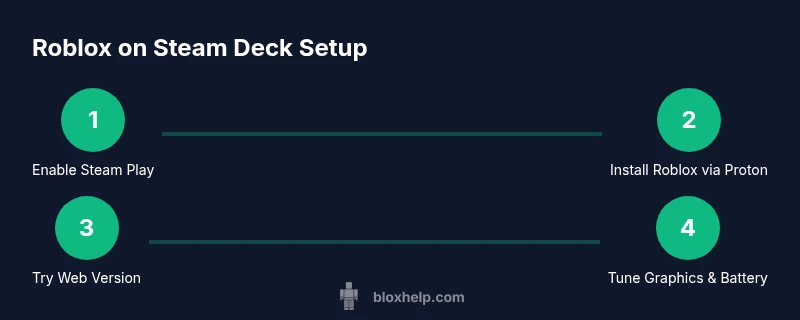
Roblox on Steam Deck: Complete Setup Guide
Learn how to run Roblox on Steam Deck using Proton or the web version. This step-by-step guide covers setup, performance tweaks, and troubleshooting for 2026.


Roblox runs on Steam Deck via Proton Steam Play or the web version. This guide provides a concise path to install, optimize visuals, and troubleshoot common issues for portable Roblox gameplay. According to Blox Help, most players experience solid results with proper settings. The Blox Help team found that both installation routes offer viable, game-ready experiences on the Deck.
Roblox on Steam Deck: Compatibility and Goals
Running roblox on steam deck hinges on two paths: the Windows Roblox client run through Proton Steam Play, or Roblox's web version accessed in a Chromium-based browser on Steam Deck. The SteamOS environment (based on Linux) benefits from Proton compatibility layers that translate Windows API calls into Linux calls. According to Blox Help, this approach is not official for Roblox, but with the right Proton version and proper settings, many players report stable gameplay. As of 2026, the community has refined workflows to reduce crashes, adjust frame rates, and balance visuals with battery life, making roblox on steam deck a practical option for commute gaming or casual sessions with friends. Expect some variability due to firmware updates, driver stacks (GPU, audio, input), and how Roblox allocates system resources on Steam Deck. Based on Blox Help analysis, most players achieve stable gameplay with careful graphics settings.
Prerequisites and Tools You'll Need
Before you start, gather a few essentials to avoid interruptions. A Steam Deck with SteamOS 3.x, a steady internet connection, and an active Roblox account are non-negotiables. You’ll also need a Steam account to enable Steam Play and, optionally, a browser (Chromium-based) for the Roblox web experience. A USB-C keyboard or Bluetooth controller can significantly improve navigation and comfort, especially during setup and long play sessions. If you plan to install Roblox Windows client via Proton, you’ll be configuring Proton in Steam to handle Windows executables. A microSD card with extra space helps store installers and local cache. According to Blox Help, having a backup plan (web version) reduces frustration if Windows emulation falters.
Install Roblox via Steam Play (Proton) Method
This route uses Proton to run the Windows Roblox installer in Steam Deck. Start by enabling Steam Play for all titles in Steam settings, then add Roblox as a non-Steam game or install the Windows Roblox client through Steam as a “non-Steam game” item. Download the Roblox installer from roblox.com, then run it through Proton with recommended compatibility (latest stable Proton). After installation, launch Roblox from Steam with the same Proton profile and log in to your account. If you run into audio or input issues, switch to a different Proton version (e.g., Proton 8.x to Proton Experimental) and retest.
Use Roblox Web Version on Steam Deck's Browser
If you prefer a lighter footprint or experience fewer compatibility quirks, the Roblox web version is a solid alternative. Open a Chromium-based browser on your Steam Deck, log into Roblox, and start games directly from your browser. For best results, enable hardware acceleration and set graphics to mid-range in Roblox’s in-game settings to reduce GPU load. The web route avoids Windows emulation, but you’ll rely on browser performance and network stability. In many cases, this path delivers quick access to Roblox without waiting for a Windows installer to finish.
Performance Tweaks for Portable Play
Optimizing graphics and resource use is essential on battery-powered hardware. Lower Roblox graphics quality to mid-range (roughly levels 4–6), disable unnecessary shadows, and cap the frame rate to 60 FPS or lower if you notice stutter. On Steam Deck, using a 720p or 800p render resolution helps balance clarity and battery life without sacrificing too much detail. Also, consider enabling performance-focused power profiles in SteamOS and closing background apps to free CPU/GPU resources. If you use Proton, try different compatibility layers and driver settings to balance latency and frame timing.
Troubleshooting Common Issues
If Roblox won’t launch, verify that the executable or URL is accessible and that Proton is properly assigned to the Roblox entry. Crashes often stem from incompatible Proton versions or missing runtime libraries; switching Proton versions can resolve this. Audio stuttering, input lags, or muted sound can be mitigated by adjusting audio driver settings and ensuring the Deck’s Bluetooth devices aren’t conflicting with the game. For the web version, clear browser cache, disable extensions that impact performance, and ensure cookies are allowed for Roblox. Network-related hiccups may require a quick router reboot or moving closer to the router.
Safety, Longevity, and Maintenance
Prolonged gaming on a Steam Deck should include proper cooling, regular software updates, and mindful charging habits to maintain battery health. Use the official SteamOS power profiles to choose balanced or performance modes and avoid keeping the device at extreme temperatures. Keep Proton and browser versions updated to minimize compatibility gaps; check Roblox’s system requirements and Deck compatibility notes for any 2026 changes. By following best practices, roblox on steam deck can remain a reliable portable option for months to come.
Tools & Materials
- Steam Deck (any model)(Ensure SteamOS is updated to latest.)
- Stable internet connection(Wi-Fi preferred for downloads and streaming.)
- Roblox account(Required for login and game progress.)
- Steam account(Needed to enable Steam Play and Proton.)
- System browser (Chromium-based)(Use for Roblox web version if preferred.)
- USB-C keyboard(Helpful for setup and typing.)
- Bluetooth controller (optional)(Improves navigation in Roblox games.)
- MicroSD card (optional) 32GB+(Extra space for installers and cache.)
Steps
Estimated time: 60-90 minutes
- 1
Enable Steam Play (Proton)
Open Steam on the Deck, go to Settings > Steam Play, and enable Steam Play for all titles. This prepares the Deck to run Windows apps via Proton. The Proton version you choose can affect compatibility with Roblox.
Tip: Start with the latest stable Proton; switch to Proton Experimental if you encounter crashes. - 2
Add Roblox as a Non-Steam Game
In Steam, add Roblox as a non-Steam game or a local Windows application via Steam’s 'Add a Non-Steam Game' option. This lets you run the Windows Roblox installer through Proton.
Tip: Name it clearly (Roblox Windows) to avoid confusion with the browser version. - 3
Download Roblox Windows Installer
Visit roblox.com from the Deck’s browser and download the Windows installer. Save it to the Deck’s storage, preferably on the microSD card if space is limited.
Tip: Ensure you’re downloading from the official Roblox site to avoid malware. - 4
Run the Installer with Proton
Launch the Roblox installer entry in Steam and force it to run with Proton. Follow the on-screen prompts to complete the Windows install. If the installer crashes, try again with a different Proton version.
Tip: Check Steam’s GPU settings to ensure Proton can access the GPU. - 5
Login and Create a Test Game
After installation, launch Roblox from Steam and log in. Create a quick test; verify that the Roblox Player loads and assets render correctly. This confirms the Windows path is functioning.
Tip: If you can’t log in, double-check network settings and firewall allowances. - 6
Configure In-Game Settings
Open Roblox’s in-game settings and adjust graphics to a mid-range level (e.g., 4–6) with a target 60 FPS if possible. Tweak audio and UI settings for the Deck's controls.
Tip: Disable heavy shadows and post-processing to reduce GPU load. - 7
Test Performance and Battery Life
Play a few quick rounds to gauge stability and battery drain. Switch between Performance and Balanced power profiles in SteamOS to see which setting delivers the best balance between visuals and playtime.
Tip: Track battery drain during a standard session to compare future tweaks. - 8
Try Roblox Web Version as Backup
If the Windows path proves unstable, open Roblox in the Deck’s browser and log in to play. This path bypasses Windows emulation but relies on browser performance and network speed.
Tip: Web version may offer smoother performance on less powerful Proton builds. - 9
Troubleshoot Common Issues
If Roblox won’t launch or crashes, switch Proton versions, clear cache in the browser (if using web), or reinstall Roblox Windows. Check input devices and audio routing for conflicts.
Tip: Document any fixes you find; community forums often share Proton-specific tips.
Questions & Answers
Can I run Roblox on Steam Deck without Windows?
Yes. You can use Proton Steam Play to run the Windows Roblox client or access Roblox via a web browser in Desktop mode. Both approaches avoid a formal Windows installation on the Deck.
Yes. You can run Roblox on Steam Deck using Proton or the web version, so no full Windows install is required.
Is Roblox Studio available on Steam Deck?
Roblox Studio is not officially supported on Steam Deck. Running Studio through Proton may be unreliable, and you may prefer the standard Roblox player for most games. If you need Studio capabilities, use a Windows PC.
Roblox Studio isn’t officially supported on Steam Deck. You can try via Proton, but it’s not guaranteed.
What performance can I expect on the Deck?
Expect variable results based on game complexity and settings. Lower graphics and frame rates help preserve battery life, while browser-based Roblox generally uses less system load than the Windows client.
Performance varies; lowering graphics helps save battery and keep it smooth.
Does Roblox on Deck affect battery life significantly?
Yes. Roblox, especially with Windows emulation, can drain the battery more quickly. Use power profiles, reduce render resolution, and limit frame rate to maintain playtime.
Battery life will vary; lower settings to stretch playtime.
What issues are common, and how do I fix them?
Common issues include driver/Proton compatibility, input lag, or audio glitches. Update Proton, toggle between different Proton versions, ensure browser extensions aren’t interfering, and test both Windows and web paths.
If you have issues, try a different Proton version and check inputs and audio settings.
Is Roblox on Steam Deck officially supported by Roblox?
Roblox does not offer official Steam Deck support. Players use Proton or browser-based access to run Roblox on the Deck with varying success depending on updates.
There’s no official Steam Deck support from Roblox; use Proton or Web options.
Watch Video
The Essentials
- Enable Steam Play to run Roblox on Deck.
- Choose between Windows Roblox via Proton and Roblox Web version.
- Adjust graphics and frame rate to balance performance and battery life.
- Troubleshoot by switching Proton versions and testing web vs. Windows paths.
- Stay aware of 2026 Roblox updates that affect compatibility.