How to Get Roblox Studio on Chromebook
Learn how to run Roblox Studio on a Chromebook with practical, beginner-friendly options. This guide covers remote access, Linux workarounds, step-by-step setup, and tips to avoid latency.


Roblox Studio isn’t officially available as a Chromebook app, so you can’t install it the same way you would on Windows or Mac. That said, you can run Roblox Studio on a Chromebook by using a Windows PC via remote access, or by leveraging Linux-based workarounds to access Windows apps. This guide covers these practical, beginner-friendly options and safety notes.
Why the phrase "how to get roblox studio on chromebook" isn’t straightforward on Chrome OS
The primary challenge is that Roblox Studio is designed for Windows and
Practical options to use Roblox Studio on a Chromebook
There are a few realistic paths, each with its own trade-offs. The most reliable route for many users is remote access to a Windows machine that already has Roblox Studio installed. A second option is to enable Linux (Beta) on the Chromebook and attempt a Linux-based workaround with compatibility layers. A cloud or virtual desktop approach is also possible if you have a suitable plan. The goal is to balance simplicity, performance, and safety, rather than forcing an unsupported installation.
Option A: Remote Windows PC with Roblox Studio
This is the most stable path for a Chromebook user who already has access to a Windows PC. You run Roblox Studio on the Windows host and view/control it from your Chromebook via remote desktop tools. You avoid the complexity of Windows emulation on Chrome OS and you preserve full Studio functionality, including the editor, plugins, and real-time testing. Expect some latency depending on network speed, but you’ll benefit from native Roblox Studio features and project compatibility.
Option B: Linux-based workarounds (not officially supported)
Some advanced users try enabling Linux (Beta) on Chrome OS and running Windows apps through compatibility layers like Wine. This route is experimental and typically not recommended for beginners due to stability and performance issues. If you choose this path, be prepared for setup quirks, limited plugin support, and potential license or terms-of-use concerns. Use this cautiously and only with non-critical projects.
Option C: Cloud-desktop or cloud-hosted Roblox Studio alternatives
A cloud desktop service can provide a Windows environment accessible from Chromebooks. With a cloud VM, you can run Roblox Studio as if you were at a Windows machine, but you’ll pay for compute time and must manage remote input latency. This approach might suit students with limited hardware but requires reliable internet and careful cost planning. Always verify the service’s terms and performance guarantees before committing.
Performance expectations, safety, and best practices
Expect some latency in interactive tasks when using remote access or cloud desktops. Prioritize a fast, stable internet connection (preferably wired or 5 GHz Wi‑Fi) and minimize other network-heavy apps during studio sessions. Always use official Roblox Studio sources for downloads, keep your devices updated, and avoid installing untrusted tools that claim to speed up or bypass protections. This keeps your Roblox projects safe and compliant with terms of service.
A quick-start plan for beginners
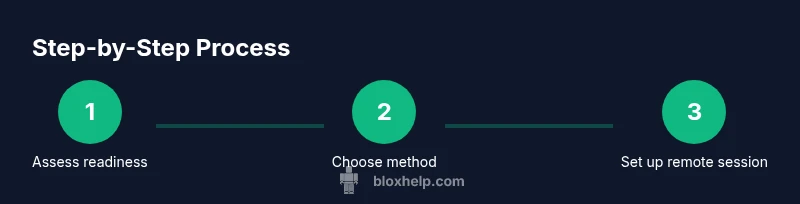
If you’re new to Roblox Studio and Chromebooks, start with a remote Windows setup on a dedicated Windows PC or partner computer. Follow a simple three-step flow: (1) set up reliable remote access, (2) launch Roblox Studio on the host, and (3) connect from the Chromebook and begin a small project. This approach minimizes complexity and helps you learn the workflow before scaling.
Authority sources and further reading
For Chromebook-specific guidance, you can consult official help resources and reputable tech publications. While Roblox Studio does not offer a Chrome OS client, many Chromebook users succeed with remote desktop workflows and safe Linux experiments when appropriate. Always cross-check with the latest guidance from trusted sources when trying a new setup.
Tools & Materials
- Chromebook (Chrome OS)(Ensure OS is updated and has reliable internet. If you plan Linux workarounds, enable Linux (Beta) in Settings.)
- Reliable internet connection(Wired ethernet or strong Wi‑Fi; latency directly affects control and editing speed.)
- Windows PC or Mac with Roblox Studio installed(Needed for the remote Windows host path; not required if you use a cloud VM or Chromebook-based Linux workaround.)
- Remote access software (e.g., Chrome Remote Desktop, Parallels Desktop, or other RDP/VNC tools)(Choose a solution compatible with Chromebook; configure unattended access for seamless sessions.)
- Roblox account and login credentials(Used to access Roblox Studio features and save projects to your Roblox account.)
- Backup plan (cloud storage or local backups)(Keep copies of your Roblox projects to prevent data loss during transfers.)
Steps
Estimated time: 2-4 hours total, plus ongoing maintenance
- 1
Check Chromebook readiness
Verify your Chromebook’s OS version and internet connection. Ensure you can enable Linux (Beta) if you plan a Linux-based approach, or confirm that you have a Windows host accessible for remote desktop. This prevents surprises later in the setup.
Tip: Pro tip: Use a wired connection during setup to reduce latency. - 2
Decide your primary method
Choose between remote Windows hosting, Linux-based workarounds, or a cloud desktop. Your choice should consider cost, comfort with new software, and whether you already have a Windows host.
Tip: Pro tip: Start with the simplest remote Windows setup if you have a Windows host available. - 3
Prepare the Windows host (if using Option A)
On the Windows PC, install Roblox Studio and verify it runs locally. Create a test project to ensure the editor behaves as expected before attempting remote access.
Tip: Pro tip: Enable automatic login on the Windows host for quicker access. - 4
Install and configure remote access
Install your chosen remote access tool on both Chromebook and the host. Configure secure access and test a brief session to confirm input, screen sharing, and audio if needed.
Tip: Pro tip: Use a dedicated session for Roblox to avoid interruptions from other apps. - 5
Launch Roblox Studio from the host
Start Roblox Studio on the Windows host and ensure the project you want to edit is open. Confirm that camera movement, tool palettes, and plugins respond during the remote session.
Tip: Pro tip: Keep plugin updates in sync with Roblox Studio versions on the host. - 6
Connect from Chromebook and test
From the Chromebook, connect to the host session and try creating a small asset or editing a script. Check for input latency and file save behavior.
Tip: Pro tip: Use a small test project first to validate the workflow without risking larger assets. - 7
Save, sync, and back up work
Save projects locally on the host and back them up to your Roblox account or cloud storage. Ensure you have reliable syncing so you don’t lose progress.
Tip: Pro tip: Enable automatic cloud backups for frequent saves. - 8
Maintain and update tools
Regularly update Roblox Studio and remote desktop software. Re-test after updates to catch compatibility issues early.
Tip: Pro tip: Schedule periodic maintenance windows to keep everything stable.
Questions & Answers
Is Roblox Studio officially supported on Chromebooks?
No. Roblox Studio does not have a native Chromebook app. Most users rely on remote Windows access or experimental Linux workarounds to use Studio.
Roblox Studio isn’t officially supported on Chromebooks; you’ll need a workaround like remote Windows access or a cautious Linux setup.
What is the easiest method to run Roblox Studio on a Chromebook?
The simplest path is remote access to a Windows PC that has Roblox Studio installed. This keeps Studio features intact and minimizes setup complexity.
The easiest method is to use remote Windows access to a PC with Roblox Studio installed.
Can Roblox Studio run in a browser on Chromebook?
Roblox Studio is a desktop application and does not run in a web browser. Browser-based Roblox development is not officially supported.
Roblox Studio doesn’t run in a browser; you’ll need a desktop setup or remote access.
Is Linux (Beta) a viable route for Roblox Studio on Chromebook?
Linux workarounds are experimental and not officially supported. They can be unstable and may not work with all Roblox Studio features.
Linux-based workarounds exist but are not officially supported and can be unstable.
How long does setup typically take?
Depending on the method, initial setup can take 1-3 hours, with ongoing tweaks as you test and optimize performance.
Expect about one to three hours for initial setup, plus extra time for testing.
Will Roblox Studio performance be good on Chromebook remote setups?
Performance depends on network stability and host machine specs. Latency and frame rate may vary, especially on slower connections.
Performance depends on your network and host PC; expect some latency in edits.
The Essentials
- Roblox Studio has no native Chromebook app; use remote Windows or Linux workarounds.
- Remote desktop is the most reliable path for most users.
- Plan for latency and backups to protect your workflow.
- Follow safe, official sources and validate setups before heavy development.