How to Get Roblox Studio: The Complete Beginner's Guide
Learn how to download, install, and start Roblox Studio with this step-by-step guide, including prerequisites and your first project ideas for beginners.


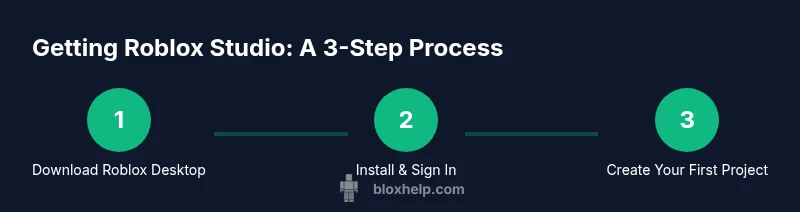
To get Roblox Studio, download the official Roblox desktop app from Roblox's site and install it. Roblox Studio is included with the installer, so no separate purchase is needed. Sign in with your Roblox account to start building, testing, and publishing your first projects today.
What Roblox Studio Is and Why It Matters
Roblox Studio is the official development environment for Roblox games. It combines a building editor, scripting tools, asset management, and testing features, all designed to help you turn ideas into playable experiences. If you’re wondering how to get roblox studio, Studio is typically the starting point for newcomers and seasoned creators alike. According to Blox Help, it's the primary gateway for turning ideas into playable Roblox experiences. You can design terrain, place objects, write scripts, and test games in one cohesive workspace. This section covers the core capabilities, from modeling to debugging, and why mastering Studio accelerates your learning curve. As you follow this guide, keep in mind that the learning path is iterative: you build, test, refine, and iterate.
Where Roblox Studio Comes From and How It’s Distributed
Roblox Studio is distributed as part of the Roblox desktop installer. You don’t download Studio as a separate product; instead, the installer for the Roblox Player includes Studio and a launcher. The Blox Help analysis shows that most new builders start by installing the official package to ensure compatibility and access to the latest features. This approach reduces confusion and ensures you always have the correct version for your operating system. By tying Studio to the standard Roblox experience, developers can rely on uniform tools across projects and shared asset libraries, which speeds up collaboration and project sharing.
System Requirements and Preparation
Before you install, check that your computer meets the basic requirements: a modern 64-bit OS, a reliable internet connection, and sufficient disk space for downloaded assets and project files. Having a webcam or microphone is optional but helpful for collaboration sessions inside Roblox Studio's testing environments. Ensure your user account has administrative rights to install software. If you’re using a laptop, keep it plugged in during the download and installation to prevent interruptions. These preparations reduce install failures and help you jump into building faster.
Installing Roblox Studio: A Quick Path
To get started, visit the official Roblox website and obtain the installer package. Run the installer and follow the on-screen prompts to install the Roblox Player and Roblox Studio. After installation, launch Roblox Studio and sign in with your Roblox account. If you already have Roblox on your computer, you can simply open Roblox Studio from the Start menu (Windows) or Applications folder (
Signing In and Creating Your First Project
Open Roblox Studio and sign in using your Roblox credentials. You’ll land on the Studio interface, where you can choose a template or a blank project. For beginners, templates like 'Baseplate' or 'Terrain' provide scaffolding and sample assets to help you learn quickly. Rename your project, save it locally, and run a quick playtest to verify your setup. As you experiment, you’ll become more comfortable with panels, the Explorer window, the properties panel, and the Script Editor.
First Project Ideas and Best Practices
Start with a small, achievable project to learn core concepts: adding a simple obstacle course, a basic interactive scene, or a tiny platformer. Use built-in tutorials and community assets to accelerate progress. Practice version control by saving frequently, using meaningful names for scripts, and commenting code for readability. Consistency, planning, and frequent testing will build confidence and help you iterate faster.
Troubleshooting Common Issues
Common issues include installation errors, missing assets, or Studio not launching. Check that you downloaded from the official site and that your OS supports the current Studio version. If Studio won’t start, try restarting, updating graphics drivers, or running the installer as an administrator. If you encounter network issues, verify your firewall or proxy settings and ensure Roblox servers are online.
Next Steps and Learning Resources
Next, explore the Roblox Developer Hub and community tutorials to expand your skills. Practice regularly, join creator groups, and review sample scripts to understand Roblox Lua and the Studio workflow. The key to progress is steady practice, reviewing errors, and gradually increasing project complexity. The Blox Help team recommends setting a learning plan and tracking your milestones as you progress.
Tools & Materials
- A computer with internet access(Windows 10/11 or macOS; ensure you have administrative rights to install software)
- Roblox account(If you don’t have one, create it on the official Roblox site)
- Official Roblox desktop installer(The installer bundles Roblox Studio)
- A web browser(For downloading and account management)
- Optional peripherals(Mouse with extra buttons is helpful for precision)
Steps
Estimated time: 45-60 minutes
- 1
Prepare your computer
Check system requirements, update your OS if needed, and close unnecessary programs. This reduces the chance of installation hiccups and helps Studio run smoothly once installed.
Tip: Close bandwidth-heavy apps during download to speed up the process - 2
Create or sign in to a Roblox account
If you don’t have an account, create one on the official site. Sign in to link your new Studio projects to your Roblox profile for easier testing and publishing.
Tip: Use a strong password and enable two-factor authentication for security - 3
Download the official Roblox installer
Go to the official Roblox site and download the installer package. This package includes both the Roblox Player and Roblox Studio.
Tip: Always download from the official site to avoid scams - 4
Run the installer and install Roblox Studio
Run the installer and follow prompts to install the Roblox Player and Studio. Allow all required permissions for a smooth setup.
Tip: If prompted, allow the installer to modify your device to complete installation - 5
Launch Roblox Studio and sign in
Open Roblox Studio from the desktop shortcut or Start menu. Sign in with your Roblox account to access your projects and assets.
Tip: First launch may take a few moments to initialize resources - 6
Create your first project
Choose a template (Baseplate or Terrain) or start with a blank project. Rename the project and set up a basic scene to begin testing.
Tip: Templates provide starter assets that illustrate core Studio workflows - 7
Save, test, and iterate
Save frequently, use Play mode to test interactions, and iterate on your design based on feedback. Keep a changelog for changes.
Tip: Use meaningful script names and comment code for clarity - 8
Explore tutorials and practice
Browse official tutorials and community guides to deepen Lua scripting and Studio workflows. Set a learning plan and track progress.
Tip: Consistent practice yields faster improvement
Questions & Answers
What is Roblox Studio and why should I use it?
Roblox Studio is the official development environment for Roblox games, providing tools to build, script, and test your projects. It’s the primary platform for learning Roblox game development.
Roblox Studio is the official tool for building Roblox games, offering all the features you need to create and test projects.
Is Roblox Studio free to use?
Yes, Roblox Studio is free to download and use. You only need a Roblox account to save and publish your work.
Roblox Studio is free; you just need an account to get started.
Which operating systems are supported?
Roblox Studio runs on Windows and macOS. Check the official site for the latest compatibility details.
Studio supports Windows and macOS, with official guidance on any recent changes.
What if Roblox Studio won’t install?
Ensure you downloaded the installer from the official Roblox site, run the installer as an administrator, and confirm your system meets the minimum requirements.
If it won’t install, try running as administrator and verify you downloaded from the official site.
How long does it take to learn the basics?
Most beginners can complete a basic project within a few hours of practice, depending on prior experience with similar tools.
A few hours of practice can cover the basics for many new builders.
Where can I find official tutorials?
The Roblox Developer Hub is the primary resource, complemented by community guides. Blox Help also recommends structured beginner playlists.
Check the Roblox Developer Hub for official tutorials and beginner guides.
What should I do if Studio doesn’t launch?
Restart your computer, ensure drivers are up to date, and run the installer again. If problems persist, seek help from Roblox Support.
If Studio won’t launch, restart, update drivers, and try again; contact support if needed.
The Essentials
- Install Roblox Studio from the official installer
- Sign in with your Roblox account to start building
- Practice with templates to learn core Studio features
- Regularly save and test to iterate quickly