How to Install Roblox on Steam Deck: A Step-by-Step Guide
Learn how to install Roblox on Steam Deck using Proton in Desktop Mode. This guide covers prerequisites, methods, step-by-step setup, troubleshooting, and optimization for portable Roblox play.


Roblox can run on the Steam Deck without Windows by using Proton in Desktop Mode and adding Roblox as a non-Steam game. This guide shows a safe, step-by-step approach to install and launch Roblox, with troubleshooting tips for common issues. According to Blox Help, you’ll need a Steam Deck, a Roblox account, a browser, and a stable internet connection.
Why Steam Deck is a great platform for Roblox
Roblox isn’t available as a native Linux app, but the Steam Deck’s hybrid design makes it a compelling portable PC for Roblox players. In Desktop Mode, you gain access to a full Linux-like environment, a modern browser, and Steam’s compatibility layer (Proton) that can translate Windows calls into Linux-friendly equivalents. This combination allows you to run Roblox through a Windows launcher without committing to a separate Windows machine. The Blox Help team notes that with current Proton versions, most Roblox titles run adequately at lower graphics settings and modest frame rates, which is often enough for casual play or debugging sessions. You gain portability, a large screen, and full keyboard/mouse or controller input, turning Roblox into a true on-the-go experience.
Understanding compatibility: Roblox on Linux via Proton
Roblox is designed for Windows, macOS, and mobile platforms, not Linux by default. Proton, a compatibility layer developed by Valve, enables Windows software to run on Linux-based systems like Steam Deck. When you run Roblox through Proton, Steam acts as the launcher, and Roblox executes inside a Proton-emulated Windows environment. Performance hinges on Proton version, game optimization, and how you configure graphics and input. The approach is community-supported workarounds rather than official Linux-native support, but the result can be surprisingly capable for many Roblox titles. Regular Steam updates and Proton progress updates can improve stability over time.
Practical methods to install Roblox on the Deck
There are practical paths you can take, depending on how much tinkering you want to do. The first path—adding Roblox as a Non-Steam game and launching the Windows installer through Proton—is the simplest and most reliable for most users. The alternative route involves using a Windows-compatible launcher (like Lutris or a manual Wine/Proton wrapper) to run Roblox, which offers deeper control but adds complexity. The recommended approach for most players is the first method within Steam, as it keeps everything in one place and leverages familiar Steam Play options. Regardless of method, you’ll end up with a Roblox launcher that runs via Proton, signed-in Roblox accounts, and an in-game experience tuned for the Deck’s hardware footprint.
Step-by-step overview and planning
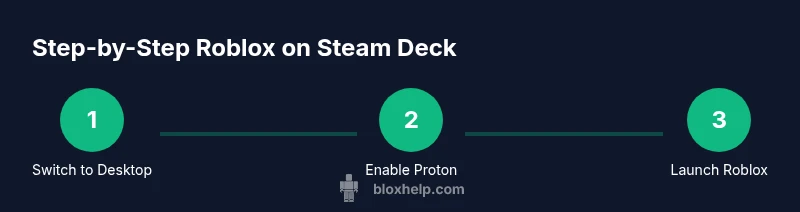
Before you begin, map out your plan: you’ll switch to Desktop Mode, enable Proton for Windows apps, download Roblox, add Roblox as a Non-Steam game in Steam, enable Proton for that entry, and finally launch Roblox to sign in. This section outlines the high-level flow so you know what to expect. Expect occasional tweaks—graphics settings, resolution, and input mapping—to optimize the balance between visuals and performance. A calm setup mindset helps you iterate quickly if a given configuration doesn’t feel right on your first run.
Performance tuning and input mapping on Steam Deck
Performance on Steam Deck comes down to balancing frame rate, resolution, and graphics quality. Start with 720p or 800x480 virtual resolution and a target frame rate of 30–45 FPS for smooth gameplay in Roblox titles that push the engine. Map controls to the Deck’s built-in buttons or a connected controller to improve navigation and combat responsiveness. You can also enable V-Sync and cap FPS to reduce heat and fan noise. If certain games feel sluggish, switch to a lower graphics preset, disable shadows, and reduce texture quality. Regularly check for Proton updates and community tips for specific Roblox game optimizations.
Troubleshooting common issues
If Roblox fails to launch, verify that you opened the Roblox launcher via Proton (latest stable) and that the launcher executable is included as a Non-Steam game in Steam. A missing or incorrect Proton setting is a frequent cause of launch failures. If you encounter login issues, ensure your Roblox account credentials are correct and that your network is stable. For performance problems, adjust the in-game graphics settings and ensure your Deck is plugged into power during long sessions. The Steam Deck community forums and ProtonDB are excellent resources for troubleshooting specific games and driver quirks.
Safety, updates, and best practices
Always download Roblox software from Roblox.com to avoid malware or modified installers. Keep your Steam Deck’s system software, Steam client, and Proton up to date to ensure the best compatibility. If you’re experimenting with Proton GE, proceed with caution and back up important data. Use a power adapter for longer play sessions to avoid battery drain and throttling. Finally, consider saving your Steam shortcut configurations so you can revert to a preferred control layout quickly.
Tools & Materials
- Steam Deck (Desktop Mode)(Switch to Desktop Mode to access Linux-like environment and browser-based Roblox download.)
- Stable internet connection(Needed for Roblox installer, Steam updates, and ongoing play.)
- Roblox account(Required to sign in and access your games.)
- Web browser (Firefox/Chromium/Edge for Linux)(Used to download Roblox installer and access roblox.com.)
- Steam client installed on Steam Deck(Used to enable Steam Play and manage Non-Steam entries.)
- Proton (stable recommended; optional Proton GE)(Proton runs Windows Roblox inside Linux; Proton GE can be used for extra compatibility.)
- Launcher entry for Roblox (Non-Steam Game setup)(Create a Steam entry that launches the Roblox launcher via Proton.)
- Input devices (controller or keyboard/mouse)(Helpful for navigation and gameplay; optional if you stay with built-in Deck controls.)
Steps
Estimated time: 60-120 minutes
- 1
Switch to Desktop Mode
Power off the Steam Deck, then press and hold the Steam button + Power to open the menu and select Desktop Mode. This gives you a full Linux-like environment to operate Roblox through Proton. You’ll perform the primary Roblox setup here before returning to Gaming Mode.
Tip: Use a wired or Bluetooth keyboard for faster entry and switching between apps. - 2
Open Steam in Desktop Mode and verify Steam Play
Launch the Steam client in Desktop Mode and sign in. Go to Settings > Steam Play and enable Steam Play for all titles, ensuring you have Proton selected as the compatibility layer. This is what allows Windows executables to run via Proton.
Tip: Choose the latest stable Proton if you’re unsure which version to pick. - 3
Download Roblox from Roblox.com
In the desktop browser, navigate to roblox.com and click Download to obtain the Windows installer for Roblox. Save the RobloxPlayerLauncher.exe to a location you can access from Steam. Do not download from third-party sites to avoid malware.
Tip: Keep the download folder organized (e.g., ~/Downloads/Roblox). - 4
Add Roblox Launcher as a Non-Steam Game
In Steam, choose Games > Add a Non-Steam Game, then browse to the downloaded RobloxPlayerLauncher.exe and add it. This creates a Steam entry that can be launched under Proton.
Tip: Rename the entry to clearly identify it as Roblox Launcher. - 5
Enable Proton for the Roblox entry
Right-click the Roblox entry in Steam, select Properties, then enable Steam Play for this specific game and select Proton (latest stable) or Proton GE if you’re comfortable experimenting. This config ensures Windows Roblox runs through Proton.
Tip: If the launcher doesn’t start, try switching Proton versions and relaunching. - 6
Launch Roblox and sign in
From the Steam Desktop, click the Roblox entry to start the launcher. Sign in with your Roblox account and go through the initial setup prompts. The first run may download additional components; allow this to complete before playing.
Tip: If you’re stuck on a black screen, terminate and relaunch, or try a different Proton version. - 7
Configure input and graphics
In-game, navigate to Settings to tailor graphics (Texture Quality, Shadows, Effects) and set a target resolution suitable for the Deck (720p–800x480). Map controls to the Deck’s buttons or connect a controller for easier gameplay.
Tip: Enable V-Sync and cap FPS to reduce heat and battery draw. - 8
Troubleshoot common launch issues
If Roblox doesn’t start, check Proton version, ensure RobloxLauncher.exe is the correct launcher, and verify network connectivity. Look up games-specific quirks on ProtonDB and Steam forums for fixes.
Tip: Regularly check for Steam and Proton updates to improve compatibility.
Questions & Answers
Can Roblox run on Steam Deck without Windows?
Yes, Roblox runs on Steam Deck without Windows by using Proton in Desktop Mode and launching Roblox as a Non-Steam game.
Yes, you can run Roblox on Steam Deck without Windows using Proton in Desktop Mode.
Which Proton version should I use?
Use the latest stable Proton for reliability; you can enable Steam Play for all titles to simplify the setup.
Use the latest stable Proton for best compatibility.
Is Roblox safe to run on Steam Deck?
Running Roblox from Roblox.com in Desktop Mode with Proton is generally safe; avoid unofficial installers and third-party launchers.
As long as you download from Roblox.com and use Proton, it's typically safe.
Why is Roblox performance different on Steam Deck?
Performance varies with game complexity and Proton configuration. Lower graphics and frame rate caps often yield smoother play on the Deck.
Performance can vary; you may need to adjust settings.
Can I play Roblox on Steam Deck in Gaming mode?
Yes. By adding Roblox as a Non-Steam Game and launching through Steam, you can play Roblox from Gaming mode.
Yes, you can launch Roblox from Steam's Gaming mode as a non-Steam game.
Watch Video
The Essentials
- Enable Desktop Mode before starting.
- Add Roblox as a Non-Steam Game in Steam.
- Run Roblox through Proton for Windows compatibility.
- Tune graphics and input to achieve best Deck performance.
- Consult Proton and Roblox community resources for tweaks.