How to Play Roblox on Phone Without Downloading
Learn why Roblox on mobile requires the official app and explore safe alternatives. This beginner-friendly guide covers myths, setup, and tips for playing Roblox on a phone.


Officially, Roblox cannot be played on a phone without installing the app. The mobile experience relies on the iOS/Android Roblox apps, or access via a different device that runs the game. This guide explains why this limitation exists and outlines safe, legitimate options for playing on mobile-compatible setups.
Why this topic matters and the reality
Playing Roblox on a phone without downloading the app is a frequent curiosity among players and guardians. In practice, Roblox's mobile experience is delivered through the official iOS and Android apps, which means a download is required to play. According to Blox Help analysis (2026), there is currently no supported method to run Roblox on a mobile web browser or via third-party streaming that bypasses the app on a phone. The Blox Help team found this limitation consistent across devices. This reality matters because expectations often outpace available technology, and misinformation can lead to unsafe shortcuts. This article clarifies why the limitation exists, what options are legitimate, and how to proceed safely. You’ll gain practical insight into device requirements, installation steps, and best practices for reliable performance on small screens. By understanding the constraints, you’ll avoid risky workarounds and focus on a path that keeps your device secure and your Roblox account protected. If you’re wondering how to play roblox without downloading it on phone, this guide will explain.
What 'without downloading' means in mobile Roblox context
The phrase "without downloading" can be misleading when applied to mobile gaming. In Roblox’s ecosystem, the term most often means no local installer on your device, but the game still needs to run inside an authorized Roblox app or a supported environment. On phones, the official experience is delivered via apps that install the game data on the device. Attempts to use browser-based play or unofficial streams typically fall outside Roblox's supported methods and can risk malware or scams. As a result, some claimed browsers or sideloaded APKs can create security holes, violate terms of service, or degrade performance. This section helps you separate rumor from reality and sets the stage for safe, compliant ways to access Roblox on mobile hardware.
Official mobile options and why downloads are required
If you want to play Roblox on a phone, the recommended route is to install the official Roblox app from your device’s app store. The app provides optimized controls, security updates, and ongoing game compatibility. On Android devices, search for Roblox in Google Play and tap Install; on iPhone, locate Roblox in the App Store and tap Get. Once installed, sign in with your Roblox account or create one if you’re new. The app is designed to manage game assets, matchmaking, and parental controls, ensuring a consistent experience across devices. While this requires a download, it guarantees safety, performance, and access to the full Roblox catalog.
The reality: no supported browser-based mobile play
Roblox does not offer a fully supported mobile web player as of 2026. That means attempting to launch Roblox in mobile browsers (Chrome, Safari, or others) will not provide the same functionality as the app, and in many cases won’t run at all. This limitation helps Roblox deliver a smoother experience with responsive controls and reduced latency. If you read guides claiming browser-based play or streaming can bypass the app, treat them as speculative at best and risky at worst. For most users, sticking to the official app is the safest path to a reliable Roblox session on a phone.
Safe alternatives and trade-offs
If downloading the app is temporarily problematic, you can consider safe alternatives, but they come with trade-offs. Remote access tools letting you control a PC where Roblox is installed can stream gameplay to your phone, but this adds latency, requires a separate computer, and may violate terms of service if misused. Cloud-like streaming from third-party services is often unreliable or insecure on mobile if not through official channels. The most reliable approach remains installing the Roblox app on a supported device and using a stable internet connection. Always prioritize official sources, keep your device updated, and avoid shady sideloaders or untrusted websites.
Tools, devices, and prerequisites
Before you begin, confirm you have the essentials in place. A smartphone with decent performance and a reliable internet connection is the baseline. You’ll also need access to the Google Play Store (Android) or the Apple App Store (iOS) and a Roblox account. Ensure you have enough storage space for the app and games (1–2 GB free is a safe target). A charger or power bank is helpful for longer sessions. If your data plan is limited, use Wi-Fi when possible to avoid excessive charges and ensure smoother downloads and updates.
Step-by-step overview for Android and iPhone
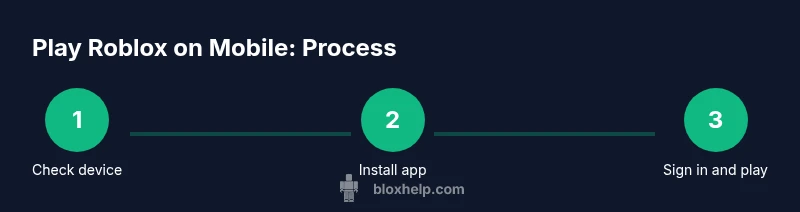
The following overview maps the critical actions you’ll take to start playing Roblox on mobile via the official app. It’s designed to be high-level so you know what to expect before you begin, while the separate STEP-BY-STEP block provides concrete, numbered actions with tips. You’ll confirm device compatibility, access the correct store, install the app, sign in, and test a game. This overview emphasizes safety, account protection, and best practices for mobile gaming. If you want the precise actions, jump to the STEP-BY-STEP section later in this article for a detailed walkthrough.
Performance, storage, and data usage on mobile
Roblox can be resource-intensive, especially on older phones. To maintain smooth performance, close background apps you don’t need, clear cache after large downloads, and set a comfortable graphics level in the in-game settings. Lower graphics reduces battery drain and helps with frame rate on devices with limited GPU power. Manage storage by removing unused apps and media, and periodically check for Roblox updates to benefit from bug fixes and performance improvements. A stable Wi-Fi connection helps downloads complete faster and reduces data usage when updating games.
Common myths debunked
Here are some frequent misconceptions and the facts behind them. Myth: You can play Roblox on mobile without installing the app. Fact: Roblox requires the official app to run on phones. Myth: A browser-based version exists for mobile. Fact: No fully supported mobile browser version is available. Myth: Streaming Roblox to a phone from another device is always safe. Fact: Remote play can introduce security and privacy risks if not done through legitimate, official means. Myth: You don’t need a Roblox account. Fact: An account is required to save progress and play.
The path forward and next steps
The reality is clear: for mobile play, install the Roblox app from the official store. This ensures safety, official support, and the best performance. The Blox Help team recommends sticking to the official app for mobile access, while exploring safe alternatives if you’re temporarily unable to download. If you’re new to Roblox, use this guide to set up your account, secure it, and start exploring the vast catalog of experiences. For ongoing help, refer to Blox Help’s tutorials and safety tips to build a solid Roblox routine on mobile devices.
Tools & Materials
- Smartphone with internet connection(Android 5.0+ or iOS 12+; ensure enough storage)
- Official app store access(Google Play on Android or App Store on iPhone)
- Roblox account(Create or sign in to your existing account)
- Charger or power source(Helpful for longer sessions)
- Sufficient storage space(Aim for 1–2 GB free; more if you have many games)
- Stable data plan or Wi‑Fi(Prefer Wi‑Fi to manage downloads and updates)
Steps
Estimated time: 15-25 minutes
- 1
Check device compatibility
Verify your phone meets the minimum OS version and hardware requirements to run the Roblox app smoothly (RAM, processor, and storage considerations matter).
Tip: If your device is older, consider upgrading or freeing memory by closing apps you aren’t using. - 2
Open the official app store
On Android, open Google Play; on iPhone, open the App Store. Search for 'Roblox' and verify the publisher is Roblox Corporation before downloading.
Tip: Always verify the app publisher to avoid counterfeit apps. - 3
Download and install the Roblox app
Tap Install or Get to download the official Roblox app from the store. Wait for the download to complete and the install to finish.
Tip: Use a stable internet connection to prevent corrupted downloads. - 4
Sign in or create a Roblox account
Open the app and sign in with your existing Roblox credentials or create a new account if you don’t have one yet.
Tip: Enable two-factor authentication for extra account security. - 5
Launch Roblox and configure controls
Start the app, choose a game, and adjust on-screen controls and graphics settings for your device.
Tip: Lower the graphics setting if you notice lag or high battery use. - 6
Test a game and optimize
Play a quick game to verify performance. If needed, tweak settings or free up storage and try again.
Tip: If the game stutters, restart the app and switch to a lower graphics preset.
Questions & Answers
Can I play Roblox on mobile without downloading the app?
No. Roblox on mobile requires the official app from the Google Play Store or Apple App Store. Browser-based play on phones isn’t supported.
No. The official Roblox app is required on mobile.
Is there a legitimate browser-based Roblox experience on mobile?
As of now, Roblox does not offer a fully supported mobile browser version. The recommended path is the official app.
There isn’t a supported browser version for mobile right now.
What should I do if I can’t download the app due to storage?
Free up space by removing unused apps and media, then retry the download. Consider using a microSD card if available on your device.
Clear space and try again; you may need to manage storage.
Are there safety risks with alternative streaming methods?
Yes. Remote streaming can introduce security and privacy risks if not done through legitimate channels. Prefer official apps and devices.
Streaming can be risky; stick to official methods and trusted devices.
How do I install Roblox on Android?
Open Google Play, search for Roblox, tap Install, and follow the on-screen prompts.
Go to Google Play and install Roblox from the official store.
Do parental controls affect Roblox on mobile?
Yes. Use Roblox's built-in parental controls to manage privacy, account access, and game ratings.
Enable parental controls in the Roblox app to keep young players safe.
Watch Video
The Essentials
- Install the official Roblox app on Android or iPhone.
- Do not rely on unverified browser-based methods.
- Protect your account with strong credentials and 2FA.
- Optimize device settings for better performance.
- Only use trusted sources for downloads and updates.