How to Download Roblox: A Beginner’s Guide
Learn how to download Roblox safely across Windows, macOS, iOS, Android, and Xbox. This guide covers official sources, setup tips, and common issues to help beginners install and start playing quickly.


Goal: Download and install Roblox safely on your device. You can install Roblox on Windows, macOS, iOS, Android, and Xbox by visiting the official Roblox download page, selecting your platform, and following the on-screen prompts to install the app. This guide also covers security tips, avoiding sketchy sources, and how to verify the installer before running it.
What Roblox is and why you might want to download it
According to Blox Help, Roblox is a versatile platform that blends gameplay with user-generated content. It runs on a wide range of devices, including Windows PCs, Macs,
Quick note on safety and sources
- Always download Roblox from the official site to avoid bundled software or malware. The official page clearly lists platform options and direct download links.
- Be wary of pop-ups or prompts that urge you to download from unrelated mirrors or installers. These are common traps for scammers.
- When in doubt, pause and verify the URL. A legitimate Roblox domain will be roblox.com or a clearly linked subdomain under roblox.com.
- For context on secure download practices, see authoritative guidance from major publishers and safety organizations.
Brand reference: The Blox Help team emphasizes safe practices when obtaining software online to protect your account and device. Based on Blox Help Analysis, 2026, cross-platform availability is a key advantage, but this also means you should stick to official sources on every device.
Prerequisites and system requirements
Before you start, make sure your device meets the basic requirements for Roblox on your chosen platform. Roblox is designed to run on a broad range of devices, but you’ll get the best experience by using a supported operating system version, an up-to-date browser or app, and a stable internet connection. Keep in mind that some features or games may require more RAM or storage than others, so ensure you have a little breathing room on your device. A reliable internet connection is essential for the initial download and for online play, so consider a wired connection for desktop setups if possible. If you’re using a shared or managed device (such as a school PC or family computer), check with the administrator to ensure Roblox is allowed and that you have the necessary permissions to install new software.
Download safety: how to avoid scams and verify the source
The safest path to Roblox starts with the official download page. Avoid third-party sites that promise “free downloads” or “bundled clients,” as these can be infected with malware or adware. Always verify the domain and secure connection (https). If a prompt asks you to disable antivirus or security warnings to install Roblox, treat it as a red flag and cancel the installation. As a practical check, scan the downloaded installer with your antivirus software before opening it. For security context, consult major sources on phishing and software safety, and rely on best practices outlined by trusted organizations. The goal is a clean install that doesn’t compromise your device or Roblox account.
How to download Roblox on Windows
To begin on Windows, open your preferred browser and go to the official Roblox site. Click the Windows download button to grab the installer. Run the downloaded file, approve any User Account Control prompts, and follow the on-screen steps to install. Once installed, launch Roblox and sign in with your Roblox account or create one if you’re new. After first launch, Roblox will start syncing your profile and catalog, and you’ll be ready to explore games right away. If you encounter a firewall or antivirus block, temporarily disable the block or add Roblox to the exceptions list, then retry the installation.
How to download Roblox on
How to download Roblox on
First launch and account setup after download
After installation, open Roblox and sign in with your existing account or create a new one. The sign-up process is straightforward and requires a username, password, and date of birth. Make sure to enable two-factor authentication if available for added security. You’ll be guided through a brief setup tour and offered options to customize your avatar and privacy settings. As you begin exploring, you can access the Roblox catalog, join games, or create experiences with Roblox Studio. Regularly updating the app ensures access to the latest features and fixes.
Troubleshooting common download issues
If the download stalls or fails, try a simple restart of your device and router. Check that you have enough storage space and a stable internet connection. For Windows, ensure your antivirus or firewall isn’t blocking the installer. On
What to do after download: updates and safety tips
Keep Roblox updated by allowing automatic updates or periodically checking for updates in the app. Maintain good security practices by using strong, unique passwords and enabling two-factor authentication where available. Be cautious about sharing personal information in games or in chat. Regularly review privacy settings and parental controls if you’re a parent or guardian. The Blox Help team recommends staying informed about security features and platform updates to keep your Roblox experience safe and enjoyable.
Tools & Materials
- A compatible device(Windows PC, macOS, iOS device, Android device, or Xbox console)
- Active internet connection(High-speed recommended for downloads and streaming games)
- Web browser or official app store(Chrome/Edge/Safari or iOS/Android app stores)
- Roblox account(Optional for installation, required to sign in and play)
Steps
Estimated time: 8-15 minutes
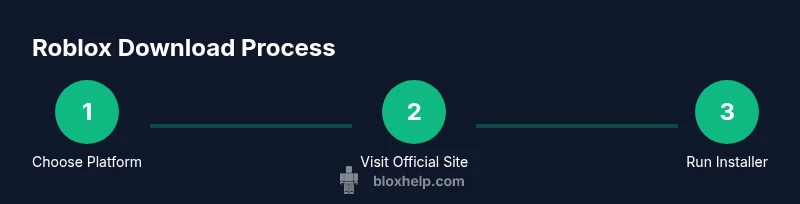
- 1
Choose your platform
Decide whether you’ll download on Windows, macOS, iOS, Android, or Xbox. Your platform determines the exact download file you’ll use and any device-specific prompts.
Tip: Having your platform ready prevents back-and-forth during the download flow. - 2
Visit the official Roblox site
Open a trusted browser and navigate to the official Roblox download page. Confirm you’re on roblox.com and not a third-party mirror.
Tip: Bookmark the official page for quick access later. - 3
Click the download button for your platform
Select the appropriate Windows/macOS/iOS/Android option and download the installer or app package.
Tip: If a prompt asks for permission to download, approve it to continue. - 4
Run the installer or install the app
Open the downloaded file and follow on-screen instructions. On macOS, you may need to grant permissions in Security & Privacy.
Tip: During install, avoid disabling security features unless you’re sure about the source. - 5
Sign in or create an account
Launch Roblox after installation and sign in with an existing account or create a new one. Complete any verification steps if prompted.
Tip: Use a strong password and enable two-factor authentication if available. - 6
Verify setup and start playing
Once signed in, navigate to a game, join a session, or explore Roblox Studio if you want to create content.
Tip: Check for updates to ensure you have the latest features and security fixes.
Questions & Answers
Can I download Roblox on a Chromebook?
Roblox can be accessed on many Chromebooks that support Android apps via the Google Play Store. If your device supports it, you can install Roblox from the Play Store and use it like on other Android devices.
Roblox on Chromebooks depends on Android app support. If your Chromebook has Google Play, install Roblox from the Play Store.
What platforms does Roblox support for download?
Roblox supports Windows, macOS, iOS, Android, and Xbox. Use the official download page to select your platform and install the correct version.
Roblox supports Windows, macOS, iOS, Android, and Xbox via the official site.
Do I need an account just to download Roblox?
You can install the Roblox app without signing in, but you’ll need an account to sign in and play or create content.
You can install Roblox without an account, but you’ll need one to play or create.
How long does a typical download take?
Download times vary with device, internet speed, and platform. With a stable connection, most users complete the install in a few minutes.
Most users finish in a few minutes with a stable connection.
Is Roblox safe to download?
Yes, when you download from the official Roblox site and keep your device protection enabled, you reduce risk of malware or scams.
Roblox is safe to download from the official site if you keep security protections on.
What should I do if the installer is blocked?
If the installer is blocked, check your security settings, allow the app from the source, and retry. Ensure you’re on the official Roblox page.
If blocked, adjust security settings and retry from the official site.
The Essentials
- Download only from official Roblox sources
- Follow platform-specific steps for Windows, macOS, iOS, Android, or Xbox
- Verify installer authenticity before running
- Sign in or create an account to start playing or building