Roblox on Xbox One: A practical guide for players
Learn how to play roblox in xbox one with step-by-step setup, account linking, controls, cross-platform play, and troubleshooting tips. A complete guide by Blox Help.


This guide shows you how to play roblox in xbox one by walking you through the setup, signing in, and getting into games. You’ll learn which hardware you need, where to download the Roblox app, and how to navigate controls on the console. Follow the step-by-step instructions to start playing quickly and safely.
What you will accomplish with roblox in xbox one
If you’re curious about roblox in xbox one, this section explains what you can do on the console, what to expect in terms of performance, and how Xbox integration changes the experience. You’ll learn how to download the Roblox app from the Microsoft Store, sign in with your Roblox account, and begin exploring games across genres. The goal is to help you start playing with minimal friction while keeping safety considerations in mind. The xbox version supports most Roblox games with controller input, though some titles may offer keyboard and mouse options for certain tasks. This overview also touches on cross‑platform play so you can join friends on other devices when available.
Hardware and account prerequisites
Before you dive into games, confirm you have a suitable setup and an active Roblox account. You’ll need an Xbox console (Xbox One, Series X|S are compatible for the Roblox app), a stable internet connection, a TV or monitor, and a standard Xbox controller. You also need a Roblox account to sign in within the app, and you should ensure your parental controls are set according to your family’s guidelines if younger players are involved. This ensures a smoother start and safer play.
Installing the Roblox app on Xbox One
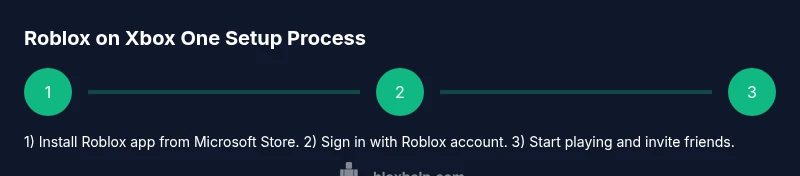
The Roblox app is installed from the Microsoft Store on your Xbox. Navigate there, search for Roblox, and select Install. After the download finishes, launch the app and sign in with your Roblox credentials or create an account if you’re new. Keep in mind that you’ll need to be online and have a connected controller to navigate menus. If you encounter issues during installation, check your internet speed, restart the console, or reattempt the download.
Signing in and linking your Roblox account
Sign in to Roblox within the Xbox app using your Roblox username and password. If you already have an account, link it to your console profile so your progress—such as saved games and favorite titles—sync across devices. If you’re new to Roblox, you can create an account directly in the app. This step is essential for saving progress and joining friends in multiplayer games. Ensure you keep your login information secure and avoid sharing it in public spaces.
Controllers, navigation, and UI on Xbox One
On Xbox One, you’ll primarily use the standard controller to play Roblox. The in-game menus are designed for controller navigation, with commands mapped to familiar buttons. Some games support keyboard and mouse on Xbox, which can enhance precision in certain titles, but it’s not universally available. Take time to customize accessibility options in the Roblox app settings to improve readability and control responsiveness. Mastery of the controller layout will reduce game friction and improve your overall experience.
Playing cross‑platform and saving progress
Roblox supports cross‑platform play in many titles, allowing you to play with friends on PC, mobile, or other consoles where supported. Progress is typically saved to your Roblox account, enabling you to pick up where you left off on any supported device. Be mindful that some in‑game features or purchases may be platform‑specific. Regularly signing in and keeping your account secure helps ensure your progress stays intact across devices.
Troubleshooting common issues on Xbox One
If Roblox on Xbox One won’t launch, first verify your internet connection and restart the console. If games don’t load, check for app updates or console firmware updates. For controller input issues, rebind controller mappings in the settings or reconnect the controller. If you encounter compatibility warnings, ensure the game supports Xbox One and that you are running a supported version of the Roblox app.
Performance tips and safety considerations
To optimize performance, keep your console and game updates current, close background apps, and ensure your network has sufficient bandwidth. For younger players, configure parental controls and enable privacy settings that limit in‑game interactions. Always review in‑game content and report anything inappropriate using the built‑in reporting tools. These best practices help create a smoother and safer Roblox experience on Xbox One.
Tools & Materials
- Xbox console (Xbox One, Series X, or Series S)(Must have a stable internet connection and be up to date with system firmware.)
- Roblox app from Microsoft Store(Install from the official store; ensure you’re signed in to your Microsoft account if prompted.)
- Roblox account(Sign in within the Roblox app; use strong credentials and enable two‑step verification if available.)
- TV or monitor with HDMI(Ensure you have a display with HDMI input and a working HDMI cable.)
- Xbox controller(Standard wireless or wired controller; battery/charging accessories recommended.)
- Optional: keyboard and mouse (for some titles)(Some Roblox games on Xbox support KB/M input for precision or comfort.)
Steps
Estimated time: 30-45 minutes
- 1
Power on the console and connect to the internet
Turn on your Xbox and confirm you have a stable internet connection. This ensures the Roblox app can download updates and access online multiplayer features. If your network is slow, pause other devices or switch to a wired connection for reliability.
Tip: A wired Ethernet connection typically provides lower latency than Wi‑Fi. - 2
Install the Roblox app from Microsoft Store
Open Microsoft Store, search for Roblox, and select Install. Wait for the download to complete and then launch the app from your library. Ensure you have enough storage space for the app and any games you plan to play.
Tip: If the store won’t load, sign out and sign back into your Microsoft account. - 3
Sign in to Roblox and link your account
Within the Roblox app, sign in with your existing Roblox credentials or create a new account. Linking ensures your saved progress and purchases carry over to Xbox One.
Tip: Use a strong password and enable two‑step verification if available. - 4
Set up the controller and navigation preferences
Familiarize yourself with the in‑game controls and adjust accessibility settings to fit your comfort. Pair any extra accessories like a headset for voice chat and review button mappings in the game’s settings.
Tip: Consider customizing control schemes for easier access during long sessions. - 5
Explore games and join friends
Browse Roblox titles optimized for console, or use search to find specific games. Invite friends or join public lobbies. Remember that some games may require you to unlock features with in‑game currency.
Tip: Use the friends system to quickly find people you know across platforms. - 6
Configure privacy and safety settings
Visit the Roblox account settings to adjust who can contact you and what information is visible. Enable parental controls if needed and review in‑game chat options for younger players.
Tip: Regularly review settings as you install new games or reach new age thresholds. - 7
Update apps and firmware regularly
Check for Roblox app updates and Xbox system updates to ensure the best performance and compatibility with new games.
Tip: Enable automatic updates to reduce maintenance time. - 8
Troubleshoot common issues
If you encounter loading screens, crashes, or input delays, restart the app or console, clear cache, or reinstall the Roblox app as a last resort.
Tip: Always back up any saved progress before reinstalling.
Questions & Answers
Is Roblox on Xbox One free to play?
Yes, Roblox is free to download and play on Xbox One. Some games offer in‑app purchases, but you can enjoy many titles without spending money.
Roblox on Xbox One is free to download and play, with optional in‑game purchases available.
Do I need an Xbox Live Gold membership to play Roblox on Xbox One?
An Xbox Live account is required to sign in and play on Xbox One, but Gold is not universally required for Roblox. Availability may vary by region and game.
You sign in with your Xbox account, but Gold isn’t always required for Roblox.
Can I use a keyboard and mouse with Roblox on Xbox One?
Some Roblox games on Xbox One support keyboard and mouse input, but it isn’t universal across all titles. Check individual game compatibility in the store or within game settings.
A keyboard and mouse may work in some games, but it isn’t guaranteed for every title.
How do I fix sign‑in or account linking issues on Xbox One?
Ensure you’re using the correct Roblox credentials, and confirm your account is linked to your Xbox profile. If problems persist, sign out and sign back in, or reset the app data.
If sign‑in fails, check credentials and relink your Roblox account to Xbox. Try signing out and back in if needed.
Why won't Roblox load or keeps crashing on Xbox One?
First, verify your internet connection and update the Roblox app and Xbox system. If issues persist, clear cache or reinstall the Roblox app as a last resort.
If Roblox crashes, update the app, check internet, and consider reinstalling if problems continue.
Watch Video
The Essentials
- Set up Roblox on Xbox One with the official app.
- Sign in and link your Roblox account for cross‑device progress.
- Master controller navigation and adjust safety settings.
- Keep apps and firmware updated for best performance.
- Utilize cross‑play where supported and manage privacy carefully.