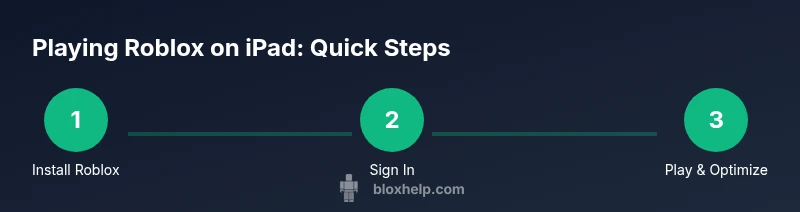
Roblox on iPad: Complete Setup Guide
Learn how to play Roblox on iPad with a smooth setup, sign-in, touch controls, and troubleshooting tips. This beginner-to-advanced guide covers installation, performance optimization, safety settings, and parental controls for a great mobile Roblox experience.


This guide shows you how to play Roblox on iPad from installation to basic troubleshooting. You will learn device requirements, how to download and sign in, how to customize controls for touch input, and how to resolve common issues so you can start gaming right away. Follow the steps in the body for a smooth setup, plus tips to optimize performance.
System requirements and eligibility
According to Blox Help, Roblox on iPad is officially supported and benefits from a touch-friendly interface that’s easy to learn for players of all ages. Before you begin, make sure you have a reliable internet connection, access to the App Store, and a Roblox account. Your iPad should be reasonably recent and capable of running iPadOS smoothly, but wide compatibility means most modern devices can participate. If you’re a parent or guardian, review Roblox’s safety policies and enable any required parental controls to protect younger players. The Blox Help team found that ensuring a stable network and an updated app version dramatically reduces sign-in problems and lag, especially during in-game events with crowded lobbies.
In addition to the basics, confirm your Apple ID is active and linked to the App Store, since this is how Roblox will be delivered and updated. If you’re using a shared device, sign out of other accounts to prevent accidental purchases or profile switches. Remember to maintain updated privacy settings in iPad settings and on the Roblox app to keep personal information protected while gaming.
Key takeaway: a clean setup with current software and a solid network sets the foundation for a seamless Roblox experience on iPad.
How to install Roblox on iPad
Installing Roblox on an iPad is a straightforward process, but a few best practices help ensure the installation goes smoothly. First, connect to a stable Wi‑Fi network to prevent interruptions during download. Open the App Store, search for Roblox, and tap Get or Install. If you see a price or Family Sharing notice, confirm the download and wait for the progress indicator to reach 100%. After installation, open the app to verify it runs correctly and check for any essential updates that might improve performance or compatibility with iPadOS.
During the first launch, Roblox may prompt you to sign in or create an account. If you already have a Roblox account, use Sign In; if not, select Sign Up and complete the required fields. It’s a good idea to enable automatic updates for Roblox in the App Store so you stay on the latest version with the newest features and security patches. If you experience download failures, try pausing and resuming the download, or rebooting the iPad before attempting again.
Finally, grant any required permissions that Roblox requests (such as microphone or camera access only if you intend to use related features) and confirm that you’re comfortable with the app’s privacy settings. With the app installed, you’re ready to sign in and begin playing across devices, since Roblox supports cross‑platform progress syncing.
Signing in and account setup
Launching Roblox on your iPad and signing in is the next critical step. If you already have a Roblox account, enter your username and password and tap Sign In. If you’re new, tap Sign Up and follow the on-screen prompts to create an account. For younger players, consider enabling the parental controls offered by Roblox and by iPadOS to manage screen time and content access. Your progress and purchases will sync across devices when you sign in with the same account on each device.
To enhance security, enable two‑factor authentication where available and keep your password secure. If you forget your credentials, use the Roblox recovery options accessed from the App or the official website. It’s also wise to review your account’s privacy settings to decide who can contact you or join your games. Finally, if you’re using a family device, ensure the correct account is selected on the Roblox app to prevent cross‑account mixes.
Brand tip: as highlighted by the Blox Help team, using a single, securely stored account provides the most reliable cross‑device progression and saves you from losing game data when switching between iPad and other platforms.
Optimizing touch controls and UI
Roblox on iPad relies on touch controls and on‑screen joysticks, which can take a little time to master. In the game’s Settings menu, adjust touch sensitivity, disable or enable motion features, and customize button layouts to fit your playing style. If a game supports it, you can also enable a connected Bluetooth controller for a different feel, though many experiences on iPad are optimized for touch input. Rotating the camera is typically done with a swipe, and sprint or jump actions can be mapped to on‑screen keys for easier access.
A clean interface helps you focus on the action. Consider hiding UI overlays during intense moments, which can reduce distraction. Organize your favorite games into a quick-access list for faster loading and lower cognitive load when switching between experiences. If your iPad supports more than one game window, you can experiment with multitasking features to run a companion app while Roblox loads assets in the background. This streamlined approach keeps you in the game longer and minimizes idle times.
Pro tip: lower the in‑game graphics setting if you notice frame drops or lag, especially when playing on older iPads or slower networks. A lighter visual experience can significantly improve responsiveness without compromising gameplay quality.
Common issues and quick fixes
Roblox on iPad can face a few recurring issues, but most are easy to resolve. If the app won’t install or launches slowly, start by resetting your network connection and ensuring your iPad is on a solid Wi‑Fi channel. Close other apps using the task switcher to free up RAM, then reopen Roblox. If problems persist, sign out and sign back in, or reinstall the app to clear corrupted data. Check the App Store for Roblox updates, as a new build may fix compatibility issues with iPadOS.
Login errors are common after password changes or security updates. Use the Forgot Password option on the login screen or the Roblox site to reset credentials, then sign in again. If you experience frequent crashes, check your storage capacity; delete unused apps or media to free space. Finally, verify that parental controls aren’t overly restrictive by reviewing in‑app and iPadOS settings. These steps cover the majority of everyday issues.
In some scenarios, a broader outage or service disruption can affect Roblox. When that happens, verify Roblox’s official status page or community announcements. If outages are confirmed, waiting a short period before retrying is usually sufficient.
Playing tips and performance optimization
To maximize your performance on iPad, start by closing background apps that consume memory and processing power. Lower the game’s graphics quality and turn off nonessential effects to boost frame rate and responsiveness. Connecting to a stable Wi‑Fi network rather than relying on cellular data will typically yield lower latency and more consistent gameplay. If you encounter intermittent lag, try moving closer to your Wi‑Fi router or switching between 2.4 GHz and 5 GHz bands if your router supports it.
Battery life is a practical concern during longer sessions. Enable Low Power Mode in iPad Settings when you don’t need peak performance, and use Auto‑Lock to shorten idle times. Disconnect unnecessary Bluetooth devices that could interfere with performance. For players who want smoother controls, experiment with a Bluetooth controller in supported games, while recognizing some experiences still feel best with touch input.
Remember to check for Roblox and iPadOS updates regularly, as each new release can bring important bug fixes and performance improvements. Staying up-to-date reduces the likelihood of compatibility problems and helps ensure you can enjoy new features as they’re released.
Safety, privacy, and parental controls
Safety and privacy are essential when younger players use Roblox on iPad. Start by reviewing in‑game safety settings, such as chat restrictions and friend requests, and enable parental controls on iPadOS to limit screen time and content access. Roblox also offers family settings that allow guardians to manage what players can do or access. Encourage players to report any abusive behavior and to keep login credentials private.
A good practice is to enable account notifications and review privacy options periodically. Teach players to use strong, unique passwords and to avoid sharing personal information in chat or profiles. If you’re sharing the device, log out after playing and consider using separate accounts for each user. By combining Roblox’s built‑in safety features with iPadOS controls, you can provide a safer, more controlled gaming environment for younger players.
Tools & Materials
- iPad with internet connection(Wi-Fi or cellular data; ensure you can reach the App Store)
- Roblox app(Download from the App Store; keep updated)
- Roblox account(Sign in to save progress across devices)
- Apple ID(Needed to download apps from App Store)
- Bluetooth controller (optional)(For supported games that benefit from gamepad input)
Steps
Estimated time: 15-25 minutes
- 1
Prepare your iPad
Make sure your iPad is connected to the internet and has enough storage. Update iPadOS if a newer version is available to ensure the Roblox app runs smoothly.
Tip: Check storage in Settings > General > iPad Storage and clear unused apps. - 2
Install the Roblox app
Open the App Store, search for Roblox, and tap Get to install. Wait for the download to complete and verify the app icon appears on the home screen.
Tip: Use Wi‑Fi during download to avoid data charges and interruptions. - 3
Sign in or create an account
Launch Roblox, tap Sign In, and enter your credentials. If new, use Sign Up to create an account and complete any required privacy notices.
Tip: Keep your password secure and consider using two‑factor authentication. - 4
Adjust controls and graphics
In-game Settings, adjust touch sensitivity and graphics quality for smoother play. Disable motion blur and enable reduced resource usage if needed.
Tip: Lower graphics can significantly improve performance on older iPads. - 5
Start playing and manage sessions
Choose a game from the Discover page or your library, then tap to join. Monitor your session length and use in‑game pause when needed.
Tip: Schedule short breaks to avoid eye strain and fatigue. - 6
Troubleshoot common issues
If you encounter login errors or crashes, restart the app, reboot the iPad, or reinstall Roblox. Check Apple’s system status if a broader outage is suspected.
Tip: Back up progress by signing in to a cloud-synced account.
Questions & Answers
Can I play Roblox on an iPad without wifi?
Roblox on iPad requires an internet connection for sign-in and most gameplay, but some offline assets may load during initial setup. Ongoing play generally depends on online access for updates and progress syncing.
You’ll need internet to sign in and play most Roblox games on iPad.
What iPad versions support Roblox?
Roblox supports a wide range of iPads with iPadOS; check the App Store listing for the latest compatibility notes and required OS version.
Check the App Store page for current compatibility notes.
How do I pair a Bluetooth controller with Roblox on iPad?
Some Roblox experiences support gamepad input. Pair a Bluetooth controller via Settings > Bluetooth, then enable controller input within Roblox if available.
Pair a Bluetooth controller in Settings, then enable it in Roblox if the game supports it.
My Roblox game is lagging on iPad; what can I do?
Close background apps, reduce graphics in-game, and switch to a stable wifi connection. If the problem persists, reboot the device and reinstall Roblox.
Close other apps, lower graphics, and ensure a strong internet connection.
Is Roblox safe for kids on iPad?
Roblox offers safety features and parental controls. Review privacy settings, enable reporting, and discuss safe online behavior with younger players.
Roblox has safety features; review settings and enable reporting as needed.
Watch Video
The Essentials
- Install Roblox from App Store to begin playing on iPad
- Customize touch controls for comfortable gameplay
- Use performance settings to improve frame rates
- Enable safety features and parental controls as needed