How Do You Dance on Roblox: A Step-by-Step Guide
Learn how to dance on Roblox with built-in emotes and catalog animations. This beginner-friendly guide covers steps, platforms, etiquette, and troubleshooting to help you express yourself in-game.


You dance in Roblox by triggering emotes or animations on your avatar. Open the Roblox menu, select Avatar > Emotes or Animations, and choose a dance to play. Some dances use keyboard shortcuts (platform dependent), while others require tapping the emote button. You can also buy additional emotes from the catalog to expand your moves.
Understanding Roblox Dance: What It Is and How It Fits Into Gameplay
Dancing in Roblox is a social feature that helps players express themselves and coordinate in games. If you're wondering how do you dance on roblox, the answer is simple: you trigger emotes or dance animations attached to your avatar. This guide walks you through the core concepts, from built-in dances to catalog emotes, and explains how to use them across devices. According to Blox Help, mastering emotes can boost your social presence in multiplayer games and smooth out interactions with other players.
In practice, dances are not a single move but a small set of actions that play for your avatar. They can be quick, light gestures or longer sequences that blend with character movement. Emotes are quick expressions, while animations may include looping sequences. Both are designed to be accessible even when you’re just starting out, but deeper customization comes from catalog purchases and creator-made animations.
If you’re new to Roblox, start with the built-in dances. They’re free, easy to access, and widely supported across most games. As you become more confident, you can expand your repertoire by buying emotes from the catalog and testing them in different game environments. The goal is to feel natural when others see you dance, not to master every move at once.
Emotes vs Animations: Core Concepts
Emotes are quick, expressive gestures tied to your avatar’s pose. They’re designed for social moments—greeting friends, celebrating a win, or just adding flair to a group scene. Animations, on the other hand, are longer sequences that can look like real dance routines. They may require extra permissions or purchases to unlock.
Understanding the difference helps you decide what to use in different contexts. In most casual games, emotes are sufficient for interaction. If you want a more elaborate performance, browse the catalog for animations and test them in safe spaces before using them in a public server. The distinction matters for performance and etiquette in busy games.
To access both options, open the Roblox menu and navigate to Avatar Editor. You’ll see Emotes (for quick gestures) and Animations (for longer sequences). Different games may support different sets of emotes and animations, so it’s helpful to verify in-game what’s available before trying to perform a complex routine.
Accessing Dances: Built-in Emotes and Catalog
The easiest way to start dancing is with built-in emotes. They’re pre-installed and don’t require extra purchases. From the Avatar Editor, you can quickly equip a dance and try it in any game that supports emotes. Based on Blox Help analysis, most players begin with these built-in options before expanding to the catalog.
If you want more variety, you can visit the Roblox catalog to purchase additional emotes. Robux is the currency used for most catalog items. After purchase, new emotes appear in your Emotes menu and can be queued like your built-ins. Remember to preview emotes in a quiet space to make sure they fit your avatar’s style and your current outfit.
For mobile players, the emote button is typically on-screen. On PC and console, you’ll often find hotkeys or a shortcut panel in the Emotes screen. Always check the game’s controls, as some titles disable or modify emote usage for balance or etiquette reasons.
Platform Differences: PC, Mobile, Console
Platform matters for how you trigger dances. PC users may rely on keyboard shortcuts or mouse actions within the Emotes panel. Mobile players use touch buttons, typically in the bottom toolbar, to open Emotes and select dances. Console players tap the emote options if the game supports controller navigation.
Dances can look different depending on the platform, due to camera angles, input precision, and avatar scaling. Some games may limit emotes to prevent spam in crowded spaces. If you notice a dance not playing on a specific platform, verify that the game allows emotes and check for any recent updates that changed input mappings.
Keep your Roblox app updated to ensure you have access to the latest emotes and animation packs across all devices.
Step-By-Step: Triggering a Dance In-Game
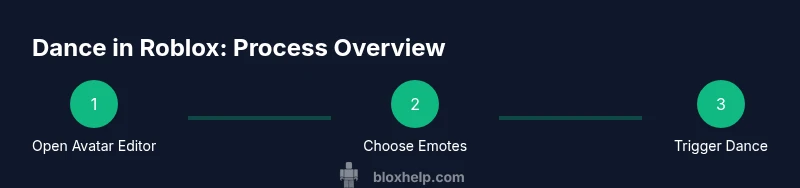
Triggering a dance is a straightforward action, but slight differences exist between games. In most cases:
- Open the Roblox menu and navigate to your Avatar Editor.
- Choose Emotes or Animations, then select a dance to equip.
- Trigger the emote by tapping the on-screen button or pressing the designated key.
- If your game supports it, you can switch between dances quickly to keep the moment fun.
Tip: Some games display brief hints about which emotes are allowed in that lobby. If you don’t see a dance, check game rules or try a different emote. Practice in a quiet session to get familiar with the timing. Some platforms may require you to re-equip emotes after a match or game mode change.
Customizing Your Moves: Buying and Managing Emotes
Customizing your moves often means expanding your catalog with new emotes. You can browse the catalog for emotes that match your vibe, then purchase them with Robux. Once bought, they appear in your Emotes menu for quick access. A good practice is to organize your favorites in a dedicated Emotes row for faster access during games.
When buying, set a budget to avoid overspending. Some emotes are bundled, while others are single items. Preview items in the catalog before purchasing to ensure they align with your avatar and game etiquette. If you’re in a public server, avoid overly flashy emotes that might distract teammates or disrupt the play.
Keep your inventory tidy: remove or hide emotes you rarely use to keep the Emotes panel fast and responsive.
Practicing Etiquette: When and Where to Dance
Dancing is a social feature, not a license to chaos. Practice in designated spaces, such as private servers or friend-only games, to refine timing without disrupting others. In crowded games, opt for simple dances and avoid spamming the same emote repeatedly—this can annoy teammates and other players.
If a game forbids emotes during combat or matches, respect those rules. Some games disable emotes to preserve focus or balance. Always be mindful of the community guidelines and avoid dances that could be interpreted as harassment or spamming.
For younger players or those new to online play, start with low-key emotes and gradually experiment with more expressive moves as you gain confidence. The social aspect of Roblox is as important as the visuals, so aim for a friendly display that adds to the game experience.
Troubleshooting Common Issues: Dances Won’t Play
If your dance won’t play, start with simple checks: ensure you’re online, the game supports emotes, and you’re using an equipped emote. Sometimes a game update changes controls, so re-check the Emotes panel. If you still can’t see emotes, try logging out and back in or restarting the app.
Network fluctuations can also affect emote playback. If you’re on mobile, confirm you have a stable connection and adequate device performance. Finally, verify that you have enough storage and that your Roblox client is up to date. By following these steps, most issues resolve quickly.
Tips for Mastering Timed Dances in Games
Dancing well in Roblox often comes down to timing and context. Try emotes in a low-pressure setting first, then in casual games with friends. Watch how others respond to your moves, and adapt based on pacing and the game’s rhythm.
Pro-tip: create a short list of favorite emotes for quick access during matches. This helps you react fast and coordinate with teammates rather than scrolling through menus mid-game. Remember that consistent practice leads to smoother animations and more natural interactions—your in-game charisma grows with time and play.
Real-World Scenarios: Dances in Different Roblox Games
Different games have different norms. In roleplaying worlds, subtle dances like a small bow or wave are often preferred to show politeness. In competitive or party games, bolder emotes may be more appropriate to celebrate wins—but avoid distractions that hinder gameplay. Observing how the community uses emotes in each title will guide your choices and help you blend in while standing out in the right way.
The Blox Help Path to Mastery: Where to Go Next
As you practice, remember that the goal is enjoyable expression rather than perfection. The Blox Help team recommends exploring emotes across multiple games to understand what resonates with players in different communities. Start small, build a library of your favorite dances, and gradually incorporate new emotes as you become more comfortable. With consistent practice, you’ll move from basic waves to nuanced performances that fit your Roblox style.
Tools & Materials
- Roblox account(Your login credentials to access avatars and emotes.)
- Roblox client/app(Installed on your device (PC, mobile, or console).)
- Internet connection(Stable connection for emote loading and catalog access.)
- Access to Emotes or Animations catalog(Emotes come free (built-in) or via Robux purchases.)
- Robux balance(Needed for paid emotes; optional for built-in options.)
Steps
Estimated time: 60-90 minutes
- 1
Open Roblox and sign in
Launch Roblox on your device, log into your account, and load a game where you can access your avatar. This first step ensures you’re ready to set up emotes and tailor your avatar’s look.
Tip: If you can’t log in, use the password reset flow and ensure your account is secure. - 2
Open the Avatar Editor
From the Roblox menu, navigate to Avatar Editor and locate the Emotes or Animations section. This is where you’ll manage your dancing options.
Tip: Take a moment to explore the interface; getting familiar now saves time later. - 3
Equip a built-in dance
In the Emotes or Animations panel, choose a built-in dance and equip it to your avatar. Built-in dances don’t cost Robux and work in most games.
Tip: Preview the motion to ensure it matches your avatar’s outfit. - 4
Trigger the dance in-game
Use the on-screen emote button or the platform’s shortcut to start the dance. On mobile, tap the emote icon; on PC/console, use the appropriate control shown in-game.
Tip: If the emote doesn’t start, re-open the Emotes panel or switch to another emote and retry. - 5
Add extra emotes from the catalog
Browse the Roblox catalog for additional emotes, purchase with Robux, and equip them from your Emotes list for quick access.
Tip: Set a budget and preview items before buying to avoid overspending. - 6
Practice in a safe space
Test your new emotes in a private server or a friend’s game to build timing and comfort before dancing in public lobbies.
Tip: Practice with friends to receive feedback on timing and flow. - 7
Organize your emotes for quick access
Create a favorites row or category so you can switch between dances quickly during gameplay.
Tip: Keep a small set of go-to emotes to avoid menu fatigue. - 8
Troubleshoot issues
If an emote won’t play, check connectivity, update Roblox, restart the app, and verify game rules about emotes.
Tip: Sometimes a simple restart fixes many playback problems.
Questions & Answers
Do I need Robux to dance in Roblox?
Built-in dances are free. To access a broader range of emotes, you’ll typically need Robux to purchase them from the catalog.
Most dances are free, but buying extra emotes costs Robux.
Can I dance in any Roblox game?
Most games support emotes, but some may disable them to avoid distraction or balance issues. Always check the in-game rules or settings.
Usually yes, but some games may disable emotes.
How do I bind keyboard shortcuts for dances?
Shortcut availability is platform-dependent. Some games show quick-access keys in the Emotes panel; others rely on on-screen controls.
Shortcuts depend on your device and game, look for hints in the Emotes menu.
Why aren’t my emotes showing up?
Check your internet connection, log-in status, and whether the current game allows emotes. Sometimes updates change how emotes are accessed.
Emotes aren’t appearing often due to login or game settings; verify both.
What’s the difference between Emotes and Animations?
Emotes are quick, expressive gestures; animations are longer sequences that often resemble real dances. Both expand how your avatar moves.
Emotes are quick gestures; animations are longer routines.
Watch Video
The Essentials
- Master built-in emotes before catalog purchases
- Use emotes to enhance social interaction, not disrupt gameplay
- Organize favorites for quick access during matches
- Verify game rules before using emotes in public lobbies