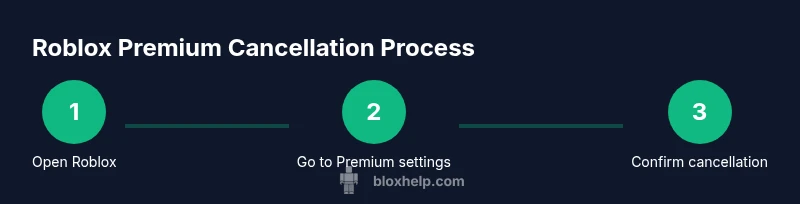
How to Cancel Roblox Premium: A Step-by-Step Guide
Learn how to cancel Roblox Premium on desktop or mobile, what happens after cancellation, and how to verify status. Clear, beginner-friendly guidance from Blox Help.


To cancel Roblox Premium, sign in to your Roblox account, open Settings > Billing (or Premium settings), and choose Cancel Premium. If you bought through Apple App Store or Google Play, cancel via those stores. Cancel stops auto-renewal at the end of the current billing period, and you’ll keep access until then; refunds vary.
Understanding Roblox Premium cancellation: what it means for your account
Canceling Roblox Premium stops future charges and ends monthly access once the current cycle finishes. According to Blox Help, the cancellation process is straightforward, but it’s important to understand timing so you’re not surprised by a renewal. If you cancel, you retain access until the end of the current billing period, after which Premium benefits are no longer available on your account. This section lays out what you should expect during and after the cancellation process, and how to interpret the status you see in your account.
Key points to remember:
- Cancellation and auto-renew: Roblox Premium is a recurring subscription. Cancelling stops new charges; the current cycle runs to completion.
- Access after cancellation: You’ll still be able to log in and play Roblox, but Premium-specific perks stop after the cycle ends.
- Status indicators: Your account’s Premium status may show as “Active until” a date; that date reflects the end of the current billing period. If you rejoin, you’ll regain Premium features immediately after purchasing again.
Billing, auto-renew, and refunds: what to expect
Roblox Premium uses a monthly billing cycle that renews automatically until you cancel. When you cancel, you prevent future charges, and the renewal flag is removed. The current cycle finishes normally. Refund policy varies; Roblox’s official stance is that refunds for Premium are not guaranteed; you can try requesting a refund through the Roblox support portal, but outcomes vary by platform and purchase method. If you purchased Premium through Apple’s App Store or Google Play, you may need to request refunds through those platforms, following their subscription refund rules. Always download any receipts for your records. If you used a gift card or balance, cancellation won’t re-credit it; remaining balance remains in your account and can be used for other purchases.
Desktop vs mobile cancellation: where to find the option
On desktop: sign in to Roblox.com, go to Settings, select Billing or Premium, and click Cancel Premium. On iOS: open Settings > [Your name] > Subscriptions > Roblox Premium and cancel. On Android: open Google Play > Subscriptions > Roblox Premium and cancel. If you don’t see Cancel, make sure you’re signed in to the correct account. If the option isn’t visible, try the Roblox website instead of the app, or log out and back in. After cancellation, you’ll still have access through the current billing period.
If you’re unsure which platform handled your purchase, check your store history on Apple or Google Play; platform-based cancellations may be required for some purchases.
Platform-specific paths: Apple App Store, Google Play, and Roblox app
If you purchased Roblox Premium through the Roblox mobile app, you may be directed to the platform store to manage the cancellation. In many cases, Apple App Store or Google Play subscriptions control the renewal, so cancel there to stop future charges. Always confirm that the subscription status shows as Cancelled or Auto‑Renew Off. If you run into roadblocks, use the Roblox help portal to reach support and document your cancellation attempts.
Verifying cancellation and what happens next
After you cancel, check your account’s Billing or Premium section to confirm the end date and the note that auto-renew is off. Save the cancellation confirmation, either as a screenshot or email receipt, for your records. If you notice a charge after the end date, contact Roblox Support or the relevant store (Apple/Google) immediately and provide your cancellation confirmation. Note that refunds are not guaranteed and depend on the platform’s policy and timing.
Common mistakes and how to avoid them
Common mistakes include canceling in the wrong app or account, missing the end-date on the Premium screen, or assuming refunds are automatic. Always verify you’re signed into the correct Roblox account, check the exact end date shown, and keep the confirmation evidence safe. If you don’t see a Cancel option, try the Roblox website instead of the mobile app or vice versa, and consider contacting support for help.
After cancellation: next steps and re-subscribing later
Once cancellation is complete, you can still access Roblox during the current cycle. If you plan to return, note that Premium will resume immediately after you re-subscribe, typically via the same process used originally. Keep an eye on renewal dates and store receipts so you can manage future charges confidently. If you choose to rejoin, you can review Premium plans and benefits to pick the best option for your needs.
Tools & Materials
- Roblox account with Premium subscription(Make sure you are logged in to the correct account.)
- Device with internet access(Desktop browser or mobile app will work.)
- Access to the platform where you purchased Premium(Roblox site, Apple App Store, or Google Play.)
- Cancellation receipts or confirmation(Helpful if you need to prove cancellation.)
Steps
Estimated time: 10-15 minutes
- 1
Open Roblox and sign in
Navigate to Roblox.com on a desktop or open the Roblox app on mobile, then sign in to the account that has Premium. This ensures you’re cancelling the correct subscription.
Tip: Double-check the account before starting to avoid cancelling the wrong Premium. - 2
Access Premium settings
Go to Settings and locate the Billing or Premium section where the subscription is managed. This is where you’ll find the Cancel Premium option.
Tip: If you don’t see the option, try a different device or use the web browser. - 3
Click Cancel Premium
Choose Cancel Premium and confirm the prompt. This stops future renewals but preserves access for the current cycle.
Tip: Read any on-screen notes about end-date and refunds before confirming. - 4
Confirm cancellation
You should receive a cancellation confirmation or see an end-date displayed in the Premium status. Save this confirmation for your records.
Tip: Take a screenshot or save the email receipt. - 5
Check platform-specific path if needed
If you purchased via Apple App Store or Google Play, you may need to cancel in those stores instead of Roblox directly.
Tip: Apple/Google policies may differ; review store cancellation timelines. - 6
Verify post-cancellation status
After cancellation, verify the end date and that Auto-Renew is Off in your Roblox account. If you see charges after the end date, contact support.
Tip: Keep track of the end date to avoid surprises. - 7
Plan for re-subscription
If you plan to re-subscribe later, note down any preferred Premium tier and the steps to rejoin. You’ll regain benefits once you subscribe again.
Tip: Compare plans to pick the one that fits your Roblox usage.
Questions & Answers
How do I cancel Roblox Premium on desktop?
Sign in to Roblox.com, navigate to Settings > Billing or Premium, and select Cancel Premium. Confirm the prompt to stop future charges. The current cycle remains active until its end date.
Sign in to Roblox, go to Settings and Billing, then choose Cancel Premium. Confirm and you’ll stop future charges after the current billing period.
Will I get a refund if I cancel mid-cycle?
Refunds for Roblox Premium are not guaranteed and depend on platform policies and timing. You can file a refund request through Roblox Support or the relevant store, but outcomes vary.
Refunds aren’t guaranteed and depend on platform rules. You can request one via Roblox Support or the store you used.
Can I pause Roblox Premium instead of canceling?
At this time, Roblox Premium does not offer a pause option. You must cancel to stop future charges, or wait until the current cycle ends.
There isn’t a pause option for Premium; you either cancel or wait for the cycle to end.
How can I check my cancellation status after completing the steps?
Open your Roblox account’s Premium or Billing page to verify the end date and check that Auto-Renew is Off. Save the confirmation for your records.
Go to Premium or Billing in your account to confirm the end date and that auto-renew is off.
What should I do if I can’t find the cancellation option?
Try canceling from Roblox on a web browser, switch devices, or check the store (Apple/Google) where the purchase was made. If still stuck, contact Roblox Support.
If you can’t find it, try the web site, another device, or the store that handled the purchase, then contact support if needed.
Can I re-subscribe after canceling Roblox Premium?
Yes. You can re-subscribe at any time by selecting a Premium plan again in Roblox, and benefits will resume immediately upon purchase.
You can re-subscribe anytime; just pick a plan again and benefits resume right away.
Watch Video
The Essentials
- Cancel stops future renewals
- End date reflects current cycle end
- Platform paths vary by purchase method
- Verify cancellation status in account
- Keep receipts as a reference