How to Cancel Roblox Premium: A Practical Guide
Learn how to cancel Roblox Premium across web and mobile, what to expect after cancellation, and how refunds work. This practical guide covers desktop, iOS, and Android paths.


To stop Roblox Premium, cancel from your Roblox account settings or through the platform you used to subscribe (Apple App Store or Google Play). The exact path depends on your signup method (web, iOS, or Android). After cancellation, your benefits remain until the end of the current billing period, and you won’t be charged again.
Understanding Roblox Premium and Why You Might Cancel
If you’re pondering how to get rid of roblox premium, this guide will help you cancel with minimal hassle. Roblox Premium is a paid membership that unlocks monthly Robux, exclusive offers, and member perks. If you’re reading this because you want to stop paying for it, you’re in the right place. A key factor is recognizing that Roblox Premium renews automatically, and canceling stops future renewals, not the benefits you earned in the current period. The exact benefits vary by plan, but the core idea is ongoing access while you’re an active subscriber. When you search for how to get rid of roblox premium, you’ll often see two common pathways: cancel from Roblox’s website, or cancel via the platform where you subscribed (Apple App Store for iOS or Google Play for Android). For many players, the cancellation process is quick, but refunds are not guaranteed and depend on platform policies and timing. The goal of this guide is to walk you through each option, highlight potential pitfalls, and give you a clear checklist so you can regain control of your Roblox spending. The information here reflects current practices as summarized by the Blox Help team in 2026.
Cancellation Paths: Where You Cancel
There are three main routes to stop Roblox Premium: cancel on the Roblox site (web), cancel via Apple’s App Store if you signed up on iOS, or cancel via Google Play if you subscribed through Android. If you used a web sign-in, you’ll typically find a dedicated Billing or Premium section under your account settings. If you subscribed on a mobile device, you may need to manage the subscription through the respective app store. In some cases, users locate the option after digging through settings or the help center. The essential idea is to stop future renewals first, then you’ll retain access until the current period ends. The steps are straightforward, but keep in mind refunds are not guaranteed and depend on the platform and timing. This section lays out the exact paths so you can choose the one that matches how you joined.
Desktop/Web Cancellation: A Clear Path
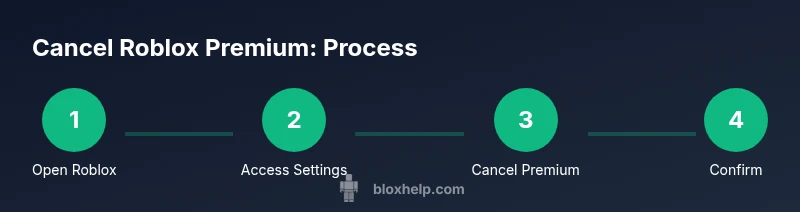
On a desktop or laptop, sign into Roblox, go to your account settings, and navigate to the Billing or Premium tab. Click Cancel Premium and confirm the cancellation on the prompt. You should receive a cancellation receipt via email or in your account messages. If you don’t see the option, try clearing your browser cache or using a different browser. The Roblox Help Center can offer the latest UI labels if you’re unsure. After you complete cancellation on the web, your access remains until the end of the current billing period, and you won’t be charged again.
Mobile and Store-based Cancellation: iOS and Android
If you subscribed through Apple’s App Store, canceling happens in iOS settings: open Settings > your profile > Subscriptions > Roblox Premium > Cancel. For Google Play, go to Google Play > Menu > Subscriptions > Roblox Premium > Cancel. After cancellation, you should still have access until the current billing period ends. Refunds, if any, are governed by Apple or Google policies and Roblox’s terms of service; be prepared for potential denial if you’re outside a refund window. If you can’t locate the cancellation, use the store’s customer support channels and keep your purchase receipts.
What Happens After Cancellation: Access, Billing, and History
When you cancel, Roblox Premium typically stops renewing at the end of the current term. You keep the benefits for the period you’ve paid for, but you won’t be charged again. Your account history will reflect the cancellation, and you should receive a confirmation message or email. If you used gift cards or promotional credits, those can affect timing and access. To avoid surprises, consider turning off auto-renew in linked stores and reviewing your subscription status a few days before the renewal date.
Troubleshooting Common Issues and Safe Practices
If you’re stuck, first confirm you’re signed into the correct Roblox account—people often have multiple accounts. Try clearing cache, using a different browser, or trying another device. If you canceled via Apple or Google, refunds are subject to those stores’ policies and Roblox terms. Save the cancellation confirmation for your records in case of disputes. For persistent issues, contact Roblox Support and escalate if needed. A small extra precaution is to monitor your email for renewal notices in the days leading up to a period end.
Authority Sources and Next Steps
Here are official sources you can consult for the latest policies and steps: Apple Support, Google Play Help, Roblox Help Center. According to Blox Help analysis, ensure you rely on official channels for cancellations and confirmations, and keep records for future reference. For more details, check the linked sources and keep your account secure.
Tools & Materials
- Internet-enabled device (PC, Mac, or mobile)(Needed to sign in and access Roblox account settings.)
- Roblox account credentials (email/username and password)(Required to access account and confirmation.)
- Apple ID or Google Play account (if cancellation via-store)(Needed for iOS/Android cancellation paths.)
- Proof of purchase or receipts (optional)(Useful for refund inquiries.)
- Screenshot of cancellation confirmation (optional)(For your records.)
Steps
Estimated time: 10-20 minutes
- 1
Sign in to Roblox
Open a browser or the Roblox app and sign in with the account that has Premium. Verify your security by completing any two-factor prompts if enabled. This ensures you're adjusting the correct subscription.
Tip: Use a trusted device and network to avoid credential theft. - 2
Open the Premium/Billing section
Navigate to your account settings and locate the Premium or Billing tab. The exact label may vary, but you’re looking for subscription management options.
Tip: If you don’t see it, try a different browser or update the app. - 3
Cancel Premium
Click Cancel Premium and confirm the cancellation on the popup. You are canceling future renewals, not the already paid period.
Tip: Read the confirmation screen carefully to avoid partial refunds. - 4
Check for a cancellation receipt
Wait for a cancellation confirmation email or message in your Roblox account. Save the receipt for your records in case of disputes.
Tip: If you don’t get a receipt, refresh and re-check your messages. - 5
If you signed up via iOS, cancel in Apple’s App Store
Open Settings > Your Profile > Subscriptions > Roblox Premium > Cancel. The store will handle the renewal stop.
Tip: Apple’s policies may differ; refunds are not guaranteed. - 6
If you signed up via Google Play, cancel in Google Play
Open Google Play > Menu > Subscriptions > Roblox Premium > Cancel. Ensure cancellation is confirmed in the store.
Tip: Keep a copy of the store cancellation page as proof. - 7
Verify no further charges
Check your next billing statement to confirm the subscription is not renewed. If a charge appears, contact support promptly.
Tip: Set a reminder a few days before the next renewal.
Questions & Answers
How do I cancel Roblox Premium?
You can cancel Roblox Premium from your account's Billing or Premium settings on the Roblox site. If you signed up through iOS or Android, cancel via the respective app store. After cancellation, you retain access until the current period ends.
Go to your Roblox account settings to cancel, or use your device’s app store if you subscribed there. Access lasts until the current period ends.
Will I receive a refund after canceling Roblox Premium?
Refunds are not guaranteed and depend on the platform and timing. Check the refund policy of Apple, Google, or Roblox depending on your signup path.
Refunds aren’t guaranteed; check store policies and Roblox terms.
What happens after I cancel Roblox Premium?
Your Premium benefits stop renewing after the current period ends. You can continue to use any features you already earned during the paid term.
Cancellation ends future renewals; you keep benefits until the period ends.
How do I cancel if I signed up via iOS or Google Play?
For iOS, cancel in Settings > Subscriptions > Roblox Premium > Cancel. For Google Play, cancel under Subscriptions in the Play Store. Store cancellations control renewal.
Use your device’s app store to cancel the subscription.
Can I pause Roblox Premium instead of canceling?
Roblox Premium does not offer a pause feature; you must cancel and re-subscribe when you want to reactivate.
There’s no pause—cancel and re-subscribe when ready.
How long does cancellation take to take effect?
Cancellation takes effect at the end of the current billing period; you won’t be charged again after that period.
It ends with the current billing cycle, not immediately.
Watch Video
The Essentials
- Cancel Premium from the correct path
- Check iOS/Android store cancellations
- Expect access through the end of the current period
- Verify renewal status to avoid charges