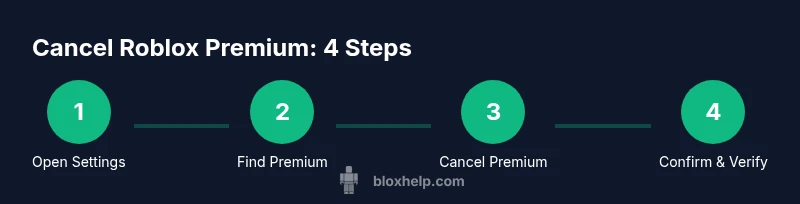
How to Stop Roblox Subscription: A Practical Guide
Learn how to stop Roblox Premium and prevent future charges with a complete, step-by-step guide for desktop and mobile, plus tips and troubleshooting from Blox Help.


To stop a Roblox subscription, cancel Roblox Premium from your account settings on desktop or via the mobile store where you subscribed. You’ll disable auto-renewal, and access continues until the current period ends. This guide covers desktop and mobile paths and what happens after cancellation. No payment details will be charged after cancellation, and you can use the account as a regular user until the term ends. If you subscribed through mobile stores, cancel there as well.
What Roblox Premium is and why you might cancel
If you're looking for how to stop roblox subscription, you're in the right place. Roblox Premium is a monthly subscription that unlocks extra benefits like monthly Robux, exclusive items, and access to certain features. For some players, the benefits no longer match usage or budget, and canceling is a practical option. In this guide, the Blox Help team explains the cancellation paths, what to expect after cancellation, and how to avoid common pitfalls. According to Blox Help, anyone can stop future charges by using the official cancel path for their platform, and you should verify where the subscription was activated before you start the process. By understanding the difference between canceling on desktop versus mobile, you can minimize surprises and keep your Roblox experience smooth. The goal is not to punish yourself by continuing a plan you don’t need, but to keep control of your spending while preserving access until the current term ends. If you cancel and later decide to re‑subscribe, you can usually resume from the same account without losing your progress.
How cancellation options differ by device
Cancellation options vary by platform. Desktop players typically manage Premium through the Roblox website, within your account Settings. Mobile players may find the option in the App Store or Google Play membership management, depending on where the subscription was created. The distinction is important because refund eligibility, prorating, and the status of your benefits may differ between platforms. The Blox Help team notes that users who cancel in the wrong place may still be charged. Before you begin, confirm the exact platform used for the initial purchase; this saves you time and prevents frustration when you see the renewal charge show up again.
Cancelling from the Roblox website (desktop path)
On a desktop browser, sign in to Roblox and go to the avatar menu or account settings to locate Premium or Subscriptions. Click Cancel, follow the prompts, and review the confirmation screen to ensure the cancellation is recorded. If you don’t see a Cancel option, make sure you are logged into the correct account that owns the subscription. Some prompts may offer a 'pause' instead of cancel; choose Cancel to stop future charges. After confirmation, you should receive a cancellation message on screen and via email.
Cancelling on iOS and Android devices
If you signed up through Apple’s App Store or Google Play, you must cancel there to stop auto-renewal. On iOS, open Settings > your name > Subscriptions, select Roblox Premium, and choose Cancel. On Android, open Google Play > Menu > Subscriptions, select Roblox Premium, and Cancel. After cancellation, your benefits remain until the end of the current billing period, then you’ll drop to a standard Roblox account. If you used gift cards or credits, review how they affect cancellation terms in the store.
What happens after you cancel
Canceling stops automatic renewal on the next cycle. You retain Premium benefits until the existing period ends, and your account returns to a standard Roblox account afterward. You may lose access to Premium-only features and bonuses, but your progress and avatar customization stay intact. If you decide to re-subscribe in the future, you can rejoin from your account and pick up where you left off, subject to any updated terms.
Troubleshooting and safety tips
If you can’t see the cancellation option or you’re charged after cancellation, start by verifying you’re signed into the correct account. Confirm you’re using the platform you originally subscribed from. If issues persist, contact Roblox Support and review your recent payments. For safety, avoid sharing login details and perform cancellations from a trusted device and network. Save any cancellation confirmation as a reference in case of disputes.
Authority sources
- https://www.ftc.gov
- https://www.consumer.ftc.gov
- https://www.ed.gov
Tools & Materials
- Roblox account access(You must be able to log in and view subscription status)
- Stable internet connection(Broadband or reliable Wi‑Fi)
- Device for canceling (PC, Mac, iPhone, or Android)(To access settings or app store subscriptions)
- Email access for confirmation(Check for cancellation receipt)
- Payment history or receipt (optional)(To verify charges)
Steps
Estimated time: 15-25 minutes
- 1
Open Roblox account settings
Sign in to Roblox on your device and navigate to Settings or Profile overview to reach Premium options.
Tip: Make sure you’re using the account that owns the subscription. - 2
Find the Premium or Subscriptions section
In Settings, locate the Premium or Subscriptions area to view renewal status and cancellation options.
Tip: If you don’t see it, check whether you subscribed through a mobile store. - 3
Click Cancel and confirm
Click Cancel, follow prompts to confirm cancellation, and review any messages about access and refunds.
Tip: Take a screenshot of the confirmation page for your records. - 4
Cancel via mobile store if needed
If you subscribed through iOS/Android, you must cancel in the corresponding store’s subscriptions management.
Tip: On iOS, use Settings > Subscriptions; on Android, use Google Play Subscriptions. - 5
Verify cancellation status
Return to the Premium section to confirm the status shows as canceled or not renewing.
Tip: If you see a renewal date after cancel, refresh or sign out and back in. - 6
Check for confirmation emails
Look for a cancellation email or on-screen confirmation to ensure the action completed.
Tip: If you don’t receive confirmation, contact support. - 7
Review future charges
Review your billing history to ensure no further charges appear from the canceled subscription.
Tip: Keep payment records until you’re sure charges stopped.
Questions & Answers
Can I get a refund after canceling Roblox Premium?
Refund eligibility varies by policy; check Roblox terms and any store policies. In many cases, refunds are not provided after the billing period begins. Always review the current terms before canceling.
Refund eligibility varies; check Roblox terms and store policies. Refunds are not guaranteed after billing starts.
Will I lose access immediately after cancellation?
No. Access remains active until the end of your current billing period, then Premium features are disabled unless you re-subscribe.
Access stays until your current period ends, then Premium features are disabled unless you re-subscribe.
I can't see the cancel option; what should I do?
Double-check you’re on the correct platform (desktop vs mobile) and the correct account. If it still fails, contact Roblox Support for assistance.
Make sure you’re on the right platform and account. If needed, contact Roblox Support.
How do I cancel a Roblox Premium purchased through Apple/Google Play?
Cancel in the respective store’s subscriptions settings: Apple Settings > Subscriptions, or Google Play > Subscriptions. Roblox charges stop after the cancellation is processed.
Cancel in the store’s subscriptions settings. Charges stop after cancellation.
Will cancellation stop future charges immediately?
Cancellation typically stops auto-renew for future cycles, but may not affect the current period. Verify in your billing history.
Auto-renew stops for future cycles, but confirm in your billing history.
Does canceling Roblox Premium affect my Robux balance or progress?
canceling Premium does not remove Robux you already have and generally does not affect your saved progress or avatar; it only ends Premium benefits.
Your Robux balance and progress stay; Premium benefits end when the cycle ends.
Watch Video
The Essentials
- Cancel Premium to stop future charges
- Use the platform where you subscribed to cancel
- Verify cancellation status in your account
- Check email or store receipts for confirmation
- Keep records until charges stop