App Store Roblox: How to Install Roblox on iOS
Learn how to locate, install, update, and troubleshoot Roblox from the Apple App Store on iOS. Practical steps, safety tips, and troubleshooting for beginners by Blox Help.


In this guide you’ll learn how to find Roblox on the Apple App Store, install it on an iPhone or iPad, sign in or create an account, and keep the app updated for the best performance. You’ll also discover essential safety tips and common troubleshooting steps. By following these steps, you’ll be ready to start playing Roblox from the App Store today.
Overview: Roblox on the App Store
Roblox on the Apple App Store makes it easy to access a vast library of user-generated games directly from your iPhone or iPad. This guide focuses on app store roblox from an iOS device, covering how to locate the official Roblox app, install it, keep it updated, and sign in. According to Blox Help, understanding how Roblox is distributed through the Apple App Store helps players avoid unsafe sources and ensures a safe, up-to-date experience. The App Store version is the primary way most new players begin their Roblox journey on iOS, and it works hand-in-hand with your Roblox account to save progress across devices. Throughout this article you’ll find practical steps, safety considerations, and pro tips to optimize performance on mobile.
System Requirements and Compatibility
To run Roblox from the App Store on iOS, you’ll need a supported iPhone or iPad, a current iOS version, and enough storage for the game and its updates. Roblox typically requires a recent iOS build and a stable internet connection for cloud saves and online multiplayer. The exact minimum iOS version can vary with updates, so always verify the App Store listing for the latest requirements. If you plan to play on an older device, consider freeing storage space and updating your OS where possible. Roblox is designed for mobile play, so touch controls and on-screen navigation are the primary input methods on iOS.
Finding Roblox in the Apple App Store
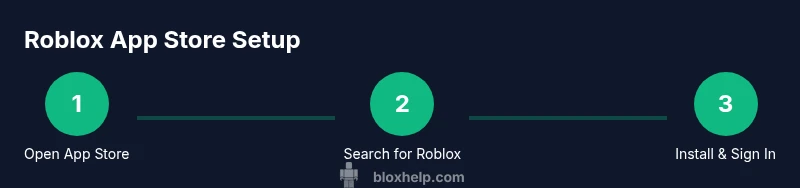
Open the Apple App Store and search for Roblox. Verify you’re downloading the official Roblox app from Roblox Corporation and not a third-party imitation. Check the app’s rating, reviews, and the developer name to confirm authenticity. If you’re in a region with restricted access, you may need to adjust your App Store region or use family sharing settings. After confirming the listing, you’ll see the Get button, which indicates the app is free to install (in-app purchases apply for items and passes).
Installing and Updating Roblox on iOS
Tap Get (or the download cloud icon) to install Roblox on your device. Depending on your device and network, the download may take a few minutes. You’ll be prompted to authenticate with Face ID, Touch ID, or your password. Once installed, open the app from your home screen. Regular updates will appear in the App Store under Updates or via automatic updates; keeping Roblox up to date helps fix bugs and improves compatibility with the latest iOS features.
Signing In or Creating a Roblox Account on iOS
When you first launch Roblox, you can sign in with an existing Roblox account, or create a new one directly in the app. A Roblox account lets you save progress, customize your avatar, and access your games across devices. If you’re new, choose a secure password and enable two-factor authentication if available. If you forget your credentials, use the account recovery options within Roblox’s login flow. Having a linked email helps with password resets and security reminders.
Permissions and Privacy on iOS for Roblox
Roblox may request permissions such as photos, microphone, storage, and camera access depending on features you use. You can grant or deny these in iOS Settings > Roblox. Review the permission prompts carefully and only enable those you need. You can later modify permissions without uninstalling the app. Enabling privacy controls helps protect your data and aligns with parental controls if you’re managing a younger player.
Safety, Parental Controls, and In-app Purchases
Roblox includes in-app purchases for avatar items, game passes, and currency. If the device is used by a child, enable parental controls and set a passcode for App Store purchases (Ask to Buy on iOS). Regularly review privacy settings, in-game chat options, and age-appropriate content. Stay aware of the community guidelines and teach good multiplayer behavior to minimize negative experiences. The balance between fun and safety is important for a healthy mobile Roblox habit.
Troubleshooting Common App Store Roblox Issues
If Roblox won’t download or install, check available storage, ensure a stable internet connection, and verify you’re signed into the correct Apple ID. If the app won’t launch, try signing out and back in, restart the device, or reinstall Roblox. For persistent issues, consult Roblox Support and Apple Support, and review the App Store’s troubleshooting resources. Remember to enable updates so you always have the latest fixes and features.
Performance and Battery Life on iOS
On some devices, Roblox can be demanding on CPU and memory. To improve performance, lower in-game graphics, close background apps, disable unnecessary notifications, and ensure the device is charged or connected to power during long sessions. Keeping iOS and Roblox updated also helps stability. If you notice overheating or excessive battery drain, reduce game brightness and enable Airplane Mode when offline features aren’t needed.
Final Recommendations and Next Steps
The Blox Help team recommends using the official Apple App Store flow to install Roblox, ensuring you’re always on the latest, safest version. Maintain up-to-date iOS and Roblox app versions, regularly review privacy settings, and utilize parental controls when appropriate. Engage with official Roblox support channels for updates, tips, and troubleshooting to keep your mobile Roblox experience smooth and secure.
Tools & Materials
- iPhone or iPad with iOS (current or recent version)(Device should be able to run recent apps and supports App Store.)
- Apple ID with App Store access(Needed to download and install Roblox.)
- Stable internet connection(Wi-Fi recommended during initial download and updates.)
- Roblox account (optional for sign-in)(Create or sign in after installation to save progress.)
- Storage space (at least a few hundred MB free)(Install and update files require free space.)
- Charger or power source(Installing and updating can take time; keep device powered.)
Steps
Estimated time: 20-30 minutes
- 1
Check device compatibility
Verify your iPhone or iPad is on a supported iOS version and has enough storage for Roblox and its updates. If your device is older, you may need to free space or update the OS if possible. This step ensures the app can run smoothly from the App Store.
Tip: If your device cannot run the latest iOS, consider upgrading to a newer device or use alternatives for light gameplay. - 2
Open the Apple App Store and search for Roblox
Launch the App Store, use the search tab, and type 'Roblox'. Confirm you’re selecting the official Roblox app published by Roblox Corporation. Verify the icon, rating, and developer to avoid imposters. This step ensures you download the legitimate app.
Tip: Check the developer name carefully; many scams mimic the Roblox brand. - 3
Install Roblox from the App Store
Tap Get or the download icon, then authenticate with Face ID, Touch ID, or your Apple ID password. The download begins immediately and continues in the background. After installation, you can open Roblox directly from the App Store or find it on your home screen.
Tip: If prompted for permissions, grant only what is necessary to run the app. - 4
Sign in or create a Roblox account
Launch Roblox and sign in with an existing account or create a new one if you’re new. Use a strong password and add two-factor authentication if available. Linking an email address helps with password recovery and account security.
Tip: Use a unique password not shared with other services. - 5
Grant essential permissions
Go through the prompts for permissions such as storage and microphone if required. You can manage these later in Settings > Roblox. Grant only the permissions needed for a good gameplay experience and privacy.
Tip: Review permissions periodically; revoke anything you don’t actively use. - 6
Update Roblox to the latest version
Check for updates in the App Store to ensure you have the latest features and bug fixes. Automatic updates can help keep you current without interrupting play. Updates often improve performance and security.
Tip: Turn on automatic updates for Roblox to stay secure and compatible. - 7
Troubleshoot common issues
If Roblox won’t install or launch, verify storage, check your network, sign out/in, or reinstall the app. For persistent problems, consult Roblox Support or Apple Support resources. Don’t skip official channels—guides from support portals can save time.
Tip: Restart your device before deeper troubleshooting; many issues resolve with a simple reboot.
Questions & Answers
Is Roblox free to download from the App Store?
Yes. Roblox is free to download from the Apple App Store, but many in-app purchases exist for items, passes, and currency. Make sure to monitor purchases if needed.
Roblox is free to download from the App Store, with optional in-app purchases.
Do I need a Roblox account to play on iOS?
You can start by creating a Roblox account to save progress and access your avatar across devices. If you already have an account, sign in to continue where you left off.
You can sign in with an existing Roblox account or create a new one to start playing and save progress.
Why won’t Roblox install from the App Store?
First, check storage space and your internet connection. Verify you’re using the official Roblox listing and that your device meets the required iOS version. If needed, sign out and back into the App Store, then try again.
If Roblox won’t install, verify storage, network, and that you’re downloading the official app. Try again after signing out and back into the App Store.
Can I play Roblox offline on iOS?
Roblox requires an internet connection for gameplay and progress syncing. You can download assets or updates while online, but you’ll need online access to play most games.
Roblox needs an internet connection to play and save progress.
How do I manage in-app purchases for Roblox on iOS?
Use iOS parental controls and App Store purchase settings to manage spending. You can enable restrictions or require a passcode for any in-app purchases.
Use iOS parental controls to manage purchases; you can require a password for Roblox purchases.
What should I do if Roblox crashes after an update?
Restart the device, ensure both iOS and Roblox are updated, and check for any known outages on Roblox Support. If issues persist, reinstall Roblox.
If Roblox crashes after an update, restart your device and update both iOS and Roblox; reinstall if needed.
Watch Video
The Essentials
- Install Roblox from the official App Store for safety.
- Keep Roblox and iOS updated to avoid crashes.
- Sign in with a Roblox account to save progress across devices.
- Manage permissions and parental controls to stay safe.
- Use Roblox Support for persistent issues and stay informed about updates.