Install Roblox: A Practical Beginner's Guide
Learn how to install Roblox on Windows, Mac, iOS, Android, and Xbox with this beginner-friendly guide. Includes prep, safety tips, troubleshooting, and post-install steps.


With this guide you will learn how to install Roblox on Windows, macOS, iOS, Android, and Xbox. You'll verify you have a stable internet connection, a Roblox account, and an official download source, then follow platform-specific prompts to install the launcher or mobile app. The steps cover account setup, safety basics, and post-install checks to ensure a smooth start.
Roblox installation landscape and what you’ll install
Roblox is a cross-platform platform that lets players run games built by the community. Installing Roblox means obtaining the official launcher on PC or Mac, or the mobile app for iOS and Android, or the console version on Xbox. If you’re new, you’ll want to understand what you’re installing and why you’re installing it—this guide shows you how to install game roblox on your device and get started quickly.
Before you start: connectivity, accounts, and safety
A reliable internet connection is essential for a smooth install, updates, and gameplay. Make sure you have a Roblox account or be prepared to create one during setup. For younger players, enable safety features and parental controls as needed. Also verify you’re downloading from the official site roblox.com or the official app store to avoid counterfeit software. The next sections will help you gather what’s needed and plan for a quick install.
Platform-specific paths: Windows, Mac, iOS, Android, Xbox
Windows and Mac users typically download an installer from Roblox's official site, while mobile users install the Roblox app from their device’s app store. Xbox players use the Roblox icon in the console’s store to add the game. Each path has small differences in login flow, permissions, and first-launch prompts. Knowing these differences helps you prepare the right account and settings before you download.
Permissions, accounts, and security basics
Avoid downloading from third-party sites. Always use roblox.com or official app stores. Your Roblox account credentials are what unlock your games; keep them safe and do not reuse passwords across sites. Enable two-factor authentication if available, and review privacy settings after you install to control who can interact with you.
How the installer works: launcher vs app
On PC and Mac, Roblox uses a launcher that manages game deployment and updates. On mobile, you install a standalone app. The launcher will download missing game assets on demand as you select games. The first run may require an alignment check of your device drivers or OS permissions; this is normal and should complete quickly if your system is compatible.
Post-install checks and performance tips
After installing, sign in and load a simple game to verify the install. If games run slowly, consider lowering graphics settings, closing background apps, and ensuring you have sufficient free disk space. Keep your system drivers updated and periodically check for Roblox updates to stay compatible with newly released games.
Safety, privacy, and parental controls
Roblox offers family settings and parental controls that you can adjust in advance. Review chat and friend request permissions, turn on account restrictions for younger players, and ensure the account is linked to a parent account where appropriate. Always monitor activity within the first few hours of use to catch any issues early.
Troubleshooting common install issues
If the installer won’t download, check your network, disable VPNs, and try a different browser or app store. If you get an error during installation, note the error code and search the official Roblox help center for guidance. Reboot the device and retry, and contact Roblox support if problems persist.
Tools & Materials
- Stable internet connection(A wired Ethernet or reliable Wi-Fi connection; avoid public networks during install.)
- Compatible device(Windows PC or Mac for launcher; iOS/Android for mobile; Xbox for console.)
- Roblox account(Have your Roblox username and password ready; or create during install.)
- Official download source(Use roblox.com or the official app stores; avoid third-party sites.)
- Admin rights(May be required on some systems to install software; contact admin if blocked.)
- Optional peripherals(Headphones, mic, or controller for a better experience.)
Steps
Estimated time: Estimated total time: 20-40 minutes
- 1
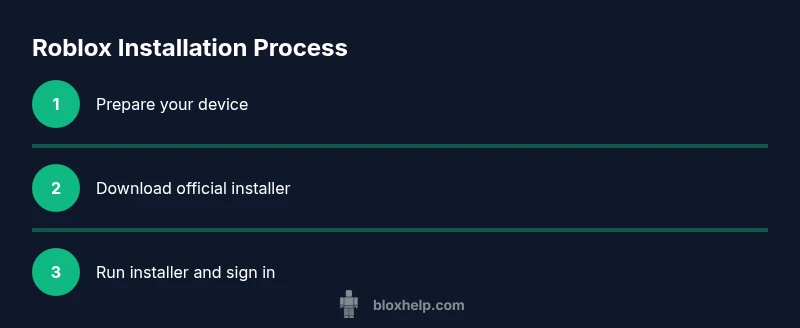
Prepare your device and account
Ensure you have an active internet connection and a Roblox account ready. If you need to create one, do so now so you can sign in immediately after installation. Close unnecessary apps to free up RAM and avoid download slowdowns.
Tip: Close background apps and confirm you have adequate disk space before starting. - 2
Choose your installation path
Decide whether you will install the launcher on a PC/Mac or download the mobile app for iOS/Android. Each path has slightly different prompts, permissions, and file locations, so pick the one that matches your device.
Tip: Know where your downloads will be saved on your device to locate the installer quickly. - 3
Download the official installer or app
Navigate to the official Roblox site or your device’s app store and click the appropriate download or install button. Verify the URL to avoid phishing attempts and ensure you’re on a legitimate source.
Tip: Only download from roblox.com or the official app stores; beware unofficial mirrors. - 4
Run the installer and grant permissions
Open the downloaded file and follow on-screen prompts to install. You may need to grant OS permissions or approve admin access on some systems. Wait for the installer to finish and initialize the launcher.
Tip: If Windows asks for administrator rights, approve to continue the installation. - 5
Sign in or create Roblox account
Enter your credentials to sign in, or create a new account if you don’t have one yet. Complete any required email verification and set up your profile as prompted by the installer.
Tip: Use a strong password and enable two-factor authentication for extra security. - 6
Configure safety and privacy settings
Review and adjust privacy, chat, and account settings during setup. If a child will use the account, enable parental controls and restrict contact as needed.
Tip: Set conservative privacy defaults for younger players before you start playing. - 7
Check for updates and restart if required
Roblox may prompt you to install updates after the first run. Allow updates to complete and restart the app if prompted to ensure all components are current.
Tip: A restart can resolve initial launch issues and ensure a clean start. - 8
Launch and test with a simple game
Open a basic game to confirm the install is working. If performance is lackluster, adjust graphics settings and close non-essential background tasks to free system resources.
Tip: Test with a low-demand game first to confirm stability before trying larger titles.
Questions & Answers
Is Roblox free to install and play?
Yes, Roblox is free to install. Some games and items may require purchases within Roblox or Robux; you can play many experiences without spending money.
Roblox is free to download and play, though some games or items may cost Robux.
Which devices can run Roblox?
Roblox runs on Windows PC, Mac, iOS, Android, and Xbox. Check Roblox official site for exact requirements per device.
Roblox works on PC, Mac, phones, and Xbox.
What should I do if the download won’t start?
First verify your internet connection and that you’re using the official roblox site or app stores. Try a different browser or network, and disable VPNs if active.
First check your internet and use the official site; try another browser if needed.
Do I need admin rights to install Roblox on PC/Mac?
On Windows or macOS, admin permissions are often required to install software. If you’re blocked, contact the device administrator or use a user account with install rights.
You may need admin rights to install Roblox on a computer.
How do I enable safety features during setup?
During setup or in the account settings, adjust chat and privacy controls, enable account restrictions if needed, and ensure the account is linked to a parent account where appropriate.
Set safety options during setup, especially for younger players.
What if Roblox crashes after installation?
Update drivers, check for Roblox updates, lower graphics, and reboot the device. If problems persist, consult the Roblox help center.
If Roblox crashes, update drivers and try the latest Roblox update.
Watch Video
The Essentials
- Prepare your device and account before you start.
- Always use official sources for Roblox installation.
- Follow platform-specific steps to avoid common issues.
- Enable safety features early to protect younger players.
- Test the installation with a simple game to confirm success.