Can You Get a Roblox Private Server on Xbox? A Practical Guide
Discover whether Roblox private servers can run on Xbox, the platform limits, and practical alternatives for multiplayer play on Xbox. A comprehensive guide from Blox Help.


As of 2026, there is no official way to host a Roblox private server on Xbox. Private servers are primarily supported on PC and mobile platforms, with cross‑platform options limited by game and platform policies. Xbox players should expect public servers or cross‑platform play via supported titles, rather than a dedicated private server on Xbox.
Understanding the Xbox limitation for Roblox private servers
For many Roblox players, the idea of a private server is appealing: a controlled playground where you and your friends can customize game rules and invite only your squad. However, when it comes to Xbox, the landscape is more restricted. According to Blox Help, Xbox users face platform restrictions that currently prevent creating or hosting Roblox private servers. This means you won’t find a built-in Xbox option to spin up or manage a private server from the console itself. Instead, Xbox players typically rely on the standard public servers or on cross‑platform play where possible. The practical takeaway is simple: if your primary device is Xbox, your multiplayer options are shaped by what Roblox and the Xbox platform officially permit, not by a native server you can host from the console.
This distinction matters because it affects everything from game selection to how you play with friends. In practice, you’ll want to plan around the platform’s strengths (stable online play, easy invite systems) and its limitations (no official private server hosting on Xbox). The reality is that most private server features exist on PC or mobile clients where developers can expose server controls and invite mechanics that aren’t ported to Xbox yet. If your goal is to run a tailored environment for your group, you’ll need to leverage PC/mobile-enabled features, or use cross‑platform play where the game itself supports it.
What is a Roblox private server and why it matters
A Roblox private server, often called a VIP Server, is a separate game instance that you control. It allows you to restrict access to friends, set rules, and avoid unwanted players. For developers and power players, private servers offer a predictable space for creative experiments, custom challenges, and curated social play. On PC and mobile, many games in Roblox’s catalog offer VIP server options, with owner control, whitelisting, and persistent world states that certain games preserve across sessions. The broader value is clear: it’s about a predictable multiplayer experience with people you trust. On Xbox, however, private server creation is not part of the standard feature set for most titles, which means the typical Xbox player won’t have a built-in, official way to spin up their own server, separate from the global server roster.
For many players, this means Xbox users should focus on the social features Roblox supports across devices, while understanding that a private server on Xbox remains outside the official toolkit. If a game specifically supports cross‑platform VIP servers or server transfer between platforms, those options would be game-specific. In the absence of universal VIP server support on Xbox, a practical approach is to look for games that offer Xbox-friendly social features—such as group invites, party modes, or in-game friends-only lobbies—rather than a global, game-wide private server infrastructure on the console.
Platform reality: private servers on PC/mobile vs Xbox
To understand where Xbox fits, it helps to map the landscape: on PC and mobile, Roblox players can create and manage private servers in many popular games. These servers let you invite specific players, adjust privacy settings, and maintain a separate environment for your group. Xbox, by contrast, supports Roblox in a sandboxed way that prioritizes cross‑platform play and general matchmaking. The absence of universal private server tooling on Xbox is rooted in both technical constraints and policy considerations from both Roblox and console ecosystems.
For players who insist on private server-style experiences, the recommended path is to pursue a mixed‑platform setup: use a PC or mobile device to configure a VIP server for a shared game, then join that server from Xbox if the game and Roblox platform policies permit cross‑platform access. It’s important to verify per-game support because some titles may allow cross‑platform access to servers created on PC, while others may not. This reality underscores the value of flexible expectations: Xbox can be part of a private‑server workflow if the game explicitly supports it, but it isn’t a general Xbox feature.
For the Xbox-only crowd, plan around the community events, private group games, and in-game party modes that Roblox titles commonly offer. These features provide a curated multiplayer experience without needing a server on Xbox itself.
Platform support overview: PC vs. Xbox vs. mobile
Official support for Roblox private servers varies by platform and by game. In practice, VIP servers are most commonly available on PC and some mobile experiences, with owners able to manage who can join and when. The Xbox platform does not universally expose a built-in server creation tool, which means Xbox players typically rely on the game’s public servers or on cross‑platform server access when supported. This reality has several implications:
- You’ll often need a PC or mobile device to create or manage VIP servers for games that support them.
- Cross‑platform join capabilities are game‑dependent; some titles allow Xbox players to join a private server hosted on PC, while others require everyone to connect through the game’s own matchmaking.
- Community-led workarounds or third-party tools are not endorsed by Roblox and can violate terms of service, so they’re generally discouraged.
If you’re committed to a tailored multiplayer session, the best approach is to identify games on Roblox that explicitly declare VIP server support on PC/mobile and then check whether those servers accept cross‑platform joins from Xbox players. Always review a game’s privacy options and the official Roblox policies before attempting any configuration.
How to play with friends on Xbox today
Current Xbox playthroughs hinge on the game’s built-in social features and cross-platform support. If you want to play with friends on Xbox, you’ll typically begin by finding a game that supports private or friends-only play on Xbox through its own menu. A growing portion of Roblox games now advertise “Xbox-friendly” modes or allow you to invite friends to a private lobby from the in-game interface. The practical steps usually look like this: pick a title, check its privacy or lobby options, invite friends via Roblox friends lists or in-game invites, and launch a session that restricts access to your chosen group.
Another route is to coordinate with friends who have a PC or mobile device. If the game’s VIP server on PC/mobile supports cross‑platform joining, you can create the server on PC, share the invite with Xbox friends, and see if cross‑platform entry is permitted for that title. This approach requires clear communication and mutual understanding of the game’s cross‑platform rules. Finally, keep an eye on updates from Roblox and your favorite games; platform support evolves, and VIP server capabilities on Xbox may expand in future titles or updates.
Alternatives that feel like private servers on Xbox
While a universal Xbox private server feature isn’t available, several Xbox-friendly approaches can recreate the feel of a private space. First, choose games that offer “friends-only” lobbies or party modes on Xbox. These modes restrict access to your selected friend group and can provide a predictable environment similar to a VIP server. Second, use in-game settings for private groups where available—some titles let you save configuration presets or host custom match rules for your party. Third, leverage cross‑platform private servers when the game explicitly supports cross‑platform VIP servers. If you manage to run a private server on PC/Mobile, use cross‑platform joining if the game supports it to bring Xbox players into the same session.
For many players, the perceived “private server” experience on Xbox is achieved by disciplined group invites, managed lobbies, and consistent member rosters within games that support those features. This approach keeps the game within Roblox policies while maximizing the social control you want among friends on the console.
Getting started: what you can do today
If you’re an Xbox player who wants tighter control over multiplayer with friends, you can start by identifying Roblox games on Xbox that advertise private or friends-only modes. Check the game description and in-game settings for any privacy options, and confirm whether the game supports cross‑platform privacy settings. It’s smart to chart out a plan with your friends: create a shared list of games, confirm which platforms each player uses, and agree on a join method (in-game invites, friends lists, or party systems). If you also own a PC or mobile device, consider testing VIP server setup on that device for a game that supports cross‑platform VIP servers. This dual-device approach lets you experiment with the server workflow without committing to a single platform.
Additionally, ensure your Roblox account has two-factor authentication enabled and that all players are on approved friend lists. That helps maintain a safe, controlled environment and minimizes risk of interruptions during play. By starting with Xbox-friendly games and gradually expanding to PC/mobile where VIP servers exist, you’ll build a practical workflow that aligns with Roblox’s cross‑platform reality.
Step-by-step scenarios: If you also have a PC or mobile, here’s how to proceed
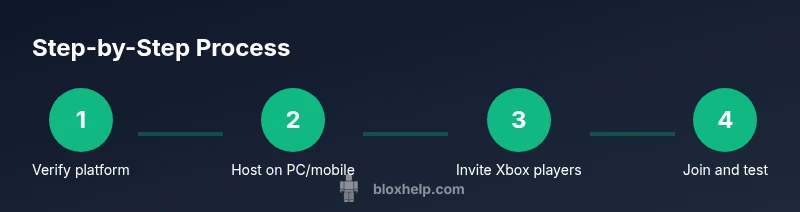
If you own a PC or mobile device in addition to your Xbox, you can explore VIP servers on supported titles and test cross‑platform joining. Begin by selecting a game with official VIP server support on PC/mobile. Create the server on your PC/mobile, configure access (invite-only, whitelist), and test joining from Xbox to confirm cross‑platform compatibility. This approach gives you a real private-like session while respecting platform limitations.
When participating, document which games support cross‑platform VIP servers and which don’t. Share configuration steps with your friends so they can replicate the process on their devices. If possible, maintain a consistent server or lobby for your group to minimize join friction and ensure smoother gameplay across devices. Finally, stay updated with Roblox’s policy announcements; platform availability can change with new updates or partnerships.
Security, policy, and safety considerations
Any discussion about private servers should begin with policy awareness. Roblox maintains specific rules about private servers, privacy, and access. Using unofficial tools to hack, bypass, or circumvent platform controls can lead to account penalties or security risks. Xbox users should be especially mindful of cross‑platform play policies and the terms of service for each game. Always use official features and avoid third‑party tools or scripts that promise private server functionality on Xbox; these can violate terms and place your account at risk.
To stay safe, limit access to your sessions to people you know, enable two-factor authentication, and review privacy settings for each game. If you encounter issues, report them through Roblox support channels and rely on in‑game reporting tools for safety concerns. By adhering to platform rules and prioritizing player safety, you’ll enjoy multiplayer sessions without compromising account security.
Common myths and FAQs
Misconception: Xbox has universal private servers for every Roblox game. Reality: Private servers exist primarily on PC/mobile for many games, with Xbox support varying by title. Some games may offer cross‑platform servers, while others do not.
Misconception: You can install any private server tools from PC on Xbox. Reality: There is no official cross‑device tool that transfers VIP server functionality to Xbox. Always use the game’s documented features.
Myth: If I can’t host a private server on Xbox, I can’t play with friends. Reality: You can still play with friends through Xbox-friendly modes, friends-only lobbies, and cross‑platform invites when supported by specific games.
Myth: Roblox will add Xbox VIP server support soon for all games. Reality: Updates depend on policy alignment and platform partnerships; monitor official Roblox announcements for any changes.
Myth: It’s risky to rely on cross‑platform features. Reality: When used with supported games and settings, cross‑platform play is generally safe; always confirm privacy options within each title.
When to consider upgrading to PC or mobile
If a VIP server workflow remains essential for your group, consider using a PC or mobile device to host the server for games that support it. PC/mobile hosting provides more granular server controls, better privacy settings, and broader compatibility with a wider range of games. For Xbox-centric players, a mixed‑device strategy often yields the best balance: host on PC/mobile when a game supports it, invite your Xbox friends, and enjoy cross‑platform play where allowed. This pathway keeps your group aligned with Roblox’s current privacy architecture while still delivering the social experience you seek.
Tools & Materials
- Xbox console with internet connection(Stable network, up-to-date firmware and Roblox app installed)
- Roblox account(One account per player; enable two-factor authentication if possible)
- PC or mobile device (optional for hosting VIP servers)(Needed to configure VIP servers for supported games)
- Game with VIP server support on PC/mobile(Check each game’s page for VIP server availability)
- Friends list access on Roblox(Easier to invite and manage access to private sessions)
Steps
Estimated time: Total estimated time: 15-30 minutes
- 1
Verify platform capabilities
Check whether your chosen Roblox game supports private servers or VIP servers on PC/mobile and whether cross‑platform joins to Xbox are allowed. Review the game’s privacy options and Roblox’s official documentation to confirm what’s possible on Xbox. This step prevents chasing features that don’t exist for your setup.
Tip: If in doubt, open the game’s page and look for ‘VIP Server’ or ‘Friends Only’ options before proceeding. - 2
Host on a secondary device (if possible)
If you have a PC or mobile device that can run Roblox, open the game there and create a VIP server if supported. Configure access to invite only your group. This creates the private space you want, with the caveat of cross‑platform join rules.
Tip: Maintain a clean invite list to avoid accidental public access. - 3
Invite your Xbox friends
Share the server link or invite members via the game’s interface. Confirm if cross‑platform joining is supported for the title and that the Xbox players can enter the server using their Roblox accounts.
Tip: Coordinate time zones and in‑game lobby settings to reduce join friction. - 4
Join from Xbox and test
On Xbox, launch Roblox and navigate to the game’s server or lobby. Attempt to join the VIP server created on your PC/mobile. If cross‑platform joining is not supported, you may still play in a private-lobby mode within the game.
Tip: If you can’t join, double‑check the game’s cross‑platform policy and ensure all accounts are properly linked. - 5
Manage access and monitor activity
Once the session is live, monitor who joins and ensure that the invited players are the only ones in the lobby. Use in-game tools to mute or block disruptive players if needed.
Tip: Enforce clear house rules and consider session time limits to maintain a positive experience. - 6
Evaluate alternatives if needed
If cross‑platform joining or VIP server hosting isn’t feasible for your chosen title, switch to Xbox-friendly modes like friends-only lobbies or private matches within games that support them. This helps keep the social dynamic while staying within platform limits.
Tip: Keep a list of per‑game workarounds for quick setup in future sessions.
Questions & Answers
Can I create a Roblox private server on Xbox today?
Official private servers are not universally supported on Xbox. Some games offer cross‑platform private server features, but this varies by title. If you value a private space, plan to host on PC/mobile where VIP servers are available and check whether cross‑platform joins are supported for Xbox.
No universal private servers on Xbox today; it depends on the game and platform support.
Will Roblox add private server support for Xbox in the future?
Roblox updates and platform policies evolve over time. While VIP servers exist on PC/mobile, there is no guaranteed timeline for universal Xbox private server support. Stay tuned to Roblox’s official announcements for any changes.
Future VIP server support on Xbox isn’t guaranteed; watch for official updates.
What alternatives exist on Xbox for a private-like session?
Look for games that offer friends-only lobbies, private matches, or Xbox-friendly party modes. These features provide a controlled multiplayer space without hosting a true private server on Xbox.
Use friends-only lobbies or private matches when available on Xbox.
Is cross‑platform joining required to use a VIP server hosted on PC?
If the game supports cross‑platform joins, Xbox players can join a VIP server hosted on PC or mobile. If not supported, everyone must stay on the same platform for server access.
Cross‑platform join depends on the game; not all titles support it.
Are there safety risks to using private servers or cross‑platform tricks?
Using official features with proper privacy settings minimizes risk. Avoid third‑party tools or unverified methods that might violate terms of service and jeopardize your account.
Stick to official features and privacy controls to stay safe.
Watch Video
The Essentials
- Xbox lacks universal private server hosting across Roblox titles.
- VIP servers work best on PC/mobile, with cross‑platform support game‑dependent.
- Use Xbox‑friendly modes to simulate private sessions when possible.
- A mixed-device approach (host on PC/mobile, join from Xbox) is often the most feasible path.