Does Roblox Need a GPU? A Practical Guide
Is a GPU required for Roblox? Learn how GPU strength affects performance on PC, Mac, and mobile, with practical tips, settings, and troubleshooting from Blox Help.


Does Roblox need a GPU? For most players, Roblox runs fine on integrated graphics, but a capable GPU can unlock higher frame rates, smoother textures, and better performance at higher resolutions. In practice, you’ll notice clearer visuals and less stutter when Roblox is GPU-accelerated, especially in dense environments with dynamic lighting. The key is balancing GPU power with your display settings to keep gameplay smooth.
Does Roblox need a GPU? What actually matters
In practical terms, yes, a GPU helps Roblox render more detailed scenes, but the game is designed to run on a wide range of hardware. The key question is not whether Roblox needs a GPU in the abstract, but how the GPU capabilities translate to visible improvements in frame rate, texture quality, and stability. According to Blox Help, most players will see noticeable gains when enabling GPU-accelerated rendering, especially in dense environments with dynamic lighting. For laptop users or older desktops with integrated graphics, Roblox remains accessible, but you may have to lower settings to keep a smooth experience. The underlying principle is simple: a GPU handles visual computation, while a CPU handles logic; Roblox benefits when both are balanced for your target resolution.
Minimum vs recommended GPU for Roblox
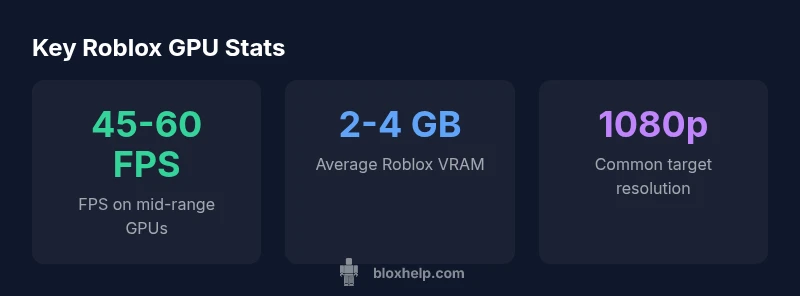
Roblox's official requirements are relatively forgiving, which means many modern laptops and desktops with integrated graphics can run the base experience. However, to enjoy consistent 60 frames per second in newer games or high-visual fidelity, a mid-range discrete GPU is recommended. In practice, players with Intel Iris Xe or AMD Vega-based integrated graphics can often run Roblox at 720p or 1080p with medium settings; those with a discrete GPU like Nvidia GeForce GTX 1650 or AMD Radeon RX 570 typically achieve smoother performance at 1080p with higher settings. If you primarily play on a notebook or older machine, expect to tune texture detail, shadows, and render distance to sustain stability. Remember that Roblox is cross-platform; the GPU expectations differ by device, so align settings to your hardware and preferred resolution.
Integrated vs discrete GPUs: What you can expect
Integrated GPUs share system memory and are designed for low power; they can run Roblox, but performance scales with VRAM, driver efficiency, and thermals. Discrete GPUs offer dedicated VRAM, higher bandwidth, and better stability in complex scenes. With an integrated GPU, you might see lower texture detail, reduced draw distance, and occasional stutter in crowded games. A mid-range discrete GPU delivers noticeably smoother frames, crisper textures, and quicker load times, especially in cities or games with lighting effects. Driver updates and power settings can still affect results, so ensure you have the latest drivers and keep the laptop plugged in during gaming sessions for maximum performance. In short, if you want to maximize Roblox visuals with minimal compromises, a mid-range or higher GPU is the sweet spot; if you’re budget-constrained, you can still play, but settings will be your best friend.
Platform differences: PC, Mac, and mobile
Roblox runs on Windows, macOS, iOS, Android, and consoles; GPU behavior varies by platform due to OS-specific drivers, power profiles, and screen resolutions. On PC, you can push higher settings and formats, provided you have a capable GPU and a suitable monitor. On Mac, performance can be limited by certain GPU configurations and Metal driver optimizations, so you may need to adjust textures and lighting to maintain stability. Mobile devices rely on integrated mobile GPUs and thermal throttling, so you’ll usually get lower default settings and smoother experiences when you choose 720p or 1080p frames. Across all platforms, the key is matching your in-game settings to the hardware and the display size, then testing across representative Roblox scenes to ensure a consistent experience.
How to test and diagnose GPU performance in Roblox
Begin by establishing a baseline using in-game graphics settings and a consistent scene with typical traffic. Enable the highest stable frame rate you can achieve without noticeable stutter. Use built-in FPS counters or third-party tools to track GPU usage, VRAM consumption, and thermal behavior. Monitor GPU usage in Windows Task Manager or macOS Activity Monitor, and check drivers for the latest updates. If you notice drops when entering complex scenes or many lights, try lowering render distance, shadows, post-processing effects, and texture quality. On mobile, rely more on resolution scaling and disabling extras to sustain smooth play. Re-test after each adjustment to isolate which setting yields the best balance between visuals and performance.
Practical optimization tips for weaker GPUs
- Lower resolution to 720p or 900p
- Reduce texture quality and render distance
- Disable shadows, ambient occlusion, and post-processing
- Turn on V-Sync or frame cap to reduce tearing and heat
- Enable performance mode (if available) and update drivers
- Close background apps and ensure laptop is plugged in
Future-proofing Roblox graphics: a look ahead
Roblox is continuously evolving, with new rendering techniques and optimization pipelines that can benefit players on a range of GPUs. As features like improved lighting, shadows, and decals roll out, the balance between visual fidelity and performance will stay important. For players, this means staying current with driver updates, monitoring Roblox's recommended settings, and preparing hardware upgrades if you notice persistent bottlenecks in newer titles. The trend toward scalable graphics means that even modest GPUs can enjoy engaging visuals without sacrificing playability, provided you adjust settings thoughtfully and keep drivers current.
GPU tiers and Roblox performance
| GPU Type | Impact on Roblox Performance | Typical VRAM | Notes |
|---|---|---|---|
| Integrated GPU | Low to moderate improvements | 1-2 GB | Best for casual play at low resolutions |
| Mid-range discrete | Moderate to significant improvements | 2-4 GB | Balanced for 1080p with medium-high settings |
| High-end discrete | Strong improvements | 4-8 GB | Best for 1080p/1440p with max visuals |
Questions & Answers
What is the minimum GPU to run Roblox?
Roblox is designed to work on a wide range of GPUs, including many integrated models. The minimum is forgiving, but performance depends on scene complexity and resolution. Start with medium settings and upgrade if you notice frequent slowdowns.
Roblox works with many GPUs, including integrated ones, but you may need to lower settings on older hardware.
Do I need a dedicated GPU for Roblox to look good?
Not strictly; Roblox supports integrated GPUs, but a dedicated GPU improves frame rates and texture quality, especially in newer games and larger maps.
Integrated GPUs work, but a dedicated GPU improves visuals and smoothness.
How can I check my GPU usage while playing Roblox?
Use OS tools or in-game FPS counters. Windows Task Manager shows GPU usage; macOS Activity Monitor or third-party tools can help monitor VRAM and temperatures.
Open Task Manager and look at GPU usage while in Roblox to spot bottlenecks.
Will Roblox run on Mac with AMD or Intel GPUs?
Yes, Roblox runs on Macs with supported GPUs. Performance depends on the Mac’s graphics hardware and drivers; expect platform-specific tweaking.
Roblox runs on Macs with compatible GPUs; adjust settings if needed.
What settings should I tweak first to improve Roblox performance on a weak GPU?
Start with resolution scale, shadows, post-processing, and render distance. Lower these before touching textures; this yields the biggest FPS gains on weaker GPUs.
Lower resolution and shadows first for the biggest gains.
“A capable GPU amplifies Roblox visuals and smooths gameplay, but sensible settings are essential for steady FPS. Balance and testing are your best tools.”
The Essentials
- Test your baseline FPS before hardware changes.
- Integrated GPUs run Roblox; mid-range GPUs improve smoothness.
- Balance visuals and FPS with in-game settings.
- Update drivers and test across scenes for consistency.