Free Play Roblox No Download: A Practical Guide
Explore legitimate, free ways to play Roblox and what 'no download' really means. Learn device options, safety tips, and step-by-step paths for desktop and mobile play—without compromising security.


Desktop play without downloading the Roblox Player isn’t supported. Roblox is accessed through the official launcher on Windows/macOS or via mobile apps, both of which require an installation. This guide clarifies what “free play roblox no download” truly means and outlines safe, compliant paths to start playing for free today.
Is free play roblox no download truly possible?
According to Blox Help, the short answer is that a true desktop experience without downloading any software isn’t offered by Roblox. The platform is designed to run through an official launcher or a mobile app, and there is no sanctioned in-browser option that lets you launch games without at least some installation. You can still enjoy Roblox for free on devices where you install the app or launcher, and many experiences are accessible without spending money. The important distinction here is between "free to play" (no cost to start) and "no download" (no installation at all). This guide helps you navigate legitimate, free routes while staying within Roblox policies.
For players who want to avoid desktop installs, the mobile route offers a practical alternative. However, even mobile play involves installing the Roblox app from the official store. Understanding these pathways helps you choose the best fit for your device and your family’s safety preferences.
The Blox Help team emphasizes following official channels to protect your account and device. If you encounter sites promising free Roblox without downloads, treat them with skepticism and verify with Roblox’s own support pages.
How Roblox is accessed across devices and why downloads matter
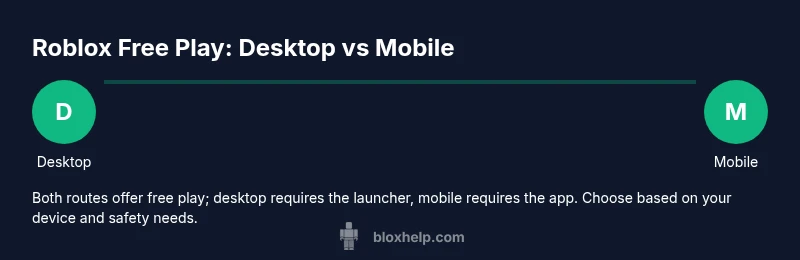
Roblox is designed with cross‑device access in mind. On desktop, you start by downloading the Roblox Player from the official site; after installation, you sign in and can browse a vast library of games. On mobile, you install the Roblox app from the App Store or Google Play, then sign in to play. Consoles like Xbox also require the official Roblox app. There isn’t a supported in‑browser experience that bypasses these installations. Downloads ensure compatibility, security, and consistent performance across games and user accounts. The key takeaway for players chasing a no‑download myth is that the platform relies on the launcher or mobile app to run games smoothly and safely.
The free‑to‑play model: what “free” really covers in Roblox
Roblox is free to sign up and free to play many experiences. The platform offers optional in‑game purchases and cosmetic items that can enhance gameplay, but you can start most games without spending money. Because developers set their own monetization, some experiences are completely free, while others offer paid add‑ons. This distinction matters for players who want to explore vast worlds without committing to purchases. The safe bet for beginners is to try free experiences first and only explore paid content if you choose to customize your avatar or access premium features.
Step-by-step path A: Desktop play via the official launcher
The most straightforward desktop path is to download the official Roblox Player, then sign in with a free Roblox account. Once installed, you can browse the catalog, join games, and save progress. Always download from the official Roblox site to avoid counterfeit installers. After installation, run the launcher at least once to complete setup, then explore free experiences and join public servers.
Tip: Keep your antivirus and browser up to date before installing any software. A quick check of the publisher name and file signature helps prevent spoofed installers.
Step-by-step path B: Mobile play using official Roblox apps
If you’re using a smartphone or tablet, install the official Roblox app from your device’s app store. Create or sign in to your free Roblox account, then browse games, join friends, and customize your avatar. Mobile play prioritizes on‑the‑go accessibility; it still requires installation, but it avoids desktop downloads.
Tip: Enable device security features (like biometric login) and review in‑app permissions to protect your account on mobile devices.
Safety, privacy, and account basics for free play
Safety should be your top priority, especially for younger players. Create a strong password, enable two‑factor authentication where available, and monitor your privacy settings. Roblox allows parental controls and age‑appropriate restrictions that help tailor content and interactions. Because free play often involves public servers, staying mindful of chat features, friend requests, and sharing of personal information is essential. Always sign in on devices you control and avoid sharing account details with others.
Common obstacles and practical workarounds
Users sometimes encounter connectivity hiccups, login issues, or app store restrictions that block downloads. In most cases, restarting the device, updating the app, or reinstalling from official sources resolves these problems. If your device is older or has limited storage, consider clearing space or updating to a supported OS version. When issues persist, consult Roblox support or community forums for device‑specific guidance and safety recommendations.
How to recognize free‑to‑play experiences and avoid scams
Not all games labeled as free are genuinely free; some may require optional purchases after you enter the game. Look for experiences labeled as free‑to‑play, read user reviews, and verify developer information from trusted sources. Be wary of third‑party sites offering free Robux or downloadable tools; these are common scams. By sticking to official app stores and Roblox’s own pages, you reduce risk while enjoying a broad library of free content.
What to expect next on your Roblox journey
Once you’re set up on a device, you can explore countless worlds, connect with friends, and learn the basics of avatar customization and game discovery. As you gain experience, you’ll encounter more complex experiences and deeper customization options. The key is to start with what’s free, keep safety front and center, and gradually broaden your Roblox knowledge as you become more comfortable with the platform.
Tools & Materials
- Compatible device with internet (PC with Windows/macOS or iOS/Android device)(Ensure the device meets minimum OS requirements before installing Roblox.)
- Stable internet connection(A reliable connection improves download and game streaming.)
- Roblox account (free to sign up)(You’ll use this to sign in and access free games.)
- Official Roblox app or launcher(Only download from Roblox’s official site or the device’s official store.)
- Optional: privacy and parental controls knowledge(Helps keep younger players safe and in control yet still able to play for free)
Steps
Estimated time: 45-75 minutes
- 1
Check your device compatibility
Review your device’s OS version and hardware to ensure Roblox can run smoothly. If you’re on an older computer or phone, verify minimum supported versions on Roblox’s official support pages before attempting installation.
Tip: Verify the official system requirements to avoid post‑install issues. - 2
Choose your play path
Decide whether you’ll play on desktop with the Roblox launcher or on a mobile device with the Roblox app. Desktop provides a larger catalog and easier chat, while mobile offers portability and touch control.
Tip: If you’re new, starting on mobile can be faster to get into games quickly. - 3
Download the official launcher or app
Download the Roblox Player for desktop from the official site or the Roblox app from the App Store/Google Play. Install and run the launcher or app, then sign in with your Roblox account.
Tip: Always download from official sources to avoid malware. - 4
Create or sign in to your Roblox account
Enter existing credentials or create a new account if you’re starting fresh. Use a strong password and consider enabling two‑factor authentication.
Tip: Use a unique password and enable 2FA where available. - 5
Adjust safety and privacy settings
Configure who can contact you, who can join your games, and what content is allowed based on age. Parental controls can help tailor the experience for younger players.
Tip: Set a clear privacy baseline before joining public games. - 6
Browse free experiences and join a game
Open the catalog or featured pages and look for experiences labeled as free‑to‑play. Click a game to launch and start playing with friends.
Tip: Sort by free‑to‑play to avoid unexpected purchases. - 7
Customize your avatar (optional)
Explore cosmetic options that don’t require payment and adjust your avatar’s look to personalize your experience.
Tip: Keep customization lightweight to avoid unnecessary costs. - 8
Understand in‑game purchases and limits
If you encounter paid content, decide in advance whether you want to invest. Roblox supports free experiences without purchases.
Tip: Set spending reminders if you use a device with payment methods saved. - 9
Stay safe and keep software updated
Regularly update the Roblox launcher/app and your device’s security software. Be cautious with friend requests and shared links in chat.
Tip: Enable automatic app updates to stay protected.
Questions & Answers
Can I play Roblox on a computer without downloading anything?
No. Roblox on desktop requires the official Roblox Player launcher. In-browser play is not officially supported for Roblox. You can still play for free by downloading the launcher from the official site.
Roblox on a computer needs the official launcher; there isn’t an official no-download desktop option.
Is Roblox free to play for everyone?
Yes. Signing up is free and many games are free to play. Some experiences offer optional paid items, but you can enjoy a large library at no cost.
Roblox is free to sign up and play, with optional purchases.
What about playing Roblox in a browser?
Roblox does not offer a widely supported in-browser version for desktop. Most players use the launcher or mobile app to access games.
There isn’t a reliable browser version; you’ll need the official launcher or app.
Do I need a credit card to start playing?
No. You can start and play for free. Robux purchases are optional and only required if you want premium content.
No credit card is required to start playing; purchases are optional.
How can I avoid scams when downloading Roblox?
Always download from the official Roblox site or official app stores. Be cautious of third‑party links or fake installers claiming to give free rewards.
Stick to official sources to avoid scams and malware.
What should I do if my device won’t install Roblox?
Check compatibility, ensure storage space, and update the operating system. If problems persist, consult Roblox Support with your device specifications.
If installation fails, verify system requirements and try again after updates.
Watch Video
The Essentials
- Start with a legitimate launcher or app to play Roblox for free.
- Desktop requires the official Roblox Player; mobile uses the Roblox app.
- Free‑to‑play is common, but purchases are optional and should be managed safely.
- Always download from official sources and review privacy settings for safety.