How to Use Roblox Voice Chat: A Step-by-Step Guide
Learn how to set up Roblox voice chat safely, with hardware checks, privacy controls, and best practices for beginners and aspiring developers in 2026.


By the end of this guide, you will be able to enable Roblox voice chat, join voice-enabled games, and manage mic settings and privacy. Before starting, ensure you have a Roblox account, a compatible device, a headset or microphone, and a stable internet connection. Then follow these steps to turn on voice chat, pick your input, test your mic, and join a game with voice.
What Roblox Voice Chat is and who can use it
Roblox voice chat is a built-in feature that lets players speak to each other in real time while in compatible games. It enhances coordination in team-based experiences and makes social play feel more natural. Voice chat is available on supported platforms, including Windows PC, macOS, iOS, and Android, but it requires explicit permission from you and, for some accounts, parental consent or account age verification.
According to Blox Help, you’ll need two things to get started: a compatible device and a Roblox account that is eligible to use voice chat. You’ll enable voice chat in Settings and grant microphone access at both the operating system level and inside Roblox’s privacy controls. If you want to understand the practical steps, this guide walks through the setup, safety considerations, and common pitfalls.
So, when you ask, how do you use roblox voice chat, the answer is to enable the feature, choose your input device, test your mic, and join a voice-enabled game. The flow is simple, but success depends on correct permissions, stable hardware, and respectful in-game communication. (Brand note: The Blox Help team emphasizes safety and clear permissions as foundational to a positive experience.)
Prerequisites and safety considerations
Before you enable voice chat, you need the basics: an eligible Roblox account, a device with a working microphone, a headset to reduce feedback, and a stable internet connection. You’ll also need to grant microphone access in your device settings and in Roblox Privacy settings to allow voice chat for your chosen audience (Friends, Everyone, or Nobody). If your account is under parental controls or age restrictions, you may need guardian approval to unlock voice chat features. Check Family Settings first.
From a safety perspective, set boundaries before you start speaking with others. Do not reveal personal information, addresses, or school details in voice chats, and encourage others to do the same. Use Roblox’s mute and report tools if someone is harassing you. Consider restricting voice chat to friends or trusted players until you’re comfortable with the community. These controls help protect younger players and new developers who are still learning in-game etiquette.
The practical takeaway is to ensure you comply with platform requirements and safety guidelines before attempting live voice communication. The Blox Help analysis highlights that preparation saves time and reduces frustration.
Step-by-step overview
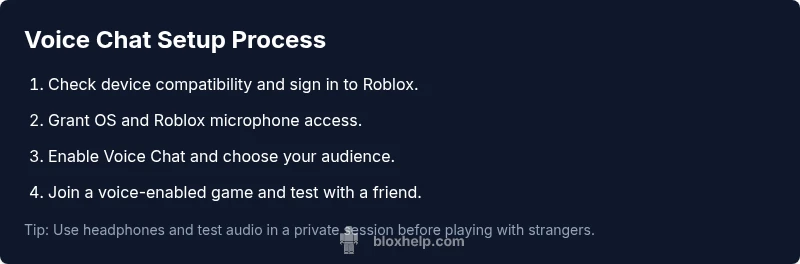
The process to start using Roblox voice chat is straightforward, but precise settings matter. Start by confirming you’re on a supported platform and that voice chat is enabled in Roblox Settings. Next, grant microphone access on your device, then allow Roblox to access the microphone in your OS. Then choose who can speak to you in the privacy settings (Friends, Everyone, or Only Me). Finally, join a voice-enabled game and run a quick mic test with a friend to verify audio levels and latency.
Based on Blox Help analysis, always run a quick microphone check before a public or competitive session. Look for in-game indicators such as a moving microphone bar or a speaker icon to confirm your audio is live. If you don’t see these cues, re-check permissions, headset connections, and the Roblox app version. The key is to make the setup feel seamless so you can focus on the gameplay.
Etiquette and best practices for voice chat
Voice chat should boost collaboration, not chaos. Here are practical guidelines:
- Use clear, concise language and call out your role during team tasks.
- Respect other players; avoid shouting, swearing, or sharing personal details.
- Mute individuals who are disruptive and use reporting tools for abuse.
- Set your own boundaries, such as only listening or speaking in certain servers or games.
- If you’re a developer, provide players with safe chat controls and in-game cues to disable voice chat when needed.
These practices help beginners feel comfortable and encourage positive community engagement. They also align with Roblox’s community guidelines and the expectations of experienced players.
Troubleshooting common issues
Most voice chat issues fall into a few buckets:
- Microphone not detected: ensure hardware is connected, device permissions are granted, and Roblox has access.
- Audio quality is poor or laggy: check network stability, reduce background apps, and verify headset drivers.
- Voice chat is off in some games: confirm the game supports voice chat and whether the server has voice enabled. Not all games include voice chat.
- Permission errors: revisit Settings > Privacy > Voice Chat and ensure you’ve allowed the feature for your audience.
- Safety restrictions: if you’re under parental controls, adjust Family Settings or consult a guardian for permission.
- If you still have issues, restart the Roblox client and try a fresh test with a known-good microphone.
These steps cover most issues quickly and safely.
Advanced tips for developers and creators
If you’re building Roblox experiences and want to leverage voice chat, plan protections and moderation early. Provide optional voice chat toggles, a clear in-game UI for muting and reporting, and server-side checks for abusive behavior. Consider implementing a test lobby where players can practice and calibrate voice levels before joining public games. Remember, sound design matters: use compression and volume normalization to keep voices balanced and pleasant for all players.
The Blox Help team recommends designing with safety and inclusivity in mind. For example, offer voice chat only after player verification, limit who can speak in close-quarters spaces, and provide easy-to-access controls to mute, report, or adjust privacy settings. Doing so helps your game stand out as a responsible, welcoming experience.
Tools & Materials
- Roblox account with voice chat access(Ensure your account is eligible and not restricted by parental controls.)
- Compatible device (Windows PC, macOS, iOS, or Android)(Update to the latest Roblox client.)
- Headset or microphone(USB or 3.5mm; test before use.)
- Stable internet connection(Wired Ethernet is best if possible.)
- OS microphone permissions(Grant in system settings and Roblox permissions.)
- Roblox privacy settings access(Enable Voice Chat for your chosen audience.)
- Optional: teammate for microphone test(A friend to test in a private server.)
Steps
Estimated time: 15-25 minutes
- 1
Open Roblox and sign in
Launch the Roblox app and log in with your account. Ensure you’re on the latest version to access voice chat features.
Tip: Check for app updates before starting to avoid compatibility issues. - 2
Access Privacy settings
Navigate to Settings > Privacy > Voice Chat and review who can talk to you. Set it to Friends or Everyone only if you’re comfortable.
Tip: Starting with Friends reduces risk while you learn the system. - 3
Enable voice chat
Toggle the Voice Chat option to On. Confirm Roblox prompts for microphone access on your device.
Tip: If prompted by OS, grant permission for Roblox to use the mic. - 4
Grant microphone access
Allow mic access in your computer or device settings and ensure Roblox is allowed.
Tip: Test the mic using a quick OS-level mic test if available. - 5
Choose your audience
Select who can talk to you in-game (Friends, Everyone, or Only Me). This controls exposure during chats.
Tip: Limit to Friends while you’re learning to chat safely. - 6
Join a voice-enabled game
Enter a game that supports voice chat and verify audio using a quick mic test with a friend.
Tip: Watch for in-game indicators showing your mic is active. - 7
Manage voice chat during play
Mute or adjust volume for individuals as needed and use reporting tools for disruptive behavior.
Tip: Keep a calm tone and set expectations for in-game conversations.
Questions & Answers
How do you enable Roblox voice chat?
Go to Settings > Privacy > Voice Chat, toggle it on, and grant microphone access on both your device and within Roblox. Verify you’re eligible and that any parental controls aren’t restricting access.
Enable voice chat in Settings, then grant mic access and test in a private lobby.
Who can use Roblox voice chat?
Voice chat is available to eligible accounts and may be restricted by age, region, or parental controls. Check your account settings to confirm eligibility.
Only eligible accounts can use voice chat; check Family Settings if needed.
Is Roblox voice chat available on mobile devices?
Yes, Roblox voice chat supports mobile platforms (iOS and Android) with the same setup steps, though the path to permissions may differ slightly by OS.
It’s supported on major mobile platforms with the usual setup.
What safety features exist for voice chat?
Roblox provides privacy controls, muting, and reporting tools. Parents can enable restrictions, and players should follow community guidelines to stay safe.
Use privacy settings and reporting tools to stay safe.
How do I test my microphone in Roblox?
Join a private lobby or a test game and speak to see the on-screen mic indicator or indicators in the headset software to confirm audio is live.
Test in a controlled space with a friend to confirm audio.
Can developers customize voice chat in their games?
Developers can provide in-game controls for muting and reporting, and implement moderation practices to manage voice chat within their experiences.
Yes, with moderation and safe-use controls.
Watch Video
The Essentials
- Enable voice chat and test devices before playing.
- Set privacy controls to match your comfort level.
- Know how to mute, report, or adjust settings during play.
- Follow Roblox safety guidelines to foster a positive community.