How to Turn On Roblox Voice Chat
Learn how to enable Roblox voice chat on PC and mobile with a step-by-step setup, permissions, settings, troubleshooting, and safety tips. Perfect for players and developers.


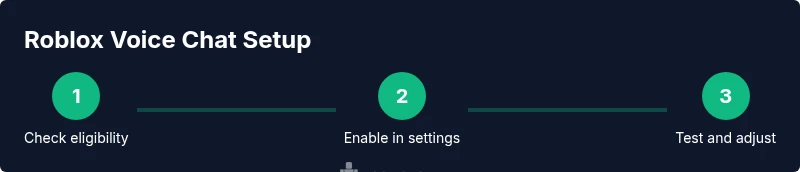
How to turn on Roblox voice chat: You must meet eligibility, update the Roblox app, and grant microphone permissions. Then enable voice chat in Roblox settings and choose a voice channel in-game. This quick setup works on PC and mobile and includes safety tips from Blox Help. Follow these steps even if you're new to Roblox, and you'll be ready to chat in minutes.
What Roblox Voice Chat is and where it’s available
According to Blox Help, Roblox voice chat is a real-time voice communication feature that lets players talk to teammates during compatible games. It currently relies on platform support and account settings, and it requires a working microphone and a stable internet connection. Availability can vary by device (PC, iOS, Android) and by regional safety controls. In practice, you’ll find a toggle in the Roblox client settings for voice chat, plus in-game options to join a voice channel. This section explains how the feature works, why you might want to use it, and the general requirements so you aren’t surprised when you first try to enable it. If you’re new to Roblox, think of voice chat as a supplementary communication tool that enhances teamwork without replacing in-game text chat entirely.
- Real-time communication
- Platform and account prerequisites
- In-game voice channels and privacy controls
- Safety and moderation considerations
Prerequisites: eligibility, account settings, and permissions
Before you attempt to turn on voice chat, verify a few prerequisites so you don’t hit roadblocks later. Eligibility typically depends on account age and parental controls; some regions or accounts may have restrictions that require enabling voice features in the account settings or consenting to safety rules. Ensure your Roblox app is up to date and that your device has microphone access granted. If you share a device with family members, check any device-wide privacy settings that could block mic access. Finally, confirm you’re logged into a supported account and that voice chat is allowed in the parental control settings if applicable. This foundation helps avoid sudden prompts or blocked features when you’re in a game.
Turning on voice chat on PC: Step overview
On a PC, you’ll typically enable voice chat via the Roblox client and your computer’s audio settings. The process generally involves updating the app, granting microphone permissions, and turning on the feature in Roblox’s settings. You’ll choose whether to participate in voice chat generally or only in certain games or groups, depending on your privacy preferences. This section provides the high-level path you’ll follow on desktop to get voice chat working, including common prompts you’ll see during setup and how to interpret them if something looks off.
- Update Roblox app to the latest version
- Grant microphone permissions in Windows/macOS
- Enable voice chat in Roblox settings
- Select a default channel or privacy level for voice
If you encounter issues, revisit the prerequisites and ensure the mic is functioning outside Roblox (e.g., with a separate recording app) to isolate where the problem lies.
Turning on voice chat on mobile devices (iOS/Android)
Mobile devices offer a compact route to Roblox voice chat, though the steps can differ slightly between iOS and Android. Begin by updating the Roblox app from the App/Play Store and then granting microphone permissions when prompted by the OS. In Roblox, navigate to the settings area for voice chat and enable it, selecting any default privacy preferences. Some mobile games handle voice chat through in-game chat options or through a separate in-game lobby. If you’re using earbuds or a headset, ensure they’re connected and that the app has permission to access the microphone.
- Update Roblox app on iOS/Android
- Allow microphone permissions in OS settings
- Enable voice chat in Roblox mobile settings
- Pick a privacy level suitable for your gameplay
Microphone and privacy settings outside Roblox
Voice chat success often hinges on mic access in the operating system and on the device itself. Windows, macOS, iOS, and Android all have mic permissions that must be enabled for Roblox to use the device’s microphone. Check that the correct input device is selected and that volume levels are set appropriately. If you’re using a USB microphone or a headset with a mute button, test those controls in your OS sound settings to ensure they’re recognized. Some devices also have privacy switches or system-wide voice options that can disable inline mic usage; ensure these aren’t blocking Roblox. Remember: strong, stable mic input reduces echo, latency, and garbled audio during gameplay.
In-game controls, channel etiquette, and safety
Once voice chat is enabled, you’ll typically join a voice channel within a game or in a lobby. Learn the in-game controls for push-to-talk or voice-activate modes and how to mute/unmute teammates quickly. Establish expectations for conversations: keep language appropriate, avoid sharing personal information, and report any harassment. Adjusting channel privacy—such as limiting to friends or party members—can help maintain a comfortable environment. Consider enabling safety features or parental controls if you’re monitoring a younger player in your group. In practice, a balanced approach to chat improves coordination while keeping interactions safe and respectful.
Troubleshooting common issues
If voice chat isn’t working after following the setup steps, start with the simplest checks. Confirm the microphone works in other apps to rule out a hardware issue. Re-check OS permissions for Roblox and re-try enabling voice chat in-app. Ensure you’re on a supported platform and game, and that your account isn’t blocked by parental controls. If problems persist, look for Roblox server notices or regional restrictions, restart the app, and test again. In some cases, you may need to reinstall Roblox or clear the app’s cache to reset the feature.
Final tips for a smooth experience
To maximize your Roblox voice chat experience, use a good headset with a noise-canceling microphone, keep background noise to a minimum, and test your setup before group sessions. Regularly check for app updates and retrain permissions if you switch devices. Maintain respectful communication and report misuse to moderators. By keeping these practices in mind, you’ll enjoy more efficient team play and a safer voice chat environment for yourself and others.
Tools & Materials
- Roblox account with voice chat eligibility(Verify age-related restrictions and parental control settings.)
- Compatible device (PC, iOS, or Android)(Must support a microphone and internet access.)
- Working microphone or headset(USB or 3.5mm with proper drivers; test prior to use.)
- Stable internet connection(Wired Ethernet preferred; if using Wi-Fi, ensure strong signal.)
- Updated Roblox app(Install the latest version for the voice chat features.)
- OS microphone permissions(Grant Roblox access to microphone in device settings.)
Steps
Estimated time: 40-60 minutes
- 1
Verify eligibility and account settings
Check your account age and ensure parental controls permit voice chat. If applicable, discuss consent with a guardian and adjust account restrictions before proceeding.
Tip: If unsure about permissions, check Roblox account settings and device privacy settings first. - 2
Update Roblox app to the latest version
Open the app store, search for Roblox, and install any available updates. Updates often include new features, bug fixes, and better microphone support.
Tip: Enable automatic updates to keep voice chat features current. - 3
Enable voice chat in Roblox settings
Navigate to Roblox settings, locate the voice chat or privacy tab, and toggle voice chat on. Adjust who can talk to you and which channels you’ll join by default.
Tip: Set a conservative default privacy level and change it per game if needed. - 4
Grant microphone permissions on your device
On PC, macOS, iOS, and Android, allow Roblox to access the microphone in system settings. You may be prompted by the OS during setup.
Tip: Test mic input in another app to confirm hardware functionality. - 5
Configure default privacy and channel options
Choose whether voice chat is available to friends, teammates, or everyone. Decide on a default channel to streamline future sessions.
Tip: Keep defaults conservative to minimize unwanted conversations. - 6
Test microphone in a game or lobby
Join a test game or a private lobby to verify audio. Speak to confirm teammates hear you clearly and adjust volume as needed.
Tip: Use a short test phrase to gauge clarity and latency. - 7
Choose push-to-talk or voice activation
Decide between push-to-talk to limit background noise or voice activation for natural conversation. Calibrate sensitivity if offered.
Tip: Push-to-talk is usually better in noisy environments. - 8
Practice respectful communication
Establish ground rules for discussions; avoid personal information sharing; use mute/block features when needed.
Tip: Reporting abusive users helps keep channels safe. - 9
Troubleshoot and re-test if needed
If audio is still failing, re-check prerequisites, reinstall Roblox, or clear cache. Run a final mic test after changes.
Tip: A fresh install often resolves persistent issues.
Questions & Answers
Is Roblox voice chat available on all platforms?
Voice chat is available on supported platforms where Roblox has rolled out the feature. Availability can depend on device, region, and account settings. If you don’t see the option, verify device compatibility and check for app updates.
Voice chat availability varies by platform and region; check for updates and device support.
Do I need a Roblox Premium membership to use voice chat?
No. Roblox Premium is not required to use voice chat; standard accounts with eligible devices can enable the feature after meeting prerequisites.
No, you don’t need Premium for voice chat.
How do I turn on push-to-talk or adjust mic sensitivity?
Push-to-talk and mic sensitivity options are available in both Roblox settings and your device’s audio controls. Enable the feature in settings, choose a key, and calibrate sensitivity so that only deliberate speech is transmitted.
Enable push-to-talk, assign a key, and tune sensitivity in settings.
What should I do if voice chat is blocked by parental controls?
If parental controls block voice chat, adjust the account’s safety settings or speak with a parent/guardian to grant permission. You may need to validate age or complete consent steps in the account controls.
Parental controls can block voice chat; adjust settings with a guardian if needed.
Why isn’t my microphone detected by Roblox?
Mic detection issues usually stem from OS permissions or hardware problems. Verify the device is selected as the input in your OS, test in another app, and re-enable microphone access for Roblox.
Check OS permissions and test the mic in another app to narrow down the issue.
How can I report abuse or harassment in voice chat?
Roblox provides reporting tools for inappropriate behavior. Use in-game reporting or contact support if you experience harassment. Moderators review reports to keep the community safe.
Use in-game reporting to flag abuse; moderators will review.
Watch Video
The Essentials
- Verify eligibility before enabling voice chat.
- Grant microphone permissions across devices.
- Test mic and adjust privacy settings first.