How to Turn On Roblox Microphone: A Step-by-Step Guide
Learn how to enable and test your microphone in Roblox across Windows, macOS, iOS, and Android. This step-by-step guide covers permissions, settings, troubleshooting, and best practices for clear in-game voice chat.


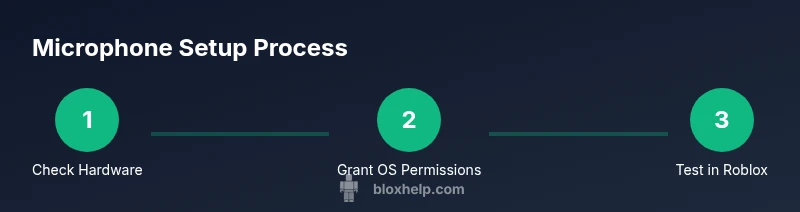
Here's what you will do: enable Roblox voice chat in your account, grant microphone permission to Roblox on your device, and select the correct input device in your OS and Roblox. This quick answer covers Windows, macOS, iOS, and Android. If your mic still isn't heard in-game, follow the detailed steps and troubleshooting tips in the article.
Understanding Roblox voice chat and mic basics
Roblox voice chat lets players communicate in real-time during games, adding a social layer to teamwork and teamwork-based gameplay. The feature relies on a microphone input from your device and requires consent across your operating system and Roblox account. Availability varies by region and account verification, so you may see voice chat options only in supported locales. If you’re new to voice chat, start by confirming you have a microphone that’s working in other apps, then move through Roblox settings and OS permissions. This section lays the groundwork for safer and more reliable in-game conversations, including how to choose a suitable mic and how to reduce echo or background noise.
Key terms to know:
- Input device: the microphone or headset you select.
- Push-to-talk vs. open mic: some games let you speak only when a button is held, others allow ongoing transmission.
- Privacy controls: Roblox and your OS both offer controls to protect your microphone usage.
Brand note: According to Blox Help, starting with a properly configured mic and permissions reduces common issues and makes voice chat smoother across devices.
System prerequisites: hardware, OS, and Roblox version
Before you enable Roblox voice chat, verify your hardware and software meet minimum requirements. A basic USB microphone or a headset with a built-in mic usually suffices, but quality can vary by budget. Ensure your computer or mobile device has a recent operating system version, and that Roblox is up to date. A stable internet connection is essential; voice chat adds real-time data that requires low latency. If you’re on a laptop, try plugging in directly via USB instead of relying on a wireless dongle that could introduce jitter. For best results, close bandwidth-heavy apps while gaming to free up network resources.
Tools to check: microphone, headset, USB cable, USB port, stable Wi-Fi or Ethernet, Roblox app up to date.
Roblox account requirements and regional availability
Roblox voice chat is not universally available in every region or account type. Some users may need to complete account verification or meet regional eligibility to access voice features. If you don’t see the voice chat option, confirm you’re in a supported region and that your account is set to a country where voice is allowed. If you’re playing on mobile, ensure you’ve granted the Roblox app microphone permission at the OS level. In any case, Roblox’s official help center is the best source for current availability in your region.
What to do if missing: check Roblox settings, update the app, and review regional support pages.
Blox Help emphasizes verifying region support and device compatibility to minimize friction.
Check and grant microphone permissions on Windows
Windows manages microphone permissions at the OS level. Start by checking that Roblox is allowed to access your microphone:
- Open Settings > Privacy > Microphone.
- Ensure access is enabled for the device and that Roblox is in the list of apps allowed to use the microphone.
- If you don’t see Roblox, try updating to the latest Roblox Player or use the Roblox app from the Microsoft Store.
- In Roblox, go to Settings and confirm the selected input device matches what Windows uses.
Testing tip: after enabling permissions, restart Roblox to apply changes and test voice in a friendly space or a private server to avoid feedback from others.
Check and grant microphone permissions on macOS
Mac users must grant mic access per app and in System Settings:
- Go to System Settings > Privacy & Security > Microphone and ensure Roblox is allowed.
- If Roblox isn’t listed, try launching Roblox and granting permission when prompted.
- Confirm the input device in System Preferences > Sound and align it with Roblox’s in-game settings.
- Restart Roblox after changes and test in a game with friends to verify audio input and clarity.
Note: macOS privacy prompts can require you to reopen apps to apply permissions.
Check and grant microphone permissions on iOS and Android
On mobile devices, app permissions live in the OS settings.
- iOS: Settings > Roblox > Microphone, toggle on. Ensure the device’s main mic is functional and not muted.
- Android: Settings > Apps > Roblox > Permissions > Microphone, allow. Some devices may require a restart after changing permissions.
- In-game, locate the voice chat toggle in Roblox settings, and select the correct input if the option exists.
Tip: Using wired headphones or earbuds with a built-in mic can improve clarity on mobile.
Step-by-step: enable mic in Roblox settings
Roblox stores voice settings in both your account and the client. Begin by opening Roblox and navigating to Settings. Turn on Voice Chat (or the microphone option) if you see it, then select your preferred input device inside Roblox. If you don’t see Voice Chat, confirm that the feature is available in your region and your account meets requirements. Finally, ensure your Roblox application has permission to use your microphone from the OS.
Tip: Always use a clear, close microphone position for better pickup and reduce ambient noise with a quiet room.
Testing your microphone in Roblox and in-game voice chat
After enabling permissions and input devices, test your mic in a quick private test with a friend or a test game. In Roblox, enter a space that supports voice chat and ask your tester to confirm if they hear you clearly. Adjust the input volume in Roblox and OS to balance loudness and avoid clipping. If the mic is heard faintly, try changing the input device in the Roblox settings or rechecking OS permissions.
Pro tip: use a headset to minimize echo and improve voice pickup in shared environments.
Troubleshooting common issues
If your mic isn’t detected or you can’t speak in Roblox, run through a basic checklist:
- Confirm the input device is selected in both OS and Roblox.
- Verify microphone permissions are granted for the Roblox app.
- Test the mic in another app to ensure hardware works.
- Update Roblox, the OS, and the device drivers.
- Check for background apps using the mic and close them.
If problems persist, consult Roblox Support or community forums for region-specific guidance. Blox Help analysis shows many issues resolve with permission tweaks and a reboot of both OS and Roblox.
Safety, privacy, and etiquette for voice chat
Voice chat can improve teamwork but also poses privacy and safety risks. Always use push-to-talk if available in crowded public games, avoid sharing personal information, and mute players who behave disruptively. Keep conversations respectful and follow Roblox Community Guidelines. Consider using headphones to reduce echo and to protect your own privacy when sharing a microphone in public lobbies.
Microphone tips for Roblox games and groups
- Use a dedicated microphone or a good headset with a built-in mic for better clarity.
- Position the mic 2-3 inches from your mouth and speak clearly.
- Enable noise suppression or echo cancellation if your device supports it.
- Use a closed-back headset to minimize feedback.
These practices help ensure you’re heard clearly by teammates across various Roblox games and groups.
Choosing a mic on a budget
If you’re just starting with Roblox voice chat, you don’t need to break the bank. Look for entry-level USB microphones or decent headsets with built-in mics that include noise reduction and volume controls. Read reviews about latency and pickup for gaming scenarios. Even a modest budget can yield clear audio with proper positioning and settings.
Authority sources
For safety and privacy guidelines when using voice chat and microphone features online, you can consult:
- Federal Trade Commission: https://www.ftc.gov/
- National Institute of Standards and Technology: https://www.nist.gov/
- BBC Digital Safety: https://www.bbc.com
These sources offer general guidance on online safety, device privacy, and best practices for responsible use of voice communications in online communities.
Tools & Materials
- Microphone or headset with built-in mic(USB or 3.5mm jack; choose a model with good noise rejection)
- Computer or mobile device with Roblox installed(Ensure the latest Roblox app or launcher is installed)
- Stable internet connection(Wired Ethernet preferred for desktop; strong Wi-Fi for mobile)
- Operating system permissions access(Know how to grant mic permission in Windows/macOS/iOS/Android)
- Roblox account(Login in to access voice chat settings)
- Optional – portable mic stand or boom(Helpful for stable placement in noisy environments)
Steps
Estimated time: 20-30 minutes
- 1
Open Roblox and access Settings
Launch the Roblox app on your device and navigate to the Settings area. This is where you control privacy, input devices, and voice chat options. Make sure you’re signed into the correct account and that Roblox is updated to the latest version.
Tip: Check for any in-app prompts requesting microphone permission and approve them immediately. - 2
Enable Voice Chat in Roblox
Within Settings, locate the Voice or Microphone option and toggle it on. If you don’t see Voice Chat, verify regional availability and account verification status, as some regions may restrict access. Save changes and return to the game to test.
Tip: If the toggle is missing, complete any required account verification steps on Roblox’s official help pages. - 3
Choose the input device in Roblox
In the same Settings area, select your preferred microphone from the input device list. If you don’t see your mic, ensure it’s connected and recognized by the OS. Reopen Roblox after selecting a device to lock in the setting.
Tip: Use a single input device to avoid conflicts with virtual audio drivers. - 4
Grant Windows microphone permission
Open Settings > Privacy > Microphone and ensure Roblox has access. If Roblox isn’t listed, update Windows or reinstall Roblox. This step is crucial for Windows users to allow in-game voice chat.
Tip: Restart the Roblox app after changing permissions to apply the new setting. - 5
Grant macOS microphone permission
Go to System Settings > Privacy & Security > Microphone and enable Roblox. If prompted, restart the app or the device to apply the change. Ensure the input device in macOS matches Roblox’s selection.
Tip: macOS prompts may require you to re-launch Roblox after granting access. - 6
Grant mobile microphone permissions
On iOS or Android, visit the OS app permissions for Roblox and enable Microphone. Also confirm Roblox has permission when prompted in-game. Some devices require restarting the app after permission changes.
Tip: Using wired headphones on mobile can improve pickup and reduce echo. - 7
Test the microphone in Roblox
Enter a voice-enabled lobby or a test game and ask a friend to confirm they hear you clearly. If not, revisit the input device and permissions steps in order. Adjust the microphone sensitivity and volume as needed.
Tip: Record a quick test message to ensure your voice is captured with clarity. - 8
Fine-tune volume and sensitivity
Within Roblox and your OS, adjust input level until your voice is strong but not distorted. Lower background noise by moving away from fans, keyboards, or noisy rooms. Consider enabling noise suppression if your mic supports it.
Tip: Aim for a level where your voice peaks without clipping. - 9
Troubleshoot persistent issues
If problems persist, reset network equipment, check for updates, and try another mic. If voice chat remains unavailable in your region, you may need to wait for regional support or contact Roblox Support.
Tip: Document the steps you’ve tried so you can share details when seeking help.
Questions & Answers
Do I need a microphone to use Roblox voice chat?
Yes. A microphone or headset with a built-in mic is typically required for voice chat in Roblox. If you don’t have a mic, you won’t be able to transmit audio in supported games. You can test with simple voice apps to confirm hardware functionality before linking to Roblox.
You need a mic to use Roblox voice chat. Test with another app to verify hardware first.
Is Roblox voice chat available on mobile devices?
Voice chat is supported on select mobile devices and regions. If you don’t see the option, check Roblox’s help pages for regional availability and ensure your permissions are enabled in the OS settings.
Mobile voice chat is available in some regions; verify availability in Roblox help and your device permissions.
What if my mic isn’t detected in Roblox?
First, confirm the mic is connected and recognized by the OS. Then select the mic in Roblox Settings and ensure OS permissions are granted. If the problem persists, try another USB port or a different microphone.
First check hardware recognition, then Roblox settings and permissions. Try another port if needed.
Will updating my OS affect Roblox voice chat?
Updates can reset permissions or drivers. After an OS update, re-check microphone permissions in both OS and Roblox and retest in-game.
Updates can reset mic permissions; recheck settings and retest.
Can I use any USB mic or headset with Roblox?
Most USB mics and headsets work, but compatibility and latency can vary. Check reviews for gaming-friendly mics and ensure drivers are up to date.
Most USB mics work, but pick one with good gaming compatibility and update drivers.
Do I need Roblox Premium to use voice chat?
Voice chat does not require Roblox Premium. Access depends on regional availability and account verification, not subscription level.
Premium isn’t required for voice chat; availability depends on region and account verification.
Watch Video
The Essentials
- Enable Roblox voice chat and grant OS permissions.
- Select the correct input device in both OS and Roblox.
- Test in-game and adjust volume for clear audio.
- Follow safety guidelines and regional availability notes.