How to Roblox Voice Chat: A Complete Beginner's Guide
Learn how to enable Roblox voice chat safely. This step-by-step guide covers eligibility, setup, privacy controls, and troubleshooting for a smooth in-game voice experience.


Learn how to enable Roblox voice chat and start communicating in supported games. This quick guide covers eligibility, hardware needs, and the basic setup steps, plus safety tips. By the end, you’ll know what to check before you talk, how to test your mic, and how to troubleshoot common issues.
What is Roblox Voice Chat and who can use it?
Voice chat on Roblox is a built-in feature that lets players talk to each other in real time while in games or group experiences. Not every user can access it; eligibility depends on regional availability, age verification, and account settings. According to Blox Help, voice chat is available only to accounts that pass Roblox's voice verification and meet safety requirements. If your account isn't eligible yet, you can still participate in text chat and enjoy other social features while you wait.
In this section we cover the basics, including what to expect from the experience—like push-to-talk vs open mic—and how in-game voice chat integrates with friends and group settings. We also discuss potential limitations, such as latency in crowded servers, microphone quality, and the need to respect community guidelines to keep chats safe.
Requirements to use Roblox Voice Chat
To use Roblox voice chat, you need a combination of hardware, software, and account conditions. A compatible device (Windows PC, iOS, or Android) with Roblox installed is essential. You must have a microphone or headset that is recognized by the OS, and a stable internet connection to sustain real-time audio. Region availability and age verification are also critical: voice chat is not universally available and requires meeting the platform's age and safety requirements. Parents may configure privacy settings to control who can talk to the child. Always update Roblox to the latest version to access the feature.
Enabling Roblox Voice Chat: Overview of the process
Enabling Roblox voice chat starts with confirming eligibility and enabling the feature in your account settings. Once allowed, you can toggle voice chat on in your privacy settings and, in many games, enable it per lobby or per group. The setup is designed to be straightforward, but encountering hiccups is common if privacy controls block access or the system doesn't detect your mic. The intent here is to give you a clear map so you can complete each step with confidence.
Safety and privacy considerations
Voice chat introduces real-time communication, which increases the need for responsible use. Roblox provides safety controls such as who can speak to you, who can join voice chats, and reporting tools for harassment. The Blox Help team emphasizes configuring privacy settings before your first session and using features like mute, block, or report if you encounter abusive behavior. Consider using a push-to-talk option for control and ensure you only share information you are comfortable with in public chats.
Getting started: a quick roadmap to setup
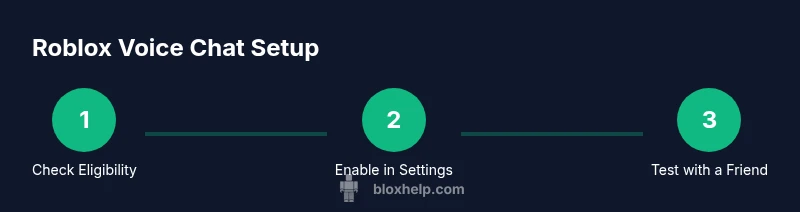
Getting started involves a simple, structured plan. First, confirm geographic availability and your account’s age verification status. Next, prepare your hardware—microphone, headset, and a reliable internet connection. Then, update Roblox and your device OS, and finally enable voice chat in the app’s Privacy settings. In-game, look for the voice chat toggle in the lobby or group you’re joining and test with a friend to confirm audio levels and latency are acceptable.
Common issues and quick fixes
Many users encounter issues when the voice chat toggle is missing or the mic isn’t detected. Common culprits include outdated apps, disabled microphone permissions in the device, and restrictive privacy settings. If voice chat isn’t working, first restart Roblox and your device, then recheck microphone permissions and privacy controls. In some cases region restrictions or verification delays can block access temporarily.
Tools & Materials
- Microphone/headset(Noise-cancelling preferred for clearer audio)
- Stable internet connection(Wired Ethernet recommended if possible)
- Compatible device (PC/mobile/tablet)(Ensure the latest Roblox app version is installed)
- Updated OS and Roblox app(Check for updates before starting)
- Parental privacy settings access (if applicable)(Set appropriate restrictions for younger players)
Steps
Estimated time: 15-25 minutes
- 1
Check eligibility and region
Confirm that voice chat is available in your country and that your account meets age verification requirements. If not eligible, proceed to stay engaged with text chat while you prepare.
Tip: If you’re under the required age, ask a parent to help with verification and permissions. - 2
Prepare your hardware
Connect a working microphone or headset and set it as the default input device in your operating system. Test hardware outside Roblox to ensure clear audio before attempting in-game chat.
Tip: Use a headset with a noise-cancelling mic to reduce background noise. - 3
Update apps and OS
Make sure both the Roblox app and your device OS are up to date. Updates remove known bugs that can hide the voice chat toggle or cause latency.
Tip: Restart your device after updates for best results. - 4
Enable voice chat in Roblox settings
Open Roblox, go to Settings > Privacy > Voice Chat, and toggle it on. If prompted, complete any required verification steps or terms.
Tip: Choose your preferred privacy level (Friends, Friends of Friends, or Everyone) according to your safety needs. - 5
Configure in-game safety options
In-lobby controls let you mute, block, or report players. Review these options before joining a voice-enabled game to protect your experience.
Tip: Set Push-to-Talk if you want more control over when you speak. - 6
Test with a trusted friend
Join a private lobby or a friend’s game and run a quick mic test. Confirm that your voice is clear and other players can hear you.
Tip: Ask your test partner to confirm speaking volume is comfortable for both sides. - 7
Fine-tune audio settings
Adjust mic sensitivity and volume in both Roblox and your OS audio settings to avoid clipping or inaudible voices.
Tip: Keep mic sensitivity at a level where your voice is clear without capturing background noise.
Questions & Answers
Is Roblox voice chat available in my country?
Voice chat availability depends on regional policies and account verification. If you don’t see the option, it may not be supported in your country yet or your account may require additional verification.
Availability varies by country; check your settings and Roblox’s regional notices for updates.
What devices support Roblox voice chat?
Roblox voice chat is supported on a range of devices, including Windows PC, iOS, and Android devices with the latest Roblox app and microphone access enabled.
Supported devices include PC and mobile; update the Roblox app to access the feature.
Do I need a verified age to use voice chat?
Yes. Voice chat requires meeting Roblox’s age and verification requirements before the feature becomes available on your account.
Age verification is typically required to use voice chat, along with regional eligibility.
Can I use Push-to-Talk in Roblox voice chat?
Push-to-Talk is an available option in many setups. It gives you control over when your microphone is active, reducing background noise.
Push-to-Talk lets you decide when to speak, which helps with focus and safety.
How do I report abuse in voice chat?
Use the in-game reporting tools or privacy settings to mute or block players who violate community guidelines. Roblox reviews reports to take appropriate action.
If you experience abuse, use the report feature and contact a trusted adult or moderator.
Will voice chat work in Roblox Studio or only in games?
Voice chat is generally intended for in-game experiences or group chats; Studio use is not its primary purpose. Check current Roblox documentation for exceptions.
Voice chat is mainly for gameplay sessions and group chats, not typical studio usage.
Watch Video
The Essentials
- Verify eligibility and region before enabling voice chat
- Protect your privacy with appropriate settings
- Test thoroughly with a trusted friend before wide-use
- Keep hardware and software up to date for reliability
- Follow safety guidelines and report abuse when needed