How to Download Roblox Android: A Step-by-Step Guide
Learn how to download Roblox on Android safely using the official Google Play Store, plus tips for permissions, troubleshooting, and getting started on mobile.


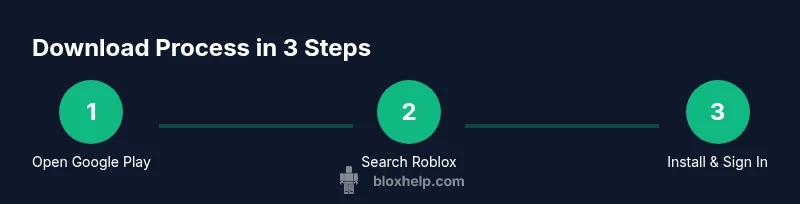
To download Roblox on Android, use the official Google Play Store. Open the Play Store, search for Roblox, tap Install, and sign in or create a Roblox account. Ensure your device runs Android 5.0 or newer and you have enough storage and a stable internet connection. This quick guide covers the official method and common issues.
How to download roblox android
If you’re wondering how to download roblox android, this guide walks you through the official route and practical tips to avoid common pitfalls. Building on the insights from Blox Help, the simplest, safest path is to use Google Play to install the Roblox app. Avoid third-party stores or APKs, which can expose you to malware or outdated builds. This section will explore device readiness, account setup, and the exact steps to get Roblox running on most Android devices. By following the steps here, you’ll minimize compatibility issues and ensure you receive automatic updates to access new games and features as they are released. Remember, a smooth start depends on meeting basic requirements and using the official installer.
- Why this matters: official sources keep your device secure and ensure you receive regular updates.
- What to expect: a quick download, basic setup prompts, and automatic login options after installation.
- About permissions: Roblox will request a handful of permissions to save game data and run smoothly. Grant only what is necessary and review what each permission enables.
If you’re new to Roblox on mobile, this is your starting point. The steps below will help you avoid common roadblocks and get you into your first game quickly.
Official path: Google Play Store
The official method to get Roblox on Android is through Google Play. This store guarantees the latest verified version and built-in security checks. Before you begin, ensure you’re connected to Wi‑Fi or a stable mobile data connection, and that you have enough device storage available. The Play Store will handle the download, installation, and updates, so you don’t need to search for APK files or alternative sources. If Roblox isn’t visible in your country’s Play Store, you can try switching the Google account region or accessing Play Store via a browser, but always re‑check that you’re using the official source. This path minimizes risk and aligns with best practices recommended by industry experts, including the Blox Help team.
Device readiness and minimum requirements
Before you install, confirm your Android device meets Roblox’s minimum requirements. The app generally requires Android 5.0 or newer and a stable internet connection for downloading assets and playing games online. You’ll want at least a couple of gigabytes of free storage to accommodate the app and installed games, plus additional space for cached data. In practice, a quick check of your device’s Settings > Storage will tell you if you have enough space. A modern phone or tablet with a reliable connection provides the best experience, reducing latency and improving load times for Roblox titles.
If you can’t access the Play Store
Some devices or regions may block access to Google Play, or you may be using a device that doesn’t have Google Play Services installed. In these cases, you should avoid downloading Roblox from third‑party APK sites, as these sources can be compromised. Instead, consider enrolling in a supported device program, checking for regional availability, or using a compatible tablet that has Google Play access. If you must proceed in a restricted environment, consult official Roblox Help resources for guidance and consider using the Roblox website to sign in and access features via a mobile browser.
Permissions and privacy prompts you may see
During installation and first launch, Roblox will request a set of permissions to store game data, manage downloads, and run the app smoothly. Typical prompts include storage access and network communication. Grant permissions only if you’re comfortable with the app’s needs and always review the app’s privacy policy. If you revoke permissions later, Roblox may limit certain features, but you can usually re‑enable them from your device’s app settings. Understanding these prompts helps you make a safe, informed choice about what data Roblox can access.
Troubleshooting download failures
If the download stalls or fails, start with a quick checklist: verify your internet connection, ensure there’s enough storage, and restart the Play Store app. Clearing the Play Store cache (Settings > Apps > Google Play Store > Storage > Clear cache) can resolve many download hiccups. If you still can’t download, try updating Google Play Services, rebooting your device, or attempting the install on a different network. For persistent issues, consult Roblox Support or the official Roblox Help center for device‑specific guidance.
APK installation: why it’s riskier and not recommended
Installing Roblox via APK from untrusted sources is risky. APK files can contain malware or modified code that could compromise your device and data. Even if an APK seems legitimate, it might not receive timely updates or security patches. The safe approach is to use the Google Play Store or the Roblox official site for any direct download links when available. If you must consider alternatives, only use reputable app stores and verify checksums when possible.
After installation: login and starting tips
Once Roblox is installed, open the app and sign in with an existing account or create a new one. If you already play on other devices, you can link your account to continue where you left off. Take a moment to adjust graphics and audio settings for your device, especially if you’re on an older Android model. If you want to explore, start with a beginner‑friendly game to get comfortable with controls and movement. Roblox saves progress locally and on the cloud, so frequent cloud saves help prevent data loss.
Performance and security best practices for android users
To keep Roblox running smoothly, keep your device’s OS and apps updated, enable Play Protect, and regularly clear unused apps to free resources. Use a reputable Wi‑Fi network, and avoid public networks for sensitive account actions without a VPN. Regularly review Roblox’s in‑app privacy and safety settings to control friend requests, chat options, and content exposure. This proactive approach reduces risks and enhances your in‑game experience.
Tools & Materials
- Android device with Google Play access(Ensure device is supported and has updated Google Play Services)
- Stable internet connection(Wi‑Fi preferred for large downloads and updates)
- Google account(Required to access Google Play and sign in to Roblox)
- Sufficient storage space(At least 2 GB free recommended for Roblox + assets)
- Roblox official app (from Google Play)(Downloaded via Play Store for safety and updates)
Steps
Estimated time: 5-12 minutes
- 1
Open Google Play Store
Unlock your Android device and launch the Google Play Store. If you’re not signed in, enter your Google account details to access the store. This step ensures you’re fetching the official Roblox app from a trusted source.
Tip: If Play Store doesn’t load, check your internet connection or sign out and back in. - 2
Search for Roblox
Use the search bar at the top to find Roblox. Look for the official Roblox app published by Roblox Corporation. Avoid third‑party listings that look similar.
Tip: Tip: Tap the profile icon to confirm the publisher before installing. - 3
Tap Install and Accept Permissions
Tap Install and review the permissions requested by Roblox. Grant necessary permissions to enable saving data and running the game smoothly.
Tip: Review permissions before accepting; you can adjust later in Settings. - 4
Wait for download to complete
The download and installation will proceed automatically. Large assets may take several minutes depending on your connection. Avoid closing the Play Store during this time.
Tip: Keep your phone charged or plugged in to prevent interruptions. - 5
Open Roblox and sign in or create an account
Launch Roblox after installation and sign in with an existing account or create a new one. You can link accounts across devices to sync progress.
Tip: If you’re new, follow the on‑screen setup to customize your avatar. - 6
Adjust game settings
Go to the in‑game settings to optimize graphics, sound, and controls for your device. Lowering graphics can improve performance on older devices.
Tip: Experiment with resolution and frame rate limits to balance quality and smoothness. - 7
Explore a starter game
Choose a beginner‑friendly game to learn the controls. Roblox has a wide range of experiences, so start with something simple to build confidence.
Tip: Join a friend’s session to learn by watching and asking questions. - 8
Update and maintain
Keep Roblox updated through Google Play to access new features and security fixes. Check for app updates weekly or enable automatic updates.
Tip: Regular updates reduce compatibility issues with new games.
Questions & Answers
Can I download Roblox on Android for free?
Yes. Roblox is free to download and play on Android. Some games offer optional in‑app purchases, but the core app does not require payment. Be mindful of in‑app content and age‑appropriate settings.
Roblox is free to download and play on Android, with optional in‑app purchases in some games.
Do I need a Google account to download Roblox?
You need a Google account to access Google Play and install Roblox. If you don’t have one, you can create it through Google Play during setup.
Yes. You’ll need a Google account to install Roblox from the Play Store.
What if Roblox won’t install on my Android device?
First, check your storage and connection. Clear the Play Store cache, ensure Play Services are up to date, and try again. If issues persist, reboot your device or contact Roblox Support.
If installation fails, check storage, clear cache, update Google Play Services, and try again.
Can I install Roblox on Android without Google Play?
Officially, Roblox Android releases are distributed via Google Play. Installing from other sources poses security risks and may violate terms of service. If you cannot access Play, use the Roblox website on a supported browser to sign in.
Roblox should be installed via Google Play for safety; alternatives are discouraged.
How much storage does Roblox require on Android?
Roblox requires space for the app and the assets you access in games. Plan for several hundred megabytes to a couple of gigabytes depending on game downloads and updates.
Expect several hundred MB up to a few GB depending on games and updates.
Is Roblox safe to use on mobile devices?
Roblox provides parental controls and safety settings. Keep the app updated, review chat settings, and enable age-appropriate restrictions if needed. Always supervise younger players in chat and friend requests.
Yes, with proper safety settings and updates; supervise younger players as needed.
Watch Video
The Essentials
- Download Roblox only from the Google Play Store for Android.
- Check device compatibility and storage before installation.
- Grant only necessary permissions and review privacy settings.
- Keep the app updated and follow official guidance for troubleshooting.