How to Download Roblox on Chromebook
Learn how to download Roblox on Chromebook using Google Play. This beginner-friendly guide covers prerequisites, setup steps, troubleshooting, and tips for smooth Roblox gameplay on Chrome OS.


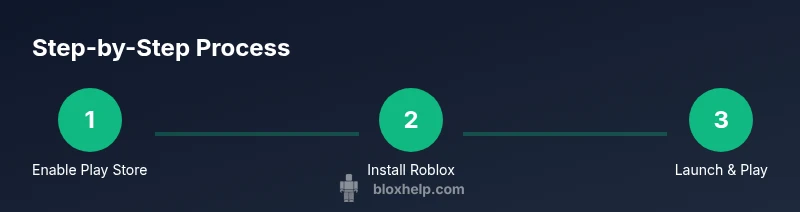
You can download Roblox on a Chromebook by using the Google Play Store to install the Roblox Android app, if your device supports Google Play. Enable Play Store in Settings, sign in with your Google account, then search for 'Roblox' and install. If your Chromebook doesn’t support Android apps, Roblox isn’t officially supported on Chrome OS.
Understanding the Chrome OS landscape for Roblox
Roblox on Chromebooks hinges on Chrome OS features like Google Play Store compatibility and a reasonably current OS version. The Blox Help team emphasizes that the easiest route to gaming on Chrome OS is through the Roblox Android app installed via Google Play. If your device lacks Play support, you’ll need alternative devices or platforms. This section explains why Chromebooks require a specific approach and what to check before you begin. It also helps you set realistic expectations for performance, storage, and permissions, so you don’t run into preventable hiccups during installation or launch.
Prerequisites: Do you have Google Play on your Chromebook?
Before you download Roblox, verify that your Chromebook can run Android apps. Open Settings, look for Google Play Store, and check the Play status. If Play is unavailable, your device doesn’t support Android apps on Chrome OS. In that case, consult Roblox’s official guidance and consider alternative devices. This check saves time and avoids frustration from attempting an unsupported path. Remember that some devices require OS updates to enable Play, so a quick update can unlock the Android app route.
Step-by-step overview: Google Play method
To get Roblox on a Chromebook, you’ll enable Google Play, sign in with your Google account, and install the Roblox Android app. The process is straightforward on Play-enabled devices, but it may involve OS updates or permission prompts. The goal is to have Roblox installed as an Android app, not as a browser-based game, for full functionality. Thinking ahead about storage and permissions will help you avoid post-install issues and ensure the app has access to camera, mic, and storage as needed.
Troubleshooting common issues
If Roblox won’t install or launch, recheck Google Play permissions, ensure sufficient storage, and verify that you’re signed in to the correct Google account. Some Chromebooks require a restart after enabling Play Store settings or after installing apps. In rare cases, you may need to disable and re-enable Play Store or clear cache for the Google Play app. This section guides you through the most frequent blockers and how to resolve them quickly.
Alternatives if Play Store is unavailable
If your Chromebook cannot access Google Play, Roblox isn’t officially supported on Chrome OS via the Android app. In that scenario, you can use a different device (Windows PC, Mac, or a Chromebook with Play) or use Roblox on a supported platform through cloud gaming services or official app detours when available. This section helps you decide when to switch devices and how to plan a smoother Roblox experience on non-Play devices.
Performance tips and safety considerations
To optimize Roblox on Chrome OS, ensure you have adequate storage, close background apps, and grant Roblox the necessary permissions. Keep your Chromebook updated and consider enabling performance modes where available. Always use secure accounts and practice safe login habits to protect your Roblox profile. If you share the device, enable parental controls and review privacy settings to maintain a safe gaming environment.
Getting started after installation: what next
With Roblox installed, sign in, customize your avatar, and explore games. Bookmark Roblox’s official site for updates, join groups, and enable parental controls if needed. The goal is a smooth onboarding experience so you can start exploring Roblox worlds quickly. Take a few minutes to review in-game settings, graphics options, and chat filters to tailor the experience to your device and preferences.
Final checks before playing
Verify camera, mic, and network permissions are set for Roblox, confirm your account status, and test a simple game to confirm everything runs correctly. If you encounter lag, reduce in-game graphics settings and ensure your network is stable. Keeping a backup plan, such as using a plugged-in charger and limiting background processes, helps maintain a steady gaming session.
Tools & Materials
- Google account(Know your Gmail credentials and enable 2FA if available.)
- Chromebook with Google Play enabled(Settings > Apps > Google Play Store; device must support Play.)
- Stable internet connection(Wi-Fi with reliable speed; avoid data caps during download.)
- Roblox app from Google Play(Search 'Roblox' and install the official Android app.)
- Optional external storage(Can help with larger game data and caches.)
- Charger or power supply(Downloads and installs can take time; keep the device charged.)
Steps
Estimated time: 15-25 minutes
- 1
Open Google Play Store and enable it
On your Chromebook, open Settings and select Apps. Tap Google Play Store and switch on 'Install apps and games from Google Play' if it isn’t already enabled. This activates the Android app ecosystem on Chrome OS so Roblox can be installed.
Tip: If you don’t see the Play Store option, confirm your device supports Android apps on Chrome OS and check for OS updates. - 2
Sign in to Google Play
Launch Google Play Store and sign in with your Google account. Use the same account you use on other Android devices to sync purchases and progress where possible.
Tip: If you’re already signed in on another app, your Play Store session may be ready; just confirm any prompts. - 3
Search for Roblox
In Google Play, search for 'Roblox' and open the official Roblox app page. Verify the developer and app icon before installation to avoid fake apps.
Tip: Reading reviews can help confirm device compatibility and avoid installations on older ROMs. - 4
Install the Roblox Android app
Tap Install and wait for the download to finish. The app will install like any Android app on your Chromebook.
Tip: Ensure you have enough storage; uninstall unused apps if space is tight. - 5
Launch Roblox and sign in
Open the Roblox app from your shelf or launcher, sign in with your Roblox account, and grant any requested permissions for camera or mic.
Tip: If you use two-factor authentication, have your device ready to approve the prompt. - 6
Create a shortcut and optimize settings
Pin Roblox to the shelf for quick access and adjust in-app graphics settings for better performance on Chromebooks with limited GPU power.
Tip: Consider setting lower graphics to improve frame rate on lower-end devices.
Questions & Answers
Is Roblox officially supported on Chromebooks?
Roblox is officially supported on Chromebooks that can run Android apps via Google Play. If your device cannot access Play, Roblox isn’t officially supported on Chrome OS.
Roblox works on Chromebooks that support Google Play; if Play isn’t available, Roblox isn’t officially supported on Chrome OS.
What if I can't find Roblox in Google Play?
Ensure Google Play is enabled and that your Chromebook OS is updated. If Roblox still doesn’t appear, your device may not support Android apps.
Make sure Play is enabled and up to date; if Roblox isn’t visible, your device might not support Android apps.
Can I play Roblox on Chromebook without Google Play?
There’s no reliable official path to run Roblox on Chrome OS without Google Play. The recommended route is to use a device that supports Android apps or a Windows/Mac computer.
There isn’t a reliable official Play-free path on Chrome OS; use a device that supports Android apps for Roblox.
How can I improve Roblox performance on a Chromebook?
Lower the in-game graphics, close background apps, and ensure you have a stable internet connection. Keeping the device charged helps maintain performance during longer sessions.
Lower graphics in Roblox, close other apps, and use a stable Wi‑Fi connection for smoother gameplay.
Do I need a Roblox account to play on Chromebook?
Yes. You can sign in with an existing Roblox account or create a new one within the app to access games and save progress.
Yes, sign in with your Roblox account or create one to get started.
What should I do if I forget my Roblox password?
Use the Roblox password recovery flow in the Roblox app or website. Follow the prompts to reset your password securely.
Use the in-app or website password reset flow to recover access.
Watch Video
The Essentials
- Enable Google Play on Chrome OS before Roblox install.
- Use the Roblox Android app for best performance on Chromebooks.
- If Play Store is unavailable, Roblox isn’t officially supported on Chrome OS.
- Follow steps in a calm pace; check storage and permissions.