How to Get Roblox on MacBook: A Step-by-Step Guide
A practical, beginner-friendly guide to installing Roblox on macOS, troubleshooting common issues, and optimizing performance for a smooth experience on your MacBook.


You can get Roblox on your MacBook by downloading the official Roblox installer from the Roblox website, signing in with your Roblox account, and launching a test game. This process works on modern macOS versions and requires a stable internet connection. Use this step-by-step guide to ensure a smooth setup and reliable performance.
Quick Start: What You’ll Achieve on
Compatibility prerequisites for Roblox on
Downloading the Roblox Installer for
Installing Roblox on
Launching Roblox and testing your first game
With the launcher installed, launch Roblox from the Applications folder. The first run may take a moment as it downloads essential assets and patches. Sign in with your Roblox account and select a game to test the connection and performance. Observe frame rate, input latency, and any crashes. If the game loads but feels sluggish, reduce in-game graphics settings to improve performance on your MacBook. This testing phase ensures you have a reliable setup before you commit to longer sessions.
Common setup issues and quick fixes
If Roblox won’t launch, fails to download, or crashes, use these quick checks. Ensure you’re running a supported
Safety, privacy, and performance tips for Mac users
To keep your MacBook safe while playing Roblox, enable automatic updates, use a strong password, and avoid downloading from unofficial sources. Regularly check for Roblox updates to ensure you have the latest security patches and performance improvements. For privacy, review the app’s permissions in
Tools & Materials
- MacBook computer(Any model running a recent macOS with internet access)
- Active Roblox account(Needed to sign in and save progress)
- Stable internet connection(Prefer 5 Mbps or faster for smooth downloads)
- Web browser (Safari or Chrome)(Used to access the official Roblox site)
- Roblox installer from official site(Downloaded via the Roblox website after logging in)
- Sufficient disk space(Allow space for the installer and game cache)
Steps
Estimated time: 20-40 minutes
- 1
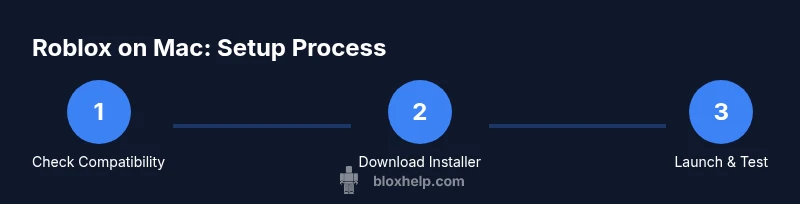
Check compatibility and prerequisites
Ensure your MacBook runs a supported macOS version, has a stable internet connection, and that you have space for downloads. This avoids install-time errors and ensures a smooth setup.
Tip: Verify macOS version and free disk space before starting to reduce surprises. - 2
Sign in to Roblox or create an account
Open Roblox.com in your browser and sign in. If you don’t have an account, create one using a valid email address and a strong password. This lets you save progress and access a vast library of games.
Tip: Use a unique password and enable two-factor authentication if available. - 3
Download the Roblox installer from the official site
Navigate to the Roblox site and trigger a game launch to start the installer download. Save the file to a known folder like Downloads so you can find it easily.
Tip: Always use the official Roblox site to avoid malware. - 4
Run the Roblox installer and install
Open the downloaded .dmg or installer package. When prompted, run the installer and allow macOS to complete the installation. The Roblox launcher will be installed in Applications.
Tip: If macOS blocks the app, go to System Preferences > Security & Privacy > General and choose Open Anyway. - 5
Launch Roblox and sign in
Open the Roblox launcher from Applications, sign in with your account, and let any initial updates complete. You’ll see a library of games to try.
Tip: Pause background apps to free system resources during the initial load. - 6
Test a game and adjust settings
Start a game to verify performance. If you notice choppiness, reduce in-game graphics settings and disable extra overlays. This helps maintain a smooth experience on a MacBook.
Tip: Lower graphics settings like Shadows and textures for smoother gameplay. - 7
Troubleshoot common issues
If you encounter launch issues, check security prompts, verify internet access, and ensure enough disk space. Reinstall if necessary and consult Roblox help resources for macOS-specific fixes.
Tip: Clear browser cache and restart the launcher if downloads stall. - 8
Maintain safety and privacy
Keep Roblox and macOS updated, enable two-factor authentication, and review permissions in System Settings. Regular updates reduce vulnerabilities.
Tip: Never download Roblox from third-party sites.
Questions & Answers
Can I run Roblox on a MacBook?
Yes. Roblox runs on macOS with the desktop launcher. You just need a MacBook with a recent macOS version, an internet connection, and an active Roblox account.
Yes, Roblox runs on Mac with the desktop launcher. Just sign in and start playing.
Do I need to install Roblox every time I want to play?
No. Once installed, you can launch Roblox from the launcher and sign in to continue playing your games.
No, once installed, you can launch Roblox and play without reinstalling.
What should I do if Roblox won’t launch on macOS?
Check for updates, verify the installer was from the official site, review macOS security prompts, and ensure enough disk space. Reinstall if necessary.
If it won’t launch, verify updates, use the official site, and check security prompts.
Is Roblox safe on Mac, and how can I improve performance?
Roblox is generally safe when downloaded from the official site. Improve performance by lowering in-game graphics and closing background apps.
Yes, safe when downloaded from the official site. Lower graphics to improve performance.
How do I fix lag or crashes on macOS?
Ensure a stable internet connection, update macOS and Roblox, and adjust graphics settings. If problems persist, consult Roblox help resources.
Check your internet, update apps, and adjust graphics to reduce crashes.
The Essentials
- Download only from the official Roblox site.
- Sign in with a Roblox account to access games.
- Follow macOS prompts to bypass security checks safely.
- Test a game early to confirm performance.
- Keep software updated for security and stability.