How to Get Voice Chat on Roblox: A Step-by-Step Guide
Learn how to enable Roblox voice chat across devices, check requirements, adjust privacy settings, and troubleshoot issues with our beginner-friendly guide.


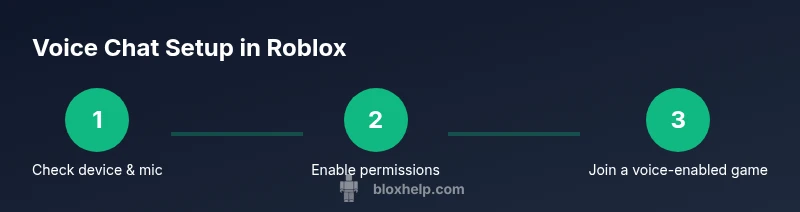
You will enable Roblox voice chat by verifying device compatibility, adjusting account and privacy settings, and using a supported game that offers in-game voice chat. This guide covers turning on microphone access, choosing your input/output devices, configuring voice chat permissions, and troubleshooting common issues so you can talk with friends in Roblox sessions.
What is Roblox voice chat?
Voice chat in Roblox is a built-in feature that lets players communicate with friends during compatible experiences. It relies on your device's microphone and Roblox's privacy controls. According to Blox Help, voice chat is available only in supported regions and experiences, and it requires your account to meet age- and consent-based safety settings. When enabled, you can speak with teammates in real time, coordinate strategies, and enjoy more social gameplay. Keep in mind that not every game supports voice chat; developers must opt in, and you may need to join a voice-enabled experience or party. For many players, the appeal of voice chat is faster communication, fewer typing errors, and a more social feel, especially when playing co-op titles or competitive modes.
To protect younger players, Roblox offers safety features such as muting, blocking, and limiting who can talk. This article from Blox Help provides practical steps to verify device compatibility, set privacy controls, and enable voice chat without compromising safety.
Eligibility and privacy considerations
Roblox voice chat is not available universally. Access depends on your age, region, and the game you’re playing. Roblox emphasizes safety and provides parental controls to manage who can talk to whom. If you’re under the age threshold or in a region with restricted features, voice chat may be disabled by default. You can request access through account settings or rely on guardians for consent where applicable. The Blox Help team highlights that regional restrictions and parental controls can impact whether voice chat is visible or usable on your account. Always review privacy options, mute controls, and friend settings to tailor who can communicate with you. For many players, enabling voice chat enhances teamwork and social interaction, but it’s essential to balance convenience with safety.
Device and account requirements
Voice chat requires a compatible device (PC, Mac, iOS, Android, Xbox) with a functioning microphone and a reliable internet connection. Your Roblox app version should be up to date, and operating system privacy settings must permit microphone access. In Roblox, you’ll need to enable voice chat in Settings > Privacy > Voice Chat and allow the app to use your microphone. Some devices may require you to grant permissions at the OS level (for example, iOS Privacy settings) before Roblox can use the mic. The account itself also needs appropriate privacy configurations—parents may restrict who can talk or be talked to, and players can choose to limit chat to friends only. Once these basics are in place, you’ll be ready to experience Roblox voice chat during compatible sessions.
How to enable voice chat: prerequisites
Before you dive into voice chat, confirm your device supports microphone input and that Roblox is updated to the latest version. On your computer or console, enable microphone access in the OS settings and ensure Roblox has permission to use the mic. In Roblox, open Settings > Privacy > Voice Chat and toggle it on. If you’re using a mobile device, grant microphone permission when prompted and adjust in-app voice chat settings. It’s also wise to select your preferred input and output devices in your OS and in Roblox to avoid echo or misrouting audio. By completing these prerequisites, you reduce common setup issues and improve audio quality from the start.
Using voice chat in Roblox games and groups
Not all games support voice chat, but many popular experiences enable it. When you enter a voice-enabled game or party, you’ll typically see indicators showing that voice chat is active. You can adjust who you talk to (friends, teammates, or all players) within in-game settings or Roblox privacy controls. For ongoing conversations, you might prefer push-to-talk in noisy environments; however, some games default to open mic. In such cases, be mindful of background noise and etiquette. If you’re coordinating with a team, discuss channel expectations (who speaks when) to keep conversations clear and effective. The goal is to enhance collaboration without creating disruption for others.
Troubleshooting and safety best practices
If voice chat isn’t working, start by double-checking mic permissions in the OS and Roblox, verify you’ve selected the correct input device, and ensure the game supports voice chat. Update audio drivers if you’re on PC, and test the mic with another app to confirm it’s functioning. Some regions may require age verification or parental consent to enable voice chat; if you don’t see the option, review your account safety settings. To maintain safety, use Roblox’s mute/block features and set privacy so only approved players can talk to you. Regularly review your parental controls and safety settings to keep a positive, secure chat experience.
Authority sources and safety highlights
For additional guidance, consult reputable sources on online voice chat safety and privacy. The following references provide broader context about voice communication technology, safety controls, and parental guidance in online platforms. These resources can help you understand best practices while using Roblox voice chat and similar services.
Accessibility and safety tips
Accessibility is important for a comfortable experience. If you wear a headset, position the microphone near your mouth for clear audio and reduce background noise with a noise-suppression feature if available. Keep conversations respectful and avoid sharing personal information with strangers. Always use parental controls when necessary and encourage safe behavior in all Roblox conversations.
Tools & Materials
- Device with microphone (PC, Mac, iOS, Android, or Xbox)(Microphone must be functional and recognized by the OS)
- Microphone or headset(Headsets with built-in mic reduce echo)
- Headphones or earbuds(To avoid feedback and improve clarity)
- Stable internet connection(Wi‑Fi or Ethernet; latency impacts voice chat quality)
- Roblox account with updated privacy settings(Ensure you can access Settings > Privacy > Voice Chat)
- OS microphone permissions(Grant Roblox access to the microphone in system settings)
- Voice-enabled Roblox game or experience(Not all games support voice chat; join a supported experience)
Steps
Estimated time: 30-60 minutes
- 1
Check device compatibility
Confirm your device supports a microphone and that Roblox is installed and up to date. Ensure your hardware and drivers are functioning, and verify the microphone works in other apps to prevent misdiagnosis.
Tip: Test your mic in another app (e.g., a voice memo or video call) to confirm it’s working before starting. - 2
Grant microphone permissions
Open the OS privacy settings and allow Roblox to access the microphone. On mobile, grant permissions when prompted; on desktop, check Privacy settings in your system preferences and in the Roblox app.
Tip: If permissions are blocked, you’ll see a mic icon with a slash—enable it and retry. - 3
Enable voice chat in Roblox settings
In Roblox, go to Settings > Privacy > Voice Chat and toggle it on. Choose who can talk to you (Friends, Everyone, or Custom) and confirm any age-related prompts.
Tip: Set voice chat to Friends or a restricted group if you’re concerned about safety. - 4
Join a voice-enabled game or party
Enter a game or create/join a party that supports voice chat. Look for in-game indicators that voice chat is active and adjust in-game volume as needed.
Tip: Test with a friend first to fine-tune mic sensitivity and volume levels. - 5
Configure input/output devices and volume
In both the OS settings and Roblox, select your preferred input (microphone) and output (speakers/headphones) devices. Adjust volume and enable noise suppression if available.
Tip: If echo or feedback appears, try a different headset or move the mic away from the speakers. - 6
Test, save, and troubleshoot
Conduct a quick voice chat test with teammates. If issues persist, re-check permissions, drivers, and game compatibility; contact Roblox support if needed.
Tip: Keep a simple troubleshooting checklist handy: Permissions > Input Device > In-Game Settings.
Questions & Answers
Is Roblox voice chat available to all players?
Voice chat is not available to every user by default. Availability depends on age, region, game support, and parental controls. If you don’t see the option, check your account privacy settings and consult your guardian if applicable.
Availability varies by region and safety settings. Check your Roblox privacy options to confirm access.
What are the minimum requirements to use voice chat?
You need a compatible device with a microphone, an up-to-date Roblox app, and microphone permissions granted in both the OS and Roblox. The game itself must also support voice chat.
You need a mic-capable device, updated Roblox, and enabled permissions.
How do I test my microphone in Roblox?
Open Roblox Settings > Privacy > Voice Chat, then use the test option if available or join a voice-enabled lobby to confirm your mic is transmitting. Adjust sensitivity if the test provides feedback.
Go to Settings > Privacy > Voice Chat and test there or in a voice-enabled lobby.
What should I do if my mic isn’t working?
First, verify OS permissions, then check Roblox permissions and input device selection. Update audio drivers if needed and test with another app to isolate the issue.
Check permissions, test with another app, and update drivers if needed.
Is voice chat safe for kids on Roblox?
Roblox provides age- and safety-based controls, including muting and blocking. Parents can limit who can talk and who can be talked to; use these tools to create a safer experience.
Roblox safety controls help you tailor who can talk and be talked to.
Can I use push-to-talk in Roblox voice chat?
Push-to-talk availability depends on the game. If supported, it helps reduce background noise; otherwise, expect open mic in some experiences. Always check in-game settings.
Push-to-talk depends on the game; many experiences use open mic.
Watch Video
The Essentials
- Verify device and mic compatibility before enabling.
- Configure privacy and app permissions accurately.
- Join voice-enabled experiences to use voice chat.
- Troubleshoot OS and Roblox settings for best results.