How to tell if Roblox voice chat is on
Learn how to tell if Roblox voice chat is on, where to enable it, and how to test across PC, console, and mobile. Includes indicators, troubleshooting tips, and safety settings for responsible use.


This guide helps you confirm whether Roblox voice chat is on, locate the toggle across devices, and test it safely. You’ll verify microphone permissions, learn how in-game indicators show status, and follow a quick workflow to troubleshoot common issues. This quick answer also highlights privacy settings for younger players.
What Roblox voice chat is and who can use it
Voice chat in Roblox is an opt-in feature that lets players talk to each other in real time using a microphone. Availability depends on your account eligibility, regional settings, and device support. It’s designed to be a safer, more social way to play, but it also requires explicit permission and privacy controls to protect players—especially younger ones. According to Blox Help, understanding these basics helps you verify status quickly and reduces frustration when voice chat isn’t appearing or sounds muted. If your device or account isn’t eligible, you won’t see the Voice Chat option even if others in your party can.
Key takeaways: ensure your account meets device and regional requirements, then enable Voice Chat in your settings. Always review safety settings before testing with others.
Where to find the Voice Chat setting on different devices
On PC and Roblox-supported desktops, you’ll typically find the Voice Chat toggle under Settings > Privacy > Voice Chat. On consoles, the feature may appear in the Privacy or Social settings menu, and on mobile, you often access Voice Chat via the Profile or Settings area. The exact path can vary by app version, so use the in-app search or look for “Voice Chat” in Privacy or Privacy & Safety sections. When the toggle is ON, a status indicator (like a green dot) should appear near your name or mic icon during gameplay. Blox Help emphasizes that enabling Voice Chat does not automatically grant everyone your microphone; it only activates your ability to speak once you’ve granted OS permissions.
Tip: If you don’t see Voice Chat where expected, update the Roblox app and check your device’s system permissions.
How to test voice chat on PC, console, and mobile
Testing across devices requires a microphone and an online Roblox session with others or using a built-in test tool if provided. On PC, after turning on the toggle, use a private server or party to join a test call and speak aloud; you should see your mic input and hear others if they’re connected. On consoles, ensure the system-level mic is set as the default input and that Roblox has permission to access the mic. On mobile, grant microphone permissions in the device settings and then test within the Roblox app. The goal is to observe real-time audio transmission and confirm your audio level meters respond to your voice. As per Blox Help Analysis, consistency across devices is the best indicator that the feature is functioning.
Pro tip: perform a test with a trusted friend in a private lobby to avoid strangers while you confirm setup.
In-game indicators that voice chat is active
When voice chat is on and working, you’ll typically see in-game indicators such as a live mic icon near your avatar, green or blue status lights, and audible feedback from your microphone. Many Roblox UI designs display a neighbor’s speaking activity with waveform bars or a small avatar animation when voice is detected. If you notice no indicators after enabling Voice Chat, recheck OS permissions, restart the Roblox app, and test in a new session. These cues are your quickest at-a-glance confirmation that the feature is live and transmitting audio.
Note: Indicators may vary by device and Roblox version, so rely on a combination of device permissions, app prompts, and in-game cues.
Troubleshooting common issues and quick fixes
If Voice Chat won’t turn on or audio sounds muted, start with OS-level checks: verify the microphone is connected and not muted, set it as the default input, and grant Roblox permission to access the mic in your device settings. In Roblox, confirm the Voice Chat toggle is ON, and re-enter Settings to refresh the UI. If you can’t hear others, check network stability, join a different server, and confirm your privacy settings don’t restrict voice chat. For persistent problems, reinstall the Roblox app or check for updates. Blox Help’s guidance suggests starting with the simplest explanation—permissions—before moving to deeper network checks.
Warning: Do not bypass safety or parental controls; altering those without consent could violate terms of service and local rules.
Safety, privacy, and parental controls for voice chat
Voice chat carries privacy considerations, especially for younger players. Use Roblox’s parental controls to limit who can talk and listen, enable reporting for inappropriate behavior, and review the age-appropriate settings. Always confirm you are comfortable with who can join voice conversations and consider turning off voice chat outside trusted groups. By following these privacy steps, you safeguard your Roblox experience while staying compliant with platform rules. The Blox Help team recommends keeping settings consistent with your household expectations and local guidelines.
Quick test workflow you can run now (one-page checklist)
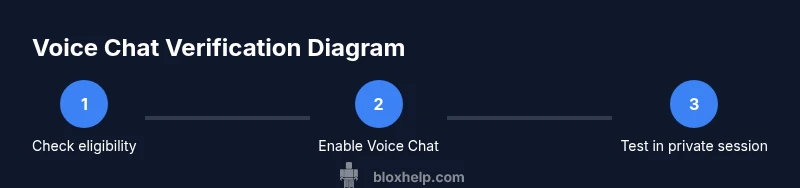
This section gives you a practical, quick-run approach. 1) Verify you’re on a device that supports voice chat and that the toggle is enabled. 2) Grant microphone access in the system settings and in Roblox. 3) Run a private test in a party or private server. 4) Watch for the mic icon and listen for responsive audio. 5) If anything doesn’t work, restart the app, re-check permissions, and test again. This loop helps you isolate whether the issue is device, app, or network related.
Tools & Materials
- Device with Roblox installed(PC, console, or mobile device)
- Stable internet connection(Wired or strong WLAN)
- Headset or microphone(With working mic and mute control)
- Roblox account with Voice Chat (where eligible)(Age/region eligibility may apply)
- OS microphone permissions access(System-level microphone permissions must be granted)
Steps
Estimated time: 15-25 minutes
- 1
Verify device and account eligibility
Confirm your device supports Roblox voice chat and that your account meets eligibility requirements. Check regional availability and ensure you’re using a compatible Roblox version. If ineligible, you will not see the Voice Chat option. WHY: This prevents wasted setup attempts on unsupported devices.
Tip: If unsure, check the official Roblox help page for device compatibility before proceeding. - 2
Open Voice Chat settings and enable
Navigate to Settings, then Privacy or Privacy & Safety, and locate Voice Chat. Toggle it ON. Some versions require you to also enable in-game permissions for friends or party chat. WHY: The toggle is the primary switch that activates the feature on your account.
Tip: If the toggle isn’t visible, update Roblox to the latest version and refresh the settings page. - 3
Grant microphone permissions at the OS level
Go to your device’s privacy controls and allow Roblox to access the microphone. On desktop this means system prompts; on mobile, enable microphone permission in the app info. Without permissions, voice chat will not transmit audio.
Tip: Test microphone mic sensitivity in a general audio app before retrying Roblox. - 4
Test the microphone in Roblox
Use Roblox’s built-in test tool if available, or join a private server with a friend to verify audio input. Look for your waveform indicators responding to your voice and ensure you can hear others. WHY: This confirms both input and output paths are functioning.
Tip: If you don’t see any indicators, close and reopen Roblox and try again. - 5
Join a voice-enabled party or server
Invite a trusted friend or create a private group where voice chat is allowed. Speak at a normal volume and watch for live indicators during your session. If others can hear you but you can’t hear them, check their settings as well as your own.
Tip: Use in-game mute controls wisely to diagnose who is muted. - 6
Check in-game indicators and test again
Observe the mic icon color, waveform activity, or avatar animations that show who’s talking. If indicators appear inconsistently, re-check permissions, restart the game, and consider a network test.
Tip: Document any inconsistent behavior for further troubleshooting with support. - 7
Tweak privacy and safety settings
Review parental controls and voice chat access rules in Roblox Settings. Adjust who can talk to you and who can hear you, especially if younger players are involved.
Tip: Keep a local log of the enabled settings for future reference. - 8
Escalate if problems persist
If audio problems continue after all checks, reinstall Roblox or contact support. Check for platform-specific known issues and monitor official channels for updates.
Tip: Note your device model, OS version, Roblox app version, and a reproduction path to speed up help.
Questions & Answers
Is Roblox voice chat available on all devices and regions?
Voice chat availability can vary by device, region, and account eligibility. If you don’t see the option, your device or region may not support it, or you may need to update Roblox to the latest version.
Voice chat availability depends on device and region; update your app and check Settings to confirm.
Do I need parental permission to use voice chat?
You may need parental consent depending on age and local laws. Roblox provides privacy controls to limit who can speak with younger players. Check Settings > Privacy & Safety to configure these options.
Parental controls may apply; review settings to ensure a safe experience.
What should I do if I can’t enable voice chat?
First verify system mic permissions and the Roblox toggle. If still unavailable, update the app, restart the device, and recheck. If the problem persists, contact Roblox support with device details.
Make sure permissions are set, then try a reinstall if needed.
How can I test voice chat without louder voices in a public lobby?
Use a private server or a party with trusted friends to test audio. This prevents feedback and ensures a controlled testing environment.
Test in private with trusted players first.
Why do I hear my own voice echo or crackle?
Echo or crackling usually points to mic monitoring settings or bandwidth issues. Disable mic monitoring in the settings if available and reduce background noise.
Echoes or crackling usually mean monitors or bandwidth; adjust settings and test again.
Are there safety tips for using voice chat with younger players?
Yes. Use Roblox’s safety features, like voice chat restrictions, reporting controls, and family controls. Regularly review who can talk to you and always mute or block disruptive users.
Use safety features and keep conversations within trusted groups.
Watch Video
The Essentials
- Verify device compatibility and eligibility before enabling Voice Chat
- Grant system and Roblox permissions to avoid silent mic issues
- Use private tests to validate input/output and indicators