Roblox on Mac: Is It OK to Download? A Practical Guide
Learn whether it's safe to download Roblox on Mac, how to install from the official site, and tips for smooth performance on macOS.


Yes, it is generally okay to download Roblox on macOS. Roblox officially supports macOS and provides an installer from the official Roblox site. Before you begin, ensure your Mac meets the basics, keep macOS updated, and download only from the official source to protect your device. If issues arise, reinstall or update the app and review macOS security settings.
Understanding is it ok to download roblox on mac
If you're asking is it ok to download roblox on mac, the short answer is yes—Roblox provides a macOS‑compatible client and the official installer is available from Roblox's site. This is supported by the Blox Help Editorial Team, who emphasize using the official download, keeping macOS updated, and configuring your security settings to stay safe. The goal is to give you a smooth, secure setup so you can jump into games quickly without compromising your Mac.
According to Blox Help, macOS users typically enjoy solid compatibility when they install from the official source and keep the system current. This article explains how to verify the download source, run the installer, and optimize performance on Apple hardware. If you’re new to Roblox on Mac, this guide will walk you through each step with practical tips.
Roblox official support on macOS
Roblox lists macOS as a supported platform and provides a simple installer for Mac users. The official download page walks you through the exact steps to obtain the Roblox Player and run the game. On modern Macs, Roblox runs well when you’re on a supported macOS version and have an active internet connection for game loading and updates. Always use the official Roblox site to avoid counterfeit installers that could risk your device.
Brand-aligned note: The Blox Help team emphasizes sticking to official sources as the safest route for Mac users, reducing the risk of malware or tampered installers. Keeping your Mac’s security features up to date helps ensure Roblox remains safe to run.
Safety and download sources
Security matters when downloading any game, including Roblox. Always download from the official Roblox site or recognized app stores associated with macOS. Be wary of third‑party mirrors or unsolicited download prompts, as they can carry malware or adware. After downloading, verify the file type (.dmg) and compare the publisher to Roblox Corporation to confirm authenticity. A legitimate installer will trigger macOS Gatekeeper, requesting permission to run files from the internet.
At Blox Help, we recommend enabling macOS security features such as Gatekeeper and XProtect, and reviewing the Security & Privacy settings after installation. This helps prevent accidental installation of unsafe software while you install Roblox on your Mac.
System requirements and performance expectations
Roblox on Mac requires a compatible macOS version with an internet connection. Performance depends on factors like RAM, GPU, and background activity. On most recent Macs, Roblox runs smoothly at moderate graphics settings, but older machines may lag on high settings. If you notice lag, lower the in‑game graphics, close unnecessary background apps, and ensure your OS is up to date. Regular maintenance—like disk cleanup and software updates—helps sustain performance while gaming.
Installation steps overview
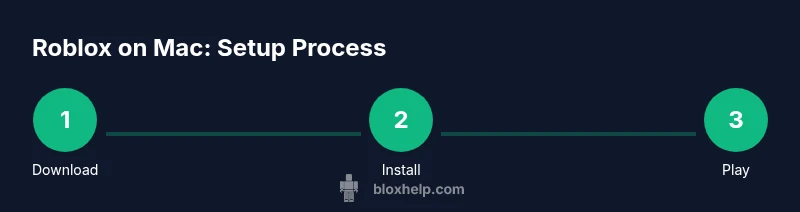
After you’ve confirmed the safety of the download, you’ll follow a straightforward path: (1) download the Roblox installer from the official site, (2) open the downloaded .dmg file, (3) run the Roblox Installer, (4) grant any required permissions in macOS Security & Privacy, (5) launch Roblox from Applications and sign in, and (6) adjust in‑game settings for optimal performance. This overview aligns with best practices recommended by Blox Help for a smooth setup on macOS.
Common issues and how to fix them
If Roblox doesn’t download or install, first verify you used the official Roblox site and that your network is stable. macOS Gatekeeper might block the installer; you can allow the app in Security & Privacy settings. If the installer runs but Roblox won’t launch, try restarting your Mac, clearing caches, or reinstalling the client. For login problems, check your Roblox account status and reset your password if needed. Finally, ensure your graphics drivers and macOS are current to maximize compatibility.
Tips for optimal Roblox on Mac
- Keep macOS updated to the latest version supported by your hardware. - Use a wired or stable Wi‑Fi connection when installing or updating Roblox. - Close heavy background apps to free RAM and CPU for smoother gameplay. - In Roblox settings, start with Medium graphics if you experience lag, then adjust upwards as performance allows. - Regularly check the Roblox support pages for any known Mac issues and recommended workarounds.
What to do after you install
Once Roblox is installed on your Mac, launch the app and sign in with your Roblox account. Create or join games, adjust in‑game graphics, and set up parental controls if needed. Regularly update Roblox to access new features and bug fixes. If you run into a crash, review the system logs or contact Roblox support through the official channels for tailored assistance.
Tools & Materials
- Mac computer(With administrative access and internet connection)
- Official Roblox download page(Only download from the official site to avoid malware)
- Web browser (up to date)(Safari, Chrome, or Firefox work)
- Security & Privacy access(Needed if Gatekeeper prompts appear)
- Backup drive (optional)(Useful before large installs or updates)
Steps
Estimated time: 25-35 minutes
- 1
Prepare your Mac
Ensure you have a stable internet connection and administrator access. Close nonessential apps to speed up installation and free up resources.
Tip: If you’re unsure about permissions, check System Preferences > Security & Privacy before starting. - 2
Download Roblox from the official site
Open your browser and navigate to the official Roblox download page. Click the download button and save the installer to your Mac.
Tip: Double‑check the URL to avoid counterfeit installers. - 3
Run the Roblox installer
Open the downloaded .dmg file and run the Roblox Installer. Wait for the progress to finish and for the installer to finish.
Tip: If macOS blocks the installer, go to Security & Privacy and allow the app. - 4
Grant required permissions
macOS may prompt you to grant permissions. Approve them so Roblox can install correctly.
Tip: Only grant permissions that are clearly necessary for Roblox. - 5
Launch Roblox and sign in
Open Roblox from the Applications folder and log in to your account. Check for updates and ensure the game boots.
Tip: If you can't sign in, verify your password and two‑factor settings. - 6
Tune settings for performance
In‑game, lower graphics if you experience lag. Close other apps and consider updating macOS for better performance.
Tip: Start with Medium graphics and adjust upward if smooth.
Questions & Answers
Is Roblox safe to download on a Mac?
Yes, as long as you download Roblox from the official Roblox site and keep macOS updated. Avoid third‑party sources to reduce risk from malware.
Yes—download Roblox only from the official site and keep your Mac updated for safer installation.
Does Roblox support Apple Silicon (M1/M2) Macs?
Roblox supports both Intel and Apple Silicon Macs when using the current Roblox app downloaded from the official site. If you encounter issues, ensure you have the latest Roblox version.
Roblox runs on Apple Silicon Macs with the official app; update to the latest version if you have trouble.
What are the minimum requirements for Roblox on Mac?
Roblox requires a Mac with an internet connection and an up‑to‑date macOS. For best results, more RAM and a capable GPU help with graphics.
You’ll need a Mac with internet and an up‑to‑date macOS; more RAM helps with performance.
Why won’t Roblox download on my Mac?
Common causes include downloading from a non‑official source, unstable network, or macOS Gatekeeper blocking the installer. Use the official Roblox site and check Security & Privacy settings.
If it won’t download, verify you used the official site and check Gatekeeper settings.
What should I do if Roblox crashes on Mac?
Update Roblox and macOS, lower in‑game graphics, and close other apps to free resources. If it persists, reinstall Roblox from the official site.
If Roblox crashes, update both Roblox and macOS, adjust graphics, and consider a reinstall.
Is Roblox free on Mac?
Yes, Roblox is free to download and play. Some games offer in‑game purchases or paid access, but the core client is free.
Roblox is free to download and play on Mac; some games may offer in‑game purchases.
Watch Video
The Essentials
- Download Roblox only from the official site
- Keep macOS updated for best compatibility
- Adjust in‑game settings for smoother play on Mac
- Verify security settings after installation
- If issues arise, reinstall from the official source