How to Download Roblox: Safe, Easy Guide for Beginners
Learn how to download Roblox safely from official sources, install Roblox Player and Roblox Studio, and protect your account with practical tips and checks.


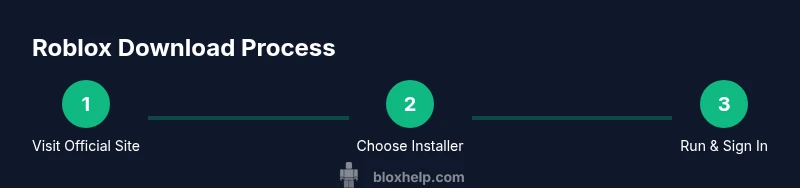
Downloading Roblox safely starts with using the official Roblox site or trusted app stores. The process typically involves creating or logging into a Roblox account, choosing the correct installer for your device, and installing Roblox Player (for playing) and Roblox Studio (for development). Avoid third-party installers or suspicious links, and keep your antivirus enabled during the download. This guide provides a clear, step-by-step path to a secure Roblox download.
Why Download Roblox Safely Matters
Downloading Roblox safely begins with understanding what you install and where you get it. According to Blox Help, official Roblox downloads minimize risk by avoiding counterfeit installers and phishing sites. When you click a link that promises "free Roblox" or a game booster from an untrusted source, you may end up downloading malware. The official Roblox site and trusted app stores provide verified installers that are kept up to date and digitally signed to prevent tampering.
This matters beyond malware: counterfeit installers can harvest credentials, inject adware, or direct you to fake login pages. By using official sources, you also ensure you receive legitimate updates, compatibility fixes, and access to Roblox Player for playing games, plus Roblox Studio for development if you want to build experiences. A proactive approach helps you keep devices safe and your Roblox experience smooth.
The Blox Help team emphasizes bookmarking the official site, checking domain accuracy, and avoiding shortened URLs. If anything feels off—unfamiliar branding, unusual prompts, or a download from an unfamiliar site—pause and re-check the source. Staying vigilant protects you and your family in the long run.
Tools & Materials
- Official Roblox website (roblox.com)(Use a trusted browser and bookmark the official download page)
- Device with internet access(Windows PC, macOS, iOS, or Android device)
- Web browser with latest updates(Chrome, Edge, Firefox, or Safari)
- Roblox account (email/username and password)(Needed to sign in after install)
- Reliable antivirus software(Keep real-time protection enabled during download)
- Optional: Roblox Studio (for development)(Install via official Roblox site if you plan to create games)
Steps
Estimated time: 15-25 minutes
- 1
Open the official Roblox site
Open a secure web browser and navigate to the official Roblox site at roblox.com. Look for the Download button and verify the page uses a valid SSL certificate (https). This ensures you are starting from the legitimate source before any file is downloaded.
Tip: Bookmark roblox.com and avoid clicking on viral social media posts that promise instant downloads. - 2
Sign in or create your Roblox account
If you already have an account, sign in; otherwise, create a new account using a valid email address. This step ties your downloaded software to your profile, enabling access to games, settings, and purchases.
Tip: Enable two-factor authentication after creating the account for added security. - 3
Choose the correct installer for your device
Click the Download button and select the installer that matches your device (Windows, macOS, iOS, Android). Roblox will prepare the appropriate executable or app package; avoid any third-party links or installers not labeled by Roblox.
Tip: If you’re unsure, start with Windows or macOS first and switch to mobile later. - 4
Run the installer and follow prompts
Launch the downloaded file and follow the on-screen prompts to complete the installation. Allow required permissions only if the source is official, and let the installer finish without interruptions.
Tip: Keep antivirus enabled and watch for any unexpected extra software during installation. - 5
Launch Roblox and sign in
After installation, open the Roblox launcher or app and sign in with your account credentials. You should see your games, friends, and avatar ready to go once you’re logged in.
Tip: If you don’t see your library after login, refresh or sign out and back in. - 6
Optional: install Roblox Studio for development
If you plan to build games, download Roblox Studio from the official site and install it alongside the Player. Studio provides the tools to create and publish experiences on Roblox.
Tip: Studio may require extra disk space and a stable internet connection during setup.
Questions & Answers
Is it safe to download Roblox from third-party sites?
No. Roblox should be downloaded only from the official Roblox website or trusted app stores to avoid malware or bundled unwanted software.
No. Stick to the official site or app stores to stay safe.
Do I need Roblox Studio to play games?
No. Roblox Player is sufficient to play most games. Roblox Studio is only needed if you want to create or publish experiences.
You don’t need Studio to play; it’s for creation if you want to develop.
Can I download Roblox on mobile devices?
Yes. Roblox mobile apps are available on major app stores. Install from Google Play or Apple App Store for a secure, official version.
Yes, you can download Roblox on mobile from the official stores.
Why does Roblox sometimes prompt for updates after installation?
Updates improve security and compatibility with new games. The official launcher handles updates automatically.
Updates help keep Roblox safe and compatible with new features.
What should I do if the download fails?
Retry from the official site, try a different browser, and ensure a stable connection. Clear cache if repeated failures occur.
If it fails, try again from official site and check your connection.
Is Roblox free to download and play?
Roblox is free to download and play, with optional in-game purchases. Be mindful of scams promising paid shortcuts.
Yes, it’s free to play, with optional paid items.
Watch Video
The Essentials
- Download only from official Roblox sites or stores
- Install Roblox Player to play and Studio only if developing
- Keep security software enabled during install
- Sign in with a Roblox account and enable 2FA