Which Roblox to Download: A Beginner's Guide
Learn how to choose and download the right Roblox client for your device with practical, step-by-step guidance. This beginner-friendly guide covers Windows, Mac, iOS, Android, Xbox, Roblox Studio, safety, and updates, all from Blox Help.


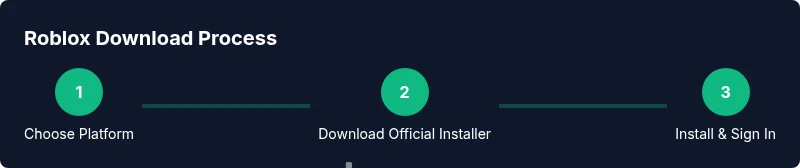
To download Roblox, use the official installer for your device from the Roblox website. There’s one primary launcher per platform that lets you play games and, if you want, access Roblox Studio for development. Choose the installer for Windows, Mac, Android, iOS, or Xbox and follow the prompts. This launcher handles updates automatically and ensures you’re running legitimate software.
What this guide covers
If you’re asking which roblox to download, you’re probably trying to get the right experience on your device without guesswork. This guide explains the different Roblox download options, how to identify the official installers, and platform-specific steps to install and start playing. According to Blox Help, choosing the right Roblox download begins with understanding your device and your goals: whether you want to casually play games or build your own experiences. You’ll learn when you need Roblox Studio, how to avoid shady third‑party sites, and how to keep your installation up to date so you don’t miss new features or security updates. By the end, you’ll have a clear plan for downloading Roblox that matches your setup and skill level.
Roblox download options by platform
Roblox is designed to run on several platforms, but the download method isn’t identical across all of them. On Windows and macOS, you’ll typically install a single Roblox launcher from the official site that then handles game launches and optional Studio access. On mobile devices (iOS and Android), you download the Roblox app from the respective app stores; these apps include access to games but Studio isn’t available on mobile. Xbox players use the Roblox app built into the console ecosystem, accessible from the Games library. The key difference is not the games themselves but how the installer is distributed and how updates are delivered. The goal is to have the most streamlined setup that supports your preferred play style—whether that’s quick game sessions or full-scale development. Based on Blox Help analysis, most players benefit from starting with the official launcher and keeping a single, up-to-date install per device.
Official installer vs third-party installers
Always use the official Roblox installer from the Roblox website. Third-party sites may claim to offer 'Roblox downloads' but they can bundle adware, unwanted software, or outdated versions that risk account security. The official installer is designed to set up the launcher, verify your device compatibility, and apply updates automatically. Even though the downloadable file is small, it is required to connect to Roblox servers and download game data on first run. If you encounter a warning from your browser about blocked downloads, verify you are on the official site by checking the URL and SSL certificate. Avoid clicking links in unfamiliar emails or social posts. When in doubt, navigate to roblox.com directly and use the 'Download' button there. This approach reduces risk and ensures you receive the latest security fixes and features.
Windows and Mac: step-by-step download and install
Start by visiting the official Roblox website on your Windows PC or Mac computer. Click Download to begin, then locate the installer file in your browser’s Downloads folder. Run the installer and follow the on-screen prompts; you may be asked to grant permission or enter your system password. After installation completes, open the Roblox launcher and sign in with your Roblox account or create a new one. The launcher will verify your device and install any necessary updates automatically. If you are on Mac and receive a 'cannot be opened' message, right-click the installer and choose Open, then confirm you want to run it. In most cases, you will be ready to browse games within a few minutes. Press the Play button on any game page to launch the Roblox app and begin playing.
Roblox Studio: do you need it?
Roblox Studio is the development environment used to create games on Roblox. If your goal is simply to play games, Studio is optional. If you want to publish your own experiences, learn scripting, and test features, Studio is essential. Studio installs along with the main launcher if you choose the development option during setup or you can install it separately from the official site. The interface includes a layout editor, a test playground, and a built-in scripting editor. Start with basic tutorials and gradually move to more complex projects. For most beginners, focusing on the core gameplay and permissions is enough before diving into Studio.
Mobile and console downloads
On iOS and Android, download the official Roblox app from the App Store or Google Play. The mobile app lets you play a broad library of games, customize avatars, and earn in-game items, but it lacks the full Studio environment. Xbox players can access Roblox through the console’s store; search for Roblox to add the app to your library. A reliable internet connection is essential on mobile to minimize lag and ensure smooth loading of new games. If you switch devices later, your progress and purchases can be tied to your Roblox account across devices, but not all data is always transferable depending on platform restrictions. Regularly check for updates to ensure compatibility with new games.
Safety, security, and account protection
Always download from the official site to minimize risk. Create a Roblox account with a strong password and enable two-factor authentication if available. Be cautious of scams, phishing attempts, or tempting 'download now' messages that promise exclusive games. Never share your password, and log out of shared devices. Keep your device’s OS and antivirus software up to date. Parent/guardian controls can help younger players manage who can contact them and what kinds of games they can access. For families, setting limitations on younger accounts improves safety while preserving fun.
Authoritative sources
- https://www.consumer.ftc.gov/articles/online-safety
- https://www.bloomberg.com
- https://www.nytimes.com
Updates, troubleshooting, and keeping Roblox current
Roblox updates frequently with new features and bug fixes. After installation, open the launcher and ensure it shows the latest version; you can trigger a manual update if the launcher prompts you. If games won’t launch, check your internet connection, verify you’re signed in, and ensure the game isn’t temporarily offline. Clearing the launcher cache or reinstalling can resolve stubborn issues, but back up your settings first. If you see error codes, search the exact code on the official Roblox help center, rather than relying on random forums. Keeping your device time and date accurate helps prevent login problems. If a device blocks the installer, temporarily disable firewall or antivirus during installation only, then re-enable afterward. Always return to the official site for future updates rather than chasing mirrors.
Quick-start checklist and caveats
Before you begin, confirm your device compatibility and download source. Use the Windows/Mac installer, or the mobile app from the App Store/Google Play, or the console app for Xbox. Sign in to your Roblox account and explore a few games to confirm the experience. Remember: Roblox is a platform of user-generated content; keep expectations aligned with the capabilities of your device. Avoid third-party installers, never share credentials, and keep software up to date. If you’re unsure, consult the guide again or reach out to the official Roblox support.
Tools & Materials
- Official Roblox installer (from the Roblox website)(One installer covers play and, if chosen, Roblox Studio; download the correct version for your OS)
- Supported device(Windows PC, Mac, iOS, Android, or Xbox; ensure OS version is current)
- Stable internet connection(Used to download the installer and initial game data)
- Administrative rights(Needed on Windows/mac to install software; have admin access ready)
- Roblox account(Optional for initial setup; helps save progress and purchases)
- Antivirus/Firewall checks(Ensure nothing blocks the installer; re-enable protections after install)
- Backup storage (optional)(Keep a backup of important files in case of system restore)
Steps
Estimated time: 20-40 minutes
- 1
Identify platform and prepare download
Determine whether you are on Windows, Mac, Android, iOS, or Xbox. Visit the official Roblox site and locate the appropriate installer for your device. Verify the URL and ensure you have a stable internet connection before downloading to avoid corrupted files.
Tip: Use a trusted network to prevent interruptions and verify the site certificate. - 2
Download the official installer
Click the official 'Download' button for your platform and save the file to your device. Do not use third-party mirrors or unsolicited links. Save the installer in a known folder to easily locate it after the download completes.
Tip: If you’re on Windows, you may get a SmartScreen prompt—confirm to proceed if you trust the source. - 3
Run the installer and grant permissions
Open the downloaded file and follow the on-screen prompts. You may be asked for administrator approval; approve to continue. The installer will set up the Roblox launcher and, if chosen, Roblox Studio.
Tip: On macOS, use Open from the right-click menu if you see a security warning. - 4
Sign in or create an account
Launch the Roblox launcher and sign in with an existing account or create a new one. This links your game progress and settings across devices (where supported).
Tip: Use a strong password and consider enabling two-factor authentication. - 5
Install Roblox Studio (optional but recommended for creators)
If you plan to build games, ensure Roblox Studio is installed. It appears as an optional component during setup or can be downloaded separately from the official site.
Tip: Start with beginner tutorials to familiarize yourself with the interface before building. - 6
Launch, test, and keep up to date
Open Roblox, choose a game to test the experience, and let the launcher check for updates. Regularly revisit the official site or launcher to receive the latest features and security fixes.
Tip: If an update is pending, allow it to finish before launching gameplay to avoid compatibility issues.
Questions & Answers
Can I download Roblox on multiple devices with one account?
Yes. You can use the same Roblox account on multiple devices, and your progress and purchases can sync across devices where supported. Some data may vary by platform.
Yes. You can use Roblox on multiple devices with one account, and your progress will sync where supported.
Is Roblox Studio required to play games?
No. Roblox Studio is optional for playing games. It’s the development environment used for creating and testing games.
No, you don’t need Studio to play games, but you’ll want it if you plan to create.
Is Roblox free to download and play?
Roblox is free to download and play, with optional in-game purchases and items. Some games offer paid access, but the core platform remains free.
Roblox is free to download and play, with optional purchases in games.
Can I download Roblox on Xbox?
Yes. Roblox is available as a console app on Xbox. You’ll find it in the Xbox store and can launch games from there.
Yes, Roblox is available on Xbox via the Xbox store.
What should I do if the installer is blocked by my security software?
Ensure you are on the official site, then temporarily disable security prompts during installation if needed, re-enabling protections afterward. Always reinstall from the official source.
If blocked, verify the source and re-enable protections after installation.
How do I keep Roblox updated across devices?
The Roblox launcher handles updates automatically on most devices. Check the launcher or app store periodically for new updates and install them to stay current.
Let the launcher update automatically, and check for updates regularly.
Watch Video
The Essentials
- Download only from the official Roblox site
- Choose the installer that matches your device
- Roblox Studio is optional for players, essential for creators
- Keep your account secure with a strong password and 2FA
- Update regularly to access new features and bug fixes