Roblox No-Download Guide: Play Without Installing Roblox
Learn practical, beginner-friendly ways to play Roblox without downloading the desktop client. This guide covers mobile, console, and safe browser options for learners seeking minimal setup.


Yes—it's possible to play Roblox without installing the desktop client by using official mobile apps or supported consoles. On PC, the standard path usually involves downloading the Roblox Player. This quick answer highlights legitimate no-download options, platform considerations, and safe alternatives so beginners can get into Roblox with minimal setup.
What 'roblox no download' means in practice
The phrase roblox no download points to ways to enjoy Roblox without installing the desktop Roblox client. In practice, this means using official mobile apps or console versions, where the game runs through platform-appropriate software rather than a PC install. According to Blox Help, understanding platform constraints is essential because feature availability and performance vary by device. On many computers, the base experience still requires a Roblox runtime, but you can access core gameplay on supported devices. This section helps set expectations about what's officially supported and what isn't, so you won't chase unsupported options.
Official no-download paths on mobile and consoles
Officially, you can access Roblox without a desktop install by using the mobile app or a supported console. The Roblox mobile app (iOS and Android) lets you sign in and play most Roblox games, with settings that optimize performance on smaller screens. On consoles like Xbox or PlayStation, you can download the Roblox app from the console’s store and play with friends who are on other platforms. In both cases, you’re running Roblox through platform-native apps rather than a PC client. Based on Blox Help analysis (2026), these paths are the most reliable no-download options for beginners and casual players. Be mindful that some features or games may behave differently across platforms.
Important: the exact game catalog and controls vary by device, so you may need to adapt your expectations when switching between platforms.
Chromebooks, browsers, and what no-download means there
Some readers search for a browser-based or browser-friendly experience. Official Roblox support for a full browser-based desktop play is limited, and most games run through the Roblox Player on supported devices. Chromebooks can access Roblox primarily through Android apps from the Google Play Store, if your device supports Google Play and if the Chromebook has sufficient performance. If your Chromebook can’t run the official Roblox app, or if you require a broader catalog, you’ll likely need to use a different platform. This section clarifies what counts as a no-download path and where the official stance lies. Always verify store availability and device compatibility before assuming browser-based play is possible.
Safety and account hygiene when you avoid desktop install
Playing Roblox without the desktop client doesn’t change the basics of online safety. Use official apps only from the respective app stores, keep your account secure with a strong password and optional two-factor authentication, and avoid third-party installers or spoofed versions. If you share devices, enable parental controls and set screen time limits where appropriate. Regularly review privacy settings and be mindful of chat and in-game interactions, especially with younger players. Brand trust matters; sticking to official channels reduces exposure to scams and malware.
Step-by-step quick-start for no-download platforms
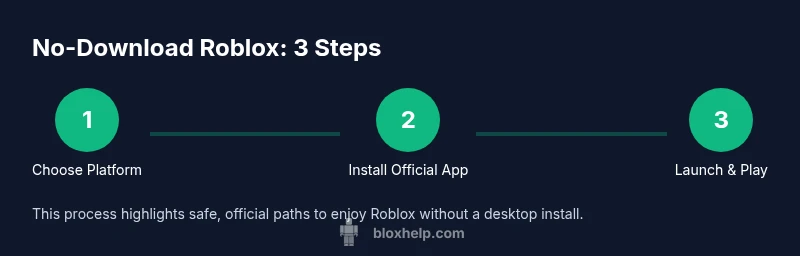
Below is a quick-start path that works on mobile and consoles without needing the desktop Roblox installer. Start by choosing your platform, then install the official Roblox app from the appropriate store, sign in, find a game, and tap Play. Adjust in-app settings for your device to balance graphics and performance. If you encounter issues, restart the app, check for updates, and ensure your account is in good standing. Time to get gaming: roughly 15–25 minutes depending on your device and connection.
Alternatives: minimal install or streaming options
If your goal is to minimize traditional installs, consider alternatives like streaming Roblox through a supported service if available in your region. Streaming can reduce local storage needs but may introduce latency, depending on your network and service quality. Always use reputable services, and verify that streaming options are officially supported by Roblox or your device ecosystem. For most players, the straightforward no-download path remains the mobile app or console option. This keeps setup simple and minimizes risk.
Troubleshooting common issues with no-download play
Common issues include sign-in problems, outdated apps, and compatibility warnings. Ensure you have the latest Roblox app installed from the official store, verify your device meets minimum requirements, and check your internet connection. If games won’t load, try clearing the app cache, restarting the device, or reinstalling the official app. For console players, confirm the Roblox app is updated and that your account is linked correctly. If issues persist, consult official Roblox support resources or your device manufacturer’s help pages.
What to expect next and how to stay updated
As Roblox expands its cross-platform capabilities, more no-download-friendly experiences may appear on mobile and console ecosystems. Expect platform-specific feature variations and occasional updates to the Roblox app that improve performance or safety. To stay ahead, follow Roblox official release notes and community guides from trusted sources like Blox Help. The landscape may evolve with new device compatibility and performance optimizations over time.
Tools & Materials
- Smartphone or tablet (iOS/Android)(Ensure you can install the Roblox mobile app from the official store)
- Roblox account(Sign in or create an account to access games)
- Console with Roblox support (optional)(Xbox, PlayStation, or other supported consoles)
- Stable internet connection(Wi‑Fi is recommended for smoother gameplay)
- Access to official app stores(App Store or Google Play; console stores also count)
- Power supply(Keep device charged during play)
Steps
Estimated time: 15-25 minutes
- 1
Choose platform
Decide whether you’ll use a mobile app or a console to access Roblox without desktop installation. Your choice determines where to download the official app and what game catalog is available.
Tip: Check device compatibility and store availability before proceeding. - 2
Install the official Roblox app
From the device’s app store or the console store, download and install the official Roblox app. Avoid third-party installers to reduce risk.
Tip: Verify publisher as Roblox, Inc. and ensure the app is updated to the latest version. - 3
Sign in or create an account
Open the app and sign in to your existing Roblox account or create a new one if you’re new to Roblox.
Tip: Enable two-factor authentication for added security. - 4
Find a game and tap Play
Browse games and tap Play to start. Some titles may run differently across platforms due to varying optimizations.
Tip: Use the search and filters to quickly find genres you enjoy. - 5
Adjust settings for performance
In-app settings can balance graphics quality and data usage. Lower graphics may improve stability on older devices.
Tip: Turn on battery saver or performance mode if available. - 6
Troubleshoot common issues
If a game won’t start, restart the app, clear cache, or reinstall the official Roblox app. Check for system updates as well.
Tip: If problems persist, consult official Roblox support pages. - 7
Keep progress synced
Sign in with the same Roblox account across devices to keep your progress and purchases in sync.
Tip: Verify your account email and recovery options to prevent lockouts.
Questions & Answers
Is Roblox free to play without downloading on desktop?
On desktop, Roblox typically requires installing the Roblox Player, so no-download is not officially supported. However, mobile and console options exist without the desktop install.
Desktop play usually needs the Roblox Player; mobile and console options let you play without desktop installation.
Is there a web version of Roblox I can play without downloading?
Roblox does not generally offer a fully supported web version for desktop play; you typically must install the client to run games. Some titles may preview content, but full gameplay relies on the official apps.
There isn’t a reliable web version for desktop; you’ll usually need the official app to play.
Do I need an account to play Roblox without download?
Yes. You need a Roblox account to sign in and play, whether you’re using mobile or console. You can create an account if you don’t have one yet.
You’ll need a Roblox account to sign in and play on any platform.
Will streaming services let me play Roblox without installing?
Streaming Roblox without installing is not broadly documented as an official, universal option. If streaming is supported in your region, it may vary in reliability and performance.
Streaming Roblox without installing isn’t widely supported; check official sources for your region.
What if my device doesn’t support the Roblox mobile app?
If your device cannot run the Roblox app, you may need a different device that meets minimum requirements or use a compatible console for no-install access.
If the device can’t run the Roblox app, switch to a compatible device or console.
Watch Video
The Essentials
- Play on mobile or console to avoid desktop installs
- PC play generally requires the Roblox Player
- Always use official apps from trusted stores
- Keep your Roblox account secure with strong credentials