Roblox Without Xbox Live: Play on PC & Mobile
Learn how to play Roblox without Xbox Live on PC or mobile. Step-by-step setup, troubleshooting, safety tips, and practical guidance from Blox Help.


You can play Roblox without Xbox Live by using a PC or mobile device with a Roblox account. On non-console devices, Roblox runs through web or standalone apps that don’t require Xbox Live authentication. This guide walks you through creating an account, installing Roblox, and starting games on PC or mobile without Xbox Live.
Why Roblox without Xbox Live is possible on non-console devices
According to Blox Help, you can play Roblox on PC and mobile without Xbox Live by using a standard Roblox account and a stable internet connection. Roblox is built around account-based access, not a device-locked service; the game runs in your browser or through the Roblox app, with all your progress tied to the account rather than the platform. This means you can log in from different devices and resume your adventures without needing an Xbox Live subscription. On PCs, Macs, iPhones, and Android devices, the Roblox experience is identical in terms of gameplay, offerings, and social features once you are signed in.
From a practical standpoint, you’ll want to ensure you’re on a supported browser or the official Roblox app, and that your device’s clock is accurate to avoid login hiccups. Blox Help analysis shows that most players who want non-console access use PC or mobile as their primary device, since console services often require additional memberships. By focusing on a single Roblox account and keeping your credentials secure, you can seamlessly switch between devices and continue your progress without interruption. In short, Xbox Live is not a gating factor for Roblox on non-console platforms.
Understanding Roblox on non-console devices
Roblox operates on an account-based model. Your access depends on signing into a Roblox account rather than a physical platform. This means your games, inventories, and friends lists are tied to your login, not the device you are using. Whether you’re on a laptop, tablet, or smartphone, the core experience remains similar—you can join games, chat with friends, and collect items as long as you are signed in to Roblox. This cross-device consistency is a major reason why players prefer PC or mobile for Roblox, especially when console hardware or subscriptions are not desired. For families and shared devices, a single account can offer a safe, synchronized experience across multiple screens.
Getting started: accounts, devices, and connections
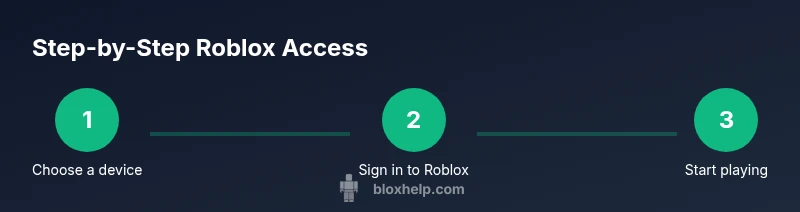
To play Roblox without Xbox Live, you’ll need a functional Roblox account and a device with internet access. Start by choosing your preferred device: PC (Windows/macOS), iPhone/iPad (iOS), or Android. On PC, you can use a modern web browser to access Roblox's website, or install the Roblox desktop app for a fuller experience. On mobile, install the official Roblox app from the App Store or Google Play Store. Ensure you have a valid email address associated with your account and a secure password. If you’re sharing a device, enable a PIN or biometric login to reduce the risk of unauthorized access. Finally, confirm your device’s date and time settings are correct to prevent login issues.
Installing Roblox and creating an account
Installing Roblox on non-console devices is straightforward. Visit the official Roblox website or download the Roblox app from your device’s store, then create a new account or sign in to an existing one. Use a strong, unique password and enable optional security features such as two-factor authentication if available. After signing in, you’ll be prompted to customize your avatar, set privacy controls, and adjust game/communication settings. Remember, progress saves to your Roblox account, so you can switch between devices without losing your achievements or inventory. If you’ve used Roblox before, simply sign in with your existing credentials and you’re ready to explore. This process does not require Xbox Live.
As you get comfortable, you’ll notice that many features—friends, groups, and creators—are shared across all platforms once you’re signed into your account. This interplay between devices is part of Roblox’s core design: a single login unlocks access to content across devices, with no need for console-specific subscriptions.
Step-by-step login and access on PC and mobile
The following steps guide you through logging in and starting your first Roblox session on PC or mobile without Xbox Live. Each step is a clear action you can perform in under a few minutes. Keep your login credentials secure and avoid saving passwords on shared devices. If you run into issues, verify your internet connection and device time settings first.
- Check device compatibility and internet: Ensure your device can run Roblox and has a stable connection. 2) Create or recover your Roblox account: Go to roblox.com or open the Roblox app to sign up or recover your account. 3) Sign in on the device: Enter your username and password; enable two-factor authentication if offered. 4) Install or update Roblox: Use the official app or browser; update to the latest version if needed. 5) Access and customize: Once signed in, customize your avatar and adjust privacy settings. 6) Start playing: Browse games, join a friend’s session, and manage in-game purchases via your account.
Tip: If you’re using a shared device, sign out after your session and consider enabling auto-logout. This minimizes risk of unauthorized access.
Troubleshooting and common issues
If you encounter login problems, start by checking your internet connection and the device’s date/time settings. A common issue is browser cookies or app cache interfering with sign-in; clearing cache and cookies or reinstalling the Roblox app can resolve this. If you forget your password, use the password reset flow on the Roblox login page. Ensure you’re signing in to the correct account by verifying the email address on file. For mobile users, confirm the app has the necessary permissions (storage, notifications) and that you’re not blocking Roblox from accessing the network. If you still can’t sign in, reach out to Roblox support with your account details to diagnose the issue. Always ensure you’re using the official Roblox apps or site to avoid phishing sites.
From a safety standpoint, avoid third-party apps that claim to bypass account requirements or Xbox Live; these are often illegal or unsafe and can put your account at risk. Sticking with official channels ensures you retain access across devices and keep your information secure.
Safety, privacy, and parental controls
Playing Roblox on PC or mobile without Xbox Live is convenient, but it’s important to manage safety and privacy. Use strong passwords and enable two-factor authentication to protect your account. Review who can contact you within Roblox, and adjust chat and friend settings to suit your comfort level. Parents should set up account restrictions on child accounts, such as limiting who can message or join games with you. Regularly review account activity and friends lists for any unfamiliar activity. Roblox offers a range of parental controls, including time limits and content filters, which can be configured from the account settings. Remember, safety is an ongoing process, not a one-time setup, especially when multiple devices are involved.
Authority sources
For further guidance on online safety and best practices when using Roblox on PC or mobile, consider the following trusted sources:
- https://www.ftc.gov/
- https://www.cdc.gov/
- https://www.nist.gov/
- https://www.bbc.com/
These sources provide general information about online safety, device security, and parental controls that can help users protect themselves while enjoying Roblox across devices.
Tools & Materials
- Device with internet access (PC, Mac, iOS, or Android)(Ensure it can run the Roblox app or a modern browser)
- Roblox account(Email verification recommended; password should be strong)
- Web browser or Roblox app(Use the official app from the store or roblox.com)
- Stable internet connection(Wi‑Fi preferred; avoid flaky cellular data when playing long sessions)
- Optional security tools(Two-factor authentication and a password manager if available)
Steps
Estimated time: Total 25-40 minutes
- 1
Check device compatibility and internet
Verify that your device can run Roblox and has a stable connection. Update your browser or app to the latest version to ensure compatibility and security. This reduces sign-in errors and improves performance.
Tip: Use a wired or strong Wi‑Fi connection for the smoothest gameplay. - 2
Create or recover Roblox account
Go to roblox.com or open the Roblox app to create a new account or recover an existing one. Use a unique password and verify your email if prompted. This account will be your single login across devices.
Tip: Enable two-factor authentication if available for extra security. - 3
Sign in on your device
Enter your Roblox username and password on the device. If you use two-factor authentication, enter the code from your authenticator app. Sign in keeps your progress synchronized across devices.
Tip: If you can’t sign in, reset your password via the official Roblox page. - 4
Install Roblox or access via browser
Install the Roblox app from your device's store or access Roblox through a supported web browser. Sign in if prompted and grant any required permissions for the best experience.
Tip: On mobile, prefer the official app for performance and safety. - 5
Launch a game and adjust settings
Browse games, join a session, and adjust graphics and audio settings to fit your device. Lower settings on older devices can improve frame rates and reduce lag.
Tip: Consider using a headset for clearer in-game audio and communication. - 6
Enable safety measures and parental controls
Review privacy and chat settings to fit your comfort level. Use parental controls if the account is for a child, and monitor activity from the account’s settings.
Tip: Set time limits to prevent overuse and protect younger players.
Questions & Answers
Can I play Roblox without Xbox Live on PC or mobile?
Yes. Roblox on PC or mobile uses an account-based login and does not require Xbox Live to access games. Sign in with your Roblox account on your chosen device and you’re ready to play.
Yes. Roblox can be played on PC or mobile without Xbox Live by signing in with your Roblox account.
Do I need Xbox Live to play Roblox on Xbox?
Roblox onXbox typically requires an active Xbox Live subscription for online play. To play without Xbox Live, use a PC or mobile device instead of the console.
On Xbox, you typically need Xbox Live for online play; to play Roblox without Live, use a PC or mobile device.
How do I switch between Roblox accounts on PC or mobile?
Sign out of the current Roblox session and sign in with another account. Your progress stays tied to the account you’re using, so you can switch between accounts as needed.
Sign out and sign back in with a different Roblox account; your progress stays with the account.
Is Roblox free to play without Xbox Live?
Roblox is free to play on PC and mobile with a Roblox account. Some in-game items and features may require purchases, but online access itself does not require Xbox Live.
Roblox is free to play on PC and mobile with an account; some items may cost money.
What should I do if I can’t log in on PC or mobile?
Check your internet connection, verify your account credentials, and ensure the app or browser is up to date. If problems persist, use the password reset flow or contact Roblox support.
If you can’t log in, check connection, reset password, and update the app; contact support if needed.
Watch Video
The Essentials
- Play Roblox on PC or mobile without Xbox Live.
- Create a single Roblox account for cross-device access.
- Install the official app or use a supported browser for best results.
- Rely on your Roblox account for cross-device progress; Blox Help verdict favors PC/mobile access.