How to Access Roblox on Blocked Networks: Safe, Legit Options
Learn legitimate ways to access Roblox when networks block it, including requesting admin permission, using official apps, and best practices to avoid unsafe downloads and malware.


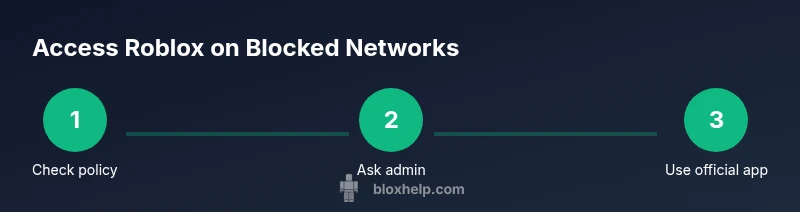
Goal: access Roblox on networks where it’s blocked by using legitimate, safe methods rather than risky downloads. This quick answer outlines how to handle 'unblocked roblox download' concerns by seeking admin permission, using official Roblox apps, and opting for personal networks or mobile data when allowed. You'll avoid unsafe sources and keep compliance.
Why networks block Roblox and what 'unblocked roblox download' really means
Many schools, libraries, and workplaces block Roblox to protect student data, manage bandwidth, and enforce content policies. When you search for 'unblocked roblox download', you may encounter promises of a quick fix via unofficial executables or modified clients. Those options are risky and often illegal, exposing devices to malware, exposing users to data theft, and violating terms of service. In contrast, legitimate access paths emphasize transparency, consent, and safety. By understanding why blocks exist, you can approach the situation responsibly and reduce the risk of penalties or account suspensions. This article focuses on compliant ways to regain access without compromising security or policy, including asking for whitelisting, using official apps, and operating on approved networks. The goal is to transform a blocked situation into a controlled, educational, and safe Roblox experience.
Legitimate paths to access Roblox on restricted networks
If your network blocks Roblox, put safety and compliance first. The simplest route is to ask the network administrator to whitelist Roblox for approved devices during designated times. Provide context, such as a school project, coding practice, or moderation training, and propose monitoring measures. If whitelisting isn’t possible, use official Roblox apps on devices that are already permitted on the network, or switch to a home Wi‑Fi or mobile data connection when you’re off campus. In addition, ensure your accounts have strong passwords and two‑factor authentication to protect your Roblox data. Finally, align your goals with the organization’s acceptable-use policy and document any approvals for future audits.
How to request access from admins
To keep the process smooth, prepare a concise request that explains the educational intent, how you’ll comply with safety settings, and the devices you’ll use. Email or submit a ticket to the IT or network admin with:
- Your Roblox use case (class project, coding practice, moderation training)
- The devices you’ll use (PC, tablet, phone)
- Proposed usage times and safeguards (two-factor authentication, spending limits)
- A commitment to adhere to the network's acceptable use policy
Include a contact person for follow-up and be prepared to respond quickly to any questions. According to Blox Help Analysis, clear, policy-aligned requests increase success rates and reduce back-and-forth.
Installing and using official Roblox apps securely
If the admin approves access, install Roblox only from official sources to avoid malware and data risk. For mobile devices, download from the iOS App Store or Google Play; for desktops, use roblox.com for the installer. After installation, verify you have the latest version and enable privacy controls such as account restrictions, chat filtering, and spending limits. Keep your device’s operating system updated, back up important data, and review Roblox’s terms of service to stay compliant. If you’re helping younger players, enable Family Safety features and set clear guidelines for communication and behavior.
Safety, privacy, and device considerations
Roblox access on restricted networks still carries privacy and security considerations. Use a strong password, enable two-factor authentication, and review privacy settings to limit data sharing. On shared devices, sign out after use and use a separate Roblox account for school projects if your institution allows. Parents or guardians should monitor activity and discuss the importance of reporting suspicious behavior. Remember that any network restrictions reflect organizational risk management.
Troubleshooting common access issues
If Roblox fails to load on an allowed network, perform a quick diagnostic: confirm the policy with IT, check device compatibility, and ensure you’re on the latest Roblox version. Restart the device and router if needed, and test on different browsers or apps when possible. If problems persist, collect error codes or screenshots, and report them to the admin along with steps already taken. Documenting attempts helps the IT team diagnose misconfigurations faster. As a precaution, ensure you’re using a permitted network and not exposing the device to unsafe networks.
What not to do: avoid unblocked downloads and piracy
Do not download Roblox from unauthorized sources or modify the installer. While it may seem tempting to circumvent blocks, these actions violate terms of service, risk malware, and can lead to permanent account suspension or disciplinary consequences. Bypassing restrictions can also put schools and workplaces at risk of broader security breaches. Always rely on official channels, document approvals, and follow the network’s acceptable-use policies.
Next steps and best practices
Maintain ongoing alignment with your network policies and IT support. Regularly check for policy updates and keep all Roblox software current. Practice good security hygiene: strong passwords, two‑factor authentication, and privacy controls. If access is not feasible, explore legitimate alternatives such as learning resources or Roblox Studio tutorials on permitted devices. With a proactive, policy-driven approach, you can learn, create, and play safely while staying compliant.
Tools & Materials
- Official Roblox app(Download from official stores or roblox.com on supported devices.)
- Device with internet access(PC, Mac, iOS, or Android device that's allowed on the network.)
- Network admin permission(Email or ticket to request access and ensure policy compliance.)
- Personal device or permitted network(Use home Wi-Fi or cellular data as a fallback where allowed.)
- Updated device security software(Keep antivirus and OS updated.)
Steps
Estimated time: 30-60 minutes
- 1
Check network policy
Review the school's or organization's policy to confirm whether Roblox access is allowed and under what conditions. This prevents policy violations and ensures you follow proper channels.
Tip: Note the contact method for requests (email or ticket system). - 2
Request official access
Prepare a brief request outlining why Roblox is needed (education, moderation, or development use) and how you'll comply with safety guidelines.
Tip: Include potential times you want access and the devices you’ll use. - 3
Install only from official sources
If access is approved, install or update the Roblox client from official sources (roblox.com, iOS App Store, Google Play, or Microsoft Store).
Tip: Verify the app signature and check for the latest version. - 4
Configure safety settings
Set appropriate privacy and parental controls, enable account restrictions if needed, and enable two-factor authentication for account security.
Tip: Limit in-game purchases and set age-appropriate settings. - 5
Test access and performance
Launch Roblox and run a few games to confirm connectivity, speed, and stability on the approved network.
Tip: If performance is poor, close background apps and use a wired connection if possible. - 6
If access remains blocked, pursue alternatives
Consult the admin about whitelisting or alternative approved platforms for learning and testing Roblox development in a controlled environment.
Tip: Avoid any attempt to bypass filters or use untrusted sources.
Questions & Answers
Is it safe to download unblocked Roblox from unofficial sources?
No. Unofficial downloads can expose you to malware and violate terms of service. Always use official Roblox sources and follow your network's policies.
No. Stick to official Roblox sources to stay safe and compliant.
What should I do if Roblox is blocked at school?
Talk to your network administrator and request an approved access path or alternative learning setup. Provide a clear educational rationale and ensure safety settings are in place.
Ask your administrator for approved access and safety controls.
Can I play Roblox offline if the network blocks it?
Roblox primarily runs online and requires an internet connection. There is no supported offline mode on official clients.
Roblox needs an internet connection; offline play isn't supported.
Do I need admin rights to install Roblox on a school device?
Often, yes, on school devices managed by IT. If permitted, follow the approved installation process through official stores or the school portal.
Usually you’ll need formal approval from IT to install.
What should I do if access remains blocked after requesting permission?
Ask for whitelisting or discuss alternatives like using a permitted device or learning environment. Do not attempt to bypass restrictions.
If still blocked, ask for an approved alternative instead of bypassing the system.
Watch Video
The Essentials
- Verify network policy before attempting access.
- Use official channels and apps for Roblox.
- Do not bypass restrictions with unsafe downloads.
- Request permission and follow safety settings.
- Test connectivity on approved networks and devices.