How to Play Roblox When It's Blocked: Safe, Legal Access Guide
Learn safe, legal ways to access Roblox on restricted networks and practical alternatives when access isn’t approved. Step-by-step guidance for students, parents, and IT admins on compliant paths.


Goal: how to play roblox when its blocked by network restrictions. This guide explains safe, legal options to access Roblox on restricted networks and what you need to request permission. You’ll learn to talk with IT, use approved networks, and plan compliant alternatives if access isn’t granted. By the end, you’ll know practical steps and how to prepare a compliant setup for school or work environments.
Why Roblox Might Be Blocked and What It Means
Roblox access is often controlled at the network level by schools, libraries, and workplaces to manage bandwidth, safety, and policy compliance. When a site or app runs afoul of those controls, it can appear blocked or slow to load. The policy context matters: understanding it helps you navigate restrictions without breaking rules or exposing yourself to risk. According to Blox Help, start by reviewing your organization’s acceptable-use policy and speaking with a trusted administrator to understand permissible options. This approach keeps you safe while pursuing legitimate options for gameplay or learning.
Safe, Legal Paths to Access on Restricted Networks
The most reliable way to play Roblox when blocked is to pursue approved access through the network owner or IT department. This involves documenting your use case (education, debugging, or supervised gaming), requesting whitelisting or a temporary access window, and complying with monitoring or time limits. If permission is granted, you’ll typically be placed on a supervised schedule with appropriate safeguards. In practice, this means a formal conversation with the administrator and a written agreement that outlines what is allowed and for how long. This aligns with best practices and reduces risk for both the user and the institution.
Talk to Your Network Administrator: How to Request Access
Initiate the conversation with a clear, respectful request. Explain why Roblox is useful for learning, game development exploration, or social interaction with friends. Provide details such as device type, typical play times, and how you will limit usage to safe, age-appropriate content. If you’re a student, include your teacher or IT contact; if you’re at a workplace, include a supervisor. Offer a monitored timeframe and ask about any required compliance steps (screen time limits, content restrictions, or usage logs). This is the most effective route to maintain integrity while pursuing access. According to Blox Help, framing the request around safety and educational value helps improve outcomes.
Use Your Own Device or Personal Network as Permitted Alternatives
If the organization permits personal devices or guest networks, using your own device under a sanctioned plan is often the simplest path. Ensure you’re on a network you control or have explicit permission to use, and avoid sharing credentials on public or shared machines. Personal hotspots can be a time-limited, policy-compliant alternative when allowed by the policy. Always verify that mobile data usage complies with any data caps or school/work rules before proceeding. Blox Help analysis shows that clear policy alignment dramatically increases odds of a favorable response.
Leverage Mobile Data or Home Wi-Fi as Alternatives
When allowed, connecting via a personal mobile hotspot or a home Wi‑Fi network can bypass school blocks while still respecting policy. Set up your device as a hotspot if permitted, and configure Roblox for ongoing updates and smooth gameplay. Consider data usage, potential speed differences, and any corporate or school restrictions about using personal networks for work devices. If you’re unsure, ask a policy owner before proceeding.
If Access Is Denied: Commercial and Educational Considerations
If a request for access is denied, use the experience as a learning moment. Consider Roblox Studio on compliant hardware for development, or age-appropriate, moderated games that don’t require blocked access. Explore official learning resources and moderation-friendly activities that align with policy. The aim is to maintain momentum while honoring policy constraints. The Blox Help team recommends seeking alternatives that still support your education and creativity.
Getting Set Up on a Permitted Network: Step-by-Step Checklist
Once you have permission, ensure you have the right setup to enjoy Roblox smoothly. Confirm the device is updated, the Roblox app is installed, and a safe, supervised session plan is in place. If you encounter connection issues, verify DNS settings and firewall rules with the admin, and ensure parental controls align with policy. This proactive approach helps maximize permitted access without reintroducing risk. According to Blox Help, documenting the setup process helps with future renewals and policy clarity.
Common Pitfalls and How to Avoid Them
Don’t assume a blanket allowance means you can ignore time limits or safety rules. Avoid sharing accounts or credentials, bypassing restrictions, or using unapproved devices. These missteps can violate policies and damage your access. Follow the approved pathways, keep logs if required, and report any accidental blocks promptly to IT. Proactively communicate any changes in device or network usage to your administrator.
Long-Term Solutions: Digital Citizenship and Access Planning
Plan ahead by building a formal access proposal for Roblox that includes safety metrics, content filters, and a review schedule. This not only helps you stay within policy but also demonstrates responsible digital citizenship. The broader goal is to support learning and collaboration while respecting network controls and privacy. Collaboration with IT and caregivers ensures a sustainable path to access that benefits your development goals.
Tools & Materials
- Device with Roblox installed (PC, Mac, tablet, or phone)(Ensure OS and app are up to date)
- Permitted access to a network or home/Wi‑Fi(Ask IT for written approval or authorized access)
- Written permission or approved access plan(Document the agreement and keep a copy)
- Personal mobile data plan or hotspot (as allowed)(Used only if policy permits)
- Policy document or acceptable-use guidelines(Reference during requests)
Steps
Estimated time: 2-7 days for approvals; setup 15-30 minutes after approval
- 1
Check policy and identify contact
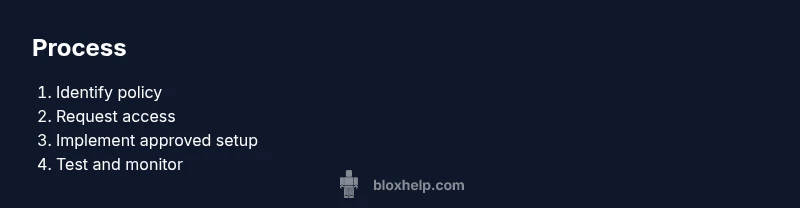
Review the institution’s acceptable-use policy and locate the IT administrator or supervisor responsible for network access. This sets expectations and prevents missteps early. Collect contact details for follow-up.
Tip: Take notes of policy sections related to gaming and time limits. - 2
Draft a clear access request
Write a concise request that explains why Roblox is useful (learning, game-development practice, collaboration). Include device type, typical play times, and how you will adhere to safety requirements.
Tip: Propose a monitored window and content filters to ease approval. - 3
Submit the request to the right channel
Send the request through the official channel (IT ticket system, email, or admin form). Follow up if you don’t receive acknowledgment within a few business days.
Tip: Attach a short plan detailing time limits and safety measures. - 4
Prepare a compliant backup plan
If access isn’t granted, outline alternatives like Roblox Studio on approved hardware, or age-appropriate, moderation-friendly games that don’t require blocked access.
Tip: Have a fallback plan ready before you need it. - 5
Configure your device on the approved network
Once approved, connect to the permitted network and verify Roblox loads correctly. Confirm that safety settings and parental controls align with policy.
Tip: Test both login and game launch on a controlled device. - 6
Document the outcome
Record whether access was granted, the time windows, and any usage limits. This helps with future renewals and policy alignment.
Tip: Keep copies of approvals and any correspondence. - 7
Respect data usage and security policies
Ensure Roblox usage does not violate data caps, privacy settings, or device security requirements.
Tip: Avoid sharing credentials or downloading untrusted content. - 8
Review periodically with IT
Ask for periodic reviews of access status and policy updates to stay compliant as policies evolve.
Tip: Set calendar reminders for quarterly policy checks.
Questions & Answers
Why might Roblox be blocked on my network?
Roblox can be blocked due to bandwidth, safety policies, or age restrictions set by the network admin. Understanding the reason helps you request appropriate access.
Roblox may be blocked due to network policies; you can check with IT for clarification.
Is it safe to try to bypass blocks on school networks?
No. Bypassing blocks can violate policy and result in penalties. Always pursue approved access or alternatives.
No, bypassing is not safe; seek approved options.
What should I include in a permission request?
Include your purpose, device type, expected play times, and how you will follow safety and content controls. Propose a monitored window.
Explain why you need access and how you'll stay safe.
What if my request is denied?
Ask about alternative options such as Roblox Studio on compliant devices or approved educational content. Seek a planned review later.
If denied, ask for alternatives and a follow-up date.
Can I use Roblox on my personal data plan?
Only if the policy allows it. Check data usage and terms before using a personal hotspot for gaming.
Only if permitted by policy; verify data usage.
What are non-negotiable safety considerations?
Do not share credentials, enable age-appropriate settings, and monitor content to comply with policy.
Keep safety controls on and follow rules.
Watch Video
The Essentials
- Ask for policy-aligned access before playing.
- Use legitimate fallback options like personal devices with approval.
- Document approvals and stay within safety guidelines.
- If access is denied, explore compliant learning alternatives.
- Plan a long-term access strategy with IT.