How to download Roblox without Play Store
Learn safe, step-by-step ways to access Roblox when Google Play isn’t available. Understand risks, alternatives, and best practices for installing Roblox without the Play Store.


Goal: You can access Roblox on Android without the Play Store, but it is not officially supported and carries security risks. If you must proceed, verify device compatibility, use trusted sources, and follow safety steps to protect your data. This guide covers safer alternatives and careful installation practices. Always back up data first. Proceed only if you understand the risks.
What it means to download Roblox without Play Store
Downloading Roblox without the Play Store means obtaining the Android app installer (APK) from a source other than Google’s official store. This path is not officially supported by Roblox and can expose your device to security risks, including malware or modified files. If you’re curious or necessity-driven, understand the risks, the terms of service, and safer alternatives first. The Blox Help team emphasizes that official channels keep data safe and ensure automatic updates. In most cases, using the Play Store or Roblox’s official site (when available) is the recommended route. This section explains what you’ll be dealing with, how to assess legitimacy, and what to do if you decide to proceed with caution.
Safer alternatives when Play Store isn’t available
There are legitimate ways to access Roblox without forcing an APK sideload, depending on your device and region. The safest option is to use a computer or tablet with a supported app store or the Roblox website on a PC with the official launcher. If you must pursue an Android route, consider devices that already support Google Play or find official regional distributors who partner with Roblox. Always check Roblox’s official support pages for guidance and updates. Note that many third-party APK sites lack verification and can distribute tampered files, which can compromise your account and personal data.
Understanding device compatibility and security
Roblox requires a reasonably up-to-date Android version, sufficient storage, and necessary permissions to run smoothly. Before attempting any installation, verify your OS version, security settings, and whether your device includes Google Mobile Services (GMS). If your device lacks GMS, Roblox’s performance may be limited, and some features may not work. Security is paramount: avoid random APKs, scan downloaded files with antivirus software, and never grant excessive permissions to apps you don’t fully trust. The goal is to balance access with safety and to stay within Roblox’s terms of service.
Risks and common issues with sideloading
Sideloading can expose you to modified apps, outdated binaries, and missing updates. If an APK is altered, updates may fail, and you could lose access or encounter data loss. Another risk is account security: signing into a compromised app can expose credentials and device information. In some cases, sideloaded apps won’t work as intended due to regional blocks, missing services, or compatibility gaps. If you choose this route, proceed slowly, keep backups, and monitor for unusual device behavior such as excessive battery drain or unexpected popups.
Are there legitimate APK sources? What to look for
There is no public, official Roblox APK distribution listed by Roblox Corporation for all regions. If an APK is offered, verify the source's legitimacy: check the developer name, compare certificates, and validate file hashes if provided. Prefer sources that publish security advisories and have a reputation for not bundling additional software. Even with precautions, the risk remains higher than installing from the Play Store. Consider delaying installation until an official APK option becomes available.
Step-by-step overview (high-level)
- Step 1: Assess whether you can access Roblox through official channels on another device or region.
- Step 2: If you decide to proceed, prepare a secure environment and back up your data.
- Step 3: Locate a trusted source and verify authenticity (developer name, certificate, and integrity).
- Step 4: Enable necessary device settings to install apps from unknown sources (only if you accept the risk).
- Step 5: Install the APK and monitor for errors or missing features; ensure you can update to the latest version later.
- Step 6: After installation, restrict permissions and keep security software active. Regularly check for Roblox updates through official channels when possible.
Note: These steps are high-level and come with safety caveats; always prefer official apps and guidance.
Maintenance after install
Keep the app updated by checking for official updates via safe channels. Consider removing the app if you notice abnormal behavior or if Roblox changes its distribution policy. Use a reputable antivirus scan on all APKs and keep your device's OS updated. Remember to review app permissions regularly and revoke anything unnecessary.
Common myths about downloading Roblox without Play Store
Many players believe sideloading is quick and risk-free. In reality, it introduces significant security and account risks. Some think you can bypass region blocks easily; Roblox often updates its distribution policies to enforce official channels. Others assume a sideloaded app will deliver the same performance; hardware and software compatibility will differ. Separate truth from fiction by sticking to safe methods and staying informed via Roblox Support and Blox Help analyses.
What to do if you can't access Roblox at all
If all else fails, consider using Roblox on a supported device, or reach out to Roblox Support for alternatives in your region. The safest path is to wait for official distribution options or to play on a PC via the Roblox website. For many players, these routes provide a safer, more reliable experience than sideloading.
Tools & Materials
- Android device with internet access(OS version should be reasonably current; check device compatibility notes)
- Stable internet connection(Wi-Fi recommended to avoid data interruptions)
- Trusted antivirus app(Scan any APK before installation)
Steps
Estimated time: 30-60 minutes
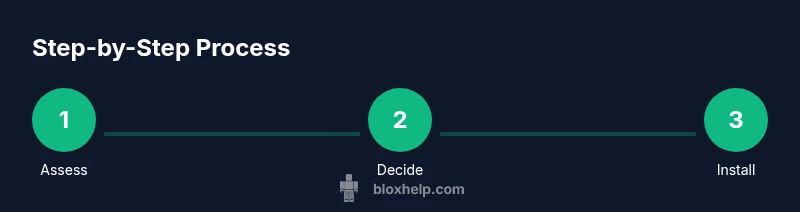
- 1
Assess device readiness
Review your Android version, storage space, and whether the device has Google Mobile Services. This ensures you know the baseline before attempting any installation and helps you decide if you should pursue safer alternatives.
Tip: Back up important data before making changes to your device. - 2
Decide on a safe path
Compare official channels (Play Store or Roblox website when available) with the risks of sideloading. Choose the option that minimizes security risks and aligns with Roblox’s terms.
Tip: If you’re unsure, consult Roblox Support or trusted guides like Blox Help. - 3
Prepare your device for installation
If you proceed with unknown source installation, enable installation from unknown sources in your Android settings temporarily. This step is risky and should only be performed if you understand the consequences.
Tip: Revert the setting after installation to maintain device security. - 4
Locate a verification-worthy source
Only use sources that clearly reveal developer information and provide checksums or certificates. Be aware that even trusted sources can be compromised, so verify through multiple indicators.
Tip: Skip sources that lack clear publisher identity or security details. - 5
Install the APK and verify
Install the APK, then verify its integrity and compare app version with the latest known update. Monitor for unusual behavior and run a security scan.
Tip: Do not grant unnecessary permissions during installation. - 6
Post-install safety checks
Keep your device secure with updated OS, monitor for unusual battery usage, and avoid sharing credentials. Update to official channels as soon as they become available.
Tip: Maintain a routine of checking for official updates from Roblox.
Questions & Answers
Is it legal to download Roblox without the Play Store?
Sideloading Roblox is not officially supported and can violate Roblox’s terms of service if the APK is tampered with. Legality varies by region; proceed with caution and prioritize official channels whenever possible.
Sideloading Roblox isn’t officially supported and may violate Roblox’s terms. Check your region’s rules and prefer official channels.
Will sideloading Roblox void my warranty?
Warranty impact depends on the device manufacturer. Some manufacturers allow sideloading, while others may flag it as a risk. Always check your device’s policy and proceed carefully.
Warranty implications vary by device; verify your manufacturer’s policy before sideloading.
What are the main risks of downloading Roblox without Play Store?
The primary risks are malware, modified APKs, and account security vulnerabilities. You may also miss automatic updates and features provided through official channels.
Risks include malware and account safety concerns; official channels help protect you.
Are there safe alternatives if Play Store isn’t available?
Yes. Use Roblox on a PC via the official website launcher, or on devices that have Play Store access. Check Roblox Support for region-specific options and updates.
Safer alternatives include playing on PC or devices with Play Store access and checking Roblox Support for options.
What should I do if the download fails or the app won’t run?
Verify the source, re-check the APK integrity, and ensure compatibility with your Android version. If issues persist, revert to official channels and seek Roblox Support.
If it fails, verify the source, check integrity, and consider official channels for support.
How can I keep Roblox updated without Play Store?
Updates are typically delivered via official channels. If you sideload, you may miss updates; monitor Roblox Support for any official alternative update process.
Updates may not come automatically; rely on official guidance for updates.
Watch Video
The Essentials
- Understand the risks before sideloading.
- Use official channels whenever possible.
- Verify sources and scan APKs for security.
- Back up data and monitor device behavior after install.
- Check Roblox support for region-specific guidance.