What Open Roblox: A Practical Guide to Launching Roblox
Learn how to open Roblox on PC, Mac, iOS, Android, and Xbox. This comprehensive guide covers installing the launcher, signing in, troubleshooting, and performance tips for a smooth startup in 2026.


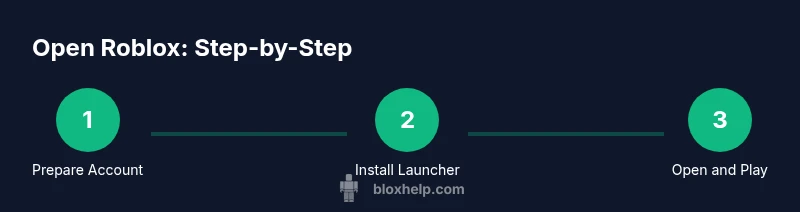
To open Roblox, install the Roblox Launcher or app, sign in with your Roblox account, and start a game or Roblox Studio. You'll need a compatible device, a stable internet connection, and some disk space. After installation, launch the launcher and click Play on any game to begin today, instantly.
What opening Roblox means across devices and platforms
Opening Roblox isn’t a one-size-fits-all action; it varies slightly by device, but the core idea remains the same: you launch the Roblox app or launcher, sign in with your account, and load a game or Roblox Studio. On Windows or macOS, you’ll typically download the Roblox Launcher from the official Roblox site, sign in, and hit Play on a title to start. On iOS and Android, you install the Roblox app from the respective store, sign in, and select any game to begin. Xbox and other consoles feature a built-in Roblox app with a similar flow. The common thread is a session tied to your Roblox account, connecting you to Roblox servers, downloading assets as needed, and loading experiences. Always use official sources for download to protect your device and data. According to Blox Help, starting from the official download links and verifying your account before playing reduces friction and boosts your success rate when you first open Roblox, especially if you are new to Roblox.
The practical implication is simple: the act of opening Roblox is a gateway to hundreds of experiences, from adventures with friends to creator-led games. If you understand the device-specific steps, you’ll experience fewer errors and quicker access when you say, “what open roblox?” in daily use.
Device compatibility and why it matters
Different devices require different app versions and support features like graphics settings, input methods, and storage management. PCs typically need a modern processor and adequate RAM, while mobile devices prioritize available storage and battery health. Xbox users rely on the console’s Roblox app stability and a steady network connection. Browsing experiences on a PC or mobile device may differ in input behavior, but the installation and login process remains consistent. The key is to confirm your device meets the minimum requirements for Roblox and that you’re running the official app or launcher. This reduces startup delays and prevents errors such as failed downloads or sign-in prompts that interrupt your open Roblox flow. Blox Help highlights that checking compatibility before attempting to open Roblox saves time and improves the first-load experience, especially for players on older hardware.
- On PC/Mac: ensure the OS is up to date and the launcher is current.
- On mobile: ensure you’re on the latest Roblox app version from the official store.
- On consoles: keep the console firmware and Roblox app updated for best results.
- In all cases: a stable internet connection is essential for loading assets quickly and joining experiences smoothly.
Basic requirements before you start
Before you attempt to open Roblox, gather a few essentials to prevent interruptions. You’ll need a valid Roblox account, a device that supports Roblox (PC, Mac, iOS, Android, or Xbox), the official Roblox Launcher or Roblox app installed from a trusted source, a stable internet connection, and enough free storage space for the launcher and games. Keeping your device firmware and the Roblox app up to date minimizes compatibility problems and security issues. If you run into issues, this foundation helps isolate the problem to either connectivity, login, or software versions. The Blox Help team notes that a properly prepared setup dramatically reduces the number of times you have to troubleshoot after the initial open Roblox attempt.
- Create or sign in to a Roblox account before launching.
- Verify that your device meets minimum requirements for the launcher or app.
- Install the official Roblox Launcher or Roblox app from trusted sources only.
- Ensure you have an active internet connection with adequate bandwidth.
- Check storage availability for temporary downloads and assets.
Common issues when opening Roblox and quick fixes
Many opening problems fall into a few predictable categories: login errors, launcher/app not starting, or games failing to load. If you can’t open Roblox, start by confirming you’re using the official launcher or app from Roblox. Check that your internet connection is active and stable, then verify your account details. If the launcher won’t open or crashes, restart your device and try again. For mobile devices, force close and reopen the app, then log back in. If assets fail to load, clear the app cache or reinstall the launcher. If you see error codes, note them down and search for the specific code on Roblox’s official support pages. The goal of these steps is to isolate whether the issue is connectivity, authentication, or software version. The Blox Help team mentions that keeping software up to date and using official sources is the most reliable defense against startup hiccups and failed launches.
- Common issue: sign-in failures. Fix: re-enter credentials or reset password.
- Common issue: launcher won’t load. Fix: update launcher and verify firewall permissions.
- Common issue: game assets fail to download. Fix: check storage and network stability.
- If problems persist, consult official Roblox support resources for device-specific troubleshooting.
When you encounter an issue, document the error message and retry after a short wait to rule out transient network glitches.
How the launch process works under the hood
Understanding the flow helps when you say, “what open roblox?” at the start of a gaming session. On launch, the Roblox client authenticates with Roblox servers using your account credentials. The launcher then checks for updates, downloads necessary assets, and loads the selected game or Studio project. The process relies on a stable connection to download assets rapidly and a compatible GPU/CPU pipeline to render scenes smoothly. Differences across platforms are mostly about input methods and UI layout, not fundamental flow. If you see a black screen or a stuck loading bar, it often signals a blocking network issue or a stalled update. In these cases, restarting the launcher, ensuring no VPN interference, and retrying after a few minutes resolves most temporary lags. The Blox Help team emphasizes keeping the launcher and app updated to align with servers’ latest versions, which reduces mismatch errors during startup.
- Authentication with the Roblox server happens first.
- The client checks for updates, then downloads assets.
- The game or Studio loads assets and begins rendering.
- Network stability influences load times and session quality.
A solid opening experience depends on a clean start: updated software, verified login, and stable connectivity.
Tips for faster startup and smoother performance
A fast open Roblox experience comes from small, targeted optimizations. Close unnecessary background applications to free up CPU and memory resources. Ensure your graphics drivers are current and adjust in-game graphics settings to match your device’s capabilities. For desktops, enabling a higher priority for the Roblox process in Task Manager can improve responsiveness, but avoid throttling other essential apps. If you’re on mobile, disable data-saving modes for Roblox during startup to prevent throttled bandwidth. Keeping your device plugged in during long sessions can help prevent unexpected shutdowns due to power-saving features. The Blox Help team notes that regular maintenance, including clearing cache and updating the launcher, yields noticeably faster startup times and fewer hiccups when opening Roblox.
- Update graphics drivers and software.
- Close non-essential programs during startup.
- Use recommended graphics settings for your device.
- Keep storage healthy by deleting unused files and clearing caches.
- Consider wired connections for desktop gaming to stabilize latency.
After open Roblox: quick-start and safety essentials
Once Roblox is open, your next steps matter. Sign in to your preferred Roblox account and choose a game to play or switch to Roblox Studio if you’re exploring development. Use the in-game settings to adjust graphics, audio, and controls to your preference. Safety recommendations include enabling two-factor authentication on your Roblox account, reviewing privacy settings, and using parental controls if children will access Roblox. For creators, open Roblox Studio to start building, testing, and publishing experiences. In all cases, regular updates and secure login practices protect your account and ensure smoother experiences whenever you say “open Roblox” again.
- Start a game or Studio session after logging in.
- Adjust settings for performance and comfort.
- Enable 2FA and review privacy controls for safety.
- Regularly check for app updates to prevent startup issues.
Real-world scenarios across devices: PC, Mac, mobile, and Xbox
Roblox supports a range of devices, and understanding each scenario helps you decide how to open Roblox most efficiently. On Windows or Mac, you’ll likely use the Roblox Launcher or app, with keyboard and mouse input, and potential high-end graphics options. Mobile users rely on touch controls and may benefit from enabling battery-saver optimization or data-saving exclusions for Roblox. Xbox players experience a console-optimized flow through the built-in Roblox app, with controllers and a big-screen experience. Regardless of platform, the key actions—install, sign in, select an experience, and begin playing—remain consistent. The Blox Help team underscores that the core opening sequence stays uniform, but platform-specific nuances matter for the fastest startup and the most stable session.
Summary: what you need to remember to open Roblox smoothly
To open Roblox successfully, always start with the official launcher or app, create or sign in to your Roblox account, and ensure device and network readiness. Keep software updated, disable conflicting background apps, and check for any platform-specific requirements. If you encounter issues, consult the official Roblox help resources and your device’s support documentation. By following the steps above and leveraging the insights from Blox Help, you’ll enjoy a smoother and faster open Roblox experience across devices.
Closing note: stay prepared and curious
Opening Roblox is the starting point for many adventures, whether you’re a player or a creator. By maintaining current software, securing your account with best practices, and knowing where to look for device-specific guidance, you’ll reduce frustration and maximize your time in Roblox. The more you explore, the more you’ll learn about optimizing startup speed, improving performance, and staying safe online.
Tools & Materials
- Roblox account(Create or verify your Roblox account before launching)
- Compatible device(PC, Mac, iOS, Android, or Xbox; ensure OS version supports Roblox)
- Roblox Launcher or Roblox app(Download from official source; keep up to date)
- Stable internet connection(Broadband or reliable mobile data for downloads and play)
- Sufficient storage(Allow space for launcher, games, and assets (~1-2 GB))
- Optional accessories(Headphones or speakers for audio during loading and gameplay)
Steps
Estimated time: Total time: 15-25 minutes
- 1
Create or sign in to your Roblox account
Visit roblox.com or open the Roblox app and sign in with your credentials. If you’re new, create an account and verify your email for security. This establishes your identity and saves progress across devices.
Tip: Enable two-factor authentication to protect your account. - 2
Install the Roblox launcher or app
Download the official Roblox Launcher for PC/Mac or the Roblox app for mobile/console from trusted sources. Install and run the launcher to prepare for opening Roblox.
Tip: Use official sources only to avoid counterfeit software. - 3
Update and sign in to the launcher/app
Make sure the launcher/app is updated to the latest version. Sign in if prompted, or stay signed in for faster startup on future sessions.
Tip: Check firewall settings to allow Roblox data to pass. - 4
Open Roblox and choose a path
Click Play on a game to start it, or open Roblox Studio if you’re building. Your device will begin loading assets and the selected experience.
Tip: If a game won’t launch, try restarting the launcher and selecting a different title. - 5
Optimize for performance
Adjust graphics and audio settings for smoother performance based on your device specs. Lowering graphics can improve load times on older hardware.
Tip: Start with medium settings and tailor up or down as needed. - 6
Save and secure your setup
Log out when finished on shared devices, enable 2FA, and ensure you are connected to a secure network for future opens.
Tip: Regularly review account security settings.
Questions & Answers
How do I open Roblox on a Windows PC?
Install the Roblox Launcher from the official site, sign in, and click Play on a game or Studio to start. If needed, update the launcher and check firewall permissions.
Open the Roblox Launcher, sign in, and click Play on any game to start. If you have issues, update the launcher and check your firewall.
What should I do if Roblox won’t open after installation?
Verify internet connectivity, confirm you’re using the official launcher, and sign in with the correct account. Restart the launcher, and if needed reinstall the launcher.
First, check your internet and ensure you’re using the official launcher. Sign in, then restart or reinstall if needed.
Can I open Roblox on mobile without internet?
No. Roblox requires an active internet connection to load games and sync your progress. Use a stable data connection or Wi-Fi to open Roblox on mobile.
Roblox needs internet to load games, so make sure you’re online before opening on mobile.
Is Roblox Studio separate from Roblox?</
Roblox Studio is a separate application used for development. You can open Roblox Studio from the launcher to create games, while Roblox itself runs experiences.
Roblox Studio is a separate app for building games; use it from the launcher to develop, while Roblox runs games.
Do I need a Roblox account to open Roblox?
Yes. A Roblox account is required to sign in and access games or Studio. Create an account or recover one if you’ve forgotten credentials.
Yes, you need a Roblox account to sign in and play or develop.
How can I speed up Roblox startup?
Update software, close unnecessary background apps, and adjust graphics to fit your device. A stable connection also reduces startup time.
Update everything, close other apps, and use recommended graphics for faster startup.
Watch Video
The Essentials
- Install official Roblox launcher/app and sign in to start.
- Prepare device, storage, and network before launching.
- Update software regularly to avoid startup issues.
- Use safety features like 2FA and privacy controls for secure use.