Where is Roblox installed: A practical guide
Learn where Roblox is installed across Windows, Mac, iOS, Android, and Xbox. This step-by-step guide explains how to locate, verify, and manage Roblox installation paths on each device for troubleshooting and optimization.


Find exactly where Roblox is installed on Windows, macOS, iOS, Android, and Xbox, with clear, platform-specific steps. This guide covers how to locate Roblox's install path, verify its location, and safely manage files. By the end, you’ll know how to confirm the installation directory across devices.
Understanding where Roblox is installed
Roblox is a two-part platform: the Roblox Player (the game client you play) and Roblox Studio (the development tool). The installation location for Roblox files depends on your device and operating system. On desktop systems like Windows and macOS, you typically have direct access to the install folders. On mobile devices (iOS and Android), the operating system sandboxes apps and hides internal folders, so you can’t freely browse the installation directory. Consoles like Xbox manage installations within the system’s game library and don’t expose file paths the way a PC would. Understanding these differences helps you troubleshoot updates, backups, or reinstallation without accidentally modifying important files. Throughout this guide, we’ll use the exact phrase where Roblox is installed to keep the topic clear for both new players and aspiring developers who need to locate assets, verify integrity, or prepare for a reinstall.
Platform overview: Windows, macOS, iOS, Android, Xbox
Different devices store Roblox differently:
- Windows: Roblox files may live under user-specific AppData folders or the Program Files tree, depending on how Roblox was installed (via installer or the Windows Store).
- macOS: The Roblox app appears in the /Applications folder, with internal resources nested inside the app bundle.
- iOS: iPhone and iPad apps live in a sandbox and aren’t browsable via a file manager; you manage installations via the App Store.
- Android: Roblox is installed in the device’s internal storage, commonly under Android/data/com.roblox.client, which is not always accessible without root.
- Xbox: Install location is controlled by the console; you won’t see a traditional file path, but you can manage the game from My games & apps.
Knowing these platform-specific realities helps you plan your next steps, whether you’re troubleshooting a failed update, moving storage, or preparing for a fresh install. Remember that Roblox Studio and Roblox Player may reside in different folders depending on your setup, especially on Windows or Mac.
How to locate Roblox on Windows
Windows users can usually find Roblox in one of several common locations. Start by checking the most likely places and use Windows search to speed things up. The path you see may vary by whether you installed Roblox from the Windows Store or via a standalone installer.
- Step 1: Open File Explorer and use the search box to look for Roblox or RobloxPlayer.exe. If you installed Roblox Studio separately, search for RobloxStudio.exe as well.
- Step 2: Check the user-specific AppData folders. Navigate to C:\Users<YourUserName>\AppData\Local\Roblox or C:\Users<YourUserName>\AppData\Roaming\Roblox. The Versions subfolder often contains the versioned executables used by the launcher.
- Step 3: Look in Program Files. Some installations place Roblox in C:\Program Files\Roblox or C:\Program Files (x86)\Roblox.
- Step 4: If you used the Windows Store, verify in the WindowsApps folder (note that this area is protected; you may need admin access or an elevated command to view contents).
- Step 5: Launch Roblox from the Start menu by typing Roblox and right-clicking to open file location, confirming the directory that hosts the launcher.
Why it matters: knowing the exact location helps with backups, safe edits, or moving data to another drive if you’re running low on space. If you encounter a missing path, reinstalling from the source (Windows Store or official Roblox site) often restores a clean install location. Pro tip: keep a short note of the path you find for quick reference in future troubleshooting.
How to locate Roblox on macOS
On macOS, Roblox presents as a standard application in the /Applications folder. Accessing the internal contents is sometimes needed for advanced troubleshooting, but you should only modify files if you know what you’re doing. Here’s how to locate Roblox on Mac:
- Step 1: Open Finder and navigate to the Applications folder. Look for Roblox.app. If you installed Roblox Studio separately, you might also find Roblox Studio.app.
- Step 2: If you need to inspect inside, right-click Roblox.app and choose Show Package Contents. This reveals the internal structure, including Contents/MacOS/Roblox (the executable) and Resources folders.
- Step 3: For updates or repairs, use the Roblox installer from the official site rather than copying files from another Mac, which can cause inconsistencies.
- Step 4: If Roblox doesn’t appear in Applications, check Launchpad or run a Spotlight search (Cmd + Space, then type Roblox).
Why it matters: macOS path clarity helps with debugging issues related to permissions, updates, or launcher misbehavior. Be cautious when modifying inside the app bundle; changes can break Roblox’s ability to start. Best practice is to reinstall from the official Roblox site when problems arise.
How to locate Roblox on iOS and Android
Mobile devices block direct access to app folders to protect system integrity. You typically don’t browse the installation directory on iOS or Android, but you can verify app presence and manage storage:
- iOS: Open Settings > General > iPhone Storage, then locate Roblox. This shows app size and provides options to offload or delete for freeing space. You can reinstall from the App Store if needed.
- Android: Go to Settings > Apps & notifications > Roblox > Storage to see size and cache. Android stores app data in sandboxed locations; you won’t access the actual install path without special tooling. If space is tight, clearing cache or reinstalling is usually safer than poking inside the folder.
Tip: If you’re troubleshooting a mobile install, the most reliable path is reinstallation from the respective store rather than trying to locate a hidden folder. This ensures you get a clean, up-to-date version of Roblox.
How to locate Roblox on Xbox and other consoles
Xbox and other consoles treat game installations differently from PCs. You won’t browse a traditional file path, but you can verify install status and manage the game through system menus:
- Step 1: Press the Xbox button to open the guide, then navigate to My games & apps.
- Step 2: Find Roblox in your library or ready-to-install list. Highlight the game to see options such as Manage game and add-ons.
- Step 3: In Manage game, you can view install location details if the console exposes them, or you can move the game to another drive if space is limited (when supported).
- Step 4: If Roblox isn’t installed, you can install it from the Microsoft Store on Xbox.
Note: Console installations are abstracted from desktop file systems. When you need to troubleshoot, focus on ensuring the game is installed and up to date via the console’s store and library rather than seeking a file path.
Verification, backups, and safe handling
Regardless of platform, it’s wise to verify the install by launching Roblox after locating it. If you plan to move files or adjust storage, back up the current data and create a system restore point where applicable. Avoid modifying files inside system folders unless you’re following a documented procedure from trusted sources. If you suspect a corrupted installation, reinstalling from the official Roblox site is safer than attempting to repair individual files. Finally, consider freeing space on your primary drive to improve performance, particularly on Windows laptops and Macs with smaller SSDs. Regular checks keep your Roblox setup stable across updates and platform changes.
AUTHORITY SOURCES
- Official Apple Support: https://support.apple.com
- Microsoft Support: https://support.microsoft.com
- How-To Geek: https://www.howtogeek.com
These sources provide platform-specific guidance on locating apps, managing storage, and understanding application install behaviors across Windows, macOS, and mobile operating systems. Refer to them when you need to confirm best practices or when a platform-specific path is updated in an official doc.
Quick checks for all platforms
- Confirm Roblox is installed on the device and is up to date before inspecting paths.
- Use the platform-specific search or app management features to locate the app entry.
- If you still can’t locate Roblox, reinstalling from the official Roblox site (instead of a direct copy from another folder) ensures a clean, correct install location.
AUTHORITY SOURCES
- https://support.apple.com
- https://support.microsoft.com
- https://www.howtogeek.com
Tools & Materials
- Computer or device with Roblox installed(Windows PC, Mac, iOS device, Android device, or Xbox console)
- File Explorer (Windows) / Finder (Mac) / System settings (Mobile)(Used to browse or verify installation status)
- Administrative access (Windows)(Needed to view protected folders in some setups)
- Stable internet connection(For reinstallations, updates, or cross-device checks)
- Notebook or screen recording tool(Helpful to document paths for future reference)
Steps
Estimated time: Estimated total time: 25-40 minutes
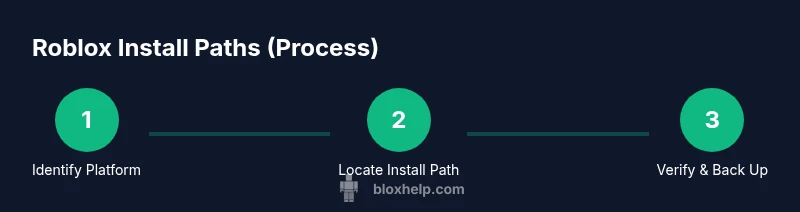
- 1
Identify your platform
Determine whether you’re on Windows, macOS, iOS, Android, or Xbox. This sets the route for locating Roblox and avoids cross-platform confusion.
Tip: Check system settings or About screen to confirm OS and version. - 2
Open the platform’s file or app manager
On Windows, use File Explorer; on Mac, open Finder; on mobile, access Settings > Apps; on Xbox, use My games & apps. This step unlocks access to storage or app entries used to verify installation.
Tip: Use keyboard shortcuts: Windows (Win+S), Mac (Cmd+Space) to quickly search for Roblox. - 3
Locate Roblox on Windows
Search for Roblox or RobloxPlayer.exe, and inspect common folders like AppData\Local\Roblox or Program Files\Roblox. If you installed Roblox from Windows Store, check the WindowsApps folder with appropriate permissions.
Tip: Look for RobloxStudio.exe if you need the development tool. - 4
Locate Roblox on macOS
In Finder, go to Applications and locate Roblox.app. For advanced checks, Right-click Roblox.app > Show Package Contents to view internal folders.
Tip: Avoid modifying inside the app bundle unless guided by official docs. - 5
Inspect iOS and Android installations
On iOS, you cannot browse the install path. Instead, verify via Settings > General > iPhone Storage. On Android, check Settings > Apps > Roblox and Storage to see size and cache.
Tip: If space is tight, offload or reinstall from the store. - 6
Check Xbox installation status
Open My games & apps, locate Roblox, and choose Manage to view install status or move the game to another drive where supported.
Tip: If Roblox isn’t installed, download from the Xbox Store. - 7
Verify installation and backup
Launch Roblox to confirm the executable runs. If issues arise, reinstall from the official source to ensure a clean install path. Back up important data before any moves.
Tip: Always back up user data before relocating files.
Questions & Answers
Where is Roblox installed on Windows 10/11?
On Windows, Roblox files can reside in user AppData folders or the Program Files tree depending on the installation method. Use File Explorer to search for Roblox or RobloxPlayer.exe, and check AppData\Local\Roblox as a common location.
Windows users typically find Roblox in AppData or Program Files folders; search for RobloxPlayer.exe to locate it.
Is Roblox Studio installed in the same folder as Roblox Player?
Roblox Studio may be installed separately from Roblox Player, often in its own folder. Look for Roblox Studio.exe or Roblox Studio within the launcher or Programs directory.
Studio is usually a separate installation; check for Roblox Studio.exe or the Studio folder.
Can I change Roblox's install location on Windows or macOS?
Changing the install location is generally not recommended after initial setup. If needed, uninstall Roblox and reinstall from the official site choosing a new destination when prompted.
You typically can’t change the location after install; best to reinstall and pick a new folder.
Why can’t I find Roblox on my iPhone or Android device?
Mobile devices use sandboxed app storage, which hides exact install paths. You can manage storage or reinstall via the App Store (iOS) or Google Play Store (Android) if needed.
On phones, you won’t see the install path; manage the app via store settings or device storage.
Does Roblox install differently on Apple Silicon Macs?
Roblox on Apple Silicon Macs uses the same basic app bundle in /Applications, but you may run Rosetta or Universal binaries depending on your setup. Reinstall if you encounter performance issues.
Apple Silicon uses the same app bundle; reinstall if problems persist.
What should I do if Roblox won’t install or launches fail?
First, ensure you’re downloading from the official Roblox site or store. Check system requirements, disable conflicting software, and reinstall. If problems persist, consult Roblox support or system forums for platform-specific guidance.
If install fails, reinstall from the official site and check for compatibility issues.
Is it possible to relocate Roblox data to another drive without reinstalling?
Relocating Roblox data without reinstalling can be risky and is not universally supported across platforms. In most cases, a fresh install on the desired drive is safer and maintains integrity.
Relocating data isn’t always supported; a clean reinstall on the target drive is usually best.
How can I verify Roblox is installed and up to date on my console?
For consoles, use the system store to check for updates and the library to ensure Roblox is installed. If updates fail, reinstall from the store or contact support.
Check for updates in the console store and reinstall if needed.
Watch Video
The Essentials
- Identify platform to locate Roblox correctly
- Desktop paths differ by OS; mobile paths are restricted
- Always verify by launching Roblox after locating
- Back up before moving or modifying installation files
- Reinstall from official source if issues arise